
Colour Bar Overview and Setup
Tutorial 20.9: Colour Bar Overview and Setup
Introduction
The Colour Bar is Luminate's tablet-based companion for the colour mixing station. It's a full-screen, dark-themed, glove-friendly interface that sits on an iPad next to your scale and walks stylists through planning a formula, weighing bowls live, and reconciling leftover product after application.
This tutorial is the introduction. It covers what the Colour Bar is, what hardware you need, and how to get the iPad into Colour Bar mode. Day-to-day use and the individual screens have their own tutorials (20.10–20.13).
Who this is for: Owner, Manager, or whoever is setting up the mixing station What you'll learn:
- What the Colour Bar is and when to use it
- Hardware you'll need (iPad, scale, mount)
- How to install the native app and switch it into Colour Bar mode
- How the Colour Bar relates to the main web app
Time to complete: 10 minutes
Prerequisites
- Salon colour formula mode set to Formulas or Full (Tutorial 20.2) — the Colour Bar is hidden on Notes mode
- Services flagged as colour services (Tutorial 7.1) so they appear on the Today list
- Colour products in your catalogue (Tutorial 20.4)
- For Full mode only: Colour grams included set on the service (Tutorial 7.1) and stock counts reconciled (Tutorial 20.5) — required for auto-charge, not for the Colour Bar itself
What is the Colour Bar?
The Colour Bar is a tablet-optimised alternative to the formula dialog covered in Tutorial 20.6. It's the same data — formulas, bowls, grams, actuals — but the UI is tuned for the mixing station itself: big touch targets, live scale readout, barcode scanning per bowl, and a linear Today → Appointment → Edit → Mix → Reweigh path.
You don't have to use the Colour Bar. The main web app's formula dialog works just as well — especially if your stylists are comfortable at a laptop or regular workstation. Use the Colour Bar when you want:
- A dedicated device at the mixing station that doesn't double as a laptop
- Live weighing against a Bluetooth scale (once the BLE driver ships — see Tutorial 20.14)
- A glove-friendly UI that doesn't fight you during a busy colour day
Hardware you'll need
iPad
Any iPad capable of running a recent iPadOS — the app's minimum is iPadOS 15, but we recommend iPadOS 16 or later for ongoing security updates. We've validated the layout against:
- Display: 10" or larger. The interface is laid out for the 820×1180 viewport of an iPad Air in portrait — smaller iPads (mini, 9.7" Air) work but the bowl cards become tight under gloved fingers.
- Storage: any — the app is light, since the salon data lives on the server.
- Case: a protective, wipe-clean case (it's going to live next to a colour station).
- Mount: a swing-arm or weighted stand so it's at eye level.
Scale
A compatible Bluetooth scale. At launch, the validated hardware is the Acaia Pearl 2021 (flat, water-resistant — the right choice for a wet station). Pairing is covered in Tutorial 20.14.
Note: The Pearl 2021 BLE driver is in active development and not yet shipped end-to-end. The Colour Bar currently runs against a mock scale driver so the planning and mixing flows are fully usable for training and dry-runs — genuine live weighing arrives with the driver. See Tutorial 20.14 (DRAFT).
Optional: barcode scanner
A USB or Bluetooth scanner plugged into the iPad — used for auto-adding products to bowls in the Edit screen. The Colour Bar works fine without one (search by name is always available), but a scanner is noticeably faster during busy colour days.
Step-by-Step: Get the iPad on the Colour Bar
Step 1: Install the Luminate native app
- On the iPad, open the App Store
- Search for Luminate
- Install and open the app
Testing pre-release? Luminate is distributed via TestFlight during the rollout period. Your Owner will forward the TestFlight invitation — follow the email's link, install TestFlight if prompted, then install Luminate from within TestFlight.
Step 2: Log in
- Log in with your usual Luminate credentials
- Complete any 2FA challenge as usual
The first time you log in on a native device, the app shows a Welcome back screen with two large cards — this is the mode chooser.
Step 3: Pick Colour Bar mode
The chooser shows two options:
- Colour Bar — "Mounted iPad at the mixing station — appointments, formula history, live weighing. Optimised for gloved fingers." Pick this if the iPad is going to live at the mixing station.
- App — "The full Luminate experience — diary, customers, transactions, reports, settings." Pick this if the iPad is a general staff tablet (reception, back-office, etc.).
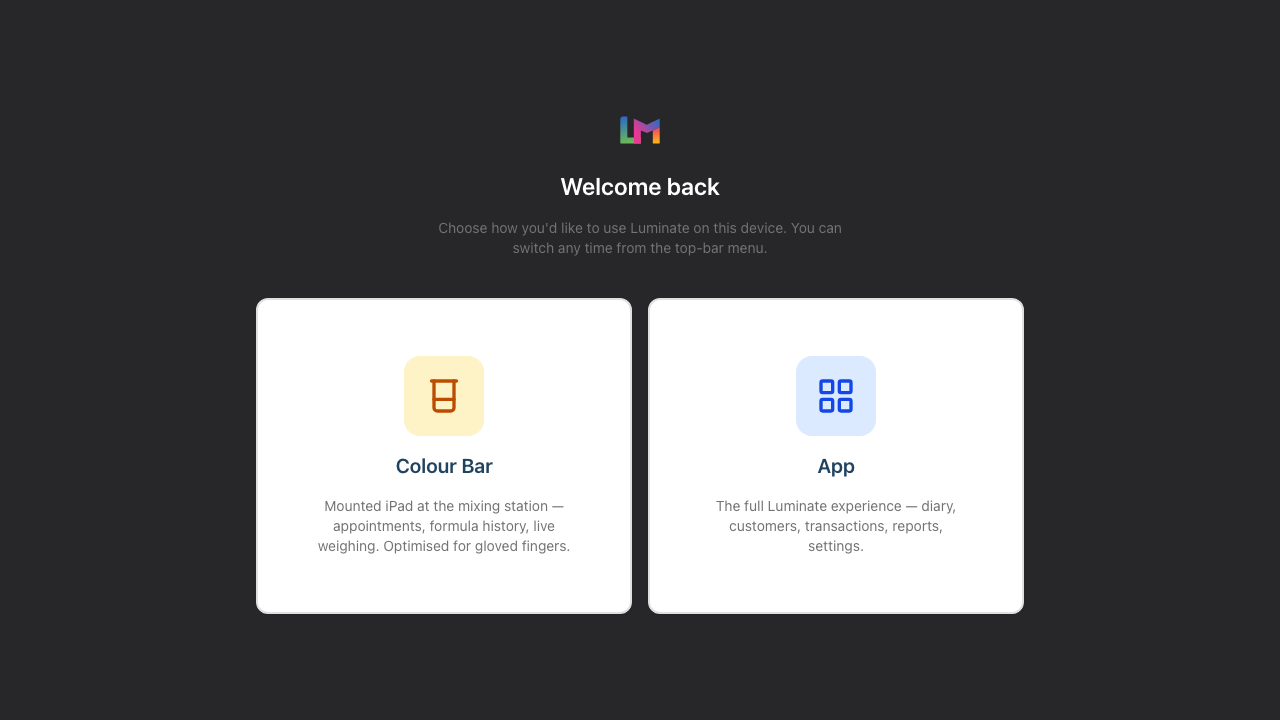
Tap Colour Bar to enter the tablet flow. The choice is saved to the iPad's local storage, so next time someone logs in on this iPad the chooser is skipped — they land on the dashboard, and the Colour Bar is one tap away from the sidebar shortcut (only visible inside the native app).
Step 4: Switch modes later
From the Colour Bar footer (bottom-right), tap Switch mode to return to the chooser screen if you need to use the iPad as a general tablet temporarily. Your choice is per-device — different iPads in the salon can be on different modes, and clearing the iPad's site data (or reinstalling the app) will reset the chooser. The Switch mode button only appears inside the native app; opening the Colour Bar in a desktop browser shows a Back to Luminate link in its place.
Step 5: Sign out when you leave
The Colour Bar inherits your normal login session. If you're leaving the salon and the iPad stays, sign out from the usual profile menu (in App mode) or leave it on Colour Bar if that's the station's permanent role — the session renews as long as someone uses the system.
How it relates to the main web app
The Colour Bar and the main web app read and write the same data. A formula finalised on the Colour Bar appears on the customer profile in the web app. A formula finalised in the web app appears on the Colour Bar if the appointment is on today's list. There's no sync step to think about.
The main difference is workflow:
| Main web app dialog | Colour Bar |
|---|---|
| One modal dialog | Full-screen pages per step |
| Desktop / laptop browser | iPad native app (or iPad browser) |
| Manual weighing | Live weighing against BLE scale (when driver ships) |
| Cart / POS integration on the same screen | POS happens back on the main app |
Use whichever suits the task. Most salons end up with a hybrid — stylists at the station use the Colour Bar, receptionists and managers use the web app.
Common Pitfalls
"The Colour Bar app just shows a dashboard"
The mode is set to App, not Colour Bar. Open the Colour Bar from the sidebar and use the Switch mode button in its footer to return to the chooser.
"I can't find the Colour Bar link in the desktop browser sidebar"
The Colour Bar lives on the mounted tablet, so the sidebar entry only appears in the native app (iPad or Android). On a desktop or laptop browser there is no sidebar link — navigate directly to /salons/{salon-id}/colour-bar if you need to open it from the web.
"The Colour Bar sidebar link in the iPad app returns 403"
Your salon is on Notes mode. Switch to Formulas or Full in Salon settings → Colour (Tutorial 20.2).
"Nothing appears on Today — we booked colour appointments"
Check that your services are flagged as colour services (Tutorial 7.1). The Colour Bar's Today list only shows appointments whose service has is_colour_service = true.
"I'm using a browser instead of the native app"
Web access is by direct URL only — navigate to https://app.luminate.salon/salons/{salon-id}/colour-bar. The sidebar entry only appears inside the native app, so a browser won't show it. You also won't get the Switch mode button (the footer shows a Back to Luminate link instead) and you won't get live BLE scale integration once the driver ships (that requires the native app).
"The sidebar is missing"
The Colour Bar uses its own layout (ColourBarLayout) — no main-app sidebar. The "Back to Luminate" link in the footer returns to the main app.
Tips and Best Practices
- Dedicate an iPad to the Colour Bar — switching modes constantly is annoying.
- Put the iPad on a mount, not flat on the bench — it's easier to glance at between pours.
- Keep the iPad plugged in during service hours — live weighing and barcode scanning drain battery faster than idle use.
- Train stylists on the main web app too — if the iPad ever has an issue, they can still finalise formulas via the web app's dialog.
- Run a quick audit weekly — open the Colour Bar in App mode as an Owner and check the appointments list, stock, and any formulas in
pendingstatus.
Related Tutorials
- Tutorial 20.2: Configuring Colour Settings & Charge Rules — set the salon to Formulas or Full mode
- Tutorial 20.4: Setting Up Colour Products
- Tutorial 20.5: Colour Stock Take
- Tutorial 20.10: Colour Bar: Day-to-Day Use
- Tutorial 20.11: Colour Bar: Planning a Formula
- Tutorial 20.12: Colour Bar: Mixing with the Scale
- Tutorial 20.13: Colour Bar: Reweighing Leftovers
- Tutorial 20.14: Pairing Your Acaia Pearl Scale (DRAFT)
Frequently Asked Questions
Can I use the Colour Bar on an Android tablet?
Yes — the app is available on Android too. The Acaia Pearl BLE driver is being validated on both platforms.
Do I need the Colour Bar if I already use the web app dialog?
No. The Colour Bar is a convenience, not a requirement. Many salons use only the web app dialog with great results.
Does the Colour Bar work offline?
No. It's a live web app wrapped in a native shell — the iPad needs network. If the salon's wi-fi drops, use the web app on a backup device via mobile data.
Where's the POS on the Colour Bar?
The Colour Bar is mixing-focused; POS remains in the main web app. Receptionists take payment from their desk as usual.
Why is the theme dark?
Dark theme reduces glare from the iPad screen at a colour station where you're mixing under strong salon lighting. It's not configurable.
Last Updated: May 2026