
Getting Started with Colour Management
Tutorial 20.1: Getting Started with Colour Management
Introduction
Luminate offers three ways to record colour work, from a simple notes field all the way through to structured formulas with automatic overage billing. This tutorial is the orientation: read it first, decide which mode suits your salon, then follow the rest of Section 20 to configure it.
Who this is for: Owner, Admin What you'll learn:
- The three colour modes: Notes, Formulas, Full
- What turns on in each mode
- The key benefits and trade-offs
- A decision guide for picking the right mode
Time to complete: 5-10 minutes
Prerequisites
- Logged in as Owner or Admin (changing the colour mode lives under Salon Settings → Services → Colour, which both roles can edit)
- Your salon has at least one colour service (or you can add one — see Tutorial 7.1)
The Three Modes
You pick the mode from the Colour Formula Mode card under Salon Settings → Services → Colour:
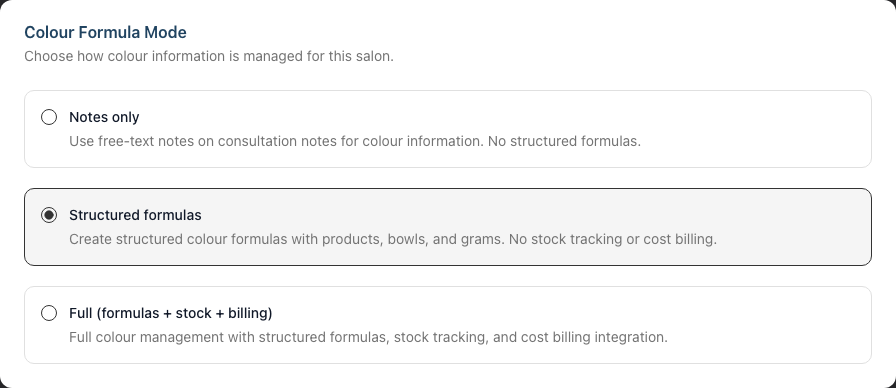
Notes mode (default)
Freeform colour notes on customer profiles. The Colour consultation note type is available, and you type your formulas in natural language:
Root: 6N/6A 40g + 20 vol 60g
Ends: 8A + violet pre-lift, process 35 min
Pros: Zero setup. Works from day one. Matches how many salons already work. Cons: No structure, no reporting, no stock deductions, no billing — you're still trusting each colourist's handwriting and memory.
Pick Notes mode if: you're new to Luminate, colour work is a small part of your services, or you want a light-touch rollout before committing to structured formulas.
Formulas mode
Structured formulas: bowls, product rows, gram targets and actuals. Formulas are tied to customers (and optionally to appointments) so the next colourist can reproduce the recipe exactly.
- Customer profile gains a Colour Formulas tab
- Appointment detail page and calendar sidebar show any formulas for the booking
- The Products page gains a Colour tab for gram-tracked products
- Services gain a This is a colour service toggle
- The Colour Bar tablet flow becomes available for weighing and mixing
- No automatic overage billing
Pros: Predictable, searchable, gram-accurate. Great foundation before flipping Full mode on. Cons: Stock on hand and overage billing stay manual.
Pick Formulas mode if: you want consistency across colourists and a proper colour history per customer, but you're not yet ready to wire up overage billing.
Full mode
Everything in Formulas mode, plus:
- Gram-level stock tracking. Every finalised formula decrements stock from your colour catalogue. An append-only stock movement log records every change.
- Automatic overage billing. When a formula uses more grams than the service's Colour grams included threshold, a Colour overage line item is staged automatically on the appointment's transaction, priced by your salon's Colour Charge Rules.
- Colour Charge Rules tab appears inside salon settings (directly below the mode selector) for pricing overage.
Pros: Full visibility on colour cost, protects your margins, reduces under-charging. Cons: Needs a stock take to bootstrap, needs services to have Colour grams included set, and needs at least one charge rule defined.
Pick Full mode if: colour is material to your revenue and you want the system to bill overage without stylists thinking about it.
Feature matrix
| Capability | Notes | Formulas | Full |
|---|---|---|---|
| Freeform Colour consultation note | Yes | Yes (but redundant) | Yes (but redundant) |
| Structured formulas (bowls, grams) | No | Yes | Yes |
Colour Formulas tab on customer profile |
No | Yes | Yes |
Colour tab on the Products page |
No | Yes | Yes |
This is a colour service toggle on services |
No | Yes | Yes |
| Colour Bar tablet flow (weigh & mix) | No | Yes | Yes |
| Gram-level stock tracking | No | No | Yes |
| Colour Charge Rules settings tab | No | No | Yes |
| Automatic overage billing | No | No | Yes |
A short decision guide
Answer these three questions to pick your starting mode:
Do your colourists already record formulas in writing today?
- If no → start with Notes
- If yes → go to question 2
Do you want to charge customers when they go over a standard included amount?
- If no → start with Formulas
- If yes → go to question 3
Do you have time to run a stock take and set up charge rules this week?
- If yes → start with Full
- If no → start with Formulas, plan to switch to Full once the stock take is done
Switching between modes is non-destructive — existing Colour notes and formulas stay in place.
What to do next
- Decide on a mode using the decision guide above
- Follow Tutorial 20.2 to configure the mode and (if Full) set up charge rules
- For Formulas / Full mode, walk through these in order:
- 20.3 Brands
- 20.4 Colour Products
- 20.5 Colour Stock Take
- Train your stylists using Tutorial 20.6 (the formula dialog) and — if you want to use an iPad at the mixing station — Tutorial 20.9 onwards (Colour Bar tablet flow, available in both Formulas and Full mode)
Common Pitfalls
"We switched to Full mode but nothing's billing"
Check three things: (1) your colour services have Colour grams included set (Tutorial 7.1), (2) you've created at least one charge rule and marked one as Default (Tutorial 20.2), (3) the formula has been finalised — drafts and plans don't trigger billing.
"We need to go back to Notes mode — will it delete our formulas?"
No. Switching modes is non-destructive. Historical formulas stay, but the formula UI will no longer be visible. If you switch back to Formulas or Full later, everything reappears.
"Some stylists are still using Colour notes"
Once the salon is in Formulas or Full mode, recommend they use structured formulas (Tutorial 20.6) for colour work. General consultation notes (allergies, concerns, preferences) still belong in the consultation notes area — Colour notes are simply redundant in Formulas/Full mode.
Tips and Best Practices
- Start conservative — Formulas mode first gives you structure without the billing overhead. Flip to Full when the team is confident.
- Pilot Full mode on a subset of services — set Colour grams included only on your highest-margin colour services initially; leave simpler ones blank so they don't produce overage lines yet.
- Book a stock-take afternoon before going Full — overage calculations are only as honest as your gram balances.
- Brief your front-desk team — make sure receptionists recognise the emerald Colour overage line in POS so they don't delete it by accident (Tutorial 2.4).
Related Tutorials
- Tutorial 3.7: Recording and Managing Notes — for the freeform Colour note type in Notes mode
- Tutorial 7.1: Creating and Managing Your Service Menu — set the colour service flag
- Tutorial 7.2: Product Catalog and Inventory Management — the new Colour tab for gram-tracked products
- Tutorial 20.2: Configuring Colour Settings & Charge Rules — the actual settings screen
- Tutorial 20.8: Overage Billing Explained — how charges flow through to POS
Frequently Asked Questions
Can I switch modes more than once?
Yes. Switching is non-destructive. You can start on Formulas, try Full, switch back if it's not right, then move to Full again later. Historical data is preserved each time.
Do I need the Colour Bar tablet to use Full mode?
No. Full mode's overage billing works from the main web app too — the formula dialog on an appointment finalises the same way. The Colour Bar is an optional tablet-first interface for the mixing station, and it's available in both Formulas and Full mode.
Who can change the colour mode?
Owners and Admins — the mode lives under salon settings, which both roles can edit. See Tutorial 1.3 for the full role matrix.
Does changing modes affect customers' booking experience?
No. Modes only affect how your team records and bills colour work internally. Customers see the same booking portal either way.
Last Updated: June 2026