
Colour Stock Take
Tutorial 20.5: Colour Stock Take
Introduction
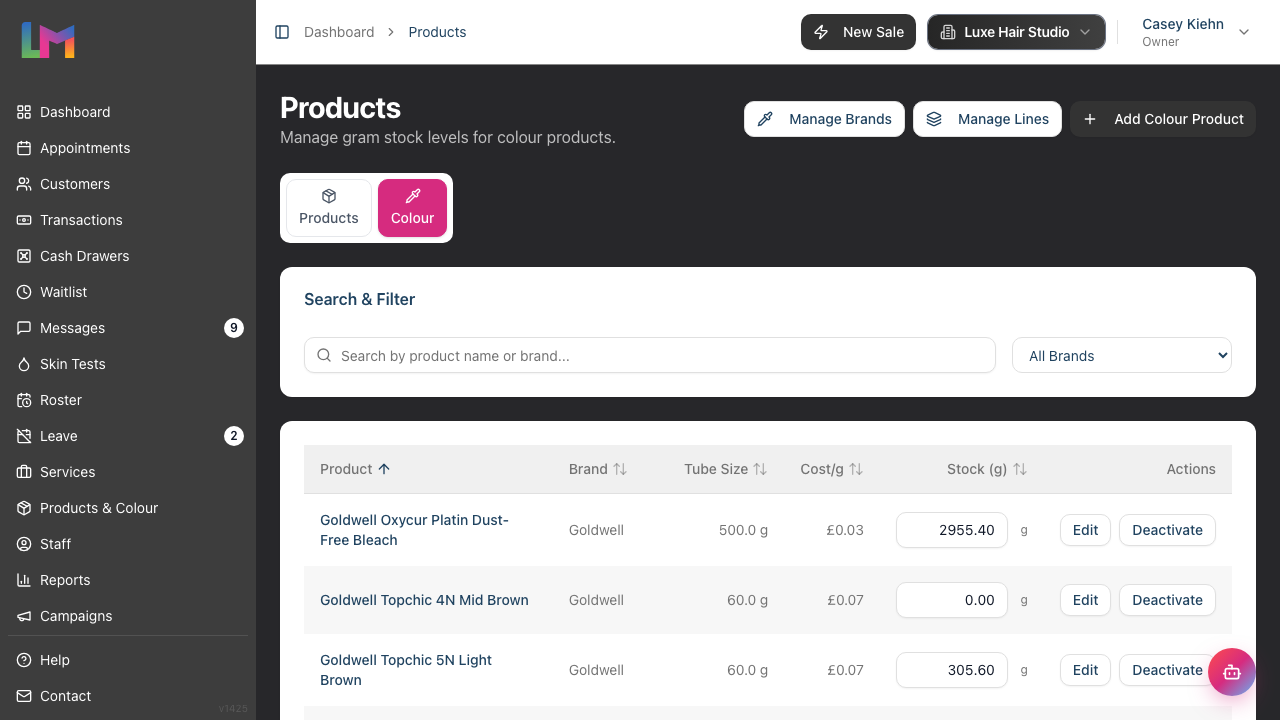
A colour stock take is a physical count of gram balances across your colour catalogue. In Luminate, the stock take happens on the Products > Colour tab: every row has an inline gram field you can edit, and every change writes a row to an append-only audit trail behind the scenes so nothing is ever lost.
There isn't a separate "stock take page" — the Colour tab is the stock take page. Whether you're doing a full quarterly count or a one-off "I just opened a new tube" adjustment, it's the same control.
Who this is for: Owner, Admin, Manager, Receptionist (these four roles can adjust colour stock). Staff can open the Colour tab and read the gram balances, but cannot save changes. What you'll learn:
- Use the Colour tab for a full physical count
- Inline-edit stock for quick touch-ups
- Understand how the audit trail records your adjustments
- Reconcile discrepancies (waste, theft, receiving errors)
Time to complete: 15-20 minutes (plus your physical count time)
Prerequisites
- Salon colour formula mode set to Formulas or Full (Tutorial 20.2)
- Colour products already in your catalogue (Tutorial 20.4)
- Scales set up and accurate (a kitchen scale accurate to 1 g is ideal for part-used tubes)
- About an hour set aside for a full count
Step-by-Step Instructions
Step 1: Open the Colour tab
- Go to Products in the left navigation
- Click the Colour tab at the top of the page (the tab only appears when colour mode is Formulas or Full)
- You'll see every gram-tracked colour product with its current Stock (g) value
Step 2: Narrow down the list (optional)
- Search by product name or brand using the search box
- Filter by brand using the brand dropdown — recommended for a full count so you can work through one brand at a time
- Sort by Product, Brand, Tube Size, Cost/g, or Stock (g) using the column headers

Counting by brand (rather than alphabetically across brands) means you pick up and put down the same shelf fewer times.
Step 3: Work through the count
- Weigh each container (subtract the known empty weight if your scale doesn't tare)
- Click the Stock (g) cell for that row — the input gets focus
- Type the actual gram value
- Press Enter (or click/tab away) to save, or press Esc to cancel and revert to the previous value
- A brief saving spinner appears in the field, then a green tick for a couple of seconds to confirm the save
Each cell saves independently. There's no "save the whole stock take" button — every row is committed the moment you press Enter or move focus away. If a value fails to save (for example you typed a negative number, or you don't have permission), an error message appears and the field reverts.
Step 4: Adding a new product mid-count
If you pick up a tube that isn't in the system:
- Click Add Colour Product (or use the empty-state button if the list is empty)
- Fill in the product name, tube weight, cost price and the weight you just measured as the initial stock — these are required. Brand, role, barcode and SKU are optional (role defaults to Colour)
- Save — the system records an opening balance movement for the initial stock
See Tutorial 20.4 for the full product setup workflow.
Step 5: Reconcile discrepancies
When your count disagrees with the system balance, the direction tells you what probably happened:
- Physical count < system balance — something left the shelf unrecorded. Enter the physical count; the system records an adjustment. Root cause is usually waste not recorded, an opening balance set too high, or usage logged under the wrong product.
- Physical count > system balance — the system thinks you used more than you did. Common cause: formulas finalised with inflated actuals. Enter the correct count and move on.
For repeat discrepancies on the same product, consider:
- Is the scale accurate?
- Is the container's empty (tare) weight recorded correctly in the tube weight field?
- Are stylists finalising formulas with target weights instead of actual weights?
How the audit trail works
Every adjustment — whether from a stock take, a formula finalising, or a new product's opening balance — writes a row to the internal product stock movements log. Each row records:
- Reason — one of: opening balance, delivery, usage (formula finalise), adjustment (stock take), waste, sale
- Quantity (grams) — positive for added, negative for removed
- Balance after — the running total immediately after the movement
- Source — the formula item or stock-take action that triggered it
- Staff member and timestamp
The log is append-only — corrections are new rows, never edits on old rows. This is deliberate: it's your audit trail. If you enter a wrong value, you don't "edit" it; you enter the correct value and a new adjustment row is written alongside the old one.
Note: The raw movement log isn't shown row-by-row in the app, but it isn't a black box either — it already feeds the Colour Stock report (Reports > Colour > Stock), which shows live gram balances, stock value, usage velocity, days-to-stockout and a reorder worklist. That report is available to Owner, Admin and Manager (and can be exported to CSV/PDF by Owner and Admin). Richer waste and profitability reporting built on the same log is planned. For day-to-day stock taking you only need the current gram balance on the Colour tab.
Common Pitfalls
"My Colour tab is empty"
Either your salon is in Notes mode (Tutorial 20.2 to change) or you haven't added any gram-tracked colour products yet (Tutorial 20.4).
"The Colour tab isn't showing at all"
Colour mode is set to Notes. An Owner needs to switch it to Formulas or Full at Salon Settings > Colour (Tutorial 20.2).
"I entered a wrong value — how do I correct it?"
Click the cell again and enter the right value. The system writes a new adjustment row; the previous row stays in the audit trail for transparency. There's no "edit this row" by design.
"Stock on hand went below zero"
It can't. Luminate clamps gram balances to zero when a formula finalises with more actuals than there is stock. The formula still finalises and usage is still logged, but the balance won't go negative. Behind the scenes the log splits the movement honestly: the grams that were actually on hand are recorded against usage, and the leftover shortfall is recorded as a separate waste row so the running balance and the audit trail stay truthful. If you see a product sitting at 0 g when you know the shelf isn't empty, raise the count to the real figure and investigate whether actual weights are being entered correctly at the bowl.
"Which staff member did this count?"
Whoever is logged in at the time. For formal stock takes, consider rotating counts between Manager and Admin so there's always a second pair of eyes on the numbers.
"I can edit colour stock as a Receptionist, but a Stylist can't"
That's correct. Stock take is gated on the same "manage products" permission as the rest of the catalogue, so Owner, Admin, Manager and Receptionist can all adjust colour stock. Staff (stylists) can open the Colour tab and read the balances, but the Stock (g) field won't save for them — an error appears and the value reverts. If a stylist spots a low tube, have them flag it at the desk rather than trying to adjust it themselves.
Tips and Best Practices
- Filter by brand — chunking the count into brand-sized batches is easier to keep track of than going alphabetically.
- Weigh part-used tubes on a digital kitchen scale — accuracy to 1 g is plenty.
- Schedule a quarterly full count — pairs neatly with quarterly financial reviews.
- Don't count during a colour day — formulas finalising during the count will shift balances under you. A closed-Monday or Friday evening is ideal.
- Reconcile big discrepancies before moving on — if a product is 200 g off, dig into it before finishing the count; patterns are easier to spot fresh.
- Cross-check costs at stock take time — the Cost/g column is derived from cost price ÷ tube weight. If a supplier's price has changed, update it via Edit on the row so overage billing stays accurate.
Related Tutorials
- Tutorial 7.2: Product Catalog and Inventory Management — regular (unit-based) stock adjustments for retail and back-bar items
- Tutorial 20.2: Salon Colour Mode Settings — enable Formulas or Full mode
- Tutorial 20.4: Setting Up Colour Products — add a colour product before you can count it
- Tutorial 20.6: Creating a Colour Formula — finalising a formula is what produces
usageadjustments in the audit trail - Tutorial 20.7: Mixing Colour at Appointments — how usage flows from the stylist's station
- Tutorial 20.8: Overage Billing Explained — overage accuracy depends on correct gram balances
Frequently Asked Questions
How often should I do a stock take?
At minimum quarterly. Many salons do a light monthly count on high-value products (bleach, expensive toners) and a full count every three months.
Can two people count at the same time?
Yes — each row saves independently, and the Colour tab is safe for multiple concurrent editors. Agree in advance who counts which brands so you don't write over each other on the same product.
Does a stock take slow down appointments?
No — the Colour tab is independent of the appointment workflow. Stylists can continue finalising formulas during the count, but any finalisation during the count will shift that product's balance under you, so it's worth scheduling a full count for a quieter time.
Can I export the count for offline reconciliation?
Yes — though not from the Colour tab itself. The Colour Stock report (Reports > Colour > Stock) lists current gram balances, stock value, usage velocity and days-to-stockout, and can be exported to CSV or PDF (export is available to Owner and Admin). Print that before a physical count and tick the shelf against the system's figures. The Colour tab itself is designed for in-salon entry, not export.
Is the stock movement log ever going to be visible in the app?
The audit trail is captured for every gram-level change. It isn't shown as a per-row history yet, but it already powers the Colour Stock report (live balances, velocity and reorder worklist), and the waste and profitability reports planned for a future release build on the same data.
Can Staff or Receptionists at least view colour stock without editing?
Receptionists can do the full stock take — view and edit. Staff (stylists) can open the Colour tab and read the balances, but can't save changes to the Stock (g) field. Stylists also see colour products inside the formula workflow.
Last Updated: April 2026