
Setting Up Colour Products
Tutorial 20.4: Setting Up Colour Products
Introduction
Colour products live on a dedicated Colour tab of the Products page. Unlike regular retail products — counted by unit — colour products are tracked in grams so formulas can deduct exact amounts, calculate cost per gram, and bill overage accurately.
Who this is for: Owner, Admin, Manager, or Receptionist with the manage-products permission
What you'll learn:
- Open the Colour tab
- Add a colour product with role, tube weight and initial stock
- Understand cost-per-gram calculation
- Edit or deactivate existing colour products
Time to complete: 10-15 minutes
Prerequisites
- Salon colour formula mode set to Formulas or Full (Tutorial 20.2) — the Colour tab is only visible in these modes
- Brands configured (Tutorial 20.3) — you can also create brands inline from the Add dialog
- Logged in with
manage-productspermission
Step-by-Step Instructions
Step 1: Open the Colour tab
- Click Products in the sidebar
- Click the Colour tab at the top of the page (icon: a pipette)
If you don't see the Colour tab, your salon is in Notes mode. Switch to Formulas or Full via Settings > Colour (Tutorial 20.2).
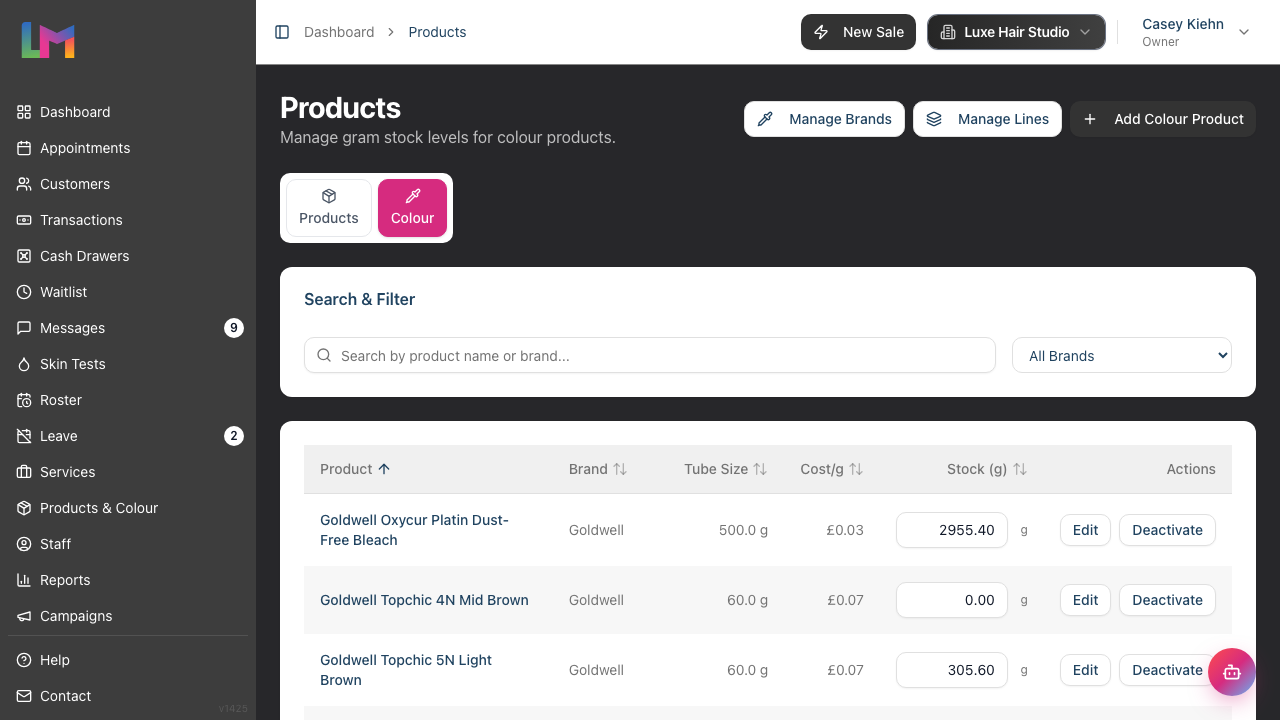
Step 2: Add a colour product
Click Add Colour Product in the top-right
Fill in the dialog:
Field Required Notes Product name Yes Full product name — e.g. "Wella Koleston 6/0" Brand No Pick an existing brand, or type a new name and click the Create: {name} option at the foot of the list to add it inline (inline-created brands are saved as a Colour brand) Role No What the product is in a mix: Colour (the default), Developer, Lightener or Additive. Choose Developer for peroxide / oxidant bottles so they're handled as the per-bowl developer line Barcode No Scan with a connected USB scanner or type manually. Used by the Colour Bar's per-bowl scanning SKU No Useful if you already track internal codes Tube weight (g) Yes The full container weight — 60for a 60g tube,1000for a 1-litre developer bottleCost price Yes What you pay for one full container Initial stock (g) Yes Current grams on hand right now. Enter 0if the container is empty, or the full tube weight if it's unopened. There's no auto-fill — you must enter a valueClick Add Product — the product is created and appears on the Colour tab
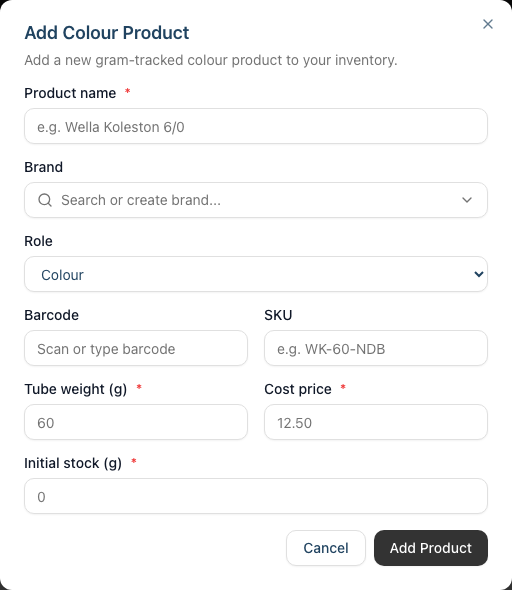
Step 3: Understand cost per gram
Cost per gram is calculated automatically and shown in the Cost/g column on the Colour tab:
Cost per gram = Cost price ÷ Tube weight (g)
Examples:
- 60g tube at £6.00 → £0.100 / gram
- 1000ml developer at £12.00 → £0.012 / gram
Cost per gram feeds your overage charge calculation in Full mode (Tutorial 20.2).
Step 4: Edit a colour product
- Click Edit on any colour product row
- Change name, brand, role, barcode, SKU, tube weight, or cost price
- Click Save Changes
Changing tube weight or cost price updates cost per gram going forward. Editing a product does not change its stock on hand — adjust that via the inline Stock (g) field on the row or a full stock take (Tutorial 20.5). Existing finalised formulas keep the values they snapshotted at finalisation, so historical charges are not retroactively recalculated.
Step 5: Deactivate a colour product
Click Deactivate on any row and confirm. Deactivation does two things:
- Zeroes the product's gram stock on hand
- Hides the product from new formulas and the Colour Bar's product picker
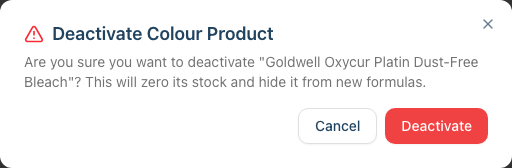
Historic formulas that used the deactivated product still display correctly. There's no hard delete for colour products — Deactivate is the only removal.
The Colour tab lists active products only, so a deactivated product drops off it and there's no reactivate button there. To bring one back, open the Products tab, set the status filter to Inactive Only, find the product and click Activate — then run a stock take (Tutorial 20.5) to set its real gram balance. If that feels fiddly, it's often simpler to just add the product again on the Colour tab.
What makes this different from regular products?
| Behaviour | Regular products | Colour products |
|---|---|---|
| Tracked by | Unit | Grams |
| Stock changes | Through transactions, stock adjustments | Through formula finalise, stock take, stock adjustments |
| Appears in POS | Yes | No (colour products aren't sold over the counter as units) |
| Appears in Colour Bar | No | Yes |
| Has cost per gram | No | Yes (computed) |
| Audit log | Stock adjustments | Append-only stock movement log (see Tutorial 20.5) |
Regular products and colour products are separate catalogues — a 250ml shampoo for retail sale belongs on the Products tab, and a 60g colour tube used at the station belongs on the Colour tab. Don't mix them.
Common Pitfalls
"The Add Colour Product dialog isn't showing a brand I just created"
Inline-created brands default to the type matching the form you were on. If you created the brand from the Products tab (regular) and it defaulted to type Product, switch it to Colour or Both via the Brands page (Tutorial 20.3).
"The tube weight doesn't match the label on the container"
Some colour tubes are labelled in ml. Use the product's gram weight from the safety data sheet or the manufacturer's site — ml is volume, not weight, and the numbers don't always match.
"My cost per gram looks wrong"
Check (1) cost price is the cost for one full container, not per gram, and (2) tube weight is in grams, not ml. The formula is simple division, so a wrong input gives a wrong output.
"Initial stock is higher than what I actually have"
Enter the actual grams currently in the container, not the tube weight. If you're not sure, enter your best estimate and then reconcile via a stock take (Tutorial 20.5) — or adjust the stock inline on the Colour tab.
Tips and Best Practices
- Add products in brand batches — saves flipping back to the Brands page repeatedly.
- Scan the barcode once, now — a correct barcode makes the Colour Bar's per-bowl scanning painless later.
- Keep names predictable — "Koleston Perfect 6/0 60g" is better than "6/0" because search on the Colour Bar picker matches fragments.
- Don't create duplicates across Products and Colour tabs — e.g. a retail shampoo does not also belong on the Colour tab.
- Deactivate discontinued products — there's no hard delete for colour products, and deactivating preserves the formula history that used them.
Related Tutorials
- Tutorial 7.2: Product Catalog and Inventory Management — the regular Products tab
- Tutorial 20.3: Brands and Your Colour Catalogue — create brands before adding products
- Tutorial 20.5: Colour Stock Take — reconcile gram balances after you've added products
- Tutorial 20.6: Creating a Colour Formula — how products are picked during formula creation
Frequently Asked Questions
Why is there no "tracking unit" field?
Regular products track by unit; colour products track by grams. That's determined by which tab you add the product on — you don't need to set it manually.
What is the Role field for?
Role tells the system what part a product plays in a mix. Colour is the default for tubes and creams. Set Developer for peroxide/oxidant bottles so they're handled as the per-bowl developer line (with a ratio rather than a shade). Lightener and Additive cover bleaches, powders and bond builders. Role only affects how the product behaves in formulas — every role is still gram-tracked and gets a cost per gram.
The container is labelled in millilitres — what do I enter for tube weight?
Use the gram figure from the product's safety data sheet or the manufacturer's site. Colour creams and developers have different densities, so ml doesn't convert cleanly to grams. If you only have an ml figure, ask the brand for the net weight before adding the product.
Can I convert a regular product to a colour product?
Not in-app. The cleanest approach is to deactivate the regular entry and re-add the product via the Colour tab. Because the two tabs map to different stock models, there's no safe in-place conversion.
Do colour products appear in POS?
No. Colour products are consumed via formula finalisation, not over-the-counter sales. If you occasionally retail a colour product, add it separately as a regular product.
What happens to my stock on hand if I edit tube weight?
Stock on hand stays the same (in grams) but cost per gram recalculates based on the new tube weight. Future charges use the new cost; historical formulas keep the original snapshot.
Last Updated: April 2026