
Pairing Your Acaia Pearl Scale
Tutorial 20.14: Pairing Your Acaia Pearl Scale
Introduction
The Colour Bar's live weighing depends on a Bluetooth scale. Luminate's validated hardware is the Acaia Pearl 2021 (flat, water-resistant). This tutorial walks through pairing the scale to your iPad, verifying the connection from the header, and handling drop-outs and hand-overs between devices.
Pairing happens entirely inside the Colour Bar — there's no separate Settings screen and nothing to set up in the iPad's own Bluetooth settings beyond keeping Bluetooth switched on. Luminate scans for the scale, you tap it once, and it's remembered for next time.
Native app only. Live scale pairing runs over Bluetooth, so it's available in the Luminate iPad/Android app (the Colour Bar). In a desktop browser the Colour Bar runs against a simulated scale for training, with no real Bluetooth.
Who this is for: Owner, Manager, or whoever is setting up the mixing station What you'll learn:
- The Bluetooth permission you'll grant the first time
- How to get the Acaia Pearl ready to pair
- The in-app discovery and pair flow in the Colour Bar
- Verifying the scale is connected from the header
- Re-pairing after a drop-out (and why it usually reconnects itself)
- Moving one scale between two iPads
Time to complete: 5 minutes first time, seconds thereafter
Prerequisites
- The Luminate app installed on the iPad, with Colour Bar mode selected (Tutorial 20.9)
- An Acaia Pearl 2021, charged and switched on
- iPad Bluetooth enabled
Step-by-Step Instructions
Step 1: Grant the Bluetooth permission
The first time the Colour Bar scans for a scale, iPadOS shows a system Bluetooth permission prompt explaining why:
"Luminate connects to your colour-bar scale to record accurate gram weights while mixing colour."
Tap Allow. Luminate can't see any scales until this is granted.
If you tapped Don't Allow by mistake, re-enable it from Settings → Luminate → Bluetooth on the iPad, then return to the app. (On Android the equivalent prompt asks for Nearby devices; older Android versions also ask for Location, which is only used for the Bluetooth scan.)
Step 2: Get the scale ready
The Acaia Pearl doesn't have a separate "pairing mode" — it announces itself over Bluetooth whenever it's switched on and not already connected to another device. So all you need to do is:
- Switch the scale on and make sure it's awake (tap the platter if it has dimmed off).
- Keep it within about 3 metres of the iPad.
- Make sure it isn't already connected to another iPad — a scale that's busy talking to one device won't appear on a second. (See Step 6 for handing it over cleanly.)
Step 3: Discover and pair from the Colour Bar
In the Colour Bar header, look at the top-right corner. When no scale is connected you'll see a Pair scale button:
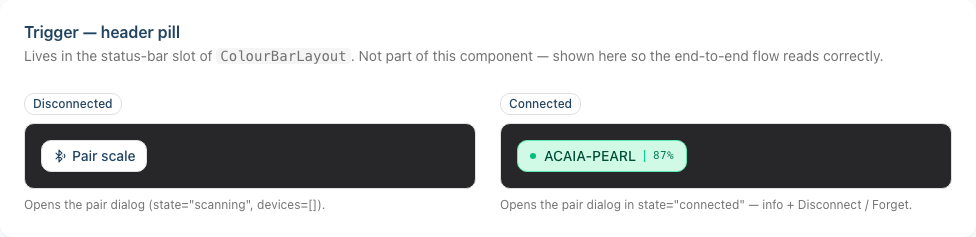
Tap Pair scale. The pairing dialog opens and starts scanning — "Looking for scales nearby…".
As scales are found, each appears as a row showing its name (e.g.
ACAIA-PEARL-47X), a signal-strength reading, and a Tap to pair label: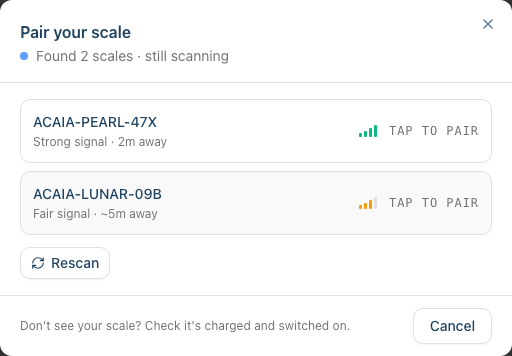
Tap your scale's row. The dialog shows Connecting… / Handshaking… while it establishes the link.
On success the dialog flips to Scale connected — showing the scale's battery, signal strength, and a live last reading — then closes itself.
If nothing shows up after about ten seconds you'll see a No scales nearby screen with a Scan again button — work through Step 5 and Tutorial 20.15.
Step 4: Verify the connection
Once paired, the header's Pair scale button is replaced by a green connected pill showing the scale's name and its battery percentage:
- A green dot plus the scale name (e.g.
ACAIA-PEARL) - The current battery level (e.g.
87%)
Tap the pill at any time to reopen the connection details — battery, signal, the live last reading, and the Disconnect / Forget scale actions:
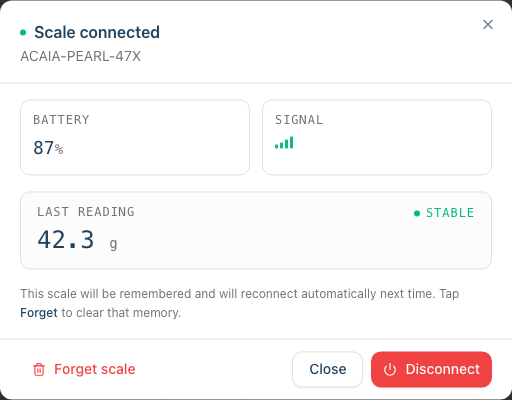
If the header still shows Pair scale, the scale isn't connected — repeat Step 3, then see Tutorial 20.15.
Step 5: Re-pair if the connection drops
You usually don't have to do anything. Luminate remembers the last scale you paired and reconnects to it automatically — when you reopen the app, and quietly in the background if the scale powers off then on again, or briefly goes out of range. There's no four-hour window or manual re-pair for ordinary drop-outs; it just waits for the scale to come back and reconnects.
Common causes of a drop-out: the scale went to sleep, the iPad slept, the scale moved out of range, or the battery ran low.
If you ever want to force a fresh connection:
- Tap the green pill in the header to open the connection dialog.
- Tap Disconnect. This ends the current session but keeps the scale remembered, so it'll reconnect next time.
- Tap Pair scale to scan and reconnect immediately.
If a connection attempt fails, the dialog shows a Couldn't connect message and the scale's row changes to a Retry label — tap it to try again:
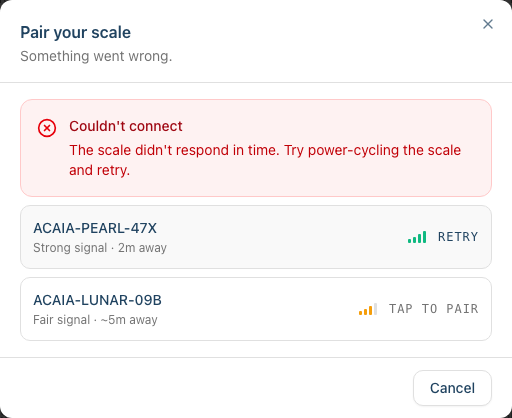
Step 6: Move one scale between two iPads
The Acaia Pearl connects to one device at a time. To move a scale that's paired to one iPad over to another:
- On the current iPad, tap the green connected pill to open the dialog.
- Tap Forget scale. This disconnects the scale and clears it from that iPad's memory, so it won't silently grab it back via auto-reconnect.
- On the other iPad, tap Pair scale — the freed scale now appears in the scan, ready to pair.
The difference that matters: Disconnect keeps the scale remembered (and will auto-reconnect), while Forget scale clears the memory so another iPad can take over.
Troubleshooting
Refer to Tutorial 20.15 (Troubleshooting the Colour Bar & Scale) for connection issues, battery warnings, weights that won't update, and related edge cases.
Related Tutorials
- Tutorial 20.9: Colour Bar Overview and Setup
- Tutorial 20.10: Colour Bar: Day-to-Day Use — the connected-scale pill in context
- Tutorial 20.12: Colour Bar: Mixing with the Scale — where live weighing actually happens
- Tutorial 20.15: Troubleshooting the Colour Bar & Scale
Frequently Asked Questions
Do I need to pair the scale every morning?
No. Luminate remembers the last scale you paired and reconnects automatically when you open the app and when the scale comes back into range. You only pair manually the first time, or after tapping Forget scale.
Does the Acaia Pearl need to be charged before first use?
Yes — charge it to full before pairing. A low battery can cause connection attempts to fail in ways that look like a software problem.
How do I know which Acaia model I have?
Luminate is validated against the Acaia Pearl 2021 (the flat, water-resistant design). If you're unsure, check the model number on the base of the scale. Other models aren't validated — raise it with support before relying on one.
Can I use a non-Acaia scale?
No. The Bluetooth driver speaks the Acaia Pearl's specific protocol, so other scales won't be discovered or paired. If you need a different scale, contact support so it can be considered for a future driver.
The scale won't show up in the scan — what now?
Most often it's already connected to another iPad. Check Step 6 to hand it over, confirm the scale is switched on, awake, charged, and within about 3 metres, then tap Scan again. If it still won't appear, see Tutorial 20.15.
Does pairing work offline?
The Bluetooth link between the iPad and the scale is local, so pairing itself doesn't need the internet. The wider Colour Bar workflow around it — loading appointments and saving mix records — does need a live connection to Luminate.
Last Updated: June 2026 — covers the shipped in-app Bluetooth pairing flow (Acaia Pearl 2021). For support, contact hello@luminate.salon.