
Colour Bar: Weighing Leftovers
Tutorial 20.13: Colour Bar: Weighing Leftovers
Introduction
After the colour is on the client, there's often product left over in each bowl. Weighing leftovers gives you a true "grams used" number — which means more honest overage calculations and better margin reports. The leftover you weigh out is recorded as waste (it goes in the bin, not back in the tube), so your stock figures stay honest too: the full amount you dispensed stays out of stock, and the binned portion is logged as waste rather than credited back.
Weighing leftovers is optional. The Colour Bar assumes you used everything dispensed unless you tell it otherwise.
Who this is for: Stylists / colourists at the Colour Bar station What you'll learn:
- When the Weigh leftovers screen appears
- Weighing leftovers bowl-by-bowl
- What to do when you've thrown the leftover away ("No leftovers — used it all")
- The "leftover heavier than dispensed" warning
- How to finalise
Time to complete: 10 minutes
Prerequisites
- A formula finalised via the Mix screen (Tutorial 20.12)
- The appointment shows Applied or Leftovers due status on Today (Tutorial 20.10)
When does the Weigh leftovers screen appear?
Once a formula is finalised, the appointment's status on Today moves through these phases:
- 0–5 minutes: Applied — colour on. Short buffer while the colour starts processing. The "Weigh leftovers" button is already available on the appointment, but the status label hasn't flipped yet.
- After 5 minutes: Leftovers due. Today surfaces the appointment in the Leftovers due filter and the appointment card shows "Applied — leftovers due". The appointment stays here until you weigh the leftovers or tap "No leftovers — used it all".
You reach the screen from Today → tap the appointment → Weigh leftovers.
The Weigh leftovers screen layout
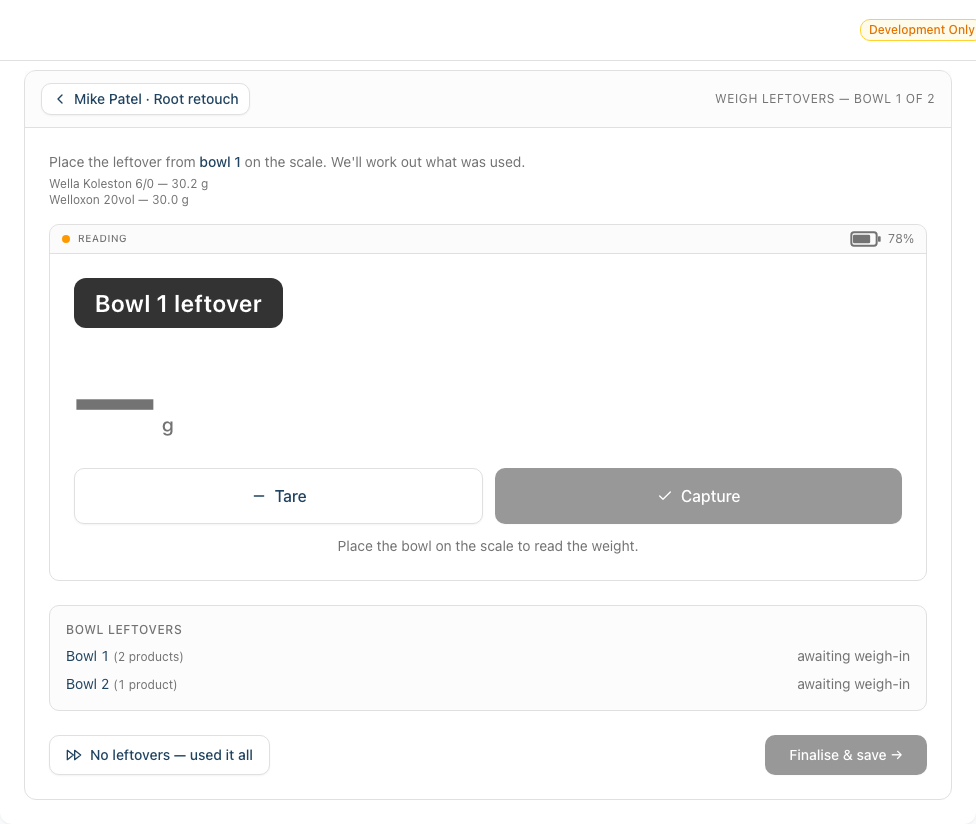
Leftovers are captured one weight per bowl, not per product. Once products are mixed together in a bowl, the leftover is a single blend you can only weigh whole — so you weigh the bowl's leftover once and Luminate splits the waste across that bowl's products by how much of each was dispensed.
- Active bowl card — "Place the leftover from bowl N on the scale", the products mixed into that bowl with their dispensed grams, and the total dispensed into the bowl
- LiveWeightCard — the same Tare / Capture controls as the Mix screen (see Tutorial 20.12), with a big solid Bowl N leftover chip so there's no doubt which bowl you're weighing
- Bowl leftovers summary — every bowl listed with checked / unchecked state and the used / leftover figures captured so far
- No leftovers — used it all and Finalise & save → buttons at the bottom. Finalise is disabled until every bowl has a leftover captured.
Step-by-Step Instructions
Step 1: Weigh each bowl's leftover
- Place the bowl's leftover on the scale (empty bowl on the scale, then pour the leftover in, or weigh the full bowl and tare out the empty bowl weight)
- Tap Tare if needed
- Wait for Stable
- Tap Capture
- The active bowl advances to the next bowl
- Repeat until every bowl has a leftover captured
Step 2: Use the summary to track progress
The Bowl leftovers summary updates live:
- Checked bowls — "used Y.Y g (−Z.Z leftover)"
- Unchecked bowls — "awaiting weigh-in"
- Total used / dispensed line appears at the bottom once all are captured
Step 3: Handle "leftover heavier than dispensed"
If a bowl's leftover weighs more than what was dispensed into it, a warning banner appears:
A bowl's leftover is heavier than what was dispensed into it — re-tare and weigh just the product, not the bowl.
The usual cause is weighing the bowl un-tared (so you're weighing bowl + product, not just product). The warning doesn't block Finalise — it's there to nudge you to re-capture before saving. Re-capture that bowl by placing it on the scale and tapping Capture again.
Step 4: Finalise
Once every bowl has a leftover captured:
- Tap Finalise & save →
- The leftovers are recorded and you're returned to Today
- A toast confirms: "Leftovers recorded."
- The appointment is now marked Done.
Step 5: When to use "No leftovers — used it all"
If the leftover is gone — rinsed down the basin, thrown into the colour bin, used as a neutraliser — tap No leftovers — used it all. It fires immediately (no confirmation prompt), so only tap it when you're sure:
- The client stays billed on the full amount you dispensed
- The appointment is marked Done
- A toast confirms: "No leftovers — billed on the full amount dispensed."
Use this whenever weighing the leftover isn't possible. It's not a failure mode — it's a valid outcome.
Common Pitfalls
"The appointment is already marked Done"
Once you finalise the leftovers (or tap "No leftovers — used it all"), the appointment moves to Done. To change the numbers after that, refund / modify the transaction (Tutorial 8.2) to reopen the formula.
"I weighed the leftovers but it's not adjusting the overage charge"
Weighing leftovers adjusts the formula's actuals and the stock movement log, and the billed amount reconciles to what was actually used. If the appointment's transaction has already moved past draft, ask an Owner to refund / modify the transaction (Tutorial 8.2) to trigger a re-stage.
"I got a 'leftover heavier than dispensed' warning"
Re-capture the offending bowl. Common cause: you forgot to tare, so you're weighing bowl + leftover but the system thinks you're weighing just the leftover. The warning is advisory — Finalise still works — but the numbers will be wrong if you save with it showing.
"I tapped 'No leftovers' by mistake and wanted to weigh them"
It fires immediately with no confirmation. Once it's stamped, the formula's actuals are frozen. If the actuals matter, refund / modify the transaction (Tutorial 8.2) to reopen the formula and correct manually.
Tips and Best Practices
- Weigh leftovers on every colour if you're on Full mode — you'll thank yourself at month-end when the margins read true.
- Be honest about "used it all" — if the leftover is gone, tap it. Don't guess a leftover weight just to have a number.
- Tare between bowls — same habit as Mixing.
- Weigh leftovers at the end of your shift in a batch — if you don't have a minute between clients, come back to them during your last tidy-up.
- One weight per bowl — you weigh each bowl's leftover once; Luminate splits it across the products in that bowl automatically. If the same product is in two separate bowls, weigh each bowl.
Related Tutorials
- Tutorial 20.12: Colour Bar: Mixing with the Scale — captures the "dispensed" amounts
- Tutorial 20.5: Colour Stock Take — weighing leftovers keeps gram balances honest
- Tutorial 20.8: Overage Billing Explained — where the overage charge actually lives
- Tutorial 20.15: Troubleshooting the Colour Bar & Scale
- Tutorial 8.2: Handling Refunds and Cancellations — if you need to re-stage after weighing leftovers reveals a pricing issue
Frequently Asked Questions
Is weighing leftovers required?
No. "No leftovers — used it all" is a first-class option. You'll still get Done status on the appointment; the client stays billed on the full amount dispensed.
What happens to my stock when I weigh the leftover?
The full amount you dispensed stays out of stock — the leftover went in the bin, not back in the tube. The leftover is logged as a waste movement, and the client is billed on what was actually used (dispensed minus leftover).
Does "No leftovers — used it all" affect the charge?
It keeps the client billed on the full dispensed amount. Weigh the leftover instead if you want the charge to reflect the smaller amount actually used.
Can I weigh leftovers twice?
Once you finalise (or tap "No leftovers — used it all"), it's stamped and the appointment moves to Done. If numbers are wrong, refund / modify the transaction (Tutorial 8.2) to reopen.
Does "No leftovers — used it all" ask me to confirm?
No. It fires immediately — only tap it when you're sure the leftover is gone.
Last Updated: June 2026