
Configuring Colour Settings & Charge Rules
Tutorial 20.2: Configuring Colour Settings & Charge Rules
Introduction
Everything that makes colour management tick — the mode, the default charge rule, the overage pricing — lives on the Colour settings tab inside your salon settings. This tutorial covers the settings screen itself and walks through building a charge rule that reflects how your salon prices colour.
Who this is for: Owner, Admin What you'll learn:
- Change the salon's colour formula mode
- Create, edit, deactivate and delete colour charge rules
- Understand Applies to, markup types, minimum charge, and minimum overage
- Use the live charge preview
Time to complete: 10–15 minutes
Prerequisites
- Logged in as Owner or Admin (both roles hold the manage salon settings permission)
- Read Tutorial 20.1 to understand the three modes
- For Full mode: at least one colour service with Colour grams included in service price set (Tutorial 7.1)
Step-by-Step Instructions
Step 1: Open the Colour settings tab
- Click Settings in the sidebar (or your avatar → Salon Settings)
- Open the Services tab
- Open the Colour sub-tab (it's the first Services sub-tab and is selected by default)
Colour settings live under Services → Colour, not as a standalone top-level tab. The Colour sub-tab shows a single Colour Formula Mode card with two parts:
- Colour Formula Mode — three radio options for the mode (Notes only / Structured formulas / Full)
- Colour Charge Rules — appears inside the same card, below the mode options, only when the mode is Full
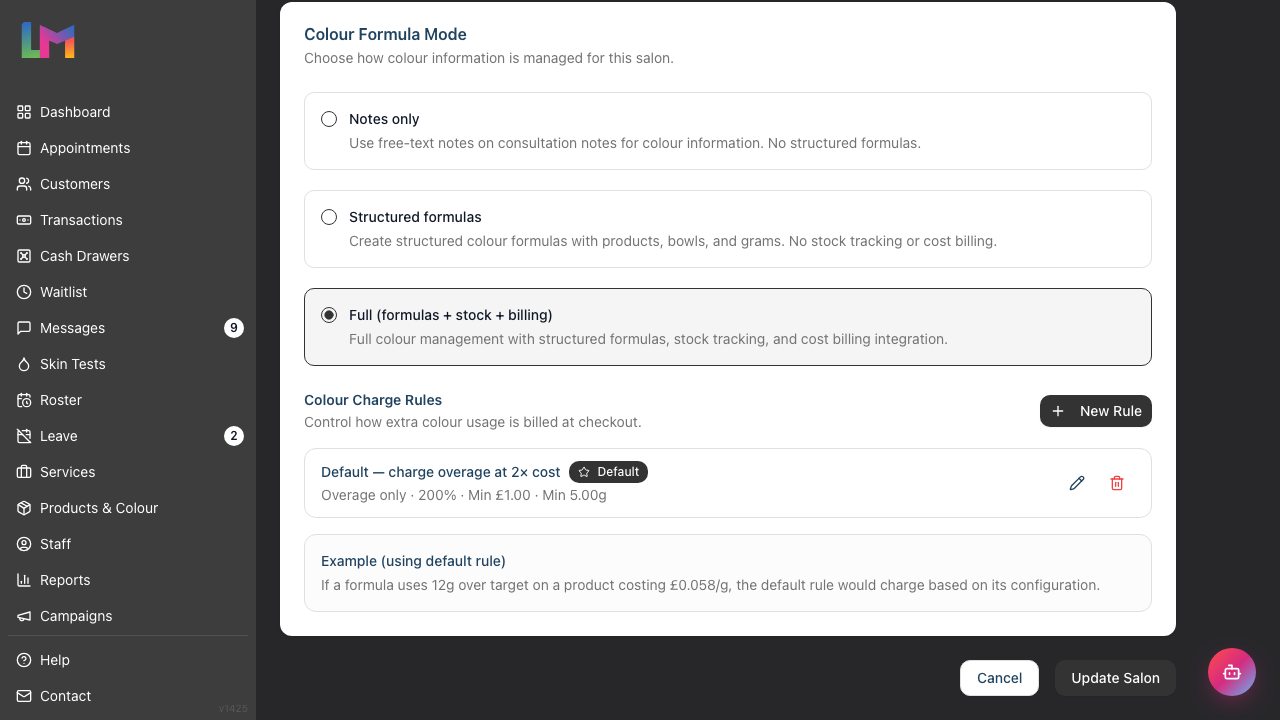
Step 2: Choose the colour formula mode
- Under Colour Formula Mode, click one of the three options:
- Notes only — freeform colour notes only
- Structured formulas — structured formulas, no stock, no billing
- Full (formulas + stock + billing) — formulas plus stock tracking and automatic overage billing
- Scroll to the bottom of the salon settings page and click Update Salon
The mode is saved alongside the rest of the salon settings — there isn't a separate Save button on the Colour sub-tab itself. The save button is the page-wide Update Salon button at the foot of Salon Settings (it briefly reads Salon Updated after a successful save). If you select Full, the Charge Rules section appears straight away.
Heads up: moving from Notes to Formulas/Full is non-destructive. Moving from Full back to Formulas/Notes pauses automatic billing — existing overage line items stay on their transactions but no new ones will be staged.
Step 3: Add your first charge rule (Full mode only)
When you switch a salon to Full mode, the system seeds one starter rule called "Default — charge overage at 2× cost" (Overage only, Percentage of cost at 200%, minimum charge 1.00, minimum overage 5g). You can edit or replace it. To add another:
- Click New Rule in the Charge Rules section (or Create first rule on the empty state)
- Fill in the fields (see reference below)
- Tick Make this the salon default so the rule applies when a formula doesn't override it
- Watch the Preview panel recalculate as you change the markup
- Click Create Rule
If you tick Make this the salon default and another rule is already the default, the existing default is automatically demoted — only one rule per salon can be default at a time.
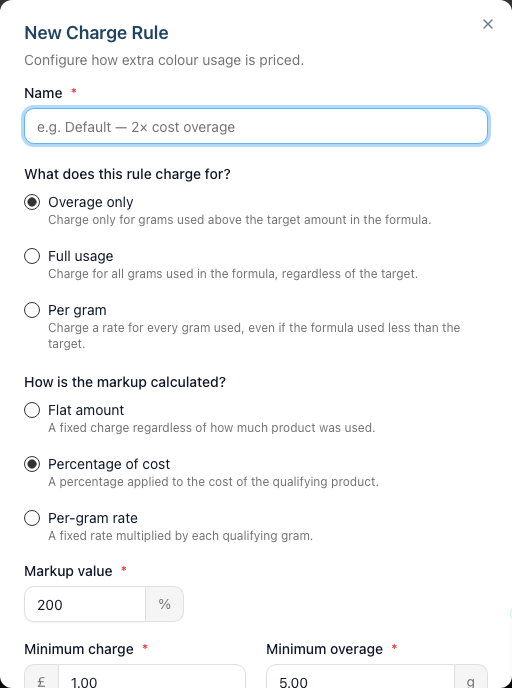
Step 4: Field reference
Field labels and on-screen helper text are quoted exactly as they appear in the dialog.
| Field | What it does |
|---|---|
| Name | Human-readable label shown in the rule list (e.g. "Standard overage — 2× cost"). |
| What does this rule charge for? | The applies_to setting, with three radio options and their on-screen descriptions:• Overage only — "Charge only for grams used above the target amount in the formula." • Full usage — "Charge for all grams used in the formula, regardless of the target." • Per gram — "Charge a rate for every gram used, even if the formula used less than the target." Here the target is the service's Colour grams included in service price value (Tutorial 7.1). Overage only needs that value set on the service; if it's missing, the charge is skipped (see Common Pitfalls). |
| How is the markup calculated? | The markup_type setting, with three radio options:• Flat amount — "A fixed charge regardless of how much product was used." • Percentage of cost — "A percentage applied to the cost of the qualifying product." • Per-gram rate — "A fixed rate multiplied by each qualifying gram." |
| Markup value | The number paired with the markup type. The input shows your salon's currency symbol for flat / per-gram rate, a % sign for percentage, and a /g suffix for per-gram rate. Switching markup type remembers the last value you entered for each type. |
| Minimum charge | Smallest amount to bill. If the calculated charge falls below this, the whole line is skipped (no line is staged) — it is a threshold, not a floor that bumps the charge up. |
| Minimum overage | Smallest qualifying gram count before a charge fires. If the overage/usage is below this figure, the line is skipped. |
| Active | Untick to retire a rule without deleting it. Inactive rules are never used by the auto-charge service. |
| Make this the salon default | Exactly one rule per salon is the default; new formulas use this rule unless they carry their own explicit rule reference. |
Step 5: Test with the live preview
The Preview panel shows the charge for a fixed example: 12g over target on a product costing 0.058/g (in your salon's currency). As you change the markup type or value, the preview recalculates and shows a single summary line. With the default 200% (Percentage of cost) markup it reads:
12g over · £0.70 base cost → £1.39 charge
(The base cost is 12 × 0.058 = 0.696, rounded to 0.70; the charge is 0.696 × 2 = 1.39. The preview prints both figures with your salon's currency symbol — the £ above is just the default.)
The preview shows the raw markup calculation. It does not apply Minimum charge or Minimum overage — those only affect the actual charge that reaches the till. Treat the preview as a "does my markup maths look right?" sanity check, not a full simulation.
Step 6: Add additional rules (optional)
You can create multiple rules — for example:
- A default rule for most services
- A zero-markup rule for training / model work
- A more aggressive per-gram rule for specialist treatments
Only the default rule is picked up automatically during auto-charge today. Non-default rules stay in the list as spares you can swap in by marking them default when your pricing changes.
Step 7: Deactivate, delete, or change the default
In the rule list, each row has three action buttons:
- Make default (only on non-default rules) — promotes this rule and demotes the previous default in one click.
- Pencil icon — opens the edit form. Existing formulas keep the rule snapshot captured when they were finalised, so editing a rule doesn't retroactively change historical charges.
- Trash icon — permanently deletes the rule. Historical overage line items are unaffected because each line stores a full
rule_snapshotat the time it was staged. If a formula still points to the deleted rule, its pointer is cleared and future reconciles fall back to whichever rule is default at that time.
To retire a rule without deleting it, edit it and untick Active.
Worked example
Your salon has a Full Colour service listed at 80 with 60g included. A customer's formula ends up using 75g — a 15g overage. The product used costs 0.058 per gram.
With this default rule:
- What does this rule charge for? Overage only
- How is the markup calculated? Percentage of cost
- Markup value: 200 (i.e. 2×)
- Minimum charge: 2.50
- Minimum overage: 3g
How the system calculates the charge:
Qualifying grams:      15g
Base cost (15 × 0.058): 0.87
Markup (×200%):         0.87 × 2 = 1.74
Minimum overage check:  15g ≥ 3g ✓
Minimum charge check:   1.74 < 2.50 → skipped
Because the calculated charge (1.74) is below the minimum charge (2.50), the line is skipped entirely — no overage line is staged on the transaction. If you want to always bill at least the minimum, lower the minimum charge or use a flat rule instead.
Currency note: numbers above are unit-less because the app shows figures in your salon's configured currency. The preview panel uses your salon's currency symbol automatically.
Common Pitfalls
"I saved a rule but nothing's billing"
Several pieces need to line up:
- Salon mode is Full
- The service has Colour grams included in service price set (Tutorial 7.1) and This is a colour service ticked
- The formula is finalised
- Total qualifying grams meet or exceed Minimum overage
- The calculated charge meets or exceeds Minimum charge
If any of those fail, the charge silently skips — no error, no line.
"The preview shows a different charge from what's on the till"
Two reasons this happens:
- The preview uses a fixed 12g × 0.058 example and ignores your minimum-charge and minimum-overage thresholds. The till applies the full rule to the real formula.
- The till uses the rule snapshot captured when the formula was finalised. If you've edited the rule since, the live preview reflects the new rule but the transaction item still shows the old charge. Refund or modify the transaction (Tutorial 8.2) to re-run the rule.
"No rule is marked default and nothing bills"
Full mode without an active default rule silently skips billing. Create at least one rule, tick Active, and tick Make this the salon default.
"I deleted a rule and want to check it didn't break anything"
Deleting a rule does not touch transactions that already have overage lines — the rule data is copied into each line's snapshot at stage time. Formulas that still referenced the rule just fall back to the current default on the next reconcile.
Tips and Best Practices
- Start with one default rule. It's easier to explain to the team and to customers. Add more only if you genuinely need them.
- Set a sensible minimum charge — otherwise a 1g overage can produce a fraction-of-a-coin line. Be careful: the minimum is a threshold (charge below = skipped), not a floor that gets bumped up.
- Set Minimum overage to 3–5g — a small buffer stops "I weighed 1g heavy" complaints dominating the till.
- Percent markup is the easiest to explain — "our colour overage is 2× the cost of the extra product" works well in a consultation.
- Check the preview before saving — it's the fastest way to spot a wrong decimal place in the markup value.
Related Tutorials
- Tutorial 7.1: Creating and Managing Your Service Menu — set Colour grams included in service price on each colour service
- Tutorial 20.1: Getting Started with Colour Management — decide which mode suits your salon
- Tutorial 20.3: Brands and Your Colour Catalogue — required catalogue before Full mode bites
- Tutorial 20.8: Overage Billing Explained — how the charge reaches the till and how modify/refund flows re-open it
- Tutorial 8.2: Handling Refunds and Cancellations — modifying a completed transaction re-opens the linked formula so the current rule re-runs
Frequently Asked Questions
Can I have zero charge rules in Full mode?
Yes — Full mode won't error without a rule, it just silently skips auto-billing. Use this if you want Full mode's structured formulas and gram-level stock tracking but don't want automatic overage billing. Alternatively, create a rule with Percentage of cost and Markup value: 0; it still runs but always calculates zero.
Will existing formulas re-price if I edit a rule?
No. Each staged overage line stores a rule_snapshot (name, markup type, markup value) at the moment it's staged. Editing the rule only affects future reconciles. To re-price an old one, modify the transaction (Tutorial 8.2) so the formula becomes editable again and finalises against the current rule.
What happens if I delete the default rule?
Any formula that was still pointing at it falls back to the current default rule at the next reconcile. Overage line items already committed to pending / completed / refunded transactions keep their frozen rule_snapshot so history stays auditable.
What happens if I switch back to Formulas mode?
Existing overage line items stay on their transactions. No new overage lines will be staged while the salon is in Formulas or Notes mode.
Can a specific formula use a non-default rule?
The data model supports it (charge_rule_id on the formula record), but today there's no UI control for a stylist to pick a rule on a per-formula basis. Every finalised formula uses the salon's default active rule. Use the Make default action to swap which rule is in force.
Last Updated: April 2026