
Running Revenue Reports
Tutorial 9.2: Running Revenue Reports
Introduction
The revenue report shows your daily income broken down by source. This tutorial explains how to view revenue by date, understand the breakdown (services, products, discounts, tax, tips, and refunds), filter by date range, read the trend chart, and export data for accounting. Perfect for tracking financial performance.
Who this is for: Salon owners, admins, and managers responsible for financial tracking and accounting.
What you'll learn:
- Navigating to the Daily Revenue report
- Understanding the summary cards
- Filtering by date range
- Reading the revenue table
- Understanding the revenue trend chart
- Exporting data for accounting
Time to complete: 10-15 minutes
Prerequisites
Before you begin, make sure you have:
- A Luminate account with Owner, Admin, or Manager role
- At least some completed transactions in your salon
- For exporting: Owner or Admin role (Managers can view but not export)
Step-by-Step Instructions
Step 1: Navigate to the Reports Section
- Log in to Luminate
- Click Reports in the sidebar menu
- You'll see the Reports index page with categories: Financial Reports, Customer Reports, Staff Reports, Messaging Reports, and Inventory Reports (an Appointment Reports category is listed separately under "Coming Soon")
The tiles you see depend on your permissions — each report is only shown if your role can access it.
Step 2: Open the Daily Revenue Report
- In the Financial Reports category, find Daily Revenue
- Click on it to open the report
- The report loads showing the last 30 days by default — adjust the date range at any time using the filter (see Step 4)
Step 3: Understanding the Summary Cards
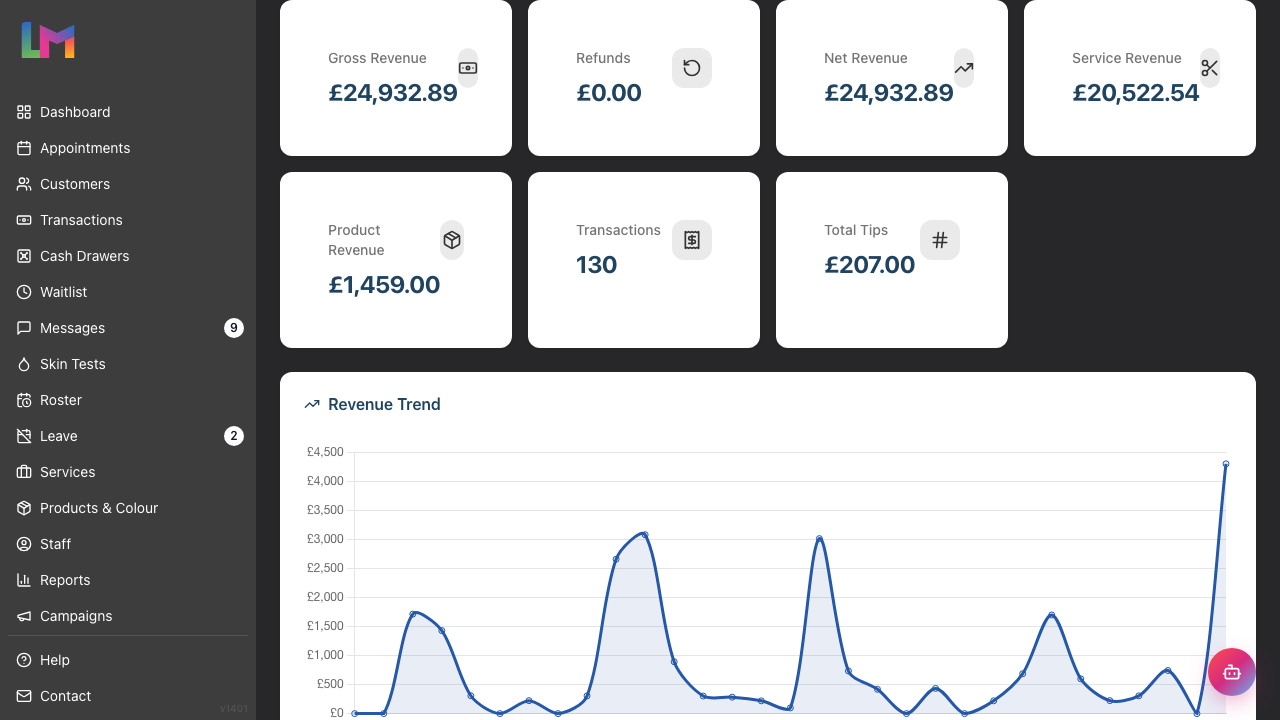
At the top of the report, you'll see seven summary cards:
| Card | What It Shows |
|---|---|
| Gross Revenue | Sum of all completed transaction revenue |
| Refunds | Total value of refunded transactions |
| Net Revenue | Gross revenue minus refunds — your actual earnings |
| Service Revenue | Revenue from services only |
| Product Revenue | Revenue from product sales only |
| Transactions | Total number of transactions |
| Total Tips | Sum of all tips received |
These cards give you a quick overview of your salon's financial performance for the selected date range. Gross Revenue, Net Revenue, and the service/product breakdown help you understand where your income comes from and how refunds affect your bottom line.
Step 4: Using the Date Range Filter
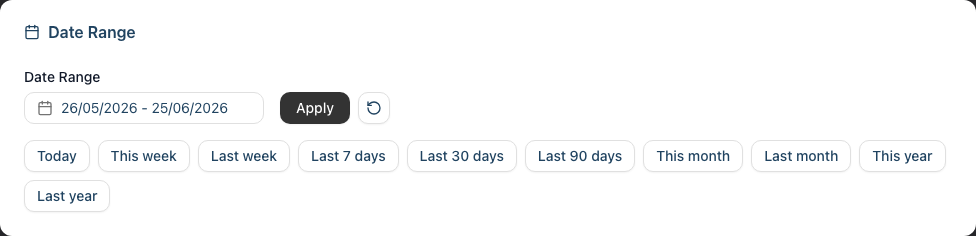
The date filter appears in a card below the header with "Date Range" as the title.
Using the Date Picker:
- Click the date range picker field
- Select your start date
- Select your end date
- Click the Apply button to update the report
- Click the reset button (circular arrow icon) to clear filters
Quick Preset Buttons: Below the date picker, you'll find preset buttons for common date ranges:
- Today — Current day only
- This week — Monday to Sunday of current week
- Last week — Previous full week (Monday to Sunday)
- Last 7 days — Rolling 7-day period
- Last 30 days — Rolling 30-day period
- Last 90 days — Rolling 90-day period
- This month — Current calendar month
- Last month — Previous calendar month
- This year — Year to date
- Last year — Previous calendar year
Clicking any preset button automatically applies that date range and updates the report.
Tip: Use "Last month" at the start of each month to review the previous month's complete figures for accounting.
Step 5: Reading the Revenue Table
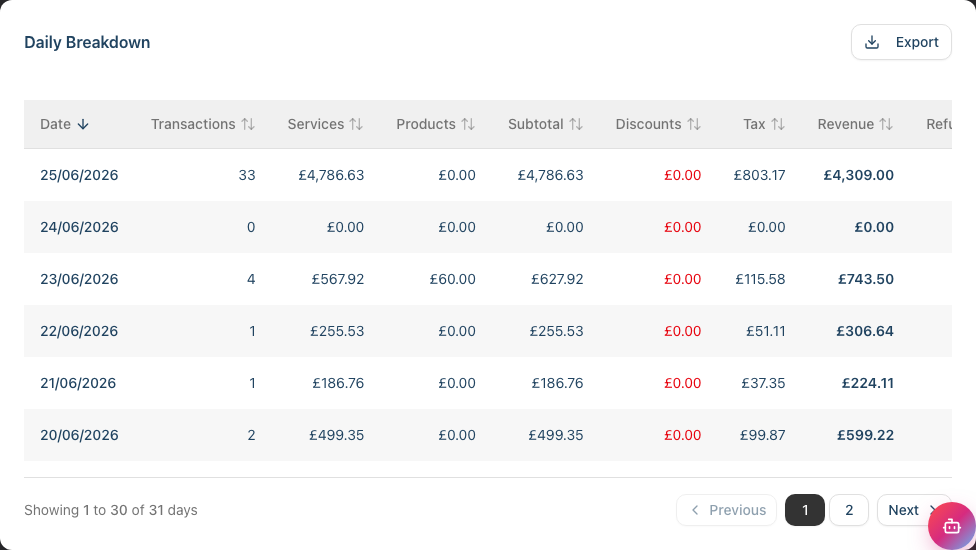
The main table is titled "Daily Breakdown" and shows revenue data for each day in your selected range. The columns are ordered to match the calculation flow: Services + Products = Subtotal, then Subtotal − Discounts + Tax = Revenue.
| Column | Description |
|---|---|
| Date | The transaction date (formatted according to your salon's date settings) |
| Transactions | Number of completed transactions that day |
| Services | Revenue from services |
| Products | Revenue from product sales |
| Subtotal | Combined services and products total before discounts and tax |
| Discounts | Total discounts applied (displayed in red with a minus sign) |
| Tax | Tax collected on taxable items |
| Revenue | Net revenue for the day (displayed in bold) |
| Refunds | Value of any refunded transactions (displayed in red with a minus sign) |
| Tips | Tips received (displayed in green) |
Sorting: Click any column header to sort the table by that column. Click again to reverse the sort order. The currently sorted column shows an indicator.
Pagination: If you have many days of data, use the pagination controls at the bottom to navigate through pages. The report shows 30 days per page.
Step 6: Understanding the Revenue Trend Chart
Above the table, you'll see a line chart titled "Revenue Trend":
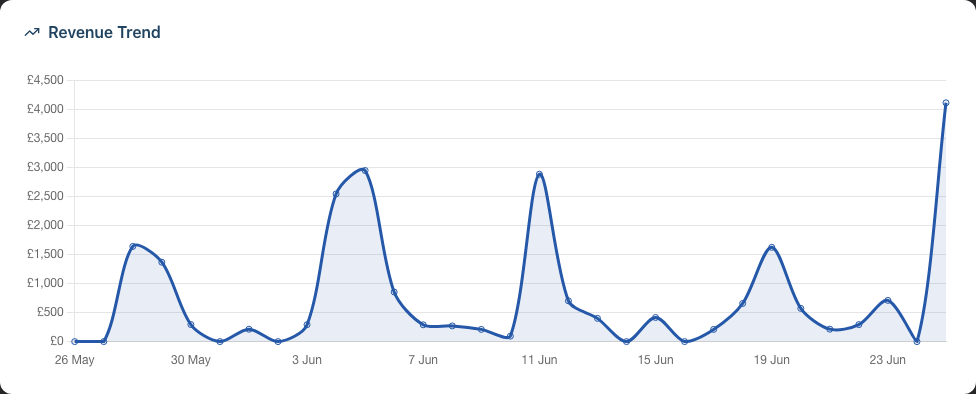
- Line chart showing daily revenue over the selected period
- Hover over any point to see the exact figures
- The chart automatically scales to fit your data
- Data is displayed from oldest to newest (left to right)
What to look for:
- Upward trends indicate growing revenue
- Peaks on certain days might indicate busy periods (e.g., Saturdays)
- Dips might represent slower days or days when the salon was closed
Step 7: Exporting Revenue Data
To export your revenue data for accounting or further analysis:
Set your desired date range using the filter
In the "Daily Breakdown" section, click the Export button (top right of the table card)
A dropdown menu appears with options:
- Export as CSV — For spreadsheet applications (Excel, Numbers, Google Sheets)
- Export as PDF — For printing or archiving
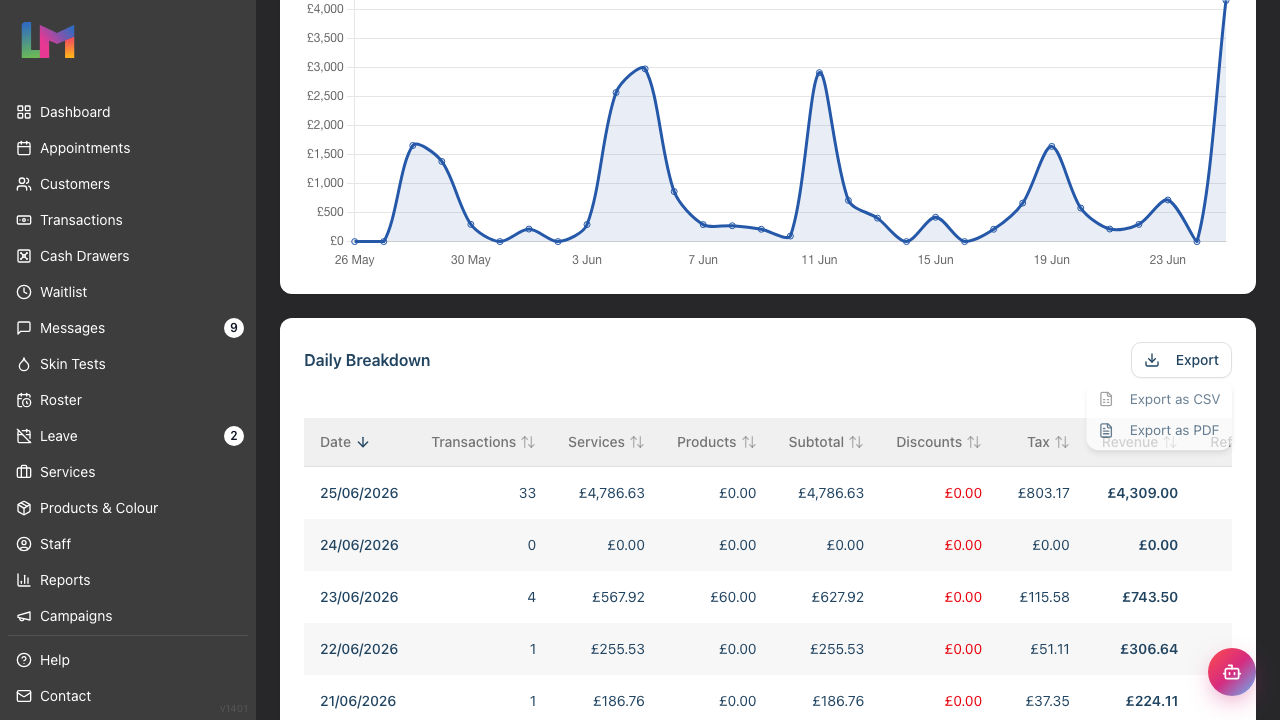
Click your preferred format
The file downloads to your computer
Export includes:
- All data from the current filtered view
- Daily breakdowns with all columns (Date, Transactions, Service Revenue, Product Revenue, Subtotal, Discounts, Tax, Revenue, Tips)
- Suitable for importing into accounting software
Note: Only Owners and Admins can export data. Managers can view reports but the Export button won't appear for them.
Common Pitfalls
"My revenue figures don't match my till readings"
The Daily Revenue report only includes completed transactions. Pending payments, unpaid invoices, and cancelled transactions are excluded. Check the Accounts Receivable report for outstanding balances.
"Tips aren't showing in the report"
Tips must be recorded during the transaction. If tips are given in cash after the sale and not entered into Luminate, they won't appear. See Tutorial 2.4 for adding tips at the point of sale.
"The export button is missing"
Only Owners and Admins can export reports. If you're logged in as a Manager, you can view reports but won't see the export option. Contact your salon owner if you need exported data.
"I see red numbers in the Discounts or Refunds columns"
This is correct — discounts and refunds reduce revenue, so they appear in red to indicate they subtract from your totals. The Revenue column already accounts for discounts, showing your net revenue. Refunds are shown separately so you can track how much was returned to customers.
"Some days show zero revenue"
Days when the salon was closed (public holidays, Sundays, etc.) will show zero or won't appear at all. This is expected — there were no transactions to report.
Tips and Best Practices
- Run this report monthly for accounting — Export the previous month's data at the start of each new month while figures are fresh
- Use "Last 30 days" for quick trends — This gives a rolling view of recent performance
- Compare month-on-month — Export multiple months and compare in a spreadsheet for longer-term trend analysis
- Use consistent time periods — When comparing performance, always use the same time periods (e.g., full weeks, full months)
- Review the service vs. product split — Use the Service Revenue and Product Revenue cards and columns to understand your revenue mix and spot retail growth opportunities
- Investigate anomalies — If you see an unusually high or low day, investigate — it might be a mistake or a learning opportunity
Related Tutorials
- Tutorial 9.1: Understanding Your Dashboard — Quick overview of salon performance
- Tutorial 9.3: Staff Performance and Commission Reports — See revenue broken down by staff member
- Tutorial 9.5: Accounts Receivable Reports — Track unpaid balances
- Tutorial 8.1: Understanding Transactions and Payment Status — How transactions flow through the system
Frequently Asked Questions
What's the difference between this and the Dashboard sales figures?
The Dashboard provides a quick summary, while the Daily Revenue report gives you a complete breakdown by day with export capability. Use the Dashboard for a glance; use this report for detailed analysis.
What's the difference between Gross Revenue and Net Revenue?
Gross Revenue is your total revenue from completed transactions. Net Revenue subtracts any refunds, showing what you actually kept. If you had no refunds in the selected period, both figures will match.
What's the difference between Subtotal and Revenue?
Subtotal is the combined value of services and products before discounts and tax. Revenue is your net income after applying discounts and including tax: Subtotal − Discounts + Tax = Revenue.
Can I see revenue by service type or product category?
The Daily Revenue report breaks down each day into Services and Products columns. For more granular breakdowns by individual services or staff members, use the Staff Performance report which shows service-level detail.
How far back can I view revenue data?
Luminate stores your complete transaction history. You can select any date range from when you started using the system. There's no limit on historical data access.
Why might my tax figures vary day to day?
Tax is only collected on taxable items. If some of your services or products are VAT-exempt or zero-rated, the tax amount will depend on what was sold that day. Products are typically taxable while some services may not be.
Can I schedule this report to run automatically?
Currently, reports must be run manually. However, making it part of your weekly or monthly routine ensures you stay on top of your figures.
Last Updated: June 2026