
Accounts Receivable and Outstanding Balance Reports
Tutorial 9.5: Accounts Receivable and Outstanding Balance Reports
Introduction
Track money owed to your salon. Learn how to view the accounts receivable report, see which customers have unpaid balances, understand aging of debts, send payment reminders, and monitor collection rates. Essential for maintaining healthy cash flow.
Who this is for: Salon owners, admins, and managers responsible for collecting payments and managing cash flow.
What you'll learn:
- Running the accounts receivable report
- Understanding outstanding balances
- Identifying overdue accounts
- Following up on unpaid invoices
- Exporting data for bookkeeping
Time to complete: 10-15 minutes
Prerequisites
Before you begin, make sure you have:
- A Luminate account with Owner, Admin, or Manager role
- Transactions in your system (some may have outstanding balances)
- For exporting: Owner or Admin role
Step-by-Step Instructions
Step 1: Navigate to the Accounts Receivable Report
- Log in to Luminate
- Click Reports in the sidebar menu
- In the Financial Reports category, click Accounts Receivable
- The report loads showing all customers with outstanding balances
Step 2: Understanding the Summary Cards
At the top of the report, you'll see key metrics:
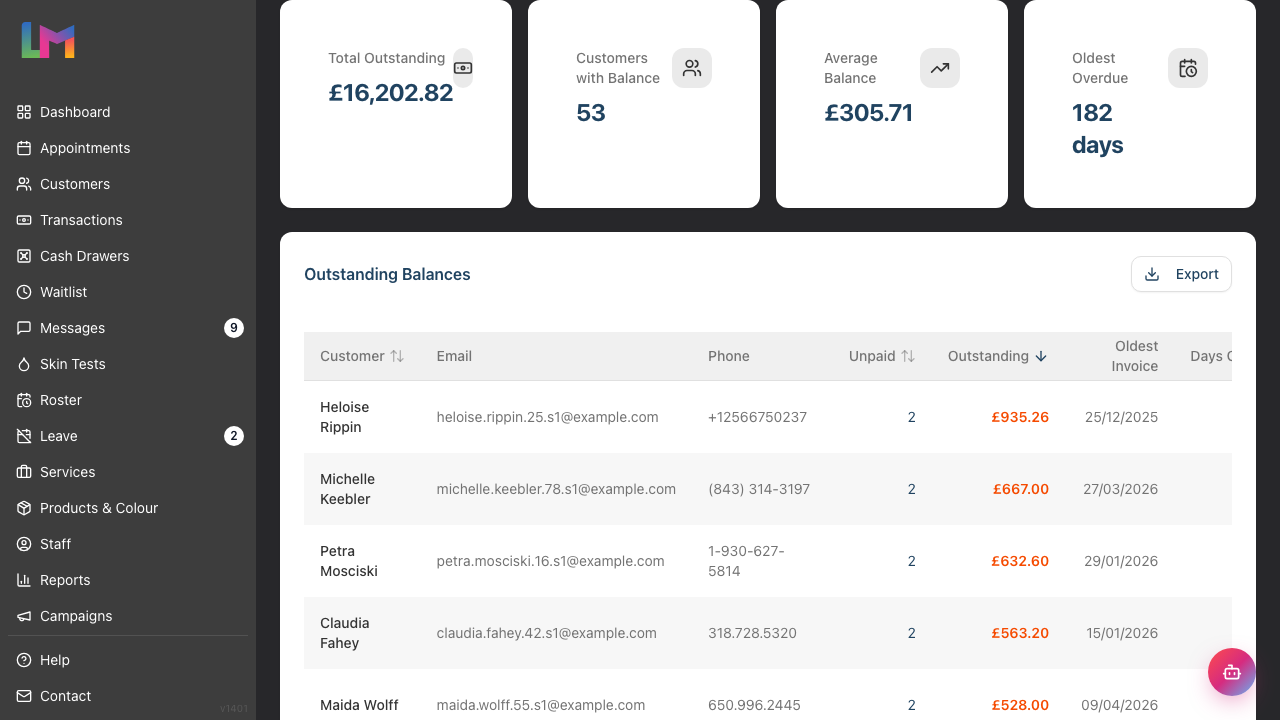
| Card | What It Shows |
|---|---|
| Total Outstanding | Total amount owed across all customers |
| Customers with Balance | Number of customers with unpaid amounts |
| Average Balance | Average amount owed per customer |
| Oldest Overdue | Days since the oldest unpaid transaction |
What to look for:
- High total outstanding may indicate collection issues
- Large number of accounts might suggest payment policy review needed
- Old debts are harder to collect - prioritise recent ones first
Step 3: Reading the Accounts Receivable Table
The main table lists all customers with outstanding balances:
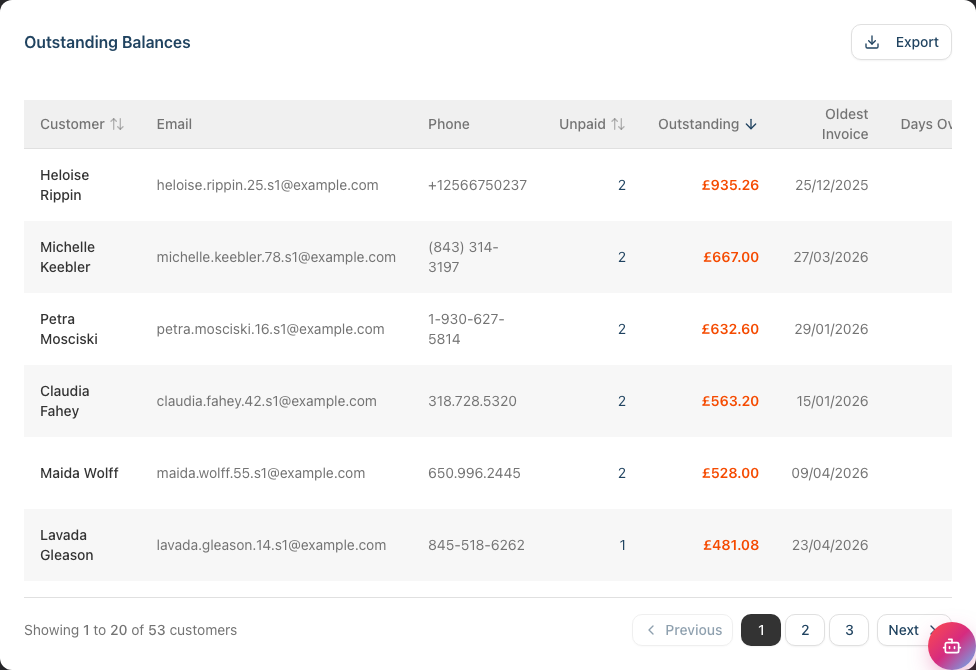
| Column | Description |
|---|---|
| Customer | Customer name (click to view outstanding transactions) |
| Customer's email address | |
| Phone | Customer's phone number |
| Unpaid | Number of unpaid transactions |
| Outstanding | Total amount owed |
| Oldest Invoice | Date of the oldest unpaid transaction |
| Days Overdue | How long since the oldest invoice |
Default sorting: Sorted by Outstanding Balance (highest first) to prioritise larger debts.
Sortable columns: You can sort by Customer, Unpaid (transaction count), Outstanding (balance amount), or Days Overdue by clicking the column headers.
Step 4: Using Filters to Focus Your View
The Filters section at the top of the report lets you narrow down the list:

| Filter | Options | Use Case |
|---|---|---|
| Min Balance | Enter an amount | Focus on larger debts (e.g., filter to debts over £50) |
| Days Overdue | Any, 7+, 14+, 30+, 60+, 90+ days | Focus on older, more overdue accounts |
| Unpaid Invoices | Any, 2+, 3+, 5+ invoices | Identify repeat offenders with multiple unpaid transactions |
To apply filters:
- Enter values or select from the dropdowns
- Click Apply to update the table
- Use the reset button (circular arrow icon) to clear all filters
Step 5: Understanding Aging of Debts
The "Days Overdue" column helps you prioritise collection:
| Age | Urgency | Recommended Action |
|---|---|---|
| 0-7 days | Low | Normal payment terms, no action needed |
| 8-14 days | Medium | Send friendly payment reminder |
| 15-30 days | High | Phone call or direct message |
| 31+ days | Critical | Personal follow-up, consider payment plan |
Why aging matters: The longer a debt is outstanding, the less likely it is to be collected. Act quickly on overdue accounts.
Step 6: Viewing Customer Transactions
To see a customer's outstanding transactions:
- Click the customer's name or the View Transactions link in the table
- You'll be taken to the Transactions page, pre-filtered to show only that customer's outstanding transactions
- See which specific invoices are unpaid and their amounts
- Click into individual transactions to record payments or view details
Step 7: Taking Action on Outstanding Balances
For each customer with an outstanding balance, you can:
Record a Payment:
- Click the customer's name or View Transactions to see their outstanding transactions
- Find the unpaid transaction
- Click to add a payment
- Record the payment method and amount
- The balance updates automatically
Send a Reminder:
- Note the customer's contact details from the report
- Use the Messages feature or contact them directly
- Keep reminders professional and friendly
- Document all contact attempts
Apply a Discount or Write-Off:
- For uncollectable debts, speak with your accountant
- Transactions can be adjusted if needed
- Document reasons for any write-offs
Step 8: Monitoring Collection Performance
Track your accounts receivable over time:
Weekly check:
- Review the total outstanding amount
- Follow up on accounts over 14 days
- Celebrate reductions in the total
Monthly review:
- Compare total outstanding to previous month
- Calculate collection rate (payments received vs. amounts owed)
- Identify patterns (repeat offenders, specific service issues)
Step 9: Exporting Accounts Receivable Data
To export the report:
- Review the current list (no date filter needed - shows all current balances)
- Click the Export button at the top right of the table
- Choose your format:
- Export as CSV - Spreadsheet format for Excel or Google Sheets
- Export as PDF - Formatted document for printing or sharing
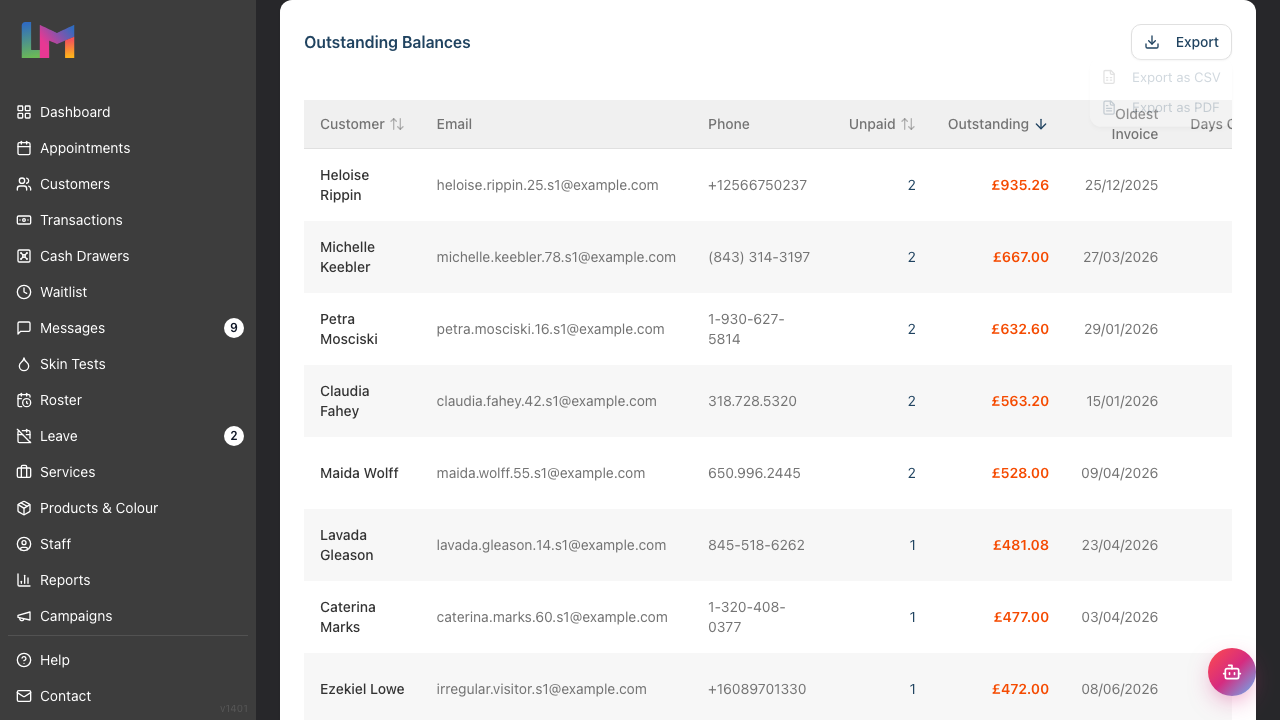 4. The file downloads with:
- Customer names and contact details
- Unpaid transaction counts
- Outstanding balance amounts
- Oldest invoice dates
- Days overdue
Uses for exported data:
- Bookkeeping and accounting records
- Integration with debt collection processes
- Analysis in spreadsheets for patterns
- Formal statements to send to customers
Note: Only Owners and Admins can export reports.
Common Pitfalls
"A customer paid but still appears on the report"
The payment may not have been recorded in Luminate. Find the relevant transaction and record the payment. The report updates in real-time once the payment is entered.
"I see very old unpaid balances from years ago"
These may be uncollectable debts or data entry issues from early in your Luminate usage. Review each one and decide whether to pursue collection or write off with your accountant.
"The total outstanding doesn't match my expectations"
Remember this report shows all open balances, including recent transactions from today. Also check that partial payments have been correctly recorded.
"A customer disputes the balance"
Click through to view their full transaction history. You can see exactly what services/products were provided and what payments were made. This helps resolve disputes with clear documentation.
"The same customers keep appearing on this report"
Some customers may have a habit of delayed payment. Consider requiring deposits upfront (see Tutorial 8.4) or payment at time of service for these customers.
Tips and Best Practices
- Review weekly - Don't let outstanding balances accumulate; small regular reviews are easier than monthly clean-ups
- Act quickly on new debts - Fresh debts are much easier to collect than old ones
- Be consistent - Apply the same payment policies to all customers fairly
- Document everything - Keep notes on payment discussions and promises
- Consider deposits - For high-value services or new customers, request deposits upfront
- Set clear expectations - Communicate payment terms before services are provided
- Use reminders wisely - Automated reminders can help, but personal follow-up is more effective for larger amounts
Related Tutorials
- Tutorial 8.5: Managing Outstanding Balances - Day-to-day handling of unpaid invoices
- Tutorial 8.4: Deposits and Pre-Payments - Reducing accounts receivable with upfront payments
- Tutorial 8.1: Understanding Transactions and Payment Status - How payment status works
- Tutorial 9.2: Running Revenue Reports - Overall financial tracking
Frequently Asked Questions
What creates an outstanding balance?
An outstanding balance is created when a transaction is completed but not fully paid. This can happen when:
- A customer pays partially (e.g., forgets their wallet)
- Payment is deferred by arrangement
- An invoice is raised for payment later
Can I set up automatic payment reminders?
Luminate can send appointment reminders, but payment reminders are manual. The Accounts Receivable report helps you identify who needs a reminder, then you contact them directly.
How do I write off an uncollectable debt?
Consult your accountant first. Then you can adjust the transaction amount or mark it appropriately. Keep records of the original amount and the write-off decision for accounting purposes.
Is there an age-banding breakdown?
The report shows days outstanding per customer. For a summary by age band (0-30, 31-60, 61-90 days), export the data and create a pivot table in Excel.
Can customers pay online?
This depends on your payment setup. If you have online payment links, you can send these to customers. Luminate will record any payments once they're processed.
Does this include deposits and pre-payments?
Deposits create negative balances (credits) on customer accounts. These won't appear on the Accounts Receivable report, which only shows amounts owed to you. Customer credits are managed separately.
How often should I follow up on overdue accounts?
- 7-14 days: First friendly reminder
- 14-21 days: Second reminder
- 21-30 days: Phone call
- 30+ days: Formal letter or payment plan discussion
Last Updated: June 2026