
Staff Performance and Commission Reports
Tutorial 9.3: Staff Performance and Commission Reports
Introduction
See which team members are your top performers. Learn how to run staff performance reports, view revenue and commission by staff member, understand how commission is calculated on services and products, track transaction counts, and export data for payroll processing.
Who this is for: Salon owners, admins, and managers who need to track team productivity and calculate commissions.
What you'll learn:
- Running the staff performance report
- Understanding revenue by staff member
- How commission is calculated
- Reading the performance chart
- Exporting data for payroll
Time to complete: 15-20 minutes
Prerequisites
Before you begin, make sure you have:
- A Luminate account with Owner, Admin, or Manager role
- Staff members set up with commission rates (see Tutorial 4.1)
- Completed transactions attributed to staff members
- For exporting: Owner or Admin role
Step-by-Step Instructions
Step 1: Navigate to the Staff Performance Report
- Log in to Luminate
- Click Reports in the sidebar menu
- In the Staff Reports category, click Staff Performance
- The report loads showing performance for the current period
Step 2: Understanding the Summary Cards
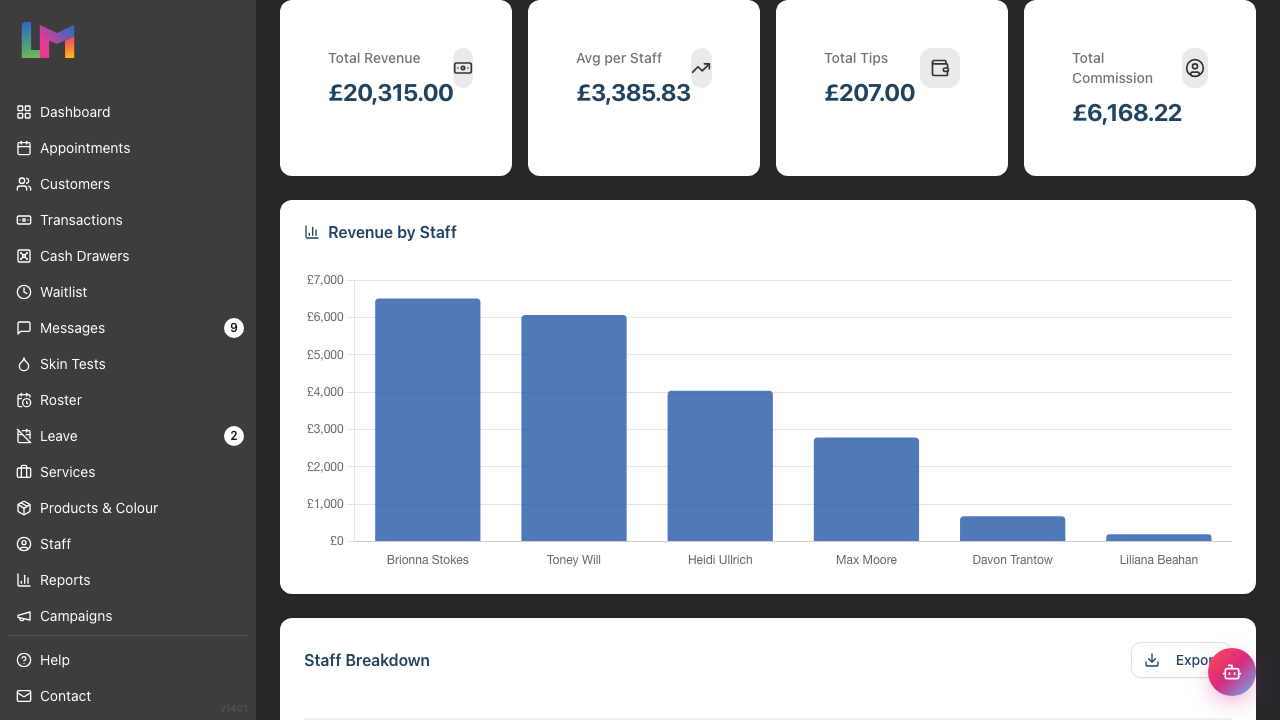
At the top of the report, you'll see four summary cards:
| Card | What It Shows |
|---|---|
| Total Revenue | Combined revenue from all staff |
| Avg per Staff | Average revenue per staff member (only counting those with revenue) |
| Total Tips | Combined tips attributed to all staff |
| Total Commission | Combined commission earned by all staff |
These give you a quick overview before diving into individual staff figures.
Step 3: Using the Date Range Filter
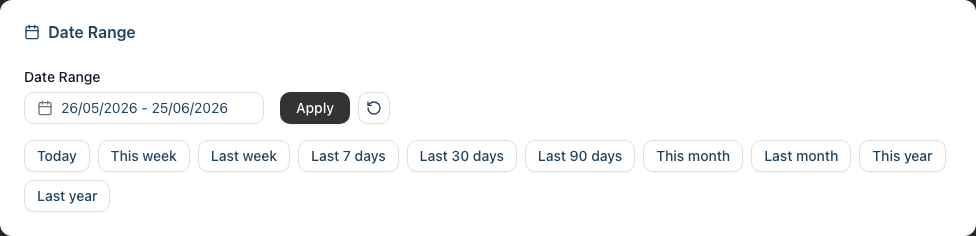
The date filter controls which period you're viewing:
Quick Preset Buttons:
- Today – Current day only
- This week – Current week (Monday to Sunday)
- Last week – Previous full week
- Last 7 days – Rolling 7-day period
- Last 30 days – Rolling 30-day period
- Last 90 days – Rolling 90-day period
- This month – Current calendar month
- Last month – Previous calendar month
- This year – Year to date
- Last year – Previous calendar year
Custom Date Range:
- Click the date range picker
- Select your start and end dates
- Click Apply to update the report
Tip: For payroll processing, use "Last month" to see the complete previous month.
Step 4: Reading the Performance Table
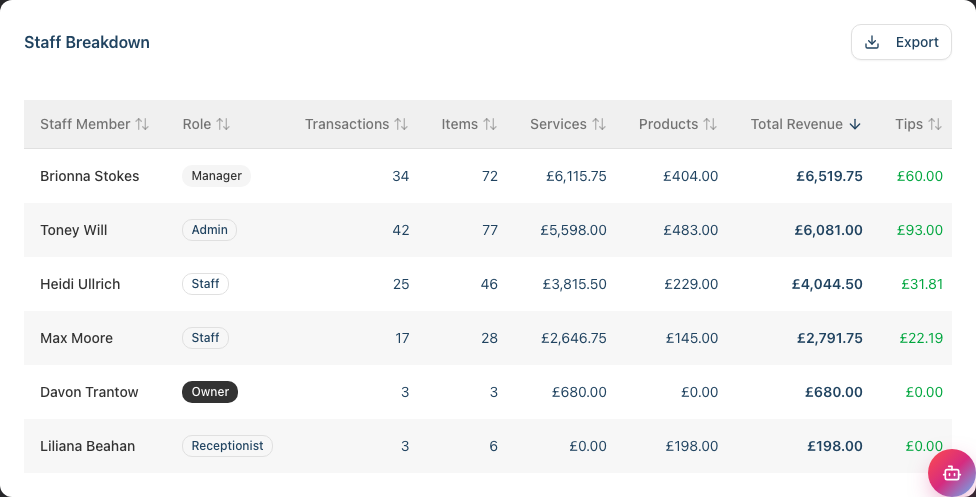
The main table shows each staff member's performance:
| Column | Description |
|---|---|
| Staff Member | The team member's name (clickable link) |
| Role | Their role (Admin, Manager, Staff, Receptionist) |
| Transactions | Number of transactions they contributed to |
| Items | Total items (services + products) they sold |
| Services | Revenue from services performed |
| Products | Revenue from product sales |
| Total Revenue | Combined services + products |
| Tips | Tips attributed to this staff member |
| Commission | Commission earned (calculated from rates) |
Sorting: Click a column header to sort, then click it again to reverse the order. Sorting is available on Staff Member, Transactions, Items, Services, Products, and Total Revenue. (The Role, Tips, and Commission columns are display-only and don't re-sort the table.) Sorting is useful for quickly finding:
- Top earners (sort by Total Revenue)
- Busiest service providers (sort by Services)
- Most active staff (sort by Transactions or Items)
The report opens sorted by Total Revenue, highest first.
Step 5: Understanding Commission Calculations
Commission is calculated based on the commission rate set for each transaction item at the time of sale:
How Commission Works:
- When a service or product is added to a transaction, the staff member's commission rate is recorded on that line item
- Commission = Item Subtotal × Commission Rate
- Example: £500 service × 40% rate = £200 commission
Product Commission:
- Staff members can have product commission enabled separately
- When enabled, products also earn commission at the staff member's rate
- When disabled, product sales generate revenue but no commission
Total Commission: The sum of all service commission + product commission (where enabled) for the selected date range.
Staff on tiered commission: Some team members are paid on a salary-plus-commission tier rather than a flat rate. For those staff, the Commission figure is recalculated from their completed service revenue against their tier bands rather than the per-item rate. See Tutorial 4.3 for how tiers work, and Tutorial 9.11 for a per-staff commission breakdown.
Refunds and commission: Revenue figures include sales that were later refunded (the sale was real income, with refunds tracked separately), but commission is calculated on completed transactions only — a refunded sale earns no commission.
Note: Commission rates are set in each staff member's profile. See Tutorial 4.1 for setting up commission rates. Changes to rates only affect future transactions, not historical data.
Step 6: Reading the Performance Bar Chart
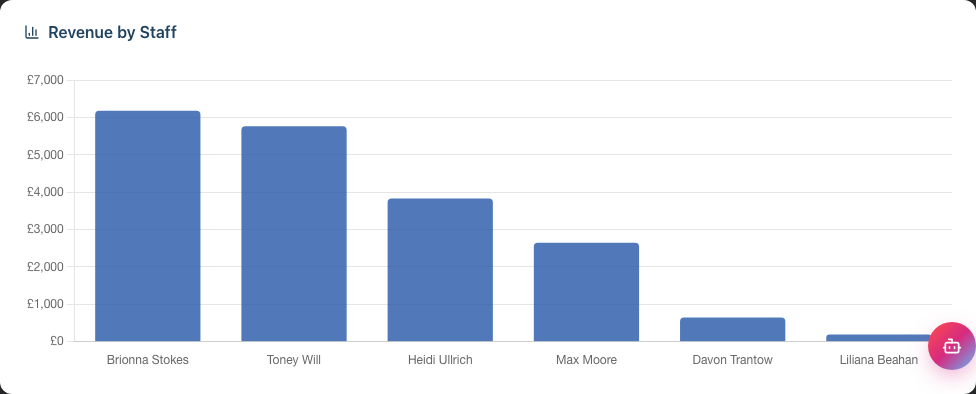
Above the table, the Revenue by Staff card shows a visual comparison of performance:
- Vertical bar chart with each staff member represented
- Bar height corresponds to total revenue
- Hover over any bar to see the exact figure
- Staff are ordered according to the current table sort
What to look for:
- A balanced team has bars of similar height
- Very short bars might indicate newer staff, part-time staff, or those focused on other duties
- Use this for quick visual comparisons across your team
Step 7: Viewing Individual Staff Details
To see more detail for a specific staff member:
Click on the staff member's name in the table
You'll be taken to their staff profile page showing:
- Contact information
- Employment details (role, hire date)
- Compensation settings (commission rate, hourly rate)
- Current leave allowance and usage
- Login account status
To return to the Staff Performance report, use your browser's back button or the "Back to Staff Performance" link at the top
Note: The staff profile shows the team member's current settings rather than a performance breakdown. For a detailed per-staff commission breakdown (service vs product commission, item-by-item or tier progression), use the Staff Commission Report (Tutorial 9.11). For other transaction-level analysis, use the export feature and work in a spreadsheet.
Step 8: Exporting for Payroll
To export staff performance data:
- Set your desired date range (typically "Last month")
- Locate the Export button in the "Staff Breakdown" table header
- Choose your format:
- Export as CSV – Spreadsheet format for Excel or Google Sheets
- Export as PDF – Formatted document for printing or sharing
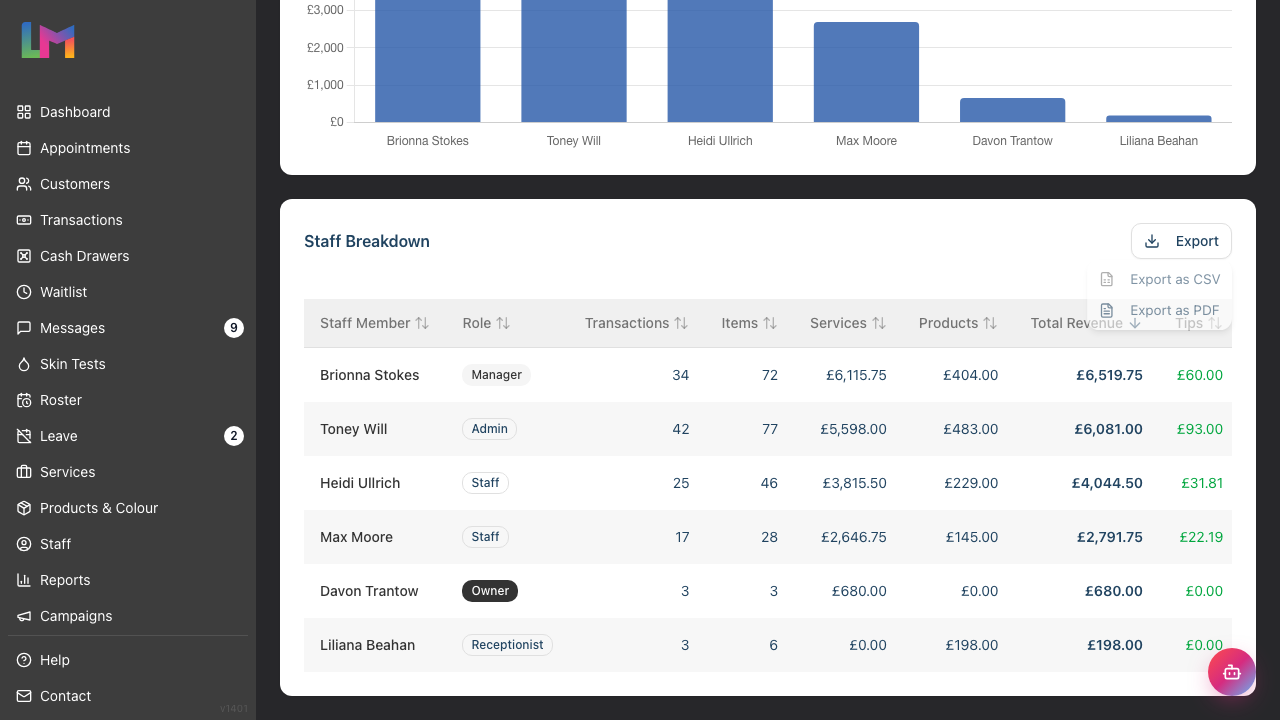
CSV Export Contents:
- Staff name
- Role
- Transactions count
- Items count
- Service revenue
- Product revenue
- Total revenue
- Tips
- Commission
Using the export:
- Open in Excel or Google Sheets for calculations
- Use for payroll processing alongside base pay
- Import into your accounting or payroll software
- Keep as records for tax purposes
Note: Only Owners and Admins can export reports. The export button is not visible to Managers.
Common Pitfalls
"A staff member's revenue looks lower than expected"
Revenue is attributed to the staff member who performed the service or made the sale. If another team member processed the payment, the service provider still gets credit. Check that transaction items are assigned to the correct staff member.
"Commission isn't calculating correctly"
Verify the staff member's commission rates are set correctly in their profile. Commission is captured at the time of the transaction, so check the rate that was active when those sales were made. Also check if product commission is enabled for that staff member.
"I can't see all my staff members"
Only active staff appear in this report. Deactivated staff won't show. If a staff member left mid-period, their historical data still appears for dates when they were active.
"The total doesn't match my Daily Revenue report"
The Staff Performance report only includes transaction items with an assigned staff member. Sales without a staff member assigned won't appear here but will show in Daily Revenue.
"Part-time staff appear to be underperforming"
Consider hours worked, not just total revenue. A part-timer working 2 days might have half the revenue of a full-timer on 5 days – but they could be performing equally well per hour. Use the Hours Worked report (Tutorial 9.7) alongside this one.
"Tips don't seem to be split correctly"
Tips are distributed proportionally based on each staff member's service revenue contribution to transactions. If one stylist performed 70% of the services on a bill, they receive 70% of the tip.
Tips and Best Practices
- Review weekly with your team – Brief, regular reviews are more effective than monthly surprises
- Consider transactions, not just revenue – High revenue from few transactions might mean expensive services; many transactions with moderate revenue shows consistent booking
- Track trends, not just totals – Is someone improving or declining month-on-month?
- Set fair targets – Base targets on experience level, working hours, and typical client base
- Export before payroll – Always export and verify data before finalising payroll
- Look at the revenue per item – Divide Total Revenue by Items to see average ticket size per item sold
Related Tutorials
- Tutorial 9.11: Staff Commission Report – Per-staff commission breakdown (service vs product, item-level or tier progression)
- Tutorial 9.6: Payroll Processing and Reports – Complete payroll with base pay + commission
- Tutorial 9.7: Staff Hours Worked Report – Track actual hours alongside performance
- Tutorial 9.2: Running Revenue Reports – Overall salon revenue analysis
- Tutorial 4.4: Tracking Staff Performance and Commission – The same report from a staff-management angle
- Tutorial 4.3: Staff Levels and Experience Tiers – How tiered commission works
- Tutorial 4.1: Adding New Staff Members – Setting up commission rates
Frequently Asked Questions
Can staff see their own performance?
Staff members can see their personal dashboard with their own appointment schedule, but they cannot access the Staff Performance report. The full comparative view is only for Owners, Admins, and Managers.
How do I change a staff member's commission rate?
Go to Staff in the sidebar, click on the staff member, then Edit. You'll find the commission rate field under Compensation. Changes apply to future transactions only.
Are tips included in the commission calculation?
No. Tips are tracked separately from service/product revenue. They're shown in their own column but don't affect commission calculations. Tips typically go directly to staff members.
What happens if a transaction is refunded?
The revenue from a refunded sale still appears in the performance figures — it was genuine income at the time, and refunds are tracked separately. Commission, however, is calculated on completed transactions only, so a refunded sale earns no commission for the staff member.
Can I see performance by service type?
The Staff Performance report shows totals only. For service-type analysis, export the data and create a pivot table in your spreadsheet software, or check the Daily Revenue report which can show service breakdowns.
How far back does the performance data go?
All historical data from when you started using Luminate is available. There's no limit on how far back you can report.
Why can't I see the Export button?
Export is restricted to Owners and Admins only. If you're logged in as a Manager, you can view the report but cannot export. Ask an Owner or Admin to export for you if needed.
What's the difference between Transactions and Items?
Transactions count is how many separate transactions (bills) included this staff member's work. Items is the total number of services performed plus products sold. One transaction might have multiple items.
Last Updated: June 2026