
Payroll Processing and Reports
Tutorial 9.6: Payroll Processing and Reports
Introduction
Processing payroll? Luminate calculates base pay, commission, and tips for your team. This guide covers running payroll reports, viewing the full pay breakdown for each staff member, verifying calculations, finalising payroll periods, and exporting data for your payroll provider.
Who this is for: Salon owners and admins responsible for paying staff.
What you'll learn:
- Navigating the payroll report
- Understanding pay type calculations
- Reading the payroll breakdown (hours, revenue, base pay, commission, tips)
- Verifying payroll entries
- Recalculating payroll when needed
- Finalising and exporting payroll data
Time to complete: 20-25 minutes
Prerequisites
Before you begin, make sure you have:
- A Luminate account with Owner or Admin role
- Staff members set up with compensation types and rates (see Tutorial 4.1)
- Commission rates configured for service and product sales
- Completed transactions for the payroll period
Step-by-Step Instructions
Step 1: Navigate to the Payroll Report
- Log in to Luminate
- Click Reports in the sidebar menu
- In the Staff Reports category, click Payroll
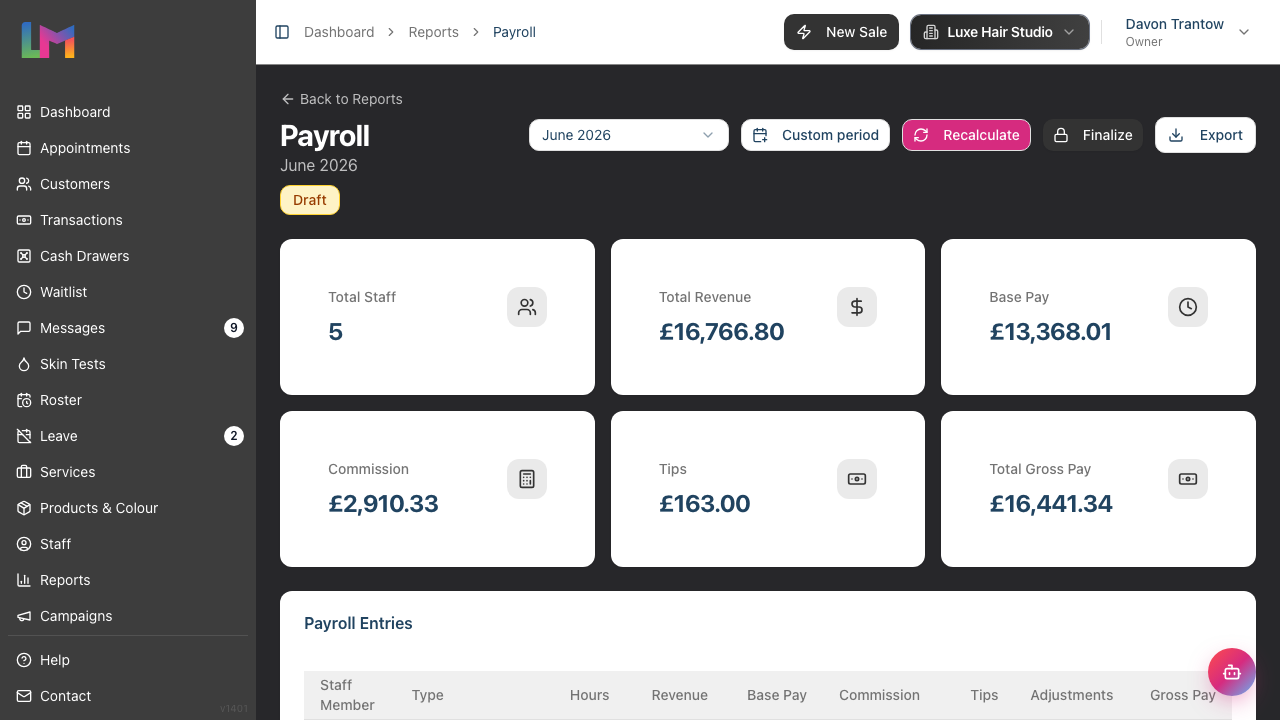
- The report loads showing the selected payroll period
Step 2: Understanding Payroll Periods
Payroll in Luminate works on a monthly basis:
- Each month is a separate payroll period
- Periods start on the 1st and end on the last day of the month
- You can view past periods using the month selector
Period Status:
| Status | Meaning |
|---|---|
| Draft | Period is open, figures recalculate automatically each time you open it, and can still change |
| Finalised | Period is closed, figures are locked and cannot be changed |
A period stays in Draft until you finalise it at month end.
Step 3: Selecting a Payroll Period
To change which period you're viewing:
- Click the period selector (the "Select month" dropdown at the top right of the report)
- Choose the period you want to view
- The report updates to show that period
The selector lists your 12 most recent payroll periods — it shows periods that already exist, not every possible month.
If the period you want hasn't been created yet: the dropdown only lists periods that have already been generated. When you open the report for a month that has no period, a Generate [Month] button appears next to the selector — click it to create that period and populate its figures. There's also a Custom period button for one-off date ranges, which is mainly used when bridging a gap after changing your payroll period configuration.
Tip: When processing payroll, select the previous month (which should now be complete) rather than the current month.
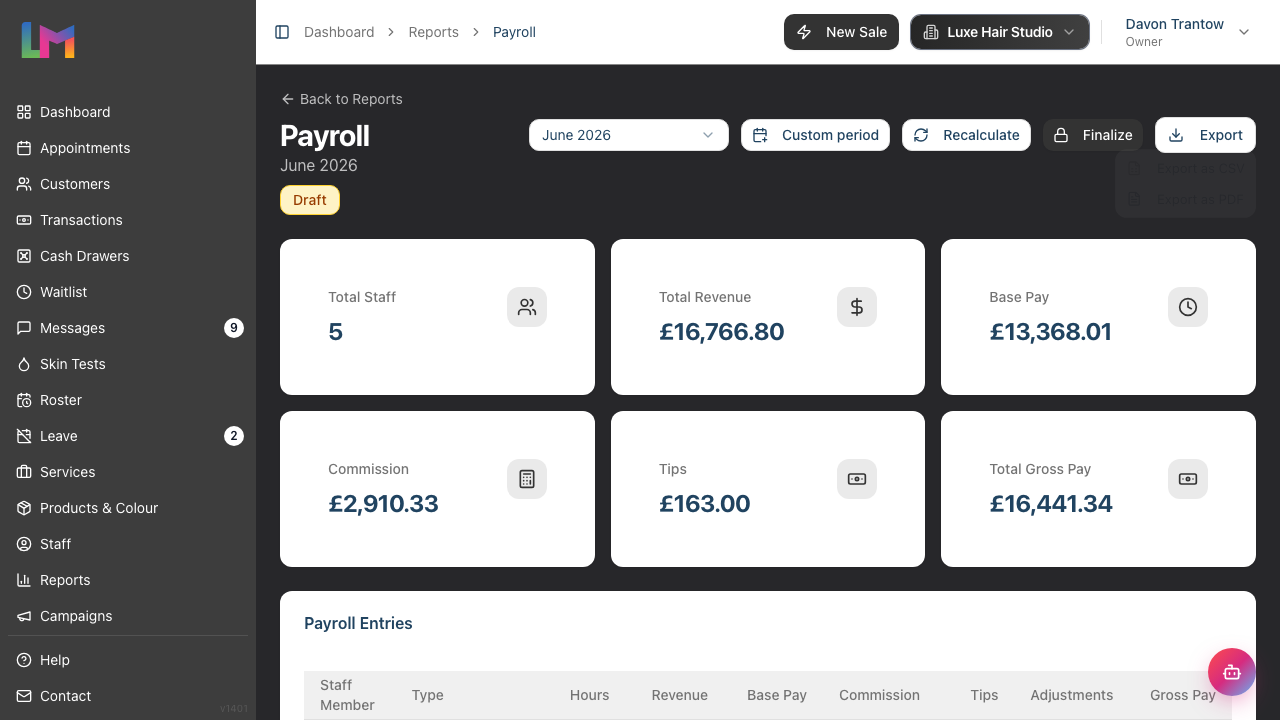
Step 4: Understanding the Summary Cards
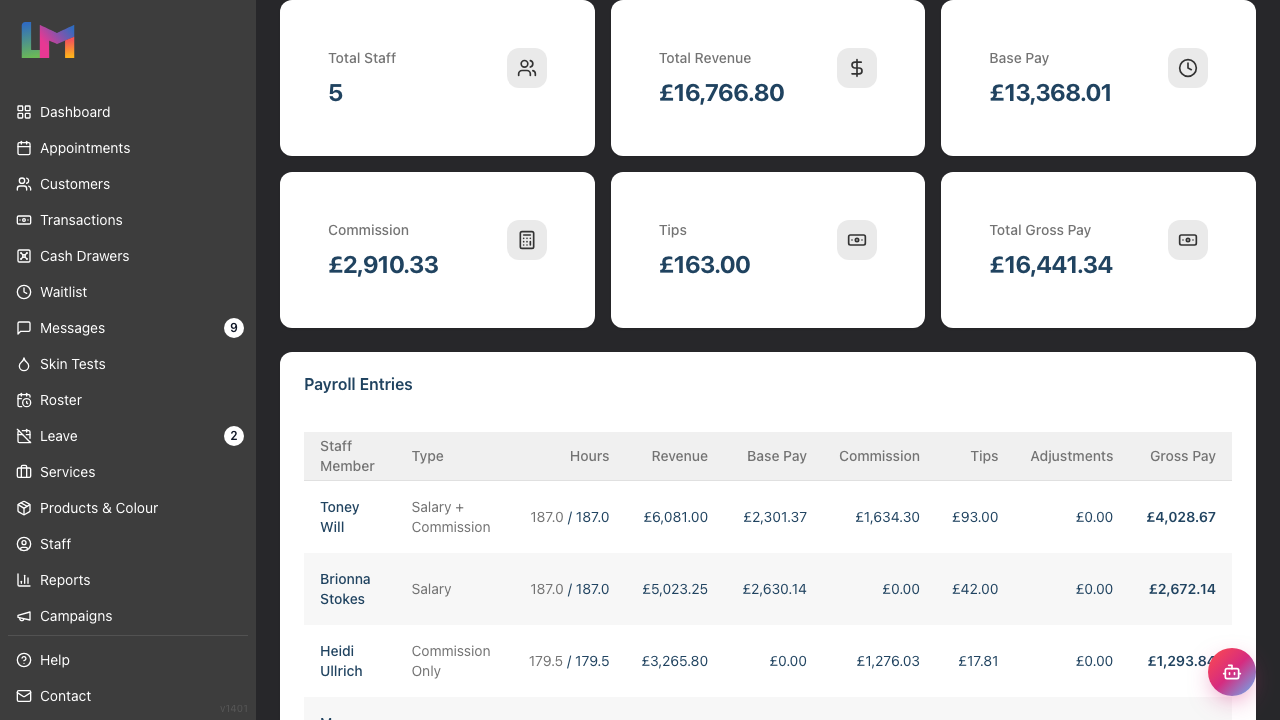
The summary cards show totals for the selected period:
| Card | What It Shows |
|---|---|
| Total Staff | Number of staff with payroll entries |
| Total Revenue | Combined revenue generated by all staff |
| Base Pay | Sum of base salaries and hourly wages |
| Commission | Sum of all commission earned |
| Tips | Sum of all tips attributed to staff |
| Total Gross Pay | Combined gross pay for all staff (base + commission + tips) |
Step 5: Understanding Pay Types
Luminate supports different pay structures:
| Pay Type | How It Works |
|---|---|
| Hourly | Base pay = Hours worked × Hourly rate |
| Salary | Annual salary prorated for the monthly period |
| Commission Only | No base pay, 100% commission |
| Salary + Commission | Base salary plus commission on top |
Each staff member's pay type is set in their profile (see Tutorial 4.1).
Step 6: Reading the Payroll Table
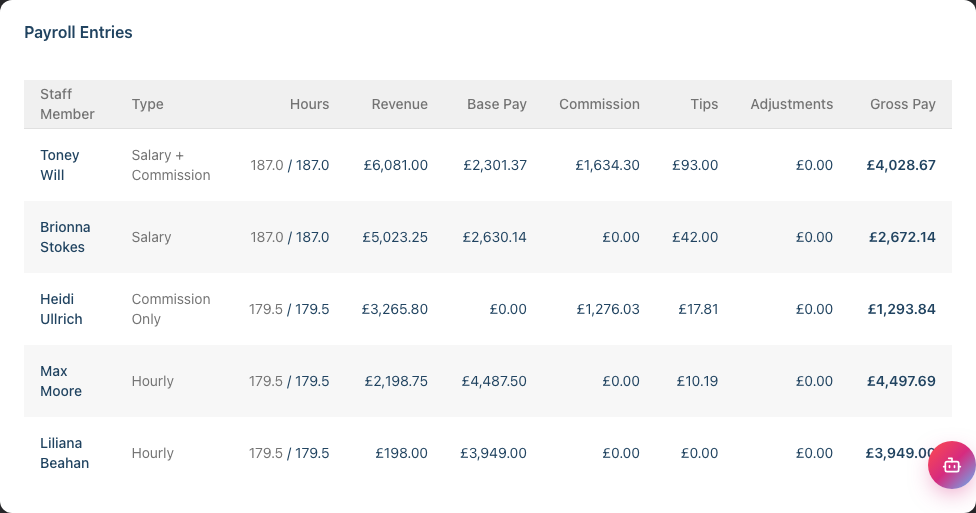
The main table shows each staff member's pay breakdown:
| Column | Description |
|---|---|
| Staff Member | The team member's name |
| Type | Their compensation structure (Hourly, Salary, Commission Only, Salary + Commission) |
| Hours | Scheduled hours / Actual hours worked (displayed as "X.X / Y.Y") |
| Revenue | Total revenue generated by this staff member |
| Base Pay | Salary or hourly earnings before commission |
| Commission | Combined commission earned on services and products |
| Tips | Tips attributed to this staff member |
| Adjustments | Manual adjustments (positive or negative) |
| Gross Pay | Total earnings: Base pay + Commission + Tips. Adjustments are not included in this figure |
Note on Gross Pay vs Net Pay: Gross Pay in the table is Base pay + Commission + Tips only — it does not include the Adjustments column. The combined figure (Gross Pay + Adjustments) is Net Pay, which is not shown in the on-screen table but is included as its own column in the CSV export (see Step 10). When checking what a staff member is actually owed, add any adjustment to the Gross Pay shown here.
Note on hours: The Hours column shows both scheduled and actual hours in "scheduled / actual" format. Scheduled hours are calculated from the roster, and actual hours default to the scheduled value.
Step 7: Verifying Payroll Calculations
Before finalising payroll, verify the figures are correct:
For Hourly Staff:
- Check hours match the Hours Worked report (Tutorial 9.7)
- Verify: Base Pay = Actual Hours × Hourly Rate
- Confirm commission matches the Staff Performance report
For Salaried Staff:
- Verify the base salary is correct (prorated for the month)
- Check commission calculations
- Account for any unpaid leave (which may reduce salary)
For Commission-Only Staff:
- Verify service commission against the Staff Performance report
- If the staff member earns product commission, check product revenue and commission separately
- Ensure all their transactions are included
For Tips: Tips are distributed proportionally based on each staff member's service revenue on transactions. Check the Staff Performance report (Tutorial 9.3) for detailed tip breakdowns.
Step 8: Recalculating Payroll
Draft payroll periods automatically recalculate each time you open the report, so figures are always up to date with the latest transaction data.
If you want to manually trigger a recalculation (for example, after making changes in another tab):
- Click the Recalculate button (top right of the report)
- Luminate recalculates all figures based on current transaction data
- Review the updated totals
When recalculation matters:
- After recording late transactions
- After processing refunds
- After correcting transaction errors
- After adjusting staff commission rates
Note: You can only recalculate Draft periods. Once a period is finalised, figures are locked.
Step 9: Finalising the Payroll Period
When you're satisfied the figures are correct:
- Ensure you're viewing the correct month
- Verify all figures have been checked
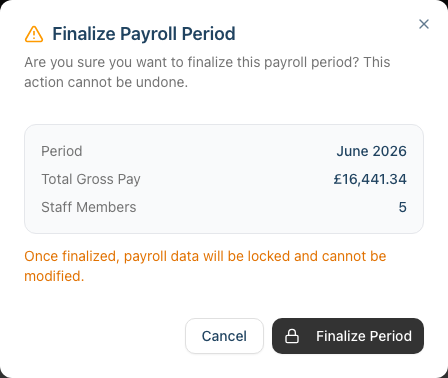
- Click the Finalize button
- Review the confirmation dialog showing the period, total gross pay, and staff count
- Click Finalize Period to confirm
What happens when you finalise:
- The period status changes from "Draft" to "Finalised"
- Figures are locked and cannot be changed
- The Recalculate and Finalize buttons disappear for that period
- You can still view and export the data
- To start the next month, select or Generate that period from the selector — finalising one period does not automatically create the next
Important: The payroll report is only accessible to Owners and Admins. Managers, Receptionists, and Staff cannot open the payroll report at all, so finalising is restricted to Owners and Admins by extension.
Warning: Finalising is permanent. Make sure all figures are correct before finalising. If you discover an error after finalising, you'll need to make manual adjustments outside Luminate.
Step 10: Exporting Payroll Data
To export payroll for your payroll provider or accountant:
- Select the period you want to export
- Click the Export button, then choose Export as CSV from the menu
- A CSV file downloads containing:
- Staff Member name
- Compensation Type
- Scheduled Hours
- Actual Hours
- Service Revenue
- Product Revenue
- Total Revenue
- Base Pay
- Commission
- Tips
- Gross Pay
- Adjustments
- Net Pay
Using the export:
- Import into your payroll software
- Send to your accountant
- Keep as records for tax purposes
- Use for HMRC reporting
Common Pitfalls
"Commission figures don't match the Staff Performance report"
The Payroll report only includes transactions from the specific calendar month. The Staff Performance report may show different dates if you've changed the filter. Ensure you're comparing the same date range.
"A staff member's hours seem wrong"
Hours come from the roster (scheduled) and actual hours default to that same value. If hours look incorrect, check:
- Their shifts in the Roster
- Any leave taken during the period
- Break times recorded (breaks are deducted from scheduled hours)
Correcting hours is done by fixing the underlying roster and then recalculating the period, not by editing the payroll table directly. See Tutorial 9.7: Staff Hours Worked Report for detailed hour tracking.
"I finalised the wrong month"
Unfortunately, finalisation cannot be undone. You'll need to make manual adjustments when processing actual payroll. Keep a note of what needs correcting.
"Commission rates changed mid-month"
Commission is calculated using the rate that was set when each transaction was completed. If you changed rates mid-month, some transactions use the old rate and some use the new rate.
"A new staff member has no payroll entry"
Staff members must be active and have completed transactions to appear. If they haven't started taking clients yet, they won't have any payroll entries to show.
"Base pay shows as zero for a salaried staff member"
Check that their compensation type is set correctly in their staff profile. Also verify their base salary amount is entered correctly.
"Tips aren't showing for a staff member"
Tips are distributed proportionally based on service revenue. If a staff member has no service revenue for the period, they won't receive any tips. Product sales don't contribute to tip allocation.
Tips and Best Practices
- Process payroll in the first week of the new month - This gives time to catch and correct errors before payment deadlines
- Run the Hours Worked report first - Verify hours before processing payroll
- Keep a payroll checklist - Check the same things each month systematically
- Export before finalising - Keep a copy of draft figures in case you need to reference them
- Set calendar reminders - Schedule payroll processing for the same time each month
- Communicate with staff - Let them know when to expect pay calculations to be complete
Related Tutorials
- Tutorial 9.7: Staff Hours Worked Report - Verify hours before payroll processing
- Tutorial 9.3: Staff Performance and Commission Reports - Detailed commission and tips breakdown
- Tutorial 4.1: Adding New Staff Members - Setting up compensation types and rates
- Tutorial 6.1: Understanding Staff Leave Allowances - How leave affects pay calculations
Frequently Asked Questions
When should I finalise each month's payroll?
Finalise after all transactions for the month are recorded, typically in the first few days of the following month. Don't finalise until you've verified all figures.
Can I edit finalised payroll?
No, finalised periods are locked. If you discover an error, make manual adjustments in your actual payroll system and keep documentation of the discrepancy.
How is commission calculated?
Commission depends on the staff member's compensation type. Commission-only staff earn commission based on the rate stored on each transaction item. Salary + Commission staff can use tiered commission rates, where the percentage increases as revenue thresholds are reached. Product commission is calculated separately and only applies to staff who have product commission enabled. Rates are set in each staff member's profile.
Does Luminate handle tax calculations?
Luminate calculates gross pay (before tax). Actual tax withholding, National Insurance, and pension contributions should be handled by your payroll provider or accountant.
What about tips?
Tips are included in the payroll calculations and appear as a separate column. Tips are distributed proportionally to staff based on their service revenue on each transaction. Tips are added to gross pay but are not included in commission calculations.
Can staff see their own payroll information?
Staff can see their own performance metrics (revenue, commission earned) in the Staff Performance report but cannot access the full payroll report. The payroll report is only visible to Owners and Admins.
What's the difference between scheduled and actual hours?
Scheduled hours are calculated automatically from the roster (with break time deducted). Actual hours default to the scheduled value. The Hours column shows both values in "scheduled / actual" format.
How far back can I view payroll periods?
The month selector shows the 12 most recent payroll periods. All payroll data is retained, but the dropdown provides quick access to the most recent months.
Last Updated: June 2026