
Staff Commission Report
Tutorial 9.11: Staff Commission Report
Introduction
The Staff Commission Report shows exactly what one staff member earned in commission over a date range — broken down into service commission and product commission, with an item-by-item breakdown or a tier-progression table depending on how that person is paid. It is the report to reach for in a one-to-one or performance review, when you want to point at the precise figures behind a stylist's commission and explain how to grow them.
This report is deliberately commission-only. Unlike the Payroll report (Tutorial 9.6), it shows no base salary, no hourly rate, and no gross pay — there is no pay run here. That is what lets Managers view it: it surfaces incentive earnings without exposing any payroll-restricted figures.
Who this is for: Owner, Admin, Manager — anyone running performance conversations who needs per-staff commission detail.
What you'll learn:
- Open the Staff Commission Report and pick a staff member and date range
- Read the six summary cards (service, product and total commission, service and product revenue, tips)
- Understand the service-vs-product split
- Read the item-level commission breakdown for commission-only staff
- Read the tier-progression table for salary-plus-commission staff
- Understand the compensation badge and the override badge
- Understand why salary and hourly staff show no commission
- Export the report (Owners and Admins only)
Time to complete: 10-15 minutes
Prerequisites
- Logged in as Owner, Admin, or Manager
- At least one staff member set up with a compensation type on their profile (see Tutorial 4.1 — Adding New Staff Members)
- At least one completed transaction with items attributed to the staff member in the date range you want to view (otherwise the report shows zeros)
- For exporting: Owner or Admin role
How This Differs from the Payroll Report
It is worth being clear up front, because the two reports look at the same staff but answer different questions:
| Staff Commission Report (9.11) | Payroll Report (9.6) | |
|---|---|---|
| Shows commission earnings | Yes — service and product, split out | Yes — as part of total pay |
| Shows base salary / hourly rate | No — never | Yes |
| Shows gross pay / a pay run | No | Yes |
| Who can view | Owner, Admin, Manager | Owner, Admin only |
| Purpose | Performance conversations, incentive transparency | Processing a pay run |
If you need to pay someone, use Payroll. If you want to talk about what someone earned in commission and why, use this report.
Step-by-Step Instructions
Step 1: Open the Report
- Click Reports in the sidebar
- Under Staff Reports, click Staff Commission
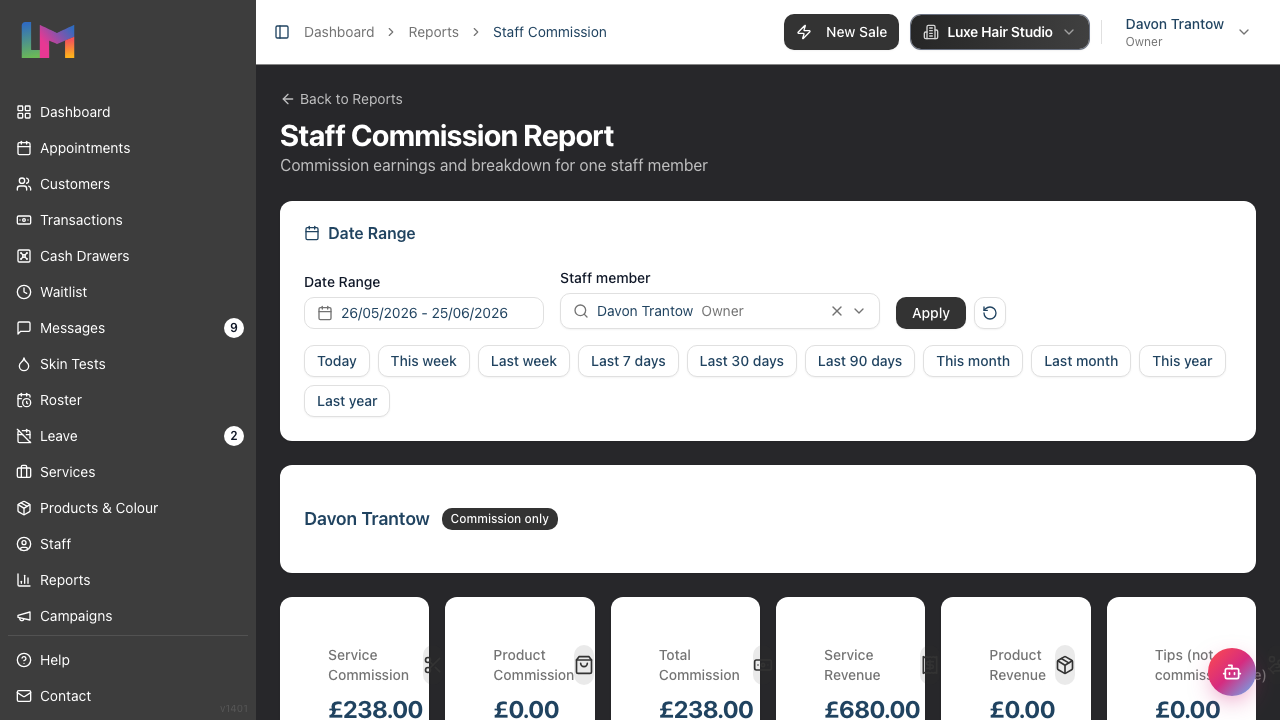
- The report opens for one staff member over the last 30 days by default
The page header reads "Staff Commission Report" with the subtitle "Commission earnings and breakdown for one staff member".
When the page first loads it automatically selects the first active staff member, so the report is never blank.
Step 2: Pick a Staff Member
In the Date Range card, use the Staff member selector to choose whose commission you want to see:
- Click the staff selector
- Start typing a name or role to search, or scroll the list
- Select the staff member
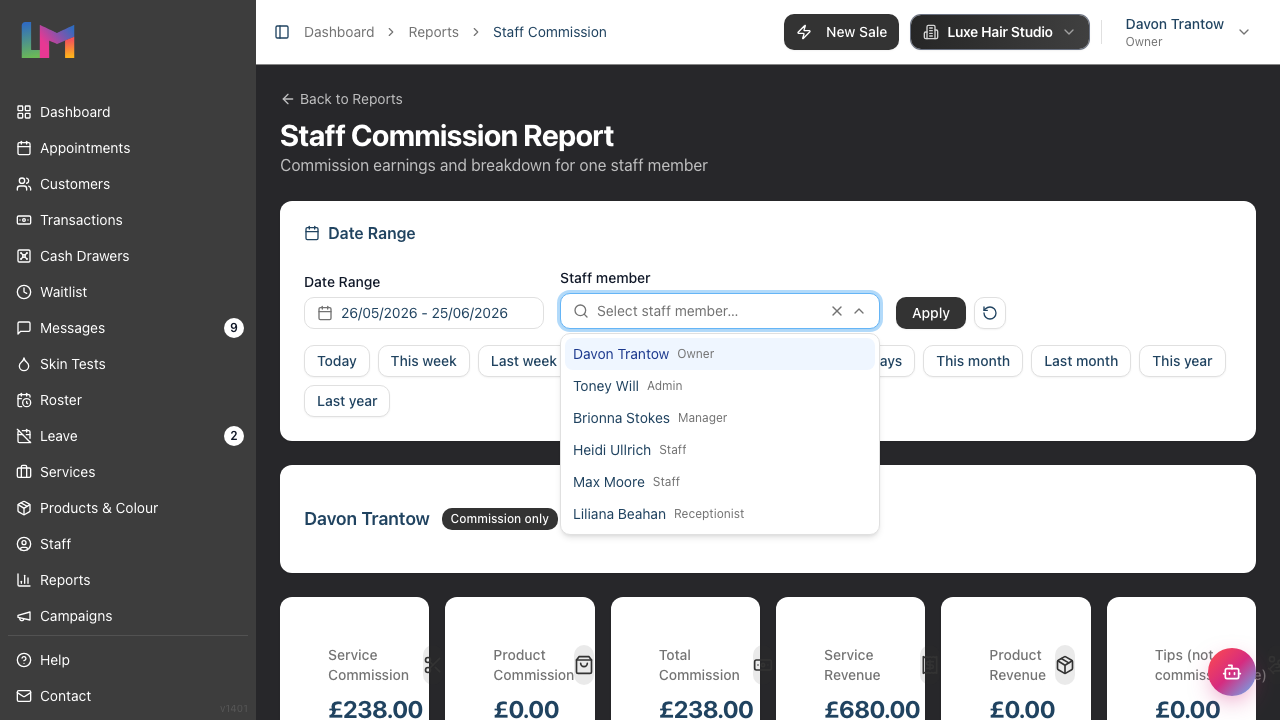
Each option shows the person's name and their role. Staff who are no longer active are still listed (so you can look at historical ranges) and are flagged with a muted Inactive marker beside their role; once you select an inactive person, an Inactive badge also appears next to their name above the summary cards. Selecting a different person re-runs the report for them, keeping your date range and sort in place.
Step 3: Choose a Date Range
Use the date-range picker in the Date Range card:
- Pick a start and end date in the date-range picker
- Click Apply to update the report
- Click the reset button (the circular arrow) to return to the default 30-day view
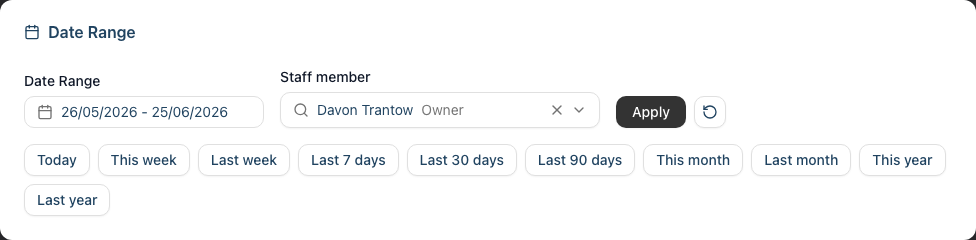
The same preset buttons available on other reports work here — Today, This week, Last week, Last 7 / 30 / 90 days, This month, Last month, This year, Last year.
Tip: For a monthly review, select Last month to see the full month's commission.
Step 4: Read the Compensation Badges
Below the filter, next to the staff member's name, you'll see one or two badges:
- Compensation badge — tells you which calculation applies to this person: Commission only, Salary plus commission, Salary, or Hourly. This badge is the key to reading the rest of the page, because the breakdown below changes depending on it.
- Override badge — shown only when the staff member has a fixed commission override set (for example Override 50%). An override fixes the commission rate used on their sales, in place of the individual per-service rates. Because each line's rate is frozen at the moment it was sold (see Understanding How the Numbers Are Calculated below), lines sold while the override was in force show the override rate, while any older lines keep whatever rate applied when they were sold — so the breakdown can still show a mix of rates even with an override set.

Step 5: Read the Summary Cards
Six summary cards sit above the breakdown, each a single headline figure for the selected staff member and date range:
| Card | What It Shows |
|---|---|
| Service Commission | Commission earned on services |
| Product Commission | Commission earned on retail products |
| Total Commission | Service commission plus product commission |
| Service Revenue | The service sales the service commission was earned on |
| Product Revenue | The product sales the product commission was earned on |
| Tips (not commissionable) | Tips attributed to this person, shown for context only |
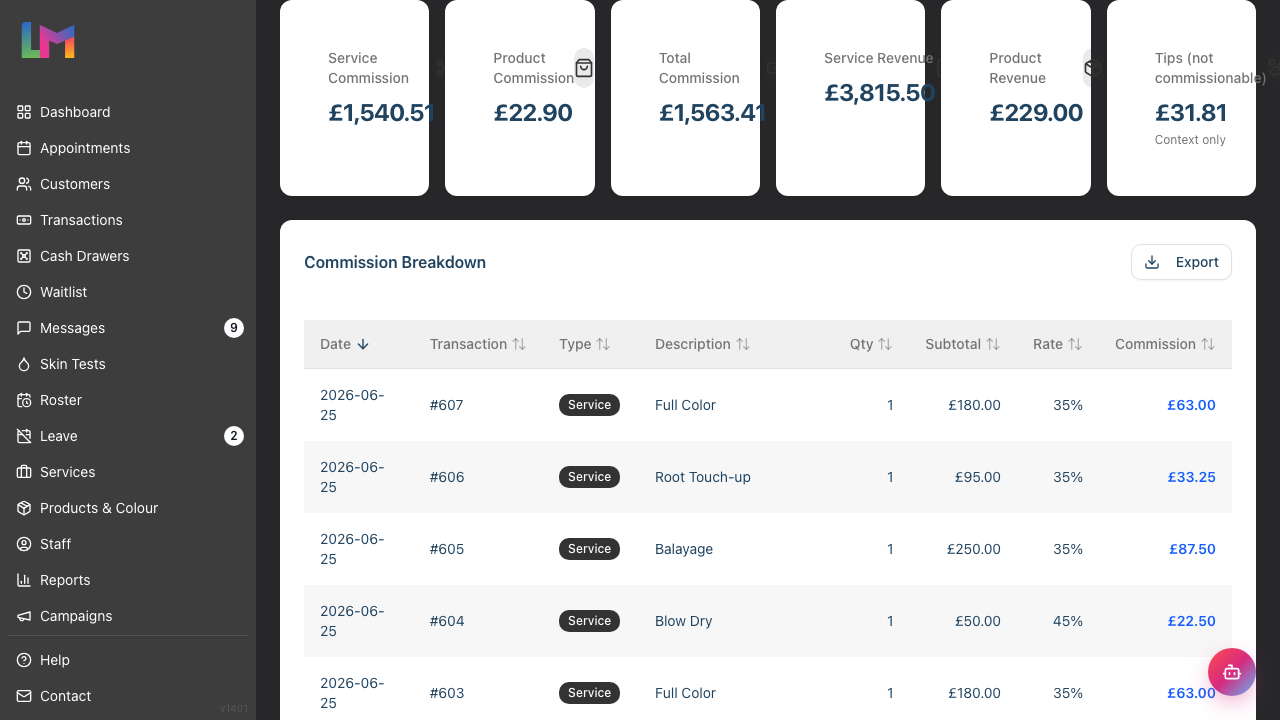
Important — tips are never commissionable. The Tips card is there so you have the full picture of what someone earned in a conversation, but tips are not folded into Total Commission and are explicitly labelled "not commissionable". Don't add the Tips figure to Total Commission.
Showing service and product revenue alongside the commission lets the figures reconcile — you can see the commission as a share of the revenue it was earned on.
Step 6: Read the Breakdown — Commission-Only Staff
For staff on a commission-only plan, the report shows an item-level breakdown in a card titled Commission Breakdown: one row per service or product line they sold in the range.
| Column | Description |
|---|---|
| Date | When the transaction was completed (salon's local date) |
| Transaction | The transaction reference number |
| Type | A badge: Service or Product |
| Description | The service or product name |
| Qty | Quantity sold |
| Subtotal | The line amount the commission was calculated on |
| Rate | The commission rate applied to that line (shown as — when no rate applied) |
| Commission | The commission earned on that line |
Sorting: Click any column header to sort. Click again to reverse. The default sort is Date, newest first. The breakdown is paginated at 20 rows per page.
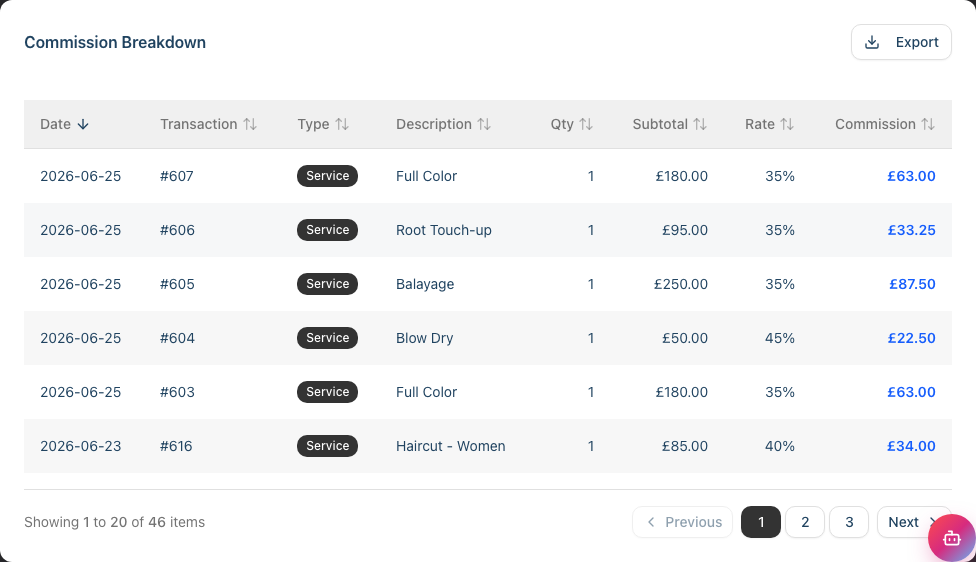
This is the per-line audit trail: the rate shown on each row is exactly the rate that was used when the sale was made, frozen at that moment, so the figures always reconcile even if rates change later.
Step 7: Read the Breakdown — Salary-Plus-Commission Staff
For staff on a salary plus commission plan, commission is calculated in tiers, so instead of an item breakdown the report shows a tier-progression table. This is the whole incentive structure laid out: as the person's service revenue climbs, it crosses thresholds (bands), and each band pays at its own rate.
| Column | Description |
|---|---|
| Band | The revenue band (e.g. £0 – £500, £500 – £1,500, £1,500 – ∞) |
| Revenue in band | How much of their service revenue fell into this band |
| Rate | The commission rate for this band |
| Commission | The commission earned from this band |
| Cumulative | The running total of commission as you read down the bands |
Reading top to bottom shows you exactly which thresholds were crossed and how much each band contributed — so you can show someone "you're £300 of revenue away from the next band, where your rate jumps to 35%".
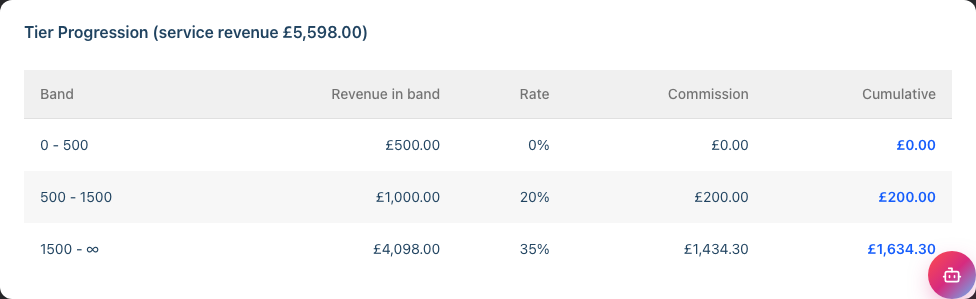
Products are not tiered. If a salary-plus-commission person also earns product commission, it appears only as the single Product Commission figure in the summary cards above — the individual product lines are not itemised for tiered staff (the tier table is the service view, and there is no item breakdown alongside it).
Step 8: Salary and Hourly Staff Show No Commission
If you select someone on a salary or hourly plan, the report shows a clear message that no commission applies — naming the person and their plan, for example "Jordan Blake is on an hourly compensation plan — no commission is earned." — with the summary cards zeroed and the compensation badge shown.

This is expected, not an error. Salary and hourly staff don't earn commission, so there is nothing to break down. The report still loads cleanly so that if you've picked the wrong person, you understand immediately.
Step 9: Export the Report
The Export button sits at the top right of the Commission Breakdown card, so on-screen export is available when you're viewing a commission-only staff member with at least one line in the range. To export:
- Select the commission-only staff member and date range you want
- At the top right of the Commission Breakdown card, click the Export button
- Choose Export as CSV or Export as PDF
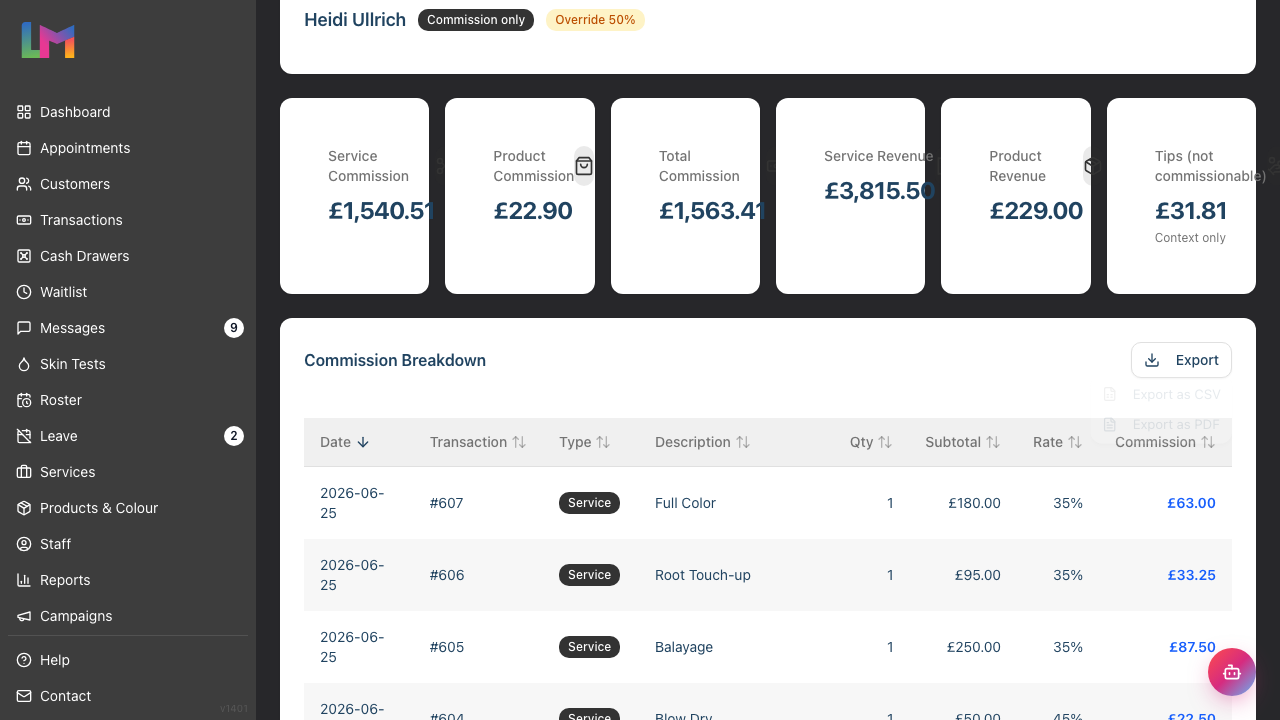
The file downloads with a name like staff-commission-maya-patel-2026-06-01-to-2026-06-30.csv (or .pdf), built from the staff member's name and the selected date range. The CSV opens with a small summary block (staff member, compensation type, override, date range and the headline figures) followed by the item breakdown.
Note: Exporting is available to Owners and Admins only. Managers can read the report on screen but cannot download it — ask an Owner or Admin if you need the file. The tier-progression and no-commission views don't carry an on-screen Export button.
Understanding How the Numbers Are Calculated
Completed sales only. Commission is earned only on completed transactions. Drafts and pending transactions don't count.
Refunds don't count. A refund does not appear in this report and does not claw back commission already earned. If a sale was completed and later refunded, the commission stays earned, by design. The service and product revenue figures shown alongside the commission use the same completed-only set, so the rate maths reconciles.
The rate is frozen at the time of sale. Each commission rate you see is the rate that applied when the item was sold, not the current rate. This means the breakdown is an accurate audit of what was actually paid, even if a service's or staff member's commission rate has since changed.
No rate-change history. Because the report shows the frozen per-sale rate, it cannot reconstruct "the rate was 40% until the 14th, then 45%". What it shows instead is the exact rate used on each line — which is the authoritative record of what was earned.
The split. Service commission and product commission are kept separate throughout — in the summary cards, the breakdown, and the export — because they are usually set at different rates (services are the main earner; retail commission is a smaller layer to encourage aftercare sales).
Common Pitfalls
"This staff member shows no commission"
Check the compensation badge. If it says Salary or Hourly, that person doesn't earn commission and the empty state is correct. If it says Commission only or Salary plus commission, check your date range — they may simply have had no completed sales in that period.
"Every rate in the breakdown is the same"
That's usually an override at work. Look for the Override badge next to the name — when an override is set, it fixes the commission rate used on the person's sales in place of the individual service rates. Because rates are frozen at the moment of sale, you may instead see a mix: the override rate on lines sold while it was in force, and older rates on earlier lines.
"Product commission is zero even though they sold products"
Product commission is only earned when product commission is enabled for that staff member. If the figure is zero but products were sold, product commission may be switched off for them. For commission-only staff the breakdown still lists the product lines so you can see what was sold (with a — in the Rate column); for tiered staff only the Product Commission summary figure is shown, not the individual product lines.
"The Tips figure isn't in the Total Commission"
Correct — tips are shown for context only and are never commissionable. Total Commission is service commission plus product commission, and nothing else.
"A refunded sale isn't showing"
That's by design. Commission uses completed transactions only; refunds are excluded and never reduce earned commission.
"I want to compare the whole team"
This report is a single-staff drill-down. For an all-team view of revenue and commission side by side, use the Staff Performance report (Tutorial 9.3).
Tips and Best Practices
- Use it in one-to-ones — Pull up the staff member, select Last month, and walk through the breakdown together so the commission figure is transparent and trusted
- Show tiered staff their next band — For salary-plus-commission staff, the tier table makes the incentive concrete: "you're this close to the next rate"
- Check the service-vs-product split — A low product-commission figure can be a coaching opportunity around retail and aftercare sales
- Verify before payroll — While this isn't a pay run, it's a useful sanity check on the commission portion before you process Payroll (Tutorial 9.6)
- Export for the record — Keep a CSV or PDF of each review period's commission alongside your performance notes
Related Tutorials
- Tutorial 9.3: Staff Performance and Commission Reports — The all-team view of revenue and commission
- Tutorial 9.6: Payroll Processing and Reports — The actual pay run, including base salary and hourly pay
- Tutorial 9.7: Staff Hours Worked Report — Hours alongside earnings
- Tutorial 9.2: Running Revenue Reports — Salon-wide revenue across services and products
Frequently Asked Questions
Why can Managers see this when they can't see Payroll?
Because this report shows commission earnings only — no base salary, no hourly rate, no gross pay, and no pay run. None of the payroll-restricted figures appear here, so it's safe to share with Managers running performance conversations.
Can staff see their own commission?
Not currently. A staff self-view is not available — the report is only accessible to Owners, Admins, and Managers.
Do tips count toward commission?
No. Tips are shown on the report for context so you have the full earnings picture, but they are never commissionable and are not included in Total Commission.
Does a refund reduce someone's commission?
No. Commission is earned on completed sales and is not clawed back by a later refund. Refunds don't appear in this report.
Why does the rate differ from the current commission rate?
The report shows the rate that was in force when each item was sold, frozen at that moment. If the rate has changed since, historical lines keep the rate they were sold at — which is the accurate record of what was earned.
Why does a salary-plus-commission person show a tier table instead of an item list?
Their service commission is calculated from total revenue across bands, not line by line, so the tier table is the correct view. Any product commission they earn is shown separately as a single figure.
What if I pick a staff member from the wrong salon?
You can only select staff who belong to your current salon. The report never shows another salon's staff or their commission.
Last Updated: June 2026