
Managing Outstanding Balances
Tutorial 8.5: Managing Outstanding Balances
Introduction
Not every customer pays in full at checkout. Some salons allow partial payments, customer accounts, or encounter situations where full payment isn't collected. Managing outstanding balances properly ensures you track money owed and follow up systematically. This tutorial covers tracking unpaid amounts, using the Accounts Receivable report, and recording late payments.
Who this is for: Owners, Admins, and Managers who handle payments and follow-up on outstanding balances.
What you'll learn:
- Understanding partial payments and unpaid transactions
- Viewing outstanding balances by customer
- Using the Accounts Receivable report
- Recording payments on existing transactions
- Following up on unpaid amounts
Time to complete: 10 minutes
Prerequisites
Before you begin:
- Complete Tutorial 8.1 (Understanding Transactions and Payment Status)
- Understand your salon's payment terms
Step-by-Step Instructions
Step 1: Understanding Outstanding Balances
An outstanding balance exists when transaction total exceeds payments received.
Payment status recap:
| Status | Total Paid | Outstanding Balance |
|---|---|---|
| Unpaid | £0.00 of £100.00 | £100.00 |
| Partial | £30.00 of £100.00 | £70.00 |
| Paid | £100.00 of £100.00 | £0.00 |
Common scenarios creating outstanding balances:
| Scenario | Example |
|---|---|
| Customer tab/account | Regular customer, pays monthly |
| Partial payment at checkout | Customer pays £50 of £100, promises rest later |
| Deposit only paid | Deposit recorded but full balance not yet collected |
| Payment plan | Agreement to pay in instalments |
Step 2: Accessing the Accounts Receivable Report
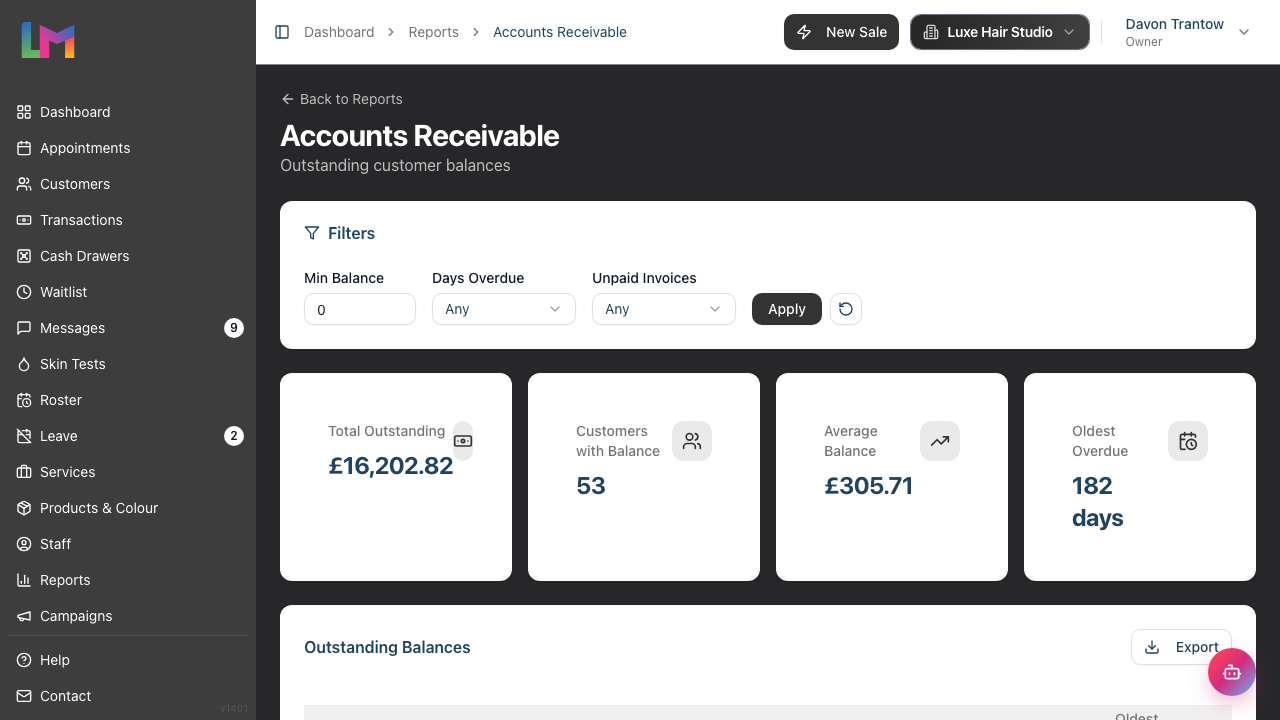
The Accounts Receivable report shows all customers with outstanding balances.
To access:
- Navigate to Reports in the sidebar
- Under Financial Reports, click Accounts Receivable
Report summary shows:
- Total Outstanding - Sum of all unpaid amounts
- Customers with Balance - Number of customers owing money
- Average Balance - Average amount per customer
- Oldest Overdue - Days since oldest unpaid invoice
Filtering the report:
Use the filters at the top of the report to narrow results:
- Min Balance - Show only customers owing at least this amount
- Days Overdue - Filter by how long balances have been outstanding (7+, 14+, 30+, 60+, or 90+ days)
- Unpaid Invoices - Filter by number of unpaid transactions (2+, 3+, or 5+ invoices)
Click Apply to update the report with your filters, or use the reset button to clear all filters.

Step 3: Reading the Accounts Receivable Table
The report table displays:
| Column | Description |
|---|---|
| Customer | Customer name (click to view profile) |
| Contact email address | |
| Phone | Contact phone number |
| Unpaid | Number of unpaid transactions |
| Outstanding | Total amount owed |
| Oldest Invoice | Date of oldest unpaid transaction |
| Days Overdue | How long since oldest invoice |
| View Transactions | Quick link to the Transactions page filtered by that customer's outstanding transactions |
Sorting options:
- Click column headers to sort
- Sort by customer name, outstanding amount, unpaid count, or days overdue
- Identify highest balances or oldest debts
Days overdue colour coding:
- Grey text: 0-30 days (current)
- Yellow: 31-60 days (attention needed)
- Orange: 61-90 days (follow up required)
- Red: more than 90 days (urgent attention needed)
Step 4: Viewing Customer Outstanding Balance
From customer profile:
- Navigate to Customers in the sidebar
- Search for and open the customer
- Click the Transactions tab
- Use the status dropdown to filter by Unpaid or Partial
- See all transactions with amounts owed
Quick route from report:
- In the Accounts Receivable report, click the customer name or the View Transactions link
- Goes directly to the Transactions page, pre-filtered to show only that customer's outstanding transactions
- View and manage their unpaid invoices directly
Step 5: Recording a Late Payment
When a customer pays their outstanding balance:
From the Transactions page:
- Navigate to Transactions in the sidebar
- Use the payment status filter and select Outstanding to see all transactions with balances due (this combines Unpaid and Partial statuses into one convenient filter)
- Search for the customer by name if needed
- Click to open the transaction
- Add the payment and complete the transaction
From the customer profile:
- Navigate to the customer's profile
- Click the Transactions tab
- Find the unpaid/partial transaction
- Click to open the transaction
- Add the payment and complete the transaction
From the Accounts Receivable report:
- Click the customer name or View Transactions link
- The Transactions page opens pre-filtered for that customer's outstanding transactions
- Click to open the transaction and record the payment
After recording:
- Transaction payment status updates (Unpaid → Partial or Paid)
- Customer outstanding balance reduces
- Accounts Receivable report updates automatically
Step 6: Exporting the Report
To export accounts receivable data:
- Open the Accounts Receivable report
- Apply any filters you want included in the export
- Click the Export button in the table header
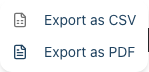
- Choose your format:
- Export as CSV - Spreadsheet format for Excel, Google Sheets, or accounting software
- Export as PDF - Formatted document for printing or sharing
Export includes:
- Customer name and contact details (email, phone)
- Outstanding amounts
- Number of unpaid transactions
- Oldest invoice date
- Days overdue
The export respects your current filters, so you can export specific segments (e.g., only balances over £100 or only 90+ days overdue).
Step 7: Following Up on Outstanding Balances
Follow-up timeline suggestion:
| Days Overdue | Action | Method |
|---|---|---|
| 0-7 days | Friendly reminder | Email or SMS |
| 8-14 days | First reminder call | Phone |
| 15-30 days | Second reminder | Phone + email |
| 30+ days | Escalate to manager | Direct contact |
First reminder template:
Hi [Customer Name],

I hope you're well. I noticed there's an outstanding balance
of [Amount] on your account from your visit on [Date].

You can settle this:
- At your next visit
- By card payment over the phone

If you've already paid, please let us know so we can update
our records.

Thanks,
[Your Name]
[Salon Name]
Step 8: Outstanding Balance Permissions
| Action | Owner | Admin | Manager | Staff | Receptionist |
|---|---|---|---|---|---|
| View Accounts Receivable report | ✓ | ✓ | ✓ | ✗ | ✗ |
| View customer balances | ✓ | ✓ | ✓ | ✓ | ✓ |
| Record late payments | ✓ | ✓ | ✓ | ✓ | ✓ |
| Export report | ✓ | ✓ | ✗ | ✗ | ✗ |
Note: Receptionists can view customer transactions directly from customer profiles but cannot access the Accounts Receivable report.
Common Pitfalls
"Customer says they paid but it's not showing"
Check:
- Was payment recorded on the correct transaction?
- Was the transaction completed after payment added?
- Could it be on a different transaction?
Review all customer transactions to reconcile.
"Can't find customer's outstanding balance"
The Accounts Receivable report lists any transaction whose payment status is unpaid or partial — this covers both pending transactions (booked, payment not yet taken) and completed ones (service done, balance still owed). If a balance isn't appearing, check that:
- The transaction's payment status really is unpaid or partial — a fully paid transaction won't show.
- The transaction hasn't been refunded, cancelled, or voided — only pending and completed transactions are counted.
- Your filters (Min Balance, Days Overdue, Unpaid Invoices) aren't hiding the customer — use the reset button to clear them and check again.
"Too many small outstanding balances"
Consider your policy:
- Set minimum threshold for follow-up (e.g., don't chase under £5)
- Ensure payment is collected before customers leave
- Train staff to confirm full payment
"Customer disputes the amount"
Review transaction together:
- Show itemised receipt
- Verify items and prices
- If error found, process correction
- Document the resolution
Tips and Best Practices
Review weekly - Check the Accounts Receivable report weekly to catch outstanding balances early.
Follow up promptly - Contact customers within 7 days of an unpaid balance. Older debts are harder to collect.
Make it easy to pay - Offer multiple payment options (phone, in-person, bank transfer).
Be consistent - Apply your payment policy consistently to all customers.
Document contact - Keep notes on when you contacted customers about balances.
Train staff - Ensure all staff confirm payment before customers leave.
Set expectations - Display payment policy clearly at reception.
Flag repeat offenders - Note on customer profile if they frequently leave balances unpaid.
Related Tutorials
- Tutorial 8.1: Understanding Transactions and Payment Status
- Tutorial 8.4: Deposits and Pre-Payments - Using deposits to reduce outstanding balances
- Tutorial 3.1: Adding and Managing Customer Profiles - Customer contact information
Frequently Asked Questions
How long should I chase outstanding balances?
Industry standard: Active collection up to 90 days. After 90 days, balance becomes unlikely to collect. However, most collection happens in the first 30 days - act quickly.
Can I refuse service to customers with outstanding balances?
Yes. Your policy might state "Services require full payment of outstanding balances first". Apply consistently.
What if customer disputes a non-payment?
Show transaction details and payment history. Review together. If legitimate dispute, investigate and resolve. If customer is mistaken, explain clearly.
How do I handle employees with outstanding balances?
Apply the same policy as regular customers. Consider whether payroll deduction is appropriate (with employee agreement).
Do outstanding balances affect reports?
Yes. Revenue reports show the sale, but cash flow reports reflect when payment is received. Outstanding balances represent money owed, not received.
Can I write off bad debt?
Contact your Owner/Admin. Uncollectable balances should be documented and may be written off for accounting purposes after appropriate follow-up attempts.
Last Updated: June 2026