
Understanding Transactions and Payment Status
Tutorial 8.1: Understanding Transactions and Payment Status
Introduction
Every time money changes hands in your salon - whether for a haircut, product sale, or gift voucher - Luminate creates a transaction. Understanding how transactions work, their lifecycle, and payment statuses is fundamental to managing your salon's finances accurately. This tutorial explains transaction anatomy, status transitions, payment tracking, and how appointments link to billing.
Who this is for: All salon staff, especially those processing payments and managing finances.
What you'll learn:
- What a transaction is and what it contains
- Transaction statuses (draft, pending, completed, refunded, cancelled)
- Payment statuses (unpaid, partial, paid, overpaid)
- How transactions link to appointments
- Reading transaction details and history
- Transaction numbering and tracking
Time to complete: 15 minutes
Prerequisites
Before you begin:
- You should understand basic appointment and customer concepts
- You should have processed at least one transaction to see examples
Step-by-Step Instructions
Step 1: What Is a Transaction?
A transaction is a financial record of goods or services sold to a customer. Every transaction in Luminate contains:
| Component | Description | Example |
|---|---|---|
| Transaction Number | Unique identifier | TXN-20241210-0001 |
| Customer | Who purchased (or Walk-in) | Sarah Johnson |
| Date & Time | When it occurred | 10 Dec 2024, 14:30 |
| Items | Services/Products sold | Women's Cut, Styling Product |
| Amounts | Financial breakdown | Subtotal, Tax, Discounts, Tip, Total |
| Payments | How customer paid | £50 Card, £10 Cash |
| Staff | Who served (per item) | Jane (service), Tom (product) |
| Status | Transaction state | Completed |
| Payment Status | Payment state | Paid |
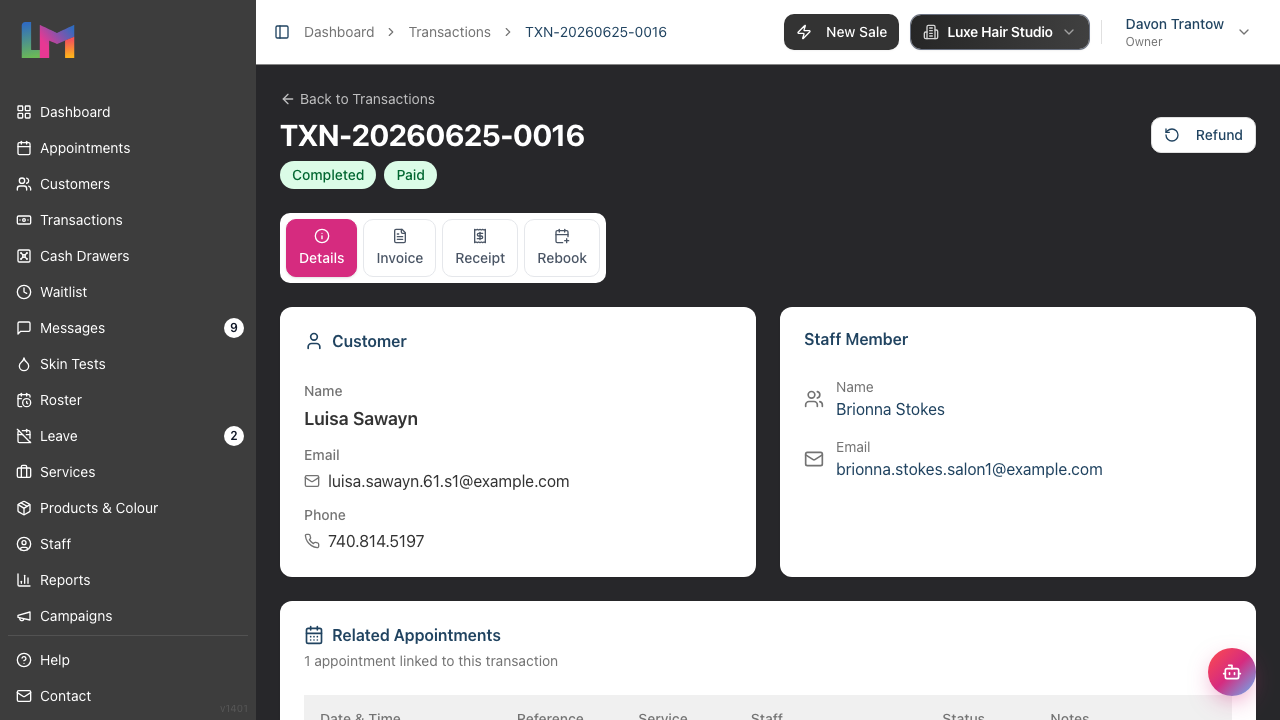
Transactions vs Appointments:
- An appointment is a booking for future service
- A transaction is the financial record when payment happens
- One appointment can generate one transaction (most common)
- Multiple appointments can be billed on one transaction
- Transactions can exist without appointments (walk-in product sales)
Step 2: Understanding Transaction Statuses
Transactions move through a lifecycle with five possible statuses:
Draft
What it means: Transaction started in Quick POS but not finalised yet.
Characteristics:
- Auto-saved while you work in Quick POS
- Can be edited or abandoned
- Not included in reports or transaction list
- Linked to an appointment until finalised
What you can do:
- Continue editing items and payments
- Abandon (delete) the draft
- Finalise to create a completed transaction
Pending
What it means: Transaction created but not yet completed.
Characteristics:
- Visible in the transaction list
- Can be edited or cancelled
- Items can be added or removed
- Hasn't affected revenue reports yet
- May or may not have payments recorded
What you can do:
- Take payment (edit transaction)
- Apply discounts
- Complete the transaction
- Cancel entirely
Completed
What it means: Transaction finalised and recorded in the system.
Characteristics:
- Counted in revenue reports
- Linked appointments marked as "Billed"
- Stock decremented for products
What you can do:
- View transaction details
- Download or print invoice/receipt
- Correct a transaction completed earlier the same business day (see note below)
- Process refunds (Owner, Admin, Manager, or Receptionist)
- View in reports
Note — same-day corrections: A transaction completed earlier on the salon's current business day can still be corrected — Luminate reverses the original side effects (stock movements, deposit credits, cash movements), applies your changes, and re-applies them. Once the salon's business day rolls over, the transaction locks permanently to preserve the audit trail. To correct a locked transaction from a previous day, process a refund and create a new transaction with the correct details.
Refunded
What it means: Transaction reversed - money returned to customer.
Characteristics:
- Original transaction preserved for records
- Revenue subtracted from reports
- Product stock restored (if applicable)
- Cannot be un-refunded
What you can do:
- View refund details
- See who processed the refund
- Download or print refund receipt
See Tutorial 8.2 for refund process details.
Cancelled
What it means: Transaction voided before completion.
Characteristics:
- Never counted in revenue
- No financial impact
- Cannot be uncancelled
What you can do:
- View cancellation details
- Transaction retained for audit trail
Step 3: Understanding Payment Statuses
Payment status is separate from transaction status and tracks how much has been paid:
Unpaid
What it means: No payments recorded yet.
- Outstanding balance equals total amount
- Common for pending transactions
Transaction total: £100.00 Payments received: £0.00 Outstanding balance: £100.00
Partial
What it means: Some payment received but not full amount.
- Outstanding balance remains
- Shows in accounts receivable reports
Transaction total: £100.00 Payments received: £30.00 Outstanding balance: £70.00
Paid
What it means: Full payment received.
- Outstanding balance is £0.00
- May have been paid in one or multiple payments
Transaction total: £100.00 Payments received: £100.00 Outstanding balance: £0.00
Overpaid
What it means: Payment received exceeds the total amount.
- Outstanding balance is £0.00
- Indicates extra payment was recorded (e.g., rounding or split payments)
Transaction total: £100.00 Payments received: £105.00 Outstanding balance: £0.00
Note: A transaction can be completed and still be unpaid or partial - completion refers to finalising the sale, payment status refers to money received.
Step 4: How Transactions Link to Appointments
Standard flow:
- Customer books appointment
- Appointment takes place
- Staff marks appointment as "Completed"
- Create transaction from appointment (via Quick POS)
- Services pre-loaded from appointment
- Payment processed
- Transaction completed
- Appointment shows as "Billed"
Billing status on appointments:
| Billing Status | What It Means |
|---|---|
| Unbilled | No transaction created yet |
| Billed | Fully billed on transaction |
| Partial | Deposit paid, balance outstanding |
Finding linked transactions:
- Open appointment details
- Look for "Transactions" section
- Click transaction number to view details
Step 5: Anatomy of Transaction Items
Each line item in a transaction records:
| Field | Description | Example |
|---|---|---|
| Item Type | Service, Product, Deposit, Gift Voucher, or Colour Overage | Service |
| Description | What was sold | Women's Cut & Blow Dry |
| Quantity | How many | 1 |
| Unit Price | Price per item | £45.00 |
| Staff | Who performed service | Jane Smith |
| Commission Rate | Staff commission % | 40% |
Item calculations:
Base Price:     £45.00
Quantity:       × 1
Subtotal:       £45.00
Special item types:
- Deposit — records a deposit payment against an appointment (Tutorial 8.4).
- Gift Voucher — records a gift voucher purchase (Tutorial 8.3).
- Colour Overage — records an automatic charge when a colour formula used more than the service's included grams (Full colour mode only). Colour overage lines are staged by the formula, not entered manually in POS; see Tutorials 12.5 and 20.8.
Deposit, Gift Voucher, and Colour Overage items are polymorphic — they don't point at a service or product, they point at the underlying deposit, voucher, or formula record. Editing the source record updates the transaction line automatically while the transaction is still on a draft. Once the transaction is completed, the line is frozen for accounting integrity and the source (e.g. the formula) becomes read-only.
Step 6: Understanding Transaction Totals
A transaction breaks down finances like this:
Items Subtotal:             £80.00
  - Item 1: Women's Cut     £45.00
  - Item 2: Styling Product £35.00

Discount (10%):             -£8.00

Subtotal after Discount:    £72.00

Tax (10%):                  +£7.20

Tip:                        +£5.00

TOTAL AMOUNT:               £84.20
Key amounts explained:
| Amount | Description |
|---|---|
| Subtotal | Sum of all items before discount, tax and tips |
| Discount Amount | Total discounts applied (fixed or percentage) |
| Tax Amount | Tax on taxable items |
| Tip Amount | Gratuity for staff |
| Total Amount | Final amount customer should pay |
Step 7: Viewing Transaction Details
From the Transactions page:
Navigate to Transactions in the sidebar
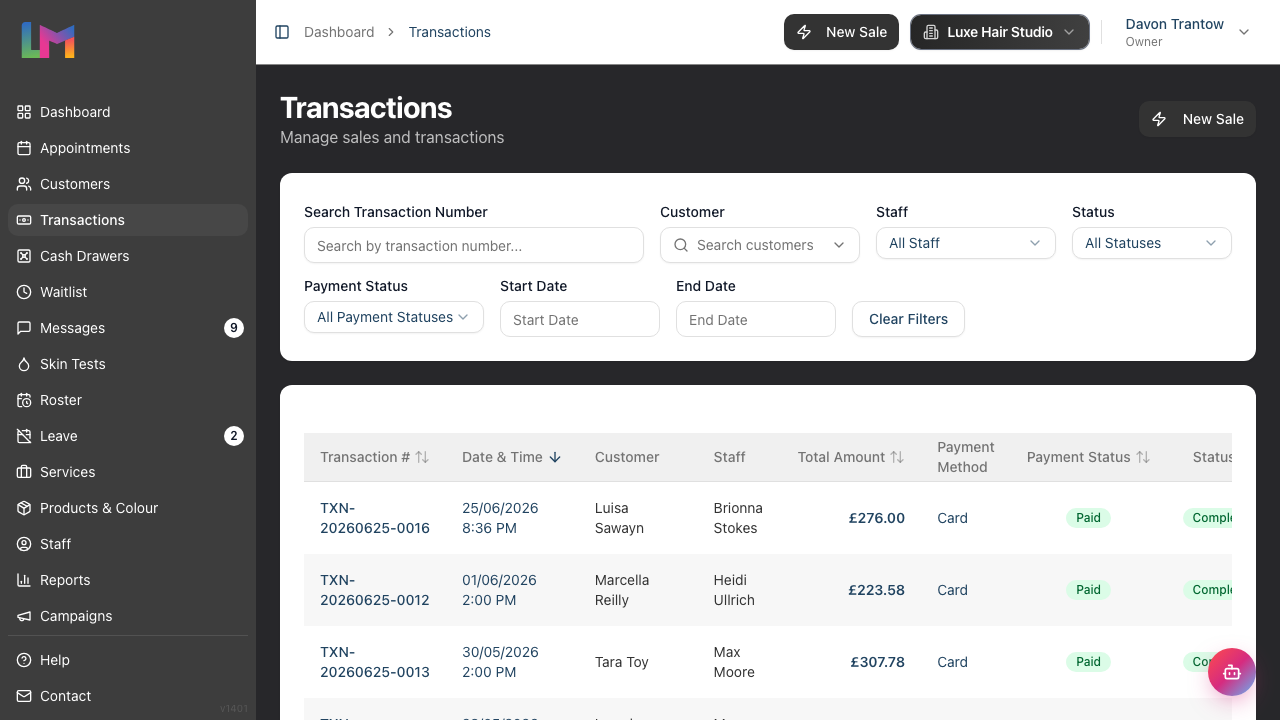
Find the transaction using filters:
- Search by transaction number
- Filter by customer, staff, status, payment status, or date range

Click on a transaction row to open its details
Transaction detail view tabs:
| Tab | Shows |
|---|---|
| Details | Customer info, items, payments, staff, timestamps, and linked appointments |
| Invoice | Professional invoice format for sending to customers |
| Receipt | Thermal receipt format suitable for printing |
| Rebook | Shown after completion when a rebook is available — quick way to book the customer's next appointment |
Actions available (depending on status):
| Action | When Available | What It Does |
|---|---|---|
| Take Payment | Pending transactions | Opens the transaction for editing to record payments and finalise the sale |
| Refund | Completed transactions | Opens the refund dialog to reverse the transaction |
| Cancel | Pending transactions | Voids the transaction entirely |
| Download | Invoice or Receipt tab | Downloads the current view as a PDF |
| Invoice or Receipt tab | Prints the current view |
Step 8: Payment Methods
Luminate supports four payment methods:
| Method | When to Use |
|---|---|
| Cash | Physical cash payment |
| Card | Debit or credit card |
| Gift Voucher | Redeeming a gift voucher |
| Other | Bank transfers, cheques, or any other method |
Split payments: Customers can pay using multiple methods. For example:
- £50 by Card
- £30 by Cash
- £20 by Gift Voucher
All payments are recorded separately and sum to total paid.
Step 9: Transaction Permissions by Role
| Action | Owner | Admin | Manager | Staff | Receptionist |
|---|---|---|---|---|---|
| View all transactions | ✓ | ✓ | ✓ | ✓ | ✓ |
| Create transactions | ✓ | ✓ | ✓ | ✓ | ✓ |
| Edit/complete transactions | ✓ | ✓ | ✓ | ✓ | ✓ |
| Process refunds | ✓ | ✓ | ✓ | ✗ | ✓ |
| Cancel transactions | ✓ | ✓ | ✓ | ✓ | ✓ |
Common Pitfalls
"Transaction shows as completed but unpaid"
This is correct behaviour. Completed means the sale is finalised. Unpaid means no payment recorded yet. You can have a completed transaction with unpaid or partial payment status. Record payment when received.
"I can't edit a completed transaction"
A transaction completed earlier on the salon's current business day can still be corrected — Luminate reopens it, reverses the original side effects (stock, deposits, cash movements) and re-applies your changes. Once the business day rolls over, the transaction locks permanently to preserve an accurate audit trail. To correct a locked transaction from a previous day:
- Process a refund for the original transaction (Owner, Admin, Manager, or Receptionist)
- Create a new transaction with the correct details
Pending transactions, in contrast, can be edited at any time by clicking Take Payment on the transaction detail page.
"Payment status is still showing unpaid after I recorded payment"
Check:
- Did the transaction save/complete after adding payment?
- Is the payment amount greater than zero?
- Payment status updates automatically when payments are added
"Can't find a transaction I know exists"
Check:
- Date range filter (may be too narrow)
- Correct customer selected
- Transaction status filter (might be hiding cancelled/refunded)
- Try searching by transaction number
Tips and Best Practices
Complete transactions promptly - Don't leave transactions in pending status unnecessarily. This affects reporting accuracy.
Record payments immediately - When customer pays, record it straight away.
Use transaction notes - Add notes for unusual circumstances ("Customer paid next day", "Manager approved discount").
Check payment status before closing - Before saying goodbye to customer, verify payment status shows "Paid".
Link to appointments when possible - Transactions linked to appointments provide better data for service reports.
Understand the difference - Transaction status (draft/pending/completed/refunded/cancelled) is about the sale lifecycle. Payment status (unpaid/partial/paid/overpaid) is about money received. They're independent.
Related Tutorials
- Tutorial 8.2: Handling Refunds and Cancellations - Reversing transactions
- Tutorial 8.3: Gift Vouchers - Selling and Redeeming
- Tutorial 8.4: Deposits and Pre-Payments
- Tutorial 8.5: Managing Outstanding Balances - Tracking unpaid transactions
- Tutorial 12.5: Colour Formulas - How colour overage lines are staged
- Tutorial 20.8: Overage Billing Explained - The full colour overage lifecycle across draft → completed
Frequently Asked Questions
Can a transaction have multiple payments?
Yes. Customers can pay with multiple methods (e.g., £50 cash + £30 card). All payments are recorded separately and sum to total paid.
What's the difference between refunded and cancelled?
Refunded: Transaction was completed and counted in revenue, then money was returned. Cancelled: Transaction was voided before completion, never counted in revenue.
Do I need to complete a transaction before recording payment?
No. You can record payments on pending transactions. However, transaction must be completed to appear in revenue reports.
How long are transaction records kept?
Transaction records are kept indefinitely for financial and legal compliance. They cannot be deleted, only refunded or cancelled.
Do pending transactions appear in revenue reports?
No. Only completed transactions count in revenue reports. Pending transactions are work-in-progress.
What happens to a colour overage line when a transaction is completed?
Colour overage lines are rebuilt automatically from the linked colour formula while the transaction is on a draft — if you adjust the formula (e.g. change products or weights), the overage amount updates on the draft. Once the transaction is finalised, both the overage line and the source formula are frozen (the formula's projection status becomes committed). To change a finalised overage, see the next question. See Tutorial 20.8 for the full overage lifecycle.
What happens to a colour overage line when I modify a completed transaction?
Modifying a transaction puts its colour overage back into a working state so the formula can be edited:
- The transaction returns to a draft/modifiable state. A transaction completed earlier the same business day can be reopened for correction.
- The formula reopens. As soon as the overage line sits on a draft again, the formula's projection status moves from committed back to in_draft, and the formula becomes editable.
- Make your edits. Adjust the formula's products or weights — the overage line re-reconciles automatically against the service's included grams, adding, updating, or removing the charge as needed.
- Re-complete the transaction. Completing it again freezes the overage line and returns the formula's projection status to committed, locking everything for accounting integrity.
If the transaction is already locked (completed on a previous business day), you can't reopen it — process a refund and create a new transaction instead. See Tutorial 20.8 for the full overage lifecycle across draft → completed.
Last Updated: April 2026