
Handling Refunds and Cancellations
Tutorial 8.2: Handling Refunds and Cancellations
Introduction
Even in the best-run salons, situations arise requiring refunds - unhappy customers, service errors, incorrect charges, or cancellations after payment. Processing refunds correctly protects your financial records, maintains customer trust, and ensures accurate reporting. This tutorial covers the complete refund process, permissions required, and the crucial difference between refunds and cancellations.
Who this is for: Owners, Admins, Managers, and Receptionists who handle customer complaints and financial corrections.
What you'll learn:
- When to issue refunds vs cancellations
- Processing refunds
- Permission requirements for refunds
- How refunds affect stock and reports
- Cancelling pending transactions
Time to complete: 10 minutes
Prerequisites
Before you begin:
- You must be logged in as an Owner, Admin, Manager, or Receptionist — these roles hold the
refund-transactionspermission. Staff members cannot process refunds. - Complete Tutorial 8.1 (Understanding Transactions and Payment Status)
- The transaction you want to refund must be completed
Step-by-Step Instructions
Step 1: Understanding Refunds vs Cancellations
Refund: Reversing a completed transaction after money has been exchanged.
| Characteristic | Details |
|---|---|
| Original transaction | Completed and counted in revenue |
| Timing | After payment processed |
| Financial impact | Revenue recorded then subtracted |
| Stock impact | Products returned to inventory |
| Who can do it | Owners, Admins, Managers, and Receptionists |
Cancellation: Voiding a pending transaction before completion.
| Characteristic | Details |
|---|---|
| Original transaction | Never completed, no revenue recorded |
| Timing | Before payment finalised |
| Financial impact | No revenue impact |
| Stock impact | No stock change (never decremented) |
| Who can do it | Most roles can cancel pending transactions |
Decision tree:
Transaction completed?
    ├─ No → Cancel the transaction (Step 2)
    └─ Yes → Process refund (Step 3+)
Step 2: Cancelling a Pending Transaction
If the transaction hasn't been completed yet:
- Navigate to Transactions in the sidebar
- Find the pending transaction in the list (use status filter: Pending if needed)
- Click the transaction row to open its details page
- Click the Cancel button (with X icon) in the header — it only appears on pending transactions
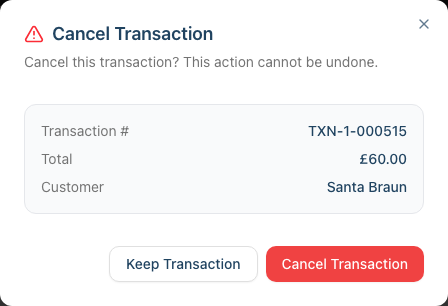
- A confirmation dialog appears - review the transaction number, total, and customer shown
- Click Cancel Transaction to confirm (or Keep Transaction to back out)
What happens:
- Transaction preserved for audit trail with "Cancelled" status
- Never counted in revenue (was never completed)
- Cannot be uncancelled (create new transaction if needed)
Common scenarios:
- Duplicate transaction created by mistake
- Customer changed mind before payment
- Abandoned Quick POS session
- Incorrect customer selected
Step 3: Checking Refund Permissions
Owners, Admins, Managers, and Receptionists can process refunds. Only Staff members cannot.
If you're a Staff member:
- Note the transaction number
- Note the refund reason
- Contact your Manager, Admin, Receptionist, or Owner
- They'll process the refund
Permission check:
- The Refund button appears in the header of every completed transaction, regardless of your role — so seeing the button does not by itself confirm you have permission.
- If you have the
refund-transactionspermission, confirming the refund processes it normally. - If you don't (Staff members), the refund is blocked when you confirm and you'll see an error message — ask a Manager, Admin, Receptionist, or Owner to process it.
Step 4: Locating the Transaction to Refund
From the Transactions page:
- Navigate to Transactions in the sidebar
- Use the filters to find the transaction:
- Search by transaction number (e.g., "TXN-20260120-0001")
- Filter by Customer
- Filter by Staff
- Filter by Status: Completed
- Filter by date range (Start Date / End Date)
- Click on the transaction row to open the transaction details page
- Verify it's the correct transaction before proceeding
Before refunding - verify:
- Correct customer name
- Correct transaction amount
- Correct items on transaction
- Refunds cannot be undone
Step 5: Processing a Refund
To refund a completed transaction:
- Open the transaction details page
- Click the Refund button in the header (it appears on completed transactions)
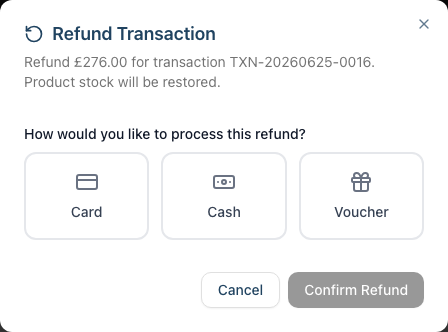
- The Refund Transaction dialog appears, showing the total amount and a note that product stock will be restored
- Choose how the refund will be given by selecting one of the three method tiles:
- Card - Records the refund against the card. If the original payment was an online (Stripe) deposit, the money is automatically returned to the customer's card. For in-salon card payments, Luminate only marks the transaction refunded — you must process the actual refund on your own card terminal (see the pitfall below).
- Cash - Records a cash refund. A note confirms the cash drawer will be updated with the refund amount.
- Voucher - Coming soon. The tile can be selected but a message asks you to choose Card or Cash, and Confirm Refund stays disabled until you do.
- Click Confirm Refund
- Transaction status changes to "Refunded"
What happens automatically:
- Transaction status changes to "Refunded"
- Revenue subtracted from reports
- Product stock restored (for regular product items)
- Cash drawer updated (if cash refund selected and a drawer is open)
- Refund confirmation notification sent to customer (if enabled)
- Refund timestamp recorded
Important notes:
- Refunds are for the full transaction amount
- Refunds cannot be undone
- Original transaction preserved for records
Step 6: Understanding Stock Restoration
When refunding transactions with products:
Automatic stock restoration:
- Refund processed
- System identifies product items in transaction
- Quantities added back to inventory
- Stock levels update immediately
Example:
Original transaction:
- Sold 2x Shampoo bottles (stock decreased from 10 to 8)

After refund:
- 2x Shampoo bottles restored (stock increased from 8 to 10)
Exceptions (no stock restoration):
- Misc products (custom/ad-hoc items) - These don't have inventory tracking
- Service items - Services don't have stock to restore
- Deposit items - Deposits don't involve physical inventory
- Gift vouchers sold - The voucher remains active after the transaction is refunded
Step 7: After Processing the Refund
Customer communication:
- Explain refund processed
- Set expectations for payment return:
- Cash: Immediate (hand cash to customer)
- Card: 3-5 business days (depends on card issuer)
- Apologise if appropriate
- Offer solution if service-related (rebook, different stylist, etc.)
Reporting:
- Refunds appear in financial reports
- Marked clearly as refunded transactions
- Net revenue calculated automatically
Step 8: Viewing Refund History
From the transaction details page:
- Open any refunded transaction
- The status badge shows "Refunded"
- A banner displays "REFUNDED" with the refund date and time
- The Transaction Info card shows the Refunded timestamp
Filtering for refunded transactions:
- Navigate to Transactions in the sidebar
- Use the Status filter dropdown and select Refunded
- All refunded transactions are displayed
- Click column headers to sort (e.g., by Date & Time to see recent refunds)
Common Pitfalls
"The Refund button does nothing / I get an error when I confirm"
The Refund button appears on every completed transaction, but only Owners, Admins, Managers, and Receptionists can actually process a refund. If you're a Staff member, confirming the refund is blocked and you'll see an error. Ask a Manager, Admin, Receptionist, or Owner to process it.
"I chose Card but the money hasn't gone back to the customer"
It depends on how the original payment was taken. Online (Stripe) deposit payments are refunded to the card automatically and take 3-5 business days to appear in the customer's account — that's the card issuer's processing time, not Luminate. In-salon card payments are manual in Luminate: choosing Card only marks the transaction refunded, so you must still complete the actual refund on your card terminal. For cash refunds: hand the cash to the customer; the cash drawer is updated automatically.
"Stock wasn't restored after refund"
Check:
- Was the item a regular product? (Misc products don't track stock)
- Did the refund complete successfully?
- Check product stock levels to confirm
"I refunded the wrong transaction"
Refunds cannot be undone. Options:
- If customer should have been charged: Create new transaction for correct amount
- Document the error in notes
- If accidentally refunded wrong customer: Contact customer, explain, request payment
Tips and Best Practices
Always verify before refunding - Double-check customer, amount, and items. Refunds cannot be undone.
Offer alternatives first - Before refunding, consider: Can service be redone? Is a discount more appropriate?
Refund to original payment method - Cash for cash, card for card. Reduces confusion.
Process refunds promptly - Don't leave unhappy customers waiting.
Track refund rate - If refunds exceed 2-3% of revenue, investigate causes.
Use cancellation for mistakes - If transaction not completed yet, cancel rather than complete then refund. Cleaner records.
Related Tutorials
- Tutorial 8.1: Understanding Transactions and Payment Status - Transaction lifecycle basics
- Tutorial 8.3: Gift Vouchers - Selling and Redeeming
- Tutorial 8.5: Managing Outstanding Balances
Frequently Asked Questions
Can I undo a refund?
No. Refunds are permanent once processed. If refunded in error, create a new transaction for the amount.
Do refunds affect staff commission?
Yes. Once a transaction is refunded it no longer counts towards revenue, so any commission earned on the original sale drops out of reports. The exception is a payroll period that has already been finalised or paid — that commission won't roll back automatically, so you'll need to make a manual adjustment for the refunded amount.
Can I do a partial refund?
Currently, refunds are processed for the full transaction amount. For partial compensation, consider issuing a gift voucher for the difference instead.
How do I refund a transaction from months ago?
Same process as recent transactions. Find the transaction, verify details, process refund. Older refunds work the same way.
What about tax on refunds?
Tax is automatically recalculated. If original transaction included tax, refund reverses the tax as well.
Do refunded transactions disappear from reports?
No. Refunded transactions appear in reports showing the original sale and the refund, with net revenue calculated.
Last Updated: June 2026