
Gift Vouchers - Selling and Redeeming
Tutorial 8.3: Gift Vouchers - Selling and Redeeming
Introduction
Gift vouchers are a brilliant way to attract new customers and increase revenue. Luminate's voucher system handles selling vouchers through the Quick POS, generating unique codes, redeeming vouchers as payment, and tracking balances. This tutorial covers everything from configuring voucher settings to selling, redemption, and reporting.
Who this is for: All staff who process sales and payments.
What you'll learn:
- Configuring gift voucher settings
- Selling vouchers through Quick POS
- Entering recipient details
- Viewing voucher details and redemption history
- Redeeming vouchers as payment method
- Handling partial redemptions
- Checking voucher balances
- Voiding vouchers
- Using the Gift Voucher report
Time to complete: 15 minutes
Prerequisites
Before you begin:
- Complete Tutorial 8.1 (Understanding Transactions and Payment Status)
- Familiarity with creating transactions via Quick POS
- Admin or Owner access for configuring gift voucher settings
Step-by-Step Instructions
Step 1: Understanding Gift Vouchers in Luminate
A gift voucher represents prepaid credit that can be redeemed against future purchases.
Voucher properties:
| Property | Description | Example |
|---|---|---|
| Code | Unique identifier | GVAB12CD34 |
| Initial Value | Original voucher amount | £50.00 |
| Current Balance | Remaining credit | £50.00 (or less after use) |
| Status | Active, Redeemed, Expired, Voided | Active |
| Recipient | Who can use it | Emma Wilson |
| Issued Date | When sold | 10 Dec 2024 |
| Expiry Date | When it expires (if set) | 10 Dec 2025 |
Voucher lifecycle:
Created (sold)
    ↓
Active (can be used)
    ↓
Redeemed (fully used) OR Expired (past expiry date) OR Voided (cancelled)
Step 2: Configuring Gift Voucher Settings
Before selling vouchers, an Admin or Owner should configure gift voucher settings for the salon.
- Navigate to Salon Settings
- Open the Services tab, then select the Gift Vouchers sub-tab
- Configure the following settings:
Voucher Values:
- Minimum Value — the lowest amount a voucher can be sold for (default: £10.00)
- Maximum Value — the highest amount a voucher can be sold for (default: £500.00)
Expiry Settings:
- Default Expiry Period — how many months from purchase until vouchers expire (1–60 months, default: 12)
Code Format:
- Code Prefix — letters only, up to 10 characters (default: GV). This appears at the start of every voucher code
- Random Code Length — between 4 and 20 characters (default: 8). A preview of the code format is shown below the fields
Redemption Options:
- Allow Partial Redemption — when enabled, customers can use part of their voucher balance and save the rest for later. When disabled, remaining balance is forfeited after use
- Require Customer Details — when enabled, a customer must be selected when purchasing a gift voucher, and recipient name and email become mandatory fields
- Click Update Salon at the bottom of the settings form to apply your changes
Step 3: Selling a Gift Voucher
Scenario: Customer wants to buy a £50 voucher as a gift.
Click New Sale to open the Quick Sale page
Select the customer making the purchase (or leave as Walk-in)
Click the Gift Vouchers tab in the item selection area
Choose a preset amount or custom:
- Preset amounts: £25, £50, £100, £150, £200, £250 (only amounts within your salon's min/max range are shown)
- Custom Amount: Click to enter any value within the allowed range
The Sell Gift Voucher dialog appears:
- Amount: The voucher value (pre-filled if you clicked a preset)
- Name: Who will receive the voucher (optional unless required by settings)
- Email: Where to send voucher details (optional unless required by settings)
- Phone: Contact number (optional)
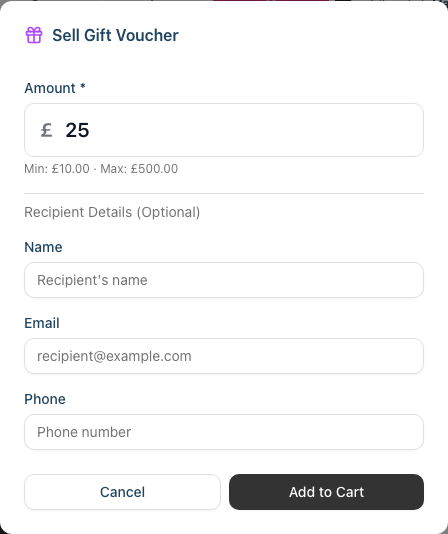
Click Add to Cart
The gift voucher appears in the cart
Process payment as normal (Cash, Card, etc.)
Once paid, transaction auto-completes
A Gift Voucher Purchased dialog appears automatically
Post-Purchase Dialog: After completing a transaction containing gift vouchers, a dialog appears showing:
- Each voucher code displayed in large monospace font for easy reading
- A Copy button next to each code (it briefly changes to Copied once pressed) — use this to copy the code for sharing with the customer
- The voucher value, plus the recipient name shown as a badge if one was provided
- An info note directing you to the Gift Vouchers report to find codes later
- Click Continue to dismiss the dialog
What happens automatically:
- Unique voucher code generated using your salon's configured prefix and code length
- Voucher created with "Active" status
- Expiry date set based on the configured expiry period
- Voucher code shown on receipt and in the post-purchase dialog
Step 4: Recipient Details
When selling a voucher, you can capture recipient information:
| Field | Required | Description |
|---|---|---|
| Name | Depends on settings | Who the voucher is for |
| Depends on settings | Email to send voucher details | |
| Phone | Optional | Contact number |
Note: If your salon has Require Customer Details enabled in gift voucher settings, name and email become mandatory fields. A warning banner is shown in the dialog when this is the case.
Why collect recipient details:
- Email voucher code directly to recipient
- Track who vouchers were intended for
- Customer service if code is lost
Step 5: Viewing the Voucher Detail Page
Each voucher has a detail page showing its full history and status.
To access a voucher's detail page:
- Click a voucher code from the Gift Voucher report, or
- Click the voucher link from a transaction
The detail page shows:
Header:
- Voucher code as the page title
- Status badge: Active, Redeemed, Expired, or Voided
Value Breakdown Card:
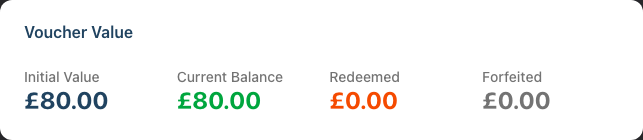
- Initial Value — the original voucher amount
- Current Balance — remaining credit (shown in green if greater than zero)
- Redeemed — total amount used across all redemptions
- Forfeited — total amount lost due to partial redemption being disabled (if applicable)
Redemption History Table:
- Each redemption shows the date, a link to the transaction, amount redeemed, balance after redemption, and which staff member processed it
- If any forfeiture occurred, a forfeited column also appears
Sidebar Details:
- Voucher code, issue date, and expiry date
- Who purchased the voucher (with link to customer profile, or "Walk-in Customer")
- Link to the purchase transaction
- Recipient details (name and email, if provided)
- Void details (if voided): date, reason, and who voided it
Step 6: Redeeming a Voucher as Payment
Scenario: Customer presents voucher code at checkout.
- Create transaction as normal (services/products in cart)
- When ready to pay, click Voucher payment button
- The Voucher Payment dialog appears
- Enter the voucher code and click Check to validate
- System checks voucher:
- Does code exist?
- Is voucher active (not redeemed/expired/voided)?
- Does voucher have balance?
- Voucher details display:
- Current balance
- Expiry date (if set)
- Confirm the amount to apply (pre-filled with the maximum usable amount)
- Click Complete Payment
- Payment recorded against the transaction
If voucher balance covers the full amount:
- Transaction is fully paid
- Voucher balance reduced accordingly
- Voucher becomes "Redeemed" if fully used
If voucher balance is less than transaction total:
- Voucher balance applied as payment
- Remaining balance shown
- Add another payment method for the rest (Cash, Card, etc.)
Step 7: Handling Partial Voucher Redemptions
Scenario: Voucher balance is more than transaction total.
Example:
- Voucher balance: £50.00
- Transaction total: £30.00
What happens:
- Enter voucher code and validate
- Balance shows: £50.00
- Amount to apply: £30.00 (uses only what's needed)
- Voucher balance after: £20.00
- Customer keeps remaining £20.00 for next visit
Using same code again:
- Customer can use the same voucher code
- System shows remaining balance
- Use until balance reaches £0.00 or voucher expires
Partial redemption settings: Your salon may have partial redemption disabled. In this case:
- The full voucher balance is applied and cannot be adjusted
- If balance exceeds the transaction total, remaining balance is permanently forfeited
- A Balance Will Be Forfeited warning is displayed showing the exact amount that will be lost, so you can confirm before proceeding
Step 8: Checking Voucher Balances
Customer asks: "How much is left on my voucher?"
During payment:
- Click Voucher payment button
- Enter voucher code
- Click Check
- Balance displayed without needing to use it
- Cancel if just checking balance
Key information shown:
- Current balance
- Expiry date (if set)
- Whether voucher is usable
Step 9: Voiding a Voucher
If a voucher needs to be cancelled (for example, a fraudulent purchase or customer refund), an authorised user can void it from the voucher detail page.
- Navigate to the voucher's detail page (via the Gift Voucher report)
- Click the Void Voucher button (only available on active vouchers)
- The Void Gift Voucher? dialog appears, warning that this action cannot be undone
- Enter a Reason for voiding in the text field (required)
- Click Void Voucher to confirm
- The voucher status changes to Voided and can no longer be redeemed
After voiding:
- The status badge updates to show "Voided"
- The void details (date, reason, and who voided it) appear in the sidebar
- The void button is no longer shown
Step 10: Gift Voucher Report
The Gift Voucher report gives you an overview of all vouchers issued by your salon.
To access: Navigate to Reports, then open Gift Vouchers under the Financial Reports section
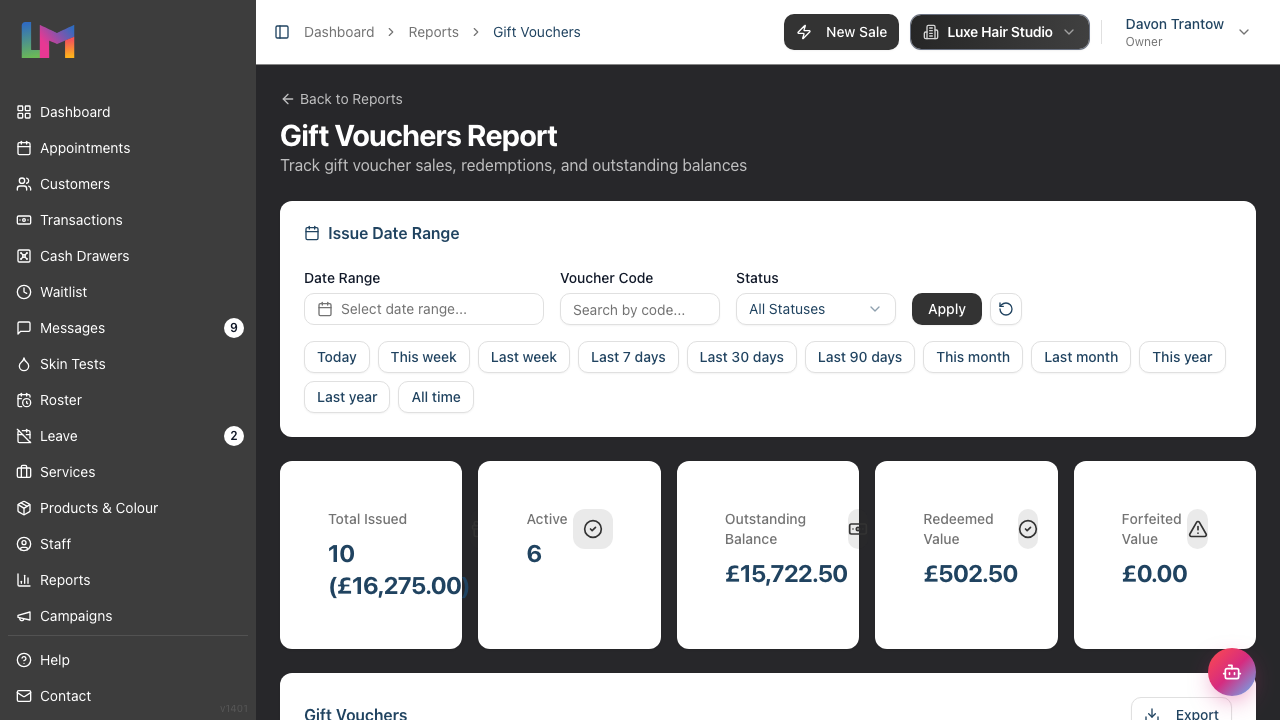
Summary Cards: The report shows five summary cards at the top:
- Total Issued — number of vouchers and their combined value
- Active — number of currently active vouchers
- Outstanding Balance — total remaining balance across all active vouchers
- Redeemed Value — total amount redeemed across all vouchers
- Forfeited Value — total amount forfeited across all vouchers
Filters:
- Date range — filter by issue date (defaults to All Time, showing all vouchers)
- Status — filter by All Statuses, Active, Redeemed, Expired, or Voided
- Voucher code search — search for a specific voucher by code
Table columns: Code, Status, Customer, Recipient, Initial Value, Balance, Forfeited, Issued date, Expires date, and a View action link to the voucher detail page. Most columns are sortable.
Export: Click Export and choose Export as CSV or Export as PDF to download the filtered report data.
Step 11: Voucher Payment Flow Summary
Selling a voucher:
Quick Sale → Gift Vouchers tab → Select amount
    → Enter recipient details → Add to Cart
    → Process payment → Voucher code generated
    → Post-purchase dialog shows codes with Copy buttons
Redeeming a voucher:
Quick Sale → Add items → Click Voucher payment
    → Enter code → Check balance
    → Confirm amount → Payment applied
Common Pitfalls
"Voucher code not working"
Check:
- Code entered correctly (check for similar characters like 0/O, 1/I)
- Voucher status (may be expired, voided, or fully redeemed)
- Remove any spaces from the code
"Customer used wrong email for recipient"
Contact an Admin or Owner to update voucher details if needed.
"Voucher shows zero balance"
The voucher has been fully redeemed on previous purchases. Check the redemption history on the voucher detail page.
"Customer wants to buy voucher but doesn't know recipient email"
Recipient details are typically optional (unless your salon requires them):
- Leave email blank
- Voucher code printed on receipt and shown in the post-purchase dialog
- Customer can share code manually
"Remaining balance too small to use"
Small balances can be combined with another payment method. Add the voucher for the remaining balance, then pay the rest by card or cash.
"Preset amount buttons are missing"
Preset amounts only appear if they fall within your salon's configured minimum and maximum voucher values. Check your gift voucher settings if expected amounts are not shown.
Tips and Best Practices
Promote vouchers during holidays — Gift voucher sales peak around Christmas, Valentine's Day, and Mother's Day.
Display voucher options — "Gift Vouchers Available" signage increases sales.
Collect recipient email when possible — Makes delivery easier and creates a record.
Validate code before processing — Always check the balance first to avoid surprises.
Explain remaining balance — Tell customers how much is left on their voucher after use.
Use vouchers for complaint resolution — "Here's a £20 voucher for your next visit" maintains relationships.
Review your settings — Periodically check your gift voucher settings to ensure the min/max values, expiry period, and partial redemption policy suit your salon.
Related Tutorials
- Tutorial 8.1: Understanding Transactions and Payment Status
- Tutorial 8.2: Handling Refunds and Cancellations
- Tutorial 13.1: Salon Profile and Business Information (includes gift voucher settings)
Frequently Asked Questions
Can vouchers be used for products and services?
Yes. Vouchers are treated as a payment method — they can pay for any transaction.
What if transaction total is less than voucher balance?
The voucher is partially redeemed. Remaining balance stays on the voucher for future use (unless partial redemption is disabled in settings, in which case the remaining balance is forfeited).
Can customers combine multiple vouchers?
Yes. Add multiple voucher payments to a single transaction. Each is validated separately.
Can vouchers be refunded?
Contact an Admin or Owner. If the voucher needs to be voided and the purchase refunded, they can handle this.
How do I check all active vouchers?
Open the Gift Vouchers report from the Reports section. It shows all vouchers by default (no date range required) and can be filtered by status or voucher code.
Can a customer transfer a voucher to someone else?
Vouchers are bearer instruments — whoever has the code can use it. If a customer wants to gift their voucher, they share the code.
What about VAT/tax on voucher sales?
Voucher sales are not taxed at point of sale. Tax is applied when the voucher is redeemed (on the services/products purchased).
Where can I configure voucher settings?
Navigate to Salon Settings → Services → Gift Vouchers. See Step 2 of this tutorial for details.
Last Updated: June 2026