
Deposits and Pre-Payments
Tutorial 8.4: Deposits and Pre-Payments
Introduction
Taking deposits for appointments protects your salon from no-shows and last-minute cancellations, particularly for high-value services like bridal hair, colour corrections, or group bookings. Luminate allows you to set deposit amounts when booking appointments and track their payment status. This tutorial covers setting deposit requirements and collecting deposit payments.
Who this is for: All staff who take bookings and process payments.
What you'll learn:
- When to require deposits
- Setting deposit amounts on appointments
- Collecting deposit payments (in-salon and via payment links)
- Tracking deposit status
- Applying deposits to final bills
Time to complete: 10 minutes
Prerequisites
Before you begin:
- Complete Tutorial 2.2 (Booking and Managing Appointments)
- Complete Tutorial 8.1 (Understanding Transactions and Payment Status)
- Familiarity with Quick POS
Step-by-Step Instructions
Note: This tutorial covers manual deposits collected in-salon through the Point of Sale, as well as deposit payment links you can send to customers for remote payment via Stripe. If you want to collect deposits automatically when customers book online, see Tutorial 18.5: Collecting Online Booking Deposits with Stripe. All deposit types are tracked on the appointment and work with the same final billing flow.
Step 1: Understanding Deposits in Luminate
A deposit is a partial payment taken in advance to secure a booking.
| Characteristic | Details |
|---|---|
| Manual POS Deposits | Collected in-salon via Quick POS (this tutorial) |
| Deposit Payment Links | Sent to customers via email/SMS for remote Stripe payment (this tutorial) |
| Online Stripe Deposits | Collected automatically during online booking (Tutorial 18.5) |
| Set on | Individual appointments |
| Amount | Any value you choose (manual), auto-calculated from service settings, or configured per service (online) |
| Tracking | Deposit Paid (yes/no) on appointment |
| Applied to final bill | Deposit amount shown in payment history |
Why use deposits:
- Reduce no-shows
- Secure high-value bookings
- Cover material costs upfront
- Filter out uncommitted bookings
Step 2: When to Require Deposits
Common deposit scenarios:
| Scenario | Suggested Deposit | Reason |
|---|---|---|
| Bridal/Wedding Hair | £50 or 50% | High-value, hard to rebook |
| Colour Corrections | £30-£50 | Expensive materials, long duration |
| Group Bookings | £10-£20 per person | Multiple staff blocked out |
| New Customers (High-Value) | 30-50% | No relationship history |
| Previous No-Show | Full amount | Risk management |
When deposits aren't necessary:
- Regular, loyal customers
- Quick services (cuts under £50)
- Walk-ins paying immediately
- Same-day bookings
Step 3: Setting a Deposit Amount When Booking
When creating or editing an appointment:
- Navigate to Appointments in the sidebar
- Click Add Appointment (or edit existing)
- Fill in customer, staff, service, date/time as normal
- Scroll down to the Notes & Deposit section
- Find the Deposit Amount field
- Enter the deposit amount (e.g., 50.00)
- Save the appointment
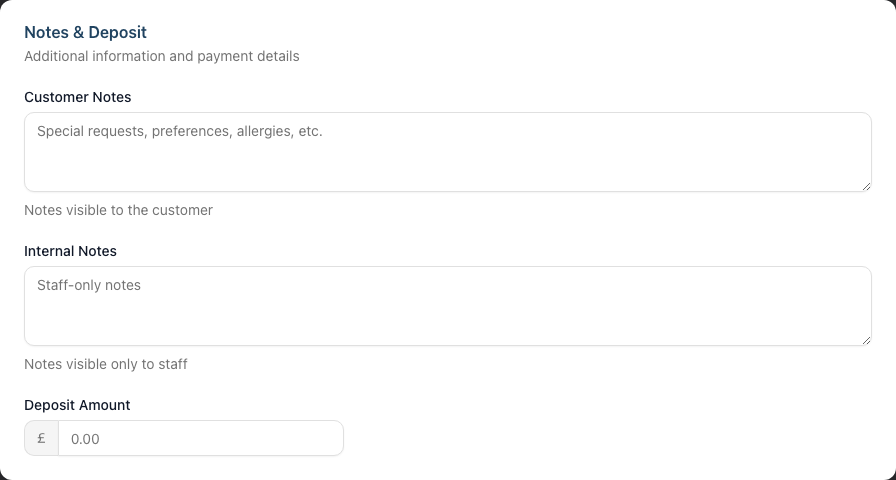
The appointment now shows:
- Deposit required: £50.00
- Deposit status: Not Paid
Auto-calculated deposits: If a service has deposit settings configured (either a fixed amount or a percentage of the service price), Luminate will automatically populate the deposit amount when you select that service. A helper message beneath the field confirms this, showing the deposit type (e.g., "Auto-calculated from service deposit settings (20%)"). You can still adjust this amount manually for individual appointments.
Multi-service bookings: When creating linked appointments with multiple services, the deposit amounts are combined. A distribution preview shows how the total deposit breaks down across each service.
Save & Take Deposit: After filling in the appointment details, you can click Save & Take Deposit to save the appointment and go straight to Quick POS to collect the deposit in one step.
Step 4: Taking a Deposit Payment in Quick POS
Once an appointment has a deposit requirement:
From the appointment page:
- Open the appointment details
- Look for the Take Deposit button (visible when deposit unpaid)
- Click Take Deposit
- You're taken to Quick POS with the deposit pre-filled in cart
- The deposit item shows:
- Type: Deposit
- Amount: £50.00 (the required amount)
- Linked to the appointment
- Process payment (Cash, Card, Voucher, or Other)
- Transaction completes automatically when paid
What happens:
- Transaction created with deposit item
- Appointment deposit status changes to "Paid"
- Payment recorded and linked to appointment
Step 5: Sending a Deposit Payment Link
You can send customers a secure payment link to collect deposits remotely via Stripe, without the customer needing to visit the salon.
Requirements:
- Your salon must have Stripe Connect configured (see Tutorial 18.5)
- The customer must have an email address and/or phone number on file
From the appointment detail page:
- Open the appointment with an unpaid deposit
- Click the Send Payment Link button (below the Take Deposit button)
- The Send Deposit Payment Link dialog opens, showing:
- The deposit amount (which you can edit inline before sending)
- Channel options: Email, SMS, or Email & SMS
- Select how to send the link
- Click Send Payment Link
Overriding the deposit amount: Before sending, you can click the deposit amount to edit it inline. This allows you to adjust the amount without changing the appointment's deposit setting. A Reset link appears if you've changed the amount, letting you revert to the original.
For linked bookings (multi-service): The dialog shows all unpaid deposits in the booking group. You can edit each deposit amount individually. The total is displayed at the bottom.
What the customer receives: An email and/or SMS containing a link to a secure Stripe Checkout page. The message includes the salon name, appointment date, service, and deposit amount.
What happens after the customer pays:
- The deposit is recorded automatically against the appointment
- The appointment's deposit status changes to "Paid"
- A deposit transaction is created and linked to the appointment
- No further action is required from staff
Note: The Send Payment Link button only appears when Stripe Connect is configured for your salon and the customer has contact details for at least one channel (email or phone).
Step 6: Deposit Items in Quick POS
Deposits appear as a special item type in the cart:
Deposit item characteristics:
- Amber/orange border and background to distinguish from regular services
- Banknote icon indicator next to the item name
- Cannot be saved as unpaid (must complete payment)
- Quantity controls hidden (always 1)
- Staff is automatically assigned from the appointment
- Linked to specific appointment
Important: When deposits are in the cart, the "Save (Unpaid)" button is disabled with a message "Deposit payments must be completed". You must process payment before completing the transaction.
Step 7: Viewing Deposit Status on Appointments
On the appointment calendar:
- Appointments with deposits show a small deposit indicator icon:
- Amber banknote icon — Deposit required, not yet paid
- Green banknote icon — Deposit collected
On the appointment detail page:
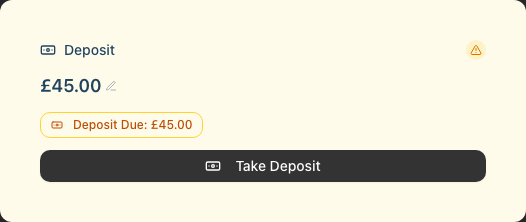
- A Deposit card displays prominently when a deposit is set:
- Shows the deposit amount (click the amount to edit it inline; press Enter to save or Escape to cancel)
- A Reset link appears if you've overridden the default amount, letting you revert to the service's configured deposit
- Amber styling with warning icon when deposit is pending
- Green styling with checkmark when deposit is paid
- Take Deposit button appears when deposit is unpaid (navigates to Quick POS)
- Send Payment Link button appears when deposit is unpaid and Stripe Connect is configured (opens the payment link dialog)
- A deposit status badge shows "Deposit Due: [amount]" (amber) or "Deposit Paid: [amount]" (green)
- The Payments tab shows all transactions linked to the appointment, including deposit payments
On the appointment edit page:
- Deposit Amount field shows the set amount
- Deposit Status checkbox labelled "Deposit has been paid" — check this if the deposit was collected outside the POS (e.g., cash in hand)
- A status indicator card shows "Deposit Paid" (green with checkmark icon) or "Deposit Pending" (amber with clock icon) along with the amount
- A Take Deposit button appears on the status card when the deposit is unpaid
Step 8: Taking Deposits from Quick POS Unbilled Appointments
When a customer is selected in Quick POS:
- The Unbilled Appointments panel automatically appears showing their appointments
- Each appointment card displays:
- Service name and date/time
- Staff member assigned
- Deposit badge (amber: "Deposit: £50.00" or green: "Deposit Paid")
- If an appointment has an unpaid deposit, a Take Deposit button appears
- Click Take Deposit to add the deposit item to your cart
- Process payment as normal
For linked appointments (multi-service bookings):
- When you click Take Deposit on a linked appointment, a modal appears
- You can select which deposits to collect (one or all linked services)
- Selected deposits are added to the cart together
This is a convenient alternative to navigating to the appointment page first.
Step 9: Applying Deposits to Final Bills
When the appointment takes place and you bill the full service:
Appointment flow:
- Customer arrives, service completed
- Open appointment and click Create Transaction (or add from Unbilled Appointments in Quick POS)
- Service items added to cart
- If a deposit was previously paid:
- The deposit credit is automatically applied
- The amount due is reduced by the deposit amount
- The payment breakdown shows "Less: Deposit" in the totals
Example in Quick POS:
Service: Bridal Hair & Makeup       £150.00
-----------------------------------------
Subtotal:                          £150.00
Less: Deposit                       -£50.00
Amount Due:                        £100.00
On the completed transaction:
- The full service price is recorded (£150.00)
- The payment section shows the deposit deduction
- The customer only paid £100.00 on the day
The deposit transaction remains a separate record linked to the appointment, providing a complete audit trail.
Step 10: Deposit Permissions by Role
| Action | Owner | Admin | Manager | Staff | Receptionist |
|---|---|---|---|---|---|
| Set deposit amount | ✓ | ✓ | ✓ | ✓ | ✓ |
| Collect deposit payment | ✓ | ✓ | ✓ | ✓ | ✓ |
| Send deposit payment link | ✓ | ✓ | ✓ | ✓ | ✓ |
| Mark deposit as paid | ✓ | ✓ | ✓ | ✓ | ✓ |
| Refund deposit | ✓ | ✓ | ✓ | ✗ | ✓ |
Note: Sending a deposit payment link requires permission to update the appointment and permission to create conversations (since it sends a notification to the customer). All roles listed above have these permissions by default.
Common Pitfalls
"I can't find the Take Deposit button"
The button only appears when:
- Appointment has a deposit amount set (greater than £0)
- Deposit is not already paid
Check the appointment's deposit amount field.
"I can't see the Send Payment Link button"
The Send Payment Link button only appears when:
- The appointment has an unpaid deposit
- Your salon has Stripe Connect configured
- The customer has an email address or phone number on file
If Stripe Connect is not set up, only the Take Deposit button (for in-salon POS payment) is available.
"Deposit not showing as paid after payment"
Ensure the transaction completed successfully. The deposit payment must be processed through Quick POS with the deposit item linked to the appointment. If a deposit payment link was sent, the customer must complete the Stripe Checkout — check with the customer that they finished the payment process.
"Customer paid deposit but wants to cancel"
Refer to your salon's cancellation policy. If a refund is warranted:
- Owner/Admin/Manager/Receptionist processes refund on the deposit transaction (Tutorial 8.2)
- Update appointment status to Cancelled
"Deposit is more than the service costs on the day"
If service price changed or was different than expected:
- Customer has overpaid via deposit
- They may receive a refund or credit
- Or apply as payment toward products/additional services
Tips and Best Practices
Communicate deposit requirements upfront — Tell customers about deposits when booking.
Be consistent — Apply deposit requirements consistently across similar booking types.
Collect deposits promptly — Don't wait until the day before the appointment. Use deposit payment links to collect straight away after booking.
Higher deposits for repeat no-shows — If a customer has no-show history, require full pre-payment.
Record deposits immediately — When customer pays, process the deposit transaction right away.
State your policy — Consider displaying your deposit and cancellation policy at reception.
Use payment links for remote bookings — For phone or social media bookings, send a deposit payment link so the customer can pay without visiting the salon.
Related Tutorials
- Tutorial 2.2: Booking and Managing Appointments — Creating appointments with deposits
- Tutorial 8.1: Understanding Transactions and Payment Status — How deposit transactions work
- Tutorial 8.2: Handling Refunds and Cancellations — Refunding deposits
- Tutorial 18.5: Collecting Online Booking Deposits with Stripe — Automatic online deposit collection
Frequently Asked Questions
Can I set a default deposit for certain services?
Yes! Services can be configured with default deposit requirements. When creating an appointment, if the selected service has a deposit configured (either a fixed amount or percentage), Luminate will automatically populate the deposit amount field. You can still adjust this amount if needed for individual appointments.
What if customer pays more than the deposit amount?
The deposit amount is a guideline. If they pay more, it's recorded as a larger deposit payment. The full amount shows on their payment history.
Can deposits be transferred to a different appointment?
Deposits are linked to specific appointments. If rebooking, you may need to refund the original deposit and take a new one for the rescheduled appointment.
Do deposits affect staff commission?
Deposits are payments on account, not service commissions. Staff commission is calculated when the actual service is billed and completed.
Can I take multiple deposits for one appointment?
Each appointment tracks one deposit amount and paid/unpaid status. For instalment payments, consider using partial payments on the final transaction instead.
What happens to the deposit if customer doesn't show?
Depends on your policy. Options:
- Keep deposit as cancellation fee (common)
- Refund if extenuating circumstances
- Convert to gift voucher for future use
What is the difference between manual deposits and online Stripe deposits?
Manual deposits (covered in this tutorial) are collected in-salon through Quick POS when a customer visits or calls. You can also send deposit payment links for remote Stripe payment. Online Stripe deposits (covered in Tutorial 18.5) are collected automatically during the online booking process via a Stripe Checkout page. All deposit types appear on the appointment's deposit tracking and reduce the amount due at the final bill. The main difference is how the payment is initiated — in person, via a staff-sent link, or automatically during online booking.
How do deposits work with linked bookings (multi-service appointments)?
When an appointment is part of a linked booking group, Luminate tracks deposits for each service individually. On the appointment detail page, the Send Payment Link dialog shows all unpaid deposits in the group and lets you send a single payment link covering all of them. In Quick POS, clicking Take Deposit on a linked appointment opens a modal where you can select which deposits to collect.
Last Updated: June 2026