
Setting Staff Display Order
Tutorial 4.6: Setting Staff Display Order
Introduction
By default Luminate lists your staff in seniority order — the order set by their staff levels (Director, Senior, Junior). If you want a different running order in the calendar (for example, front-of-house staff first, or sorted by who's most often booked), you can nudge staff up and down with the arrow buttons in Salon Settings → Staff → Display Order. The new order applies everywhere staff are listed: the calendar week view, the appointments grid, transactions, reports, and the public booking portal.
Who this is for: Owner, Admin What you'll learn:
- Set a custom display order for your staff
- Understand where the order applies
- Add new staff and have them fall in at the bottom
- Reset back to seniority order if you change your mind
Time to complete: 3 minutes
Prerequisites
- Logged in as Owner or Admin
- At least two staff members in your salon
Step-by-Step Instructions
Step 1: Open the Display Order tab
- Click the salon name in the header to open the salon dropdown
- Click Salon Settings
- Click the Staff tab
- Click the Display Order sub-tab
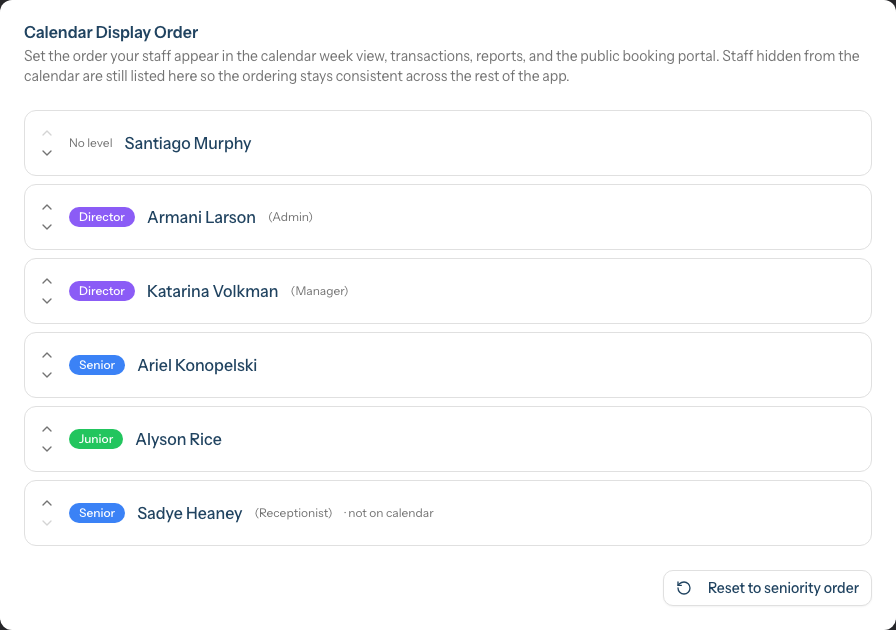
You'll see every active staff member as a row with up and down arrows on the left. Staff who don't appear on the calendar (for example a receptionist) are still shown here, with a small "not on calendar" label — keeping them in the list means the order stays consistent in places like the transactions screen.
Step 2: Move staff up and down
Click the up arrow to move a staff member up one position, or the down arrow to move them down. Each click is saved immediately — there's no separate "save" button. You can refresh the page and the order will stick.
Step 3: Confirm the new order on the calendar
- Open Appointments or Roster from the sidebar
- The columns now appear in the order you set in Step 2
The same order is used in the public booking portal staff picker, the transactions staff dropdown, and any report that lists staff.
Step 4: When you add a new staff member
When you add a new staff member from the Staff screen, they're placed at the bottom of your custom order automatically. Go back to the Display Order tab and use the arrows to move them up if you want them higher.
Step 5: Resetting to seniority order
If you want to start over:
- Click Reset to seniority order at the bottom of the Display Order tab
- In the dialog that appears, click Reset order to confirm (or Cancel to keep your manual order)
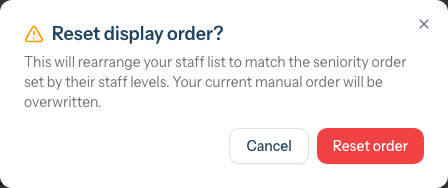
Luminate rebuilds the order based on each staff member's level (Director → Senior → Junior, then name) — exactly the order new salons see by default.
Where the order applies
| Where | Affected? |
|---|---|
| Calendar week view (Roster) | Yes |
| Appointments calendar | Yes |
| Transactions staff dropdown | Yes |
| Reports listing staff | Yes |
| Public booking portal staff picker | Yes |
| Staff admin list (Staff screen) | No — that screen has its own sort controls |
FAQ
Will my customers see this order? Yes — the public booking portal's staff picker uses it.
What if I have two salons? Each salon has its own independent display order. Switching salons in the header shows a different Display Order tab with that salon's staff.
What about receptionists or non-rosterable staff? They show up on the Display Order tab (labelled "not on calendar") so the ordering stays unique across the whole app, but they don't appear on the calendar grid itself.
Can I drag with the mouse? Not in this version — use the up/down arrow buttons. If we add drag-and-drop later, your saved order will still apply.
Related
- Tutorial 4.3 — Staff Levels and Experience Tiers — the seniority order that the Reset button restores
- Tutorial 4.1 — Adding New Staff Members — new staff land at the bottom of your custom order automatically
Last Updated: May 2026