
Managing Staff Login Accounts
Tutorial 4.2: Managing Staff Login Accounts
Introduction
Staff login accounts give team members access to Luminate based on their role. Not every staff member needs a login account - you may manage some staff's appointments and roster for them. This tutorial covers creating login accounts, resending invitations, and removing access when staff leave.
Who this is for: Owner, Admin What you'll learn:
- Understand the difference between staff profiles and user accounts
- Create a login account for a staff member
- Resend invitation emails
- Remove login access
- Handle the account setup process
Time to complete: 10 minutes
Prerequisites
- Logged in as Owner or Admin with
manage-staff-accountspermission - Complete Tutorial 4.1 (Adding New Staff Members)
- Staff member profile already exists in the system
Step-by-Step Instructions
Step 1: Understand Staff Profiles vs User Accounts
| Type | Purpose | Required? |
|---|---|---|
| Staff Profile | Work record - name, role, compensation, schedule | Yes, for all team members |
| User Account | Login credentials - allows signing into Luminate | Optional |
Key points:
- Every staff member has a profile
- Not every staff member needs a login account
- One staff member = one profile + zero or one user account
- Login access is based on the staff member's role
Who needs login accounts:
| Scenario | Needs Login? |
|---|---|
| Stylists managing their own schedule | Yes |
| Receptionists booking appointments | Yes |
| Managers viewing reports | Yes |
| Contractors whose bookings you manage | No |
| Staff on long-term leave | Consider removing temporarily |
Step 2: Create a Login Account
To give a staff member system access:
- Navigate to Staff in the sidebar
- Click on the staff member's name to open their profile
- Scroll to the Login Account section
- Click Create Login Account
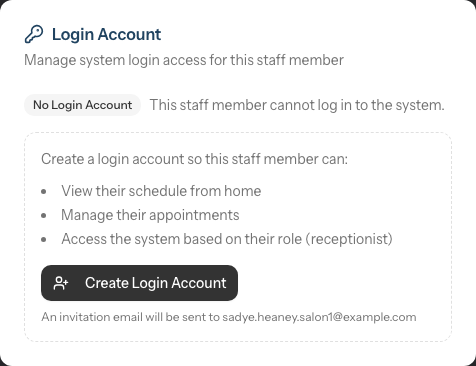
When a staff member has no account yet, the Login Account section shows a grey No Login Account badge with the note "This staff member cannot log in to the system", a short summary of what an account would let them do, and the Create Login Account button beneath it.
What happens:
- A user account is created linked to the staff profile
- An invitation email is sent to the staff member's email address
- The email contains a link to set their password
Before creating: Verify the staff member's email address is correct. The invitation will be sent to the email in their profile.
Step 3: Understand the Invitation Process
When you create a login account:
- System sends an invitation email to the staff member
- Email contains a secure link to set their password
- Link expires after 60 minutes for security reasons
- Staff member clicks link and creates their password
- They can then log in with email + password
What the staff member sees:
Subject: Welcome to Luminate - Join [Salon Name]

Welcome to Luminate, [First Name]!

You've been invited to join [Salon Name] on Luminate, the all-in-one
salon management platform.

What is Luminate?
Luminate helps salons manage appointments, customers, inventory, staff
and more - all in one place. You'll have access to:

- Your schedule - View your shifts and appointments
- Customer management - Access customer profiles and booking history
- Transaction processing - Handle sales and payments
- Your performance - Track your sales and commission

[Set My Password]

This link will expire in 60 minutes for security reasons. If it expires,
please contact [Salon Name] to request a new invitation.
If your salon has social sign-in enabled, the email also invites the staff member to sign in with their connected account (for example Microsoft), as long as they use the same email address that's on their staff profile.
Step 4: Check Login Account Status
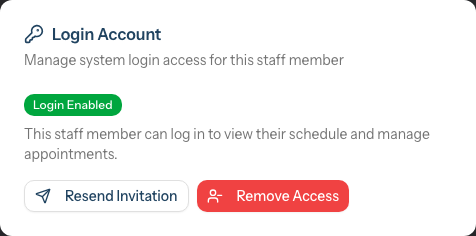
Once a login account exists, the Login Account section shows:
- Login Enabled badge (green)
- Description: "This staff member can log in to view their schedule and manage appointments."
- Available actions: Resend Invitation and Remove Access
Step 5: Resend Invitation Emails
If a staff member didn't receive the invitation or the link expired:
- Open the staff member's profile
- Scroll to the Login Account section
- Click Resend Invitation
- A new invitation email is sent with a fresh link
Common reasons to resend:
- Original email went to spam/junk folder
- Staff member deleted the email
- Invitation link expired
- Email address was corrected (update profile first, then resend)
Tip: Ask the staff member to check their spam folder before resending.
Step 6: Remove Login Access
When a staff member should no longer have system access:
- Open the staff member's profile
- Scroll to the Login Account section
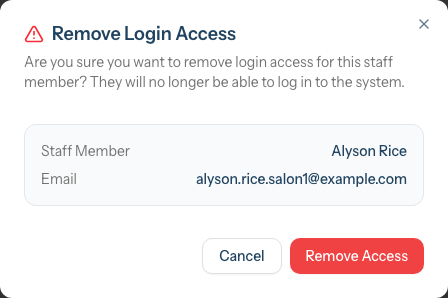
- Click Remove Access
- Confirm the action when prompted
What happens:
- The user account is unlinked from the staff profile
- The staff member can no longer log in
- Their staff profile and all historical data are preserved
- You can create a new login account later if needed
When to remove access:
- Staff member leaves the salon
- Staff member goes on extended leave
- Security concern about the account
- Role change that no longer requires system access
Step 7: Staff Account Setup
When staff receive the invitation, guide them through:
- Check email (including spam folder) for the invitation
- Click the link within 60 minutes (request a new link if expired)
- Create a secure password:
- Minimum 10 characters
- Must include uppercase and lowercase letters
- Must include at least one number
- Must include at least one symbol
- Complete the setup
- Log in with email and new password
First login: Staff will see a dashboard based on their role:
- Staff: Own schedule, assigned appointments
- Receptionist: All schedules, appointments, customers, transactions
- Manager: Operations access including reports and roster
- Admin: Full access except billing
Understanding Role-Based Access
The staff member's role determines what they can do when logged in:
| Role | Can See | Can Do |
|---|---|---|
| Staff | Own schedule | Book/edit own appointments |
| Receptionist | All schedules | Book for anyone, manage customers |
| Manager | Reports, roster | Full operations |
| Admin | Almost everything | All except billing |
To change what a staff member can access, change their role in their staff profile (see Tutorial 4.1).
Common Pitfalls
"The invitation email never arrived"
- Check spam/junk folder
- Verify email address is correct in the staff profile
- Use Resend Invitation to send a fresh link
"Staff says the link doesn't work"
The link may have expired. Invitation links expire after 60 minutes for security reasons. Use Resend Invitation to generate a fresh link.
"I removed access but they can still view appointments"
Removing login access prevents them from signing in. If you also want them hidden from the roster and booking screens, you need to deactivate the staff profile (uncheck "Active" in Edit).
"I need to change their email address"
- Edit the staff profile to update the email
- Remove the existing login access
- Create a new login account (invitation goes to new email)
"Staff forgot their password"
Staff can use the "Forgot Password" link on the login page. They'll receive a password reset email. You don't need to do anything unless they can't access their email.
Tips and Best Practices
- Create accounts before first shift - Give staff 2-3 days to set up their account
- Use work email addresses - Salon-owned emails are easier to manage than personal ones
- Verify email addresses - A typo means the invitation goes nowhere
- Remove access promptly when staff leave - Security best practice
- Don't delete, deactivate - Keep staff profiles for historical records; just remove login access
Related Tutorials
- Tutorial 4.1: Adding New Staff Members - Create staff profiles
- Tutorial 4.3: Staff Levels and Experience Tiers - Skill-based pricing
- Tutorial 4.4: Tracking Staff Performance and Commission - Viewing reports
Frequently Asked Questions
Can a staff member have multiple login accounts?
No. Each staff member can have at most one login account linked to their profile.
What happens to appointments when I remove login access?
Nothing. Removing login access doesn't affect appointments or historical data. The staff member simply can't sign into the system.
Can staff change their own password?
Yes. Staff can change their password from their account settings. They need to know their current password or use the forgot password flow.
How long do invitation links last?
Invitation links expire after 60 minutes for security reasons. After expiry, use Resend Invitation to send a fresh link.
Can I see when staff last logged in?
This information may be available in system logs or activity reports depending on your plan.
What if staff access the system from outside the salon?
By default, staff can log in from any location with internet access. There are no IP restrictions unless specifically configured.
How do I handle temporary or seasonal staff?
Create their profile and login account when they start. Remove login access when their period ends. If they return, create a new login account - their profile and history are preserved.
Can staff see other staff members' information?
Staff can see other staff's names and schedules (for booking purposes). They cannot see compensation details, notes, or other sensitive information.
Last Updated: January 2026