
Viewing Staff Hours Worked
Tutorial 4.5: Viewing Staff Hours Worked
Introduction
Tracking staff working hours is essential for payroll processing, pension reports, and understanding workforce utilisation. The Hours Worked report shows rostered hours for each staff member, broken down by scheduled time and actual working time (excluding breaks). This tutorial shows you how to use this report effectively.
Who this is for: Owner, Admin, Manager (Managers can view but not export — see Step 7)
What you'll learn:
- Access the Hours Worked report
- Understand scheduled vs working hours
- Filter by date range
- Export data for payroll and pension reporting
- Identify staff hour patterns
Time to complete: 10 minutes
Prerequisites
- Logged in as Owner, Admin, or Manager
- Staff members with rostered shifts in the system (see Tutorial 5.1)
- Roster configured for your salon
Step-by-Step Instructions
Step 1: Access the Hours Worked Report
- Click Reports in the sidebar
- Find Staff Reports section
- Click Hours Worked
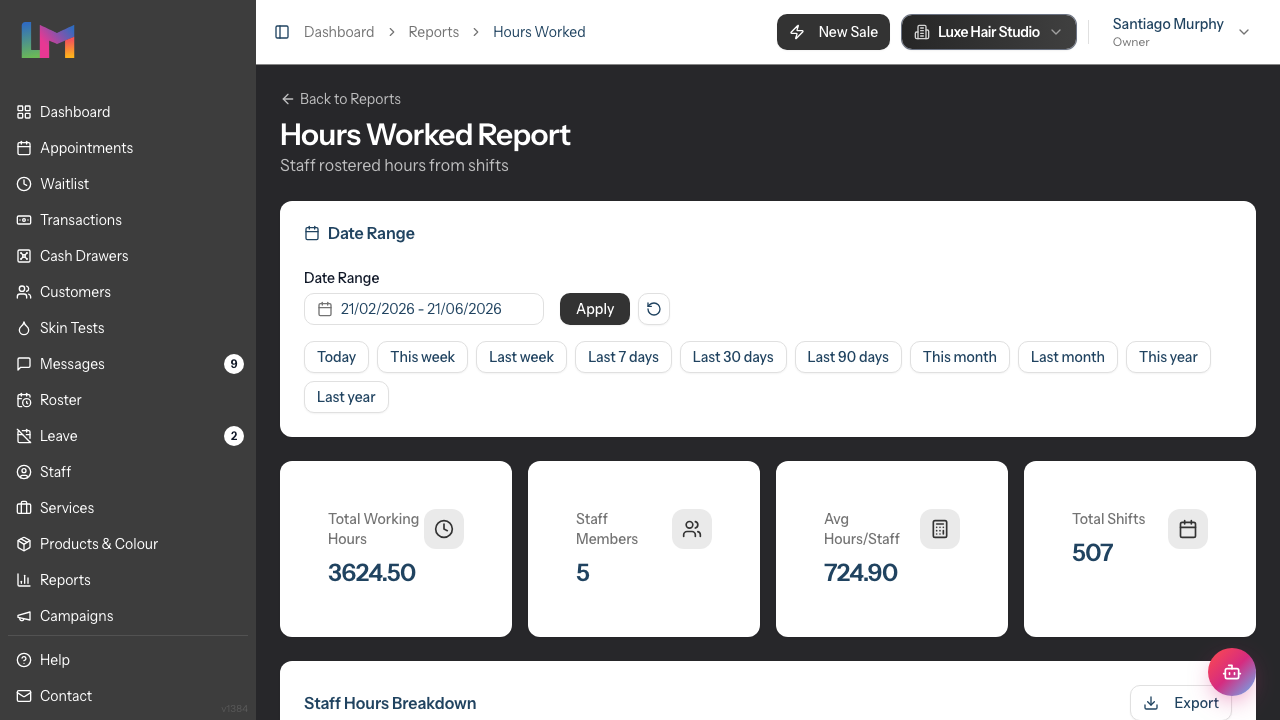
The report opens showing rostered hours for your team.
Step 2: Understand the Date Range Filter
The report defaults to the last 30 days. To adjust:
- Click the Date Range picker to open the calendar
- Select your start and end dates
- Click Apply to update the report
- Click the reset button (circular arrow icon) to return to the default date range
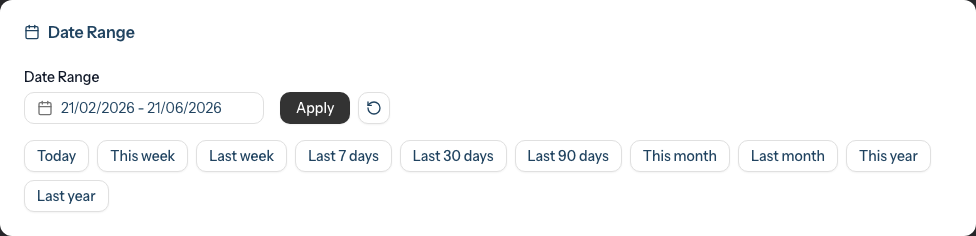
Quick date presets: Below the date range, you'll find preset buttons for common periods:
- Today, This week, Last week, Last 7 days
- Last 30 days, Last 90 days
- This month, Last month, This year, Last year
Common date ranges:
- Last 30 days for ongoing tracking
- Last month for payroll calculations
- Custom quarters for pension reporting
Step 3: Read the Summary Cards
At the top of the report, four summary cards display:
| Card | What It Shows |
|---|---|
| Total Working Hours | Combined working hours for all staff (excludes breaks) |
| Staff Members | Number of staff with shifts in the period |
| Avg Hours/Staff | Average working hours per staff member |
| Total Shifts | Combined number of shifts across all staff |
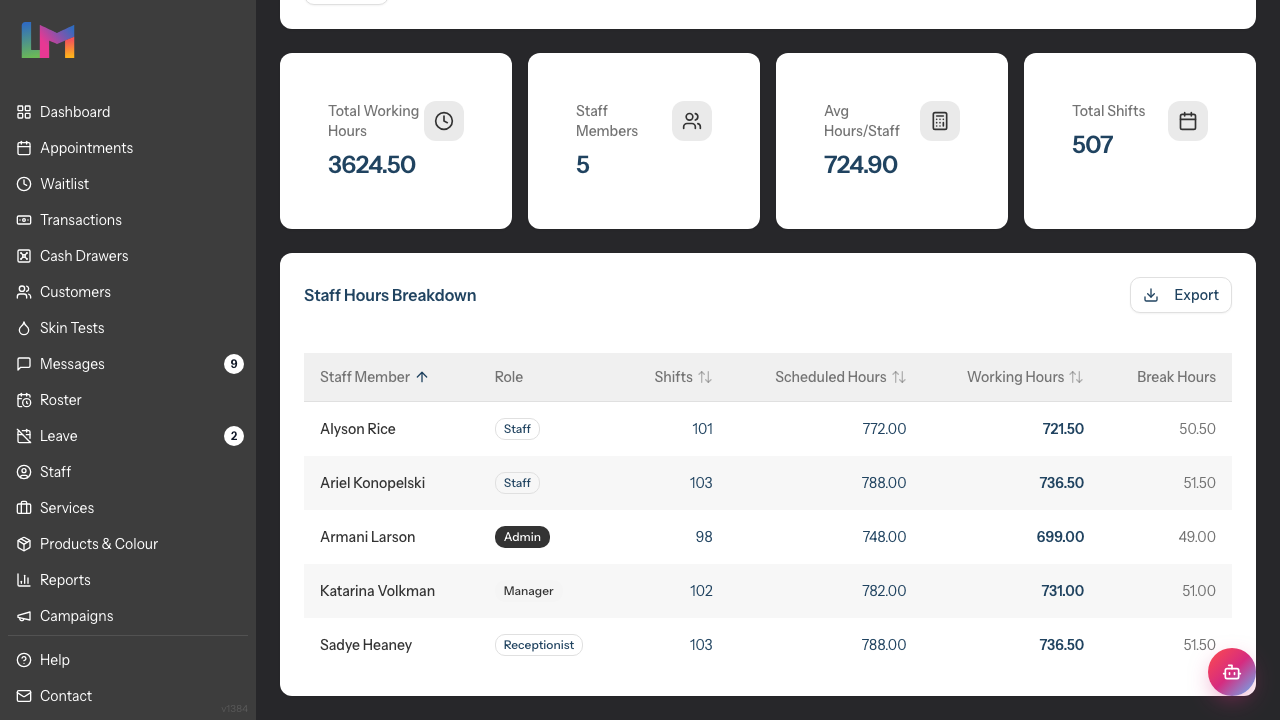
These give you a quick snapshot of workforce hours.
Step 4: Read the Data Table
The detailed table, titled Staff Hours Breakdown, shows:
| Column | Description |
|---|---|
| Staff Member | Name (clickable link to profile) |
| Role | Staff member's role (Admin, Manager, Staff, Receptionist) |
| Shifts | Number of shifts worked in the period |
| Scheduled Hours | Total rostered time including breaks |
| Working Hours | Actual working time (scheduled minus breaks) |
| Break Hours | Total break time taken |
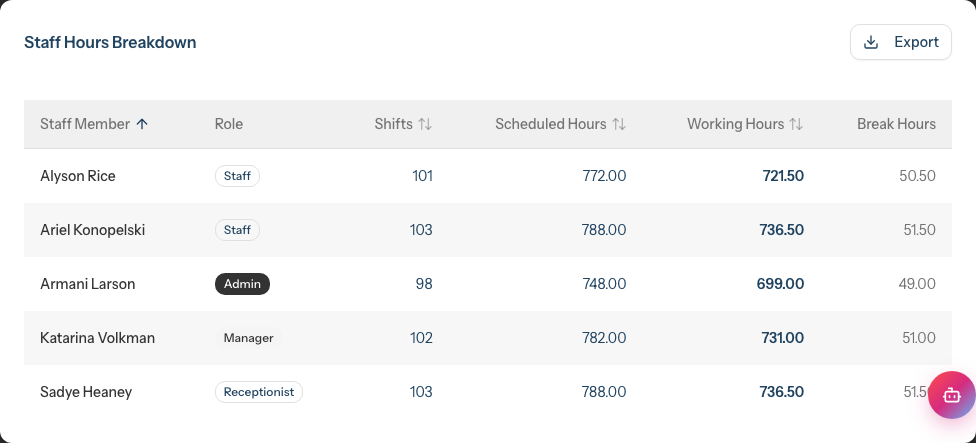
Key distinction:
- Scheduled Hours = Total time from shift start to shift end
- Working Hours = Scheduled Hours minus Break Hours
- Use Working Hours for payroll calculations
Step 5: Sort the Report
Click any sortable column header to sort the data. Sortable columns are: Staff Member, Shifts, Scheduled Hours, and Working Hours.
- Click once to sort ascending (A-Z, low to high)
- Click again to sort descending (Z-A, high to low)
- An arrow indicates the current sort direction
Useful sorts:
- Working Hours descending - See who worked most
- Shifts descending - See who worked most shifts
- Staff Member ascending - Alphabetical for payroll processing
Note: The Role and Break Hours columns are not sortable.
Step 6: Understanding Leave Impact
The Hours Worked report automatically excludes shifts that overlap with approved leave:
- If a staff member has approved leave on a day, their shift for that day is not counted
- Pending leave requests do not exclude shifts until approved
- This ensures accurate hour tracking for payroll
Example:
- Sarah is rostered for Monday-Friday, 8 hours each day
- She has approved annual leave on Wednesday
- Report shows 32 working hours (4 days × 8 hours), not 40
Step 7: Export the Report
To export for payroll or pension reporting:
- Click the Export button in the table header
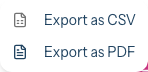
- Choose format:
- Export as CSV - For spreadsheet software (Excel, Google Sheets)
- Export as PDF - For printing or archiving
- The file downloads automatically
Exporting needs the export permission. Only Owners and Admins can export reports. Managers can open and read the report but will be blocked if they try to export — ask an Owner or Admin to run the export, or have them grant the export permission.
CSV export includes: Staff Name, Role, Shifts, Scheduled Hours, Working Hours, Break Hours
PDF export includes:
- Salon name and date range
- Summary statistics
- Full staff hours breakdown
- Generation timestamp
When to export:
- End of pay period for payroll
- Quarterly for pension submissions
- Monthly for records
Step 8: View Individual Staff Details
To see more detail for a specific staff member:
- Click the staff member's name in the table
- Their profile opens
- Review their roster schedule and shift history
Step 9: Receptionist Hours
Receptionists are included in the Hours Worked report:
- Receptionists can be rostered on/off like any other staff
- Their hours appear in this report
- They cannot receive appointments but can work shifts
This allows you to track all staff working hours regardless of role.
Common Pitfalls
"A staff member shows zero hours"
Check:
- Do they have rostered shifts in the selected date range?
- Is the date range correct?
- Have their shifts been created in the roster?
"Hours seem lower than expected"
Check:
- Does the staff member have approved leave during this period?
- Are break hours being counted? (Breaks reduce working hours)
- Are all their shifts included in the roster?
"I can't see the report"
Only Owners, Admins, and Managers can access staff reports. Staff and Receptionists cannot view hours worked reports.
"Exported hours don't match what I see"
The export includes all data from the selected date range and current sort/filter settings. Verify your date range before exporting.
"The Export button doesn't work for me"
Exporting requires the export-reports permission, which only Owners and Admins have. If you're a Manager, you can view the report but not download it — ask an Owner or Admin to export, or to grant you the permission.
"New receptionist doesn't appear"
Ensure the receptionist:
- Is marked as active in staff settings
- Has shifts rostered in the selected date range
Tips and Best Practices
- Run reports consistently - Use the same pay period dates each time
- Export before payroll - Download CSV for your accounting system
- Use Working Hours for pay - This excludes breaks
- Check leave overlaps - Verify approved leave is correctly excluding shifts
- Keep records - Export and store monthly reports for compliance
- Compare periods - Track month-over-month trends in staffing
- Plan staffing - Use hour patterns to inform roster planning
Related Tutorials
- Tutorial 4.4: Tracking Staff Performance and Commission - Revenue-based reporting
- Tutorial 5.1: Setting Up Your Weekly Roster - Setting up shifts
- Tutorial 6.2: Requesting and Managing Leave - Leave that affects hours
Frequently Asked Questions
How is "Working Hours" different from "Scheduled Hours"?
Scheduled Hours is the total time from shift start to shift end. Working Hours subtracts break time, giving you the actual paid/worked time.
Are approved leave days automatically excluded?
Yes. Shifts that fall on days with approved leave are automatically excluded from the totals.
Can I see historical hours data?
Yes. Use the date range filter to view any past period. All roster data is retained.
Why don't receptionists appear in other reports?
Receptionists can be rostered (Hours Worked report) but cannot receive appointments (not in calendar or appointment forms). This is by design.
How do I export for pension reporting?
Export the report as CSV, then use the Working Hours column for your pension calculations. Most pension systems accept CSV imports.
What if a staff member works at multiple salons?
Each salon has its own Hours Worked report. You'll need to export from each salon and combine the data manually.
Does this include overtime?
The report shows rostered hours only. Overtime tracking would require comparing to contracted hours, which you can do in your exported spreadsheet.
Are cancelled shifts included?
No. Only shifts that exist in the roster are included. If a shift was deleted, it won't appear in the report.
Last Updated: January 2026