
Campaign Delivery Reports and Tracking
Tutorial 19.5: Campaign Delivery Reports and Tracking
Introduction
After sending a campaign, you need to know how it performed. Did every message get delivered? Were some messages held back because customers were missing contact details? Did any fail because customers opted out or due to technical issues? Luminate's delivery report gives you a complete breakdown of what happened with every single message — so you can measure success, identify issues, and improve future campaigns.
Who this is for: Salon owners, admins, and managers who have sent marketing campaigns.
What you'll learn:
- How to read campaign statistics (total, sent, failed, suppressed)
- How to access and navigate the delivery report
- What each send status means and why it occurs
- How to filter and sort the delivery report
- How to troubleshoot common delivery issues
- How to reuse successful campaigns
Time to complete: 10-15 minutes
Prerequisites
Before you begin, make sure you have:
- At least one campaign that has been sent or is currently sending (see Tutorial 19.3 for sending campaigns)
- Familiarity with the campaign detail page (see Tutorial 19.1)
Step-by-Step Instructions
Step 1: View Campaign Statistics
After a campaign has been sent (or while it's still sending), its statistics are visible in two places:
On the Campaigns index page:
- The Results column shows a summary: "X sent" (in green), and if applicable, "X failed" (in red) and "X queued" (in muted text)
On the campaign detail page:
- Go to the Campaigns page and click on a sent campaign
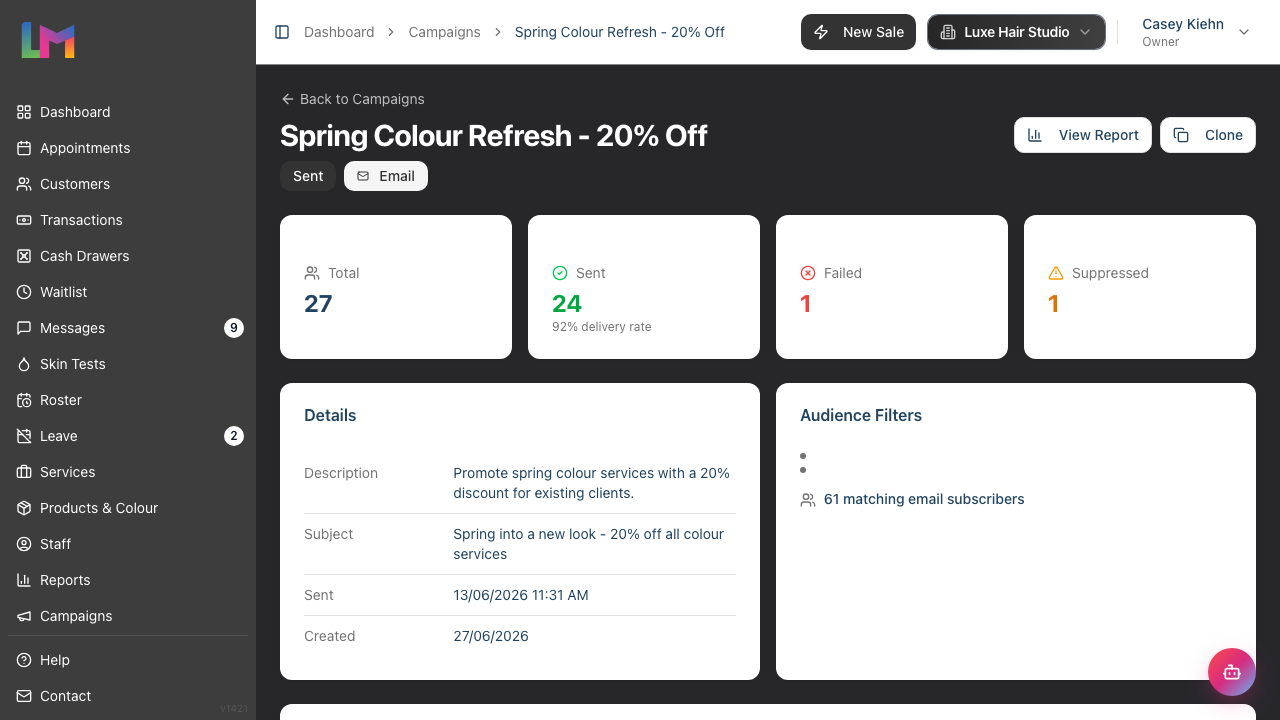
- At the top, you'll see four statistics cards:
- Total — the total number of recipients the campaign was sent to
- Sent — the number of messages successfully delivered, with a delivery rate percentage below (e.g., "95% delivery rate")
- Failed — the number of messages that could not be delivered (including customer opt-outs and technical delivery errors)
- Suppressed — the number of messages that were not sent because the customer was missing contact information or a system setting prevented sending
The delivery rate is calculated as: Sent ÷ (Sent + Failed + Suppressed) × 100.
Step 2: Access the Delivery Report
- On the campaign detail page, click the View Report button (available for campaigns with status Sent, Sending, or Queued)
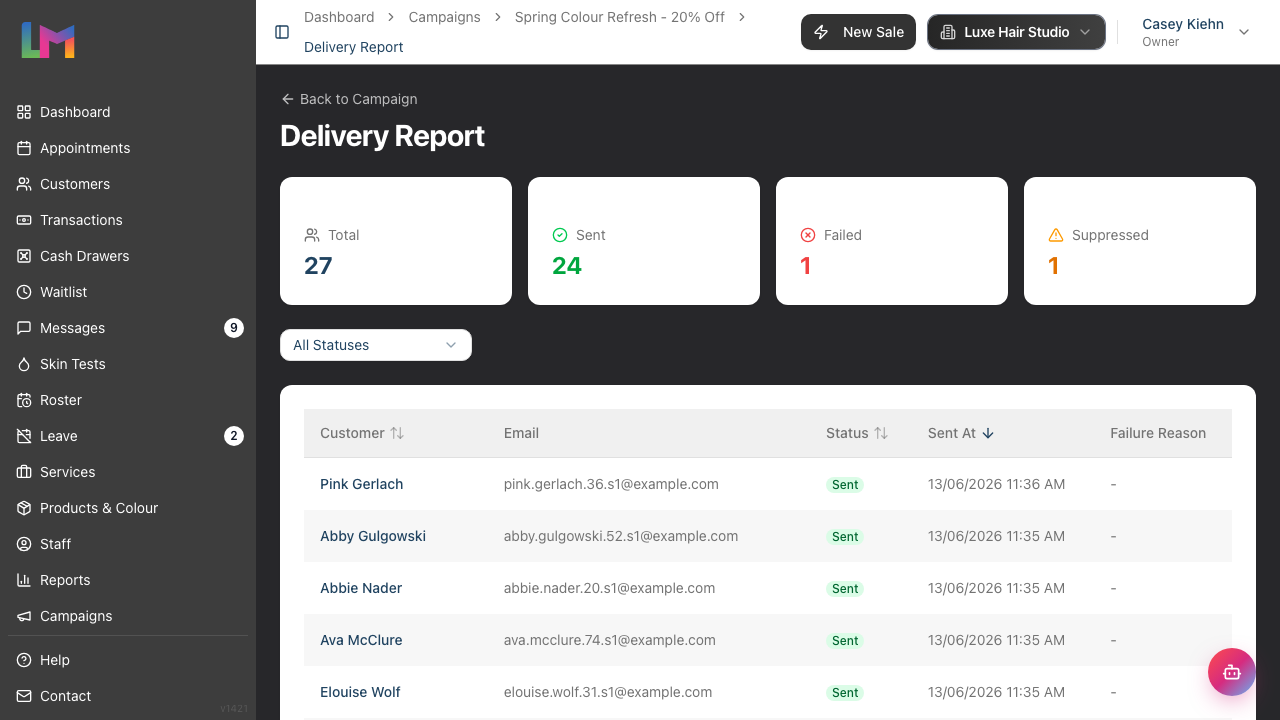
- You'll be taken to the Delivery Report page, which shows the same four statistics cards at the top (Total, Sent, Failed, Suppressed) plus a detailed table of every individual send. Note that the delivery rate percentage is only shown on the campaign detail page, not on the report page
Step 3: Understand Send Statuses
Each message in the delivery report has one of four statuses:
| Status | What It Means | When It Happens |
|---|---|---|
| Sent | The message was successfully delivered to the customer | The notification system confirmed delivery |
| Suppressed | The message was held back before sending | The customer is missing contact information, or a system setting prevented sending (e.g., demo mode, messaging paused) |
| Failed | The message could not be delivered | The customer opted out of marketing, or a technical delivery error occurred (e.g., invalid email address, provider issue) |
| Queued | The message is still waiting to be processed | The campaign is still sending — this status will change to one of the above |
Step 4: Read the Delivery Report Table
The delivery report table shows one row per recipient with the following columns:
| Column | What It Shows |
|---|---|
| Customer | The customer's name (clickable link to their profile) |
| Email or Phone | The customer's email address (for email campaigns) or phone number (for SMS campaigns) |
| Status | The send status badge (Sent, Failed, Suppressed, or Queued) |
| Sent At | The date and time the message was sent (or "-" if not yet sent) |
| Failure Reason | The reason for failure or suppression (or "-" if sent successfully) |
You can sort the table by clicking on the Customer, Status, or Sent At column headers.
Step 5: Filter the Delivery Report
To focus on specific results, use the status filter dropdown above the table:
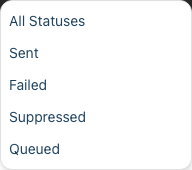
- Click the Status dropdown (defaults to "All Statuses")
- Choose a status to filter by:
- All Statuses — shows every send record
- Sent — only successfully delivered messages
- Failed — only messages that encountered errors
- Suppressed — only messages that were intentionally held back
- Queued — only messages still waiting to be processed
This is particularly useful for large campaigns where you want to quickly identify and address failures or suppressions.
Step 6: Understand Common Suppression Reasons
When a message is suppressed, the Failure Reason column explains why. Here are the most common reasons:
| Reason | What It Means | What to Do |
|---|---|---|
| No email address on file / No sms address on file | The customer's profile is missing the required contact information | Update their profile with the correct email or phone number (see Tutorial 3.3) |
| Demo mode | Your salon is in demo mode, which doesn't send real messages | Switch to a live account to send actual campaigns |
| Automated messaging paused | Your salon has paused automated messaging in settings | Check your salon notification settings |
| SMS notifications disabled during trial | SMS sending is restricted during the trial period | Upgrade your plan or contact support at hello@luminate.salon |
Step 7: Troubleshoot Failed Messages
Messages with a Failed status indicate the message was not delivered. The Failure Reason column explains why. Common reasons include:
| Reason | What It Means | What to Do |
|---|---|---|
| Customer opted out of marketing email / Customer opted out of marketing sms | The customer has disabled marketing notifications for this channel | Respect their preference — do not re-enable without their consent |
| Invalid email address | The address may have a typo or no longer exist | Update the customer's profile with a valid email address |
| Provider issues | A temporary problem with the email or SMS delivery service | If it appears to be a temporary issue, you can duplicate the campaign and resend to the affected customers |
| Delivery bounces | The recipient's mail server rejected the message | Verify the customer's email address is correct and active |
For failed messages:
- Check the Failure Reason column for details
- If the reason is a customer opt-out, respect their preference — these customers have chosen not to receive marketing messages
- If it's an invalid contact detail, update the customer's profile
- If it appears to be a temporary provider issue, you can duplicate the campaign and resend to the affected customers
Step 8: Duplicate a Successful Campaign
If a campaign performed well and you want to run a similar one:
- Go to the campaign detail page (not the report page)
- Click the Clone button (available for Sent campaigns)
- Confirm in the dialog — a new draft is created with the same content and audience filters
- Edit the new draft as needed (update the name, message, or filters)
- Send or schedule the new campaign
This is the quickest way to reuse a proven campaign structure. See Tutorial 19.3 for more details on the duplication process.
Common Pitfalls
"My delivery rate seems low — lots of messages failed or were suppressed"
A high failure or suppression rate usually means many of your targeted customers haven't opted in to marketing communications, or are missing contact information. Filter the report by Failed to check for "Customer opted out" reasons, and by Suppressed to check for missing contact details. Review your segment filters to ensure the marketing consent filter is included (see Tutorial 19.2). You can also encourage customers to update their preferences.
"All messages show as 'Queued' even though I sent the campaign a while ago"
Large campaigns take time to process as messages are sent individually. If messages remain queued for an unusually long time, there may be a queue processing delay. Check back after a few minutes. If the issue persists, contact support.
"I can't find the View Report button"
The View Report button only appears for campaigns with a status of Sent, Sending, or Queued. Draft and Scheduled campaigns don't have delivery reports because no messages have been dispatched yet.
"The failure reason is cut off in the table"
Failure reasons may be truncated in the table column. Hover over the text to see the full reason, or widen your browser window.
Tips and Best Practices
- Check your delivery report after every campaign — don't just send and forget. Review the results to understand what worked and what didn't
- Monitor failure and suppression rates — if a large percentage of messages are failed or suppressed, review your audience filters and ensure you're targeting customers who have marketing consent and valid contact details
- Act on failures — if customers have invalid email addresses or phone numbers, update their profiles. This improves delivery rates for future campaigns
- Use reports to refine your audience — if certain types of customers consistently receive your campaigns, consider creating targeted segments that focus on engaged customers
- Compare campaigns over time — look at delivery rates across multiple campaigns to spot trends. A declining delivery rate might mean your contact data needs updating
- Duplicate successful campaigns — when a campaign has a high delivery rate and good results, clone it as a starting point for future campaigns
Related Tutorials
- Tutorial 19.1: Introduction to Marketing Campaigns — campaign basics and creation
- Tutorial 19.2: Targeting the Right Customers with Segment Filters — refining your audience to improve delivery rates
- Tutorial 19.3: Sending, Scheduling, and Testing Campaigns — the sending workflow
- Tutorial 19.4: SMS Campaigns and Credit Management — SMS-specific delivery considerations
- Tutorial 3.3: Customer Preferences and Communication Consent — updating customer contact details and marketing consent
- Tutorial 10.5: SMS Balance and Usage Tracking — managing your SMS balance
Frequently Asked Questions
What's a good delivery rate?
A delivery rate of 90% or above is typical for well-maintained customer lists with proper consent management. If your rate is consistently below this, review your customer data for missing or outdated contact information and ensure you're using the marketing consent filter.
Can I resend a campaign to customers who didn't receive it?
Not directly — you can't resend the same campaign. However, you can duplicate the campaign and adjust the audience filters to target the specific group that was missed. For example, if messages failed due to temporary issues, create a new campaign targeting those customers.
How long do delivery reports stay available?
Delivery reports are stored permanently and can be accessed at any time from the campaign detail page. Your full campaign history is preserved.
Can I export the delivery report?
The delivery report is currently viewable within Luminate. For record-keeping, you can use your browser's print function to save the report as a PDF.
Why does my campaign show "Sending" but some messages are already "Sent"?
The campaign status shows the overall state. Individual messages are processed one by one — so the campaign status remains "Sending" until the very last message has been processed, even though earlier messages have already been delivered. Once every message has been processed, the status changes to "Sent".
What's the difference between "Failed" and "Suppressed"?
Suppressed messages were held back before being sent because the customer was missing contact information or a system-level setting prevented sending (e.g., demo mode, messaging paused). Failed messages could not be delivered — either because the customer opted out of marketing communications or due to a technical error (e.g., invalid email address, provider issue). Check the Failure Reason column to understand the specific cause for each message.
Last Updated: June 2026