
SMS Campaigns and Credit Management
Tutorial 19.4: SMS Campaigns and Credit Management
Introduction
SMS campaigns are a powerful way to reach customers directly on their phones — text messages have far higher open rates than email. However, SMS campaigns use your salon's SMS credit balance and work differently from email in several important ways. Before sending your first SMS campaign, you need to understand message segments, character limits, cost estimation, and the automatic opt-out footer.
This tutorial covers everything specific to SMS campaigns so you can send with confidence and avoid unexpected costs.
Who this is for: Salon owners, admins, and managers planning to send SMS marketing campaigns.
What you'll learn:
- How SMS credits work with campaigns
- What message segments are and how longer messages use more credits
- How the automatic "Send STOP to opt out" footer works
- How to estimate campaign costs before sending
- What happens if your credit balance is insufficient
- Key differences between email and SMS campaigns
Time to complete: 10-15 minutes
Prerequisites
Before you begin, make sure you have:
- Familiarity with creating campaigns (see Tutorial 19.1)
- An SMS credit balance on your account (see Tutorial 10.5 for purchasing and managing SMS credits)
- At least one customer with a phone number and SMS marketing consent
Step-by-Step Instructions
Step 1: Understand How SMS Credits Work with Campaigns
Every SMS message your salon sends uses credits from your SMS balance — whether it's an appointment reminder or a marketing campaign. Each message segment costs one credit. A short message (up to 160 characters) uses one segment (one credit). Longer messages are split into multiple segments, each costing one credit.
For campaigns, the total cost depends on two things:
- How many recipients you're sending to
- How many segments each message requires
For example, a 1-segment message sent to 50 customers costs 50 credits. A 2-segment message sent to 50 customers costs 100 credits.
See Tutorial 10.5 for full details on purchasing credits and setting up auto-top-up.
Step 2: Understand Message Segments and Character Limits
SMS messages have strict character limits. When a message exceeds the single-message limit, it's split into multiple segments:
| Message Type | Single Message Limit | Per Segment (Multi-Segment) |
|---|---|---|
| Standard text (letters, numbers, basic punctuation) | 160 characters | 153 characters per segment |
| Unicode text (emojis, special characters) | 70 characters | 67 characters per segment |
Important: Including even one emoji in your message switches the entire message to unicode encoding, which dramatically reduces the character limit from 160 to 70 characters.
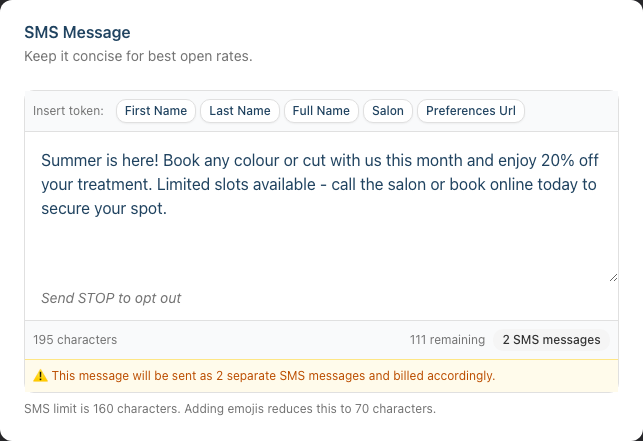
When composing an SMS campaign, the editor shows:
- Character count — how many characters you've used
- Characters remaining — how many you have left in the current segment
- Segment count — displayed as a badge reading "1 SMS" or, for longer messages, "2 SMS messages", "3 SMS messages" and so on (colour-coded: dark for 1, grey for 2, outline for 3, red for 4+)
- Unicode warning — "Emojis detected (70 char limit)" if unicode characters are present
- Multi-segment warning — an amber bar reading "This message will be sent as X separate SMS messages and billed accordingly"
Step 3: Understand the Opt-Out Footer
Every SMS campaign message automatically has "Send STOP to opt out" appended to the end. This is shown as a preview below the text area when composing your message.
This footer:
- Is added automatically — you don't need to type it yourself
- Counts towards your character limit — the footer text and its newline are included in the segment calculation
- Cannot be removed — it's a requirement for marketing SMS messages to give recipients a way to unsubscribe
- Is visible in the SMS editor preview so you can see exactly how your final message will look
When composing your message, keep the footer in mind. If your message is close to the segment boundary, the footer may push it into an additional segment.
Step 4: Check the Cost Estimate Before Sending
When you navigate to the Send Campaign page for an SMS campaign, you'll see additional information in the Campaign Summary card:
- SMS balance — your current credit balance (e.g., "250 credits")
- Segments per message — how many segments each message will use, with a "(long message)" note if more than 1
- Estimated cost — the total credits needed, shown in bold (calculated as segments per message × number of recipients)
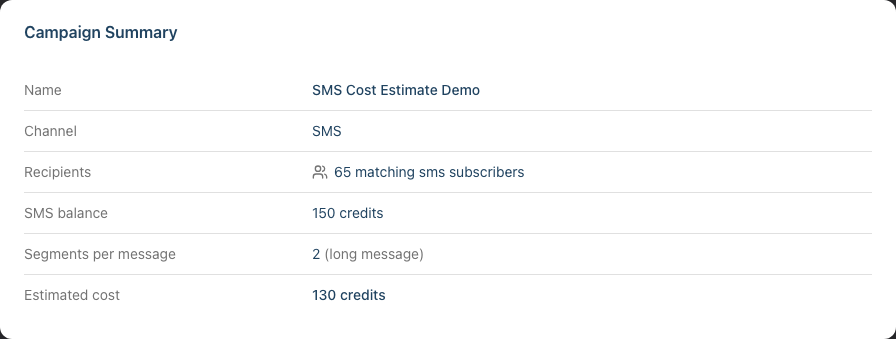
Review these numbers carefully before pressing Send.
Step 5: Handle Insufficient Credits
If your SMS credit balance is lower than the estimated campaign cost, you'll see a red alert at the top of the Send page:
Insufficient SMS Credits You need approximately X SMS credits for this campaign but only have X.
The alert includes a "Top up SMS Credits" link that takes you directly to your salon's SMS credits settings page where you can purchase more.
The Send Now button is disabled until you have sufficient credits.
If your balance is close to the estimated cost (within 20%), you'll see an amber warning instead:
Low SMS Credits Your SMS balance (X credits) is close to the estimated cost (X credits). Some messages may fail if recipients require multi-segment messages.
In this case, you can still send, but topping up first is recommended to ensure all messages are delivered.
Step 6: Understand the Differences Between Email and SMS Campaigns
| Feature | Email Campaign | SMS Campaign |
|---|---|---|
| Format | Rich HTML with salon branding | Plain text only |
| Subject line | Yes — shown in inbox | No |
| Message length | Virtually unlimited | Limited by segments (160/70 chars each) |
| Cost | Included in your plan | Uses SMS credits (1 credit per segment) |
| Opt-out | Managed via email preferences | "Send STOP to opt out" footer auto-appended |
| Personalisation tokens | Available | Available |
| Message editor | Visual email builder | Plain text area with character counter |
| Consent filter | "Has email marketing consent" | "Has SMS marketing consent" |
| Contact requirement | Customer must have an email address | Customer must have a phone number |
Common Pitfalls
"My campaign cost more credits than the estimate showed"
The estimate is calculated based on the message body at the time of sending. If some customers' personalisation tokens (like {full_name}) are longer than the sample data, the actual per-message character count may vary slightly. Keep a small buffer of credits when sending large campaigns.
"I added an emoji and my message suddenly uses 3 segments"
Even a single emoji switches the entire message to unicode encoding, which cuts the character limit from 160 to 70 per segment. Either remove the emoji to stay in standard encoding, or plan for the higher credit cost. The editor will warn you with "Emojis detected (70 char limit)".
"The opt-out footer pushed my message into an extra segment"
The "Send STOP to opt out" footer (including its newline) is included in the character count. When writing your message, watch the segment counter in the editor — it accounts for the footer. Try shortening your message to fit within fewer segments.
"Some messages show as 'suppressed' even though customers have phone numbers"
Suppression can happen for several reasons: the customer may have opted out of SMS marketing, your salon may have SMS notifications paused, or you may be in demo mode. Check the delivery report (Tutorial 19.5) for the specific suppression reason.
Tips and Best Practices
- Keep SMS messages concise — aim for a single segment (under 160 characters including the opt-out footer) to minimise costs and improve readability. Short, punchy messages perform best
- Avoid emojis in SMS campaigns — while they look friendly, a single emoji cuts your character limit from 160 to 70 and can triple your credit costs
- Check your balance before sending — visit the Send page and review the cost estimate. If it's close, top up first to avoid partial delivery
- Set up auto-top-up — if you send SMS campaigns regularly, configure auto-top-up in your SMS credits settings to avoid running out mid-campaign (see Tutorial 10.5)
- Use personalisation tokens sparingly in SMS — tokens like
{first_name}are great, but{full_name}can vary significantly in length. Stick to shorter tokens to keep message length predictable - Test before sending — use the Send Test feature to check how your SMS looks on an actual phone, including the opt-out footer and any personalisation
Related Tutorials
- Tutorial 19.1: Introduction to Marketing Campaigns — creating your first campaign
- Tutorial 19.2: Targeting the Right Customers with Segment Filters — building your SMS audience
- Tutorial 19.3: Sending, Scheduling, and Testing Campaigns — the full sending workflow
- Tutorial 19.5: Campaign Delivery Reports and Tracking — understanding delivery results
- Tutorial 10.5: SMS Balance and Usage Tracking — purchasing credits, checking balance, and configuring auto-top-up
Frequently Asked Questions
How many credits does an SMS campaign use?
The total cost is: segments per message × number of recipients. A standard text message under 160 characters (including the opt-out footer) uses 1 segment per recipient. Longer messages use more segments. The Send page shows the exact estimate before you send.
Can I send an SMS campaign with zero credits?
No. If your balance is below the estimated cost, the Send Now button is disabled and you'll see an "Insufficient SMS Credits" alert with a link to top up.
Does the opt-out footer count towards the character limit?
Yes. The text "Send STOP to opt out" (plus a newline character) is included in the total character count and segment calculation. The editor accounts for this in its counter.
What happens when a customer replies STOP?
Their SMS marketing consent is updated automatically and they will be excluded from future SMS campaigns by the consent filter. You can see their updated preference on their customer profile.
Can I send both an email and SMS campaign for the same promotion?
Yes — create two separate campaigns, one for each channel. You might target different customer segments (email for customers with email addresses, SMS for those with phone numbers) or send both to maximise reach. Just be mindful not to overwhelm customers who might receive both.
Are SMS campaigns available during the trial period?
SMS notifications may be limited during the trial period. If you see messages being suppressed with the reason "SMS notifications disabled during trial", contact support at hello@luminate.salon for assistance.
Last Updated: June 2026