
Time Blocks and Availability Management
Tutorial 5.4: Time Blocks and Availability Management
Introduction
Time blocks reserve time on the calendar for non-appointment activities. Use them for lunch breaks, team meetings, training sessions, or personal appointments. When time is blocked, appointments cannot be booked during that period. This tutorial shows you how to create and manage time blocks.
Who this is for: Owner, Admin, Manager, Staff What you'll learn:
- Understand the difference between shifts and time blocks
- Create time blocks from the calendar
- Choose time block categories
- Adjust time blocks using drag and resize
- Edit a time block on the dedicated Edit page (including from mobile)
- Delete time blocks
- Understand conflict checking
Time to complete: 10 minutes
Prerequisites
- Logged in with at least Staff permissions
- Understanding of the appointment calendar (see Tutorial 2.1)
- Staff shifts already created (see Tutorial 5.1)
Step-by-Step Instructions
Step 1: Understand Shifts vs Time Blocks
| Type | Purpose | Where Created |
|---|---|---|
| Shift | Define when staff are working and available | Roster page |
| Time Block | Block time for non-appointment activities | Calendar page |
Key differences:
- Shifts make staff available for appointments
- Time blocks make staff unavailable during specific times
- Shifts appear on the roster; time blocks appear on the calendar
- Time blocks don't require shifts to exist first
Step 2: Access Time Block Creation
Time blocks are created from the appointment calendar:
- Click Appointments in the sidebar
- Navigate to the desired date using the calendar navigation
- Click the Block Time button in the page header (next to "New Appointment")
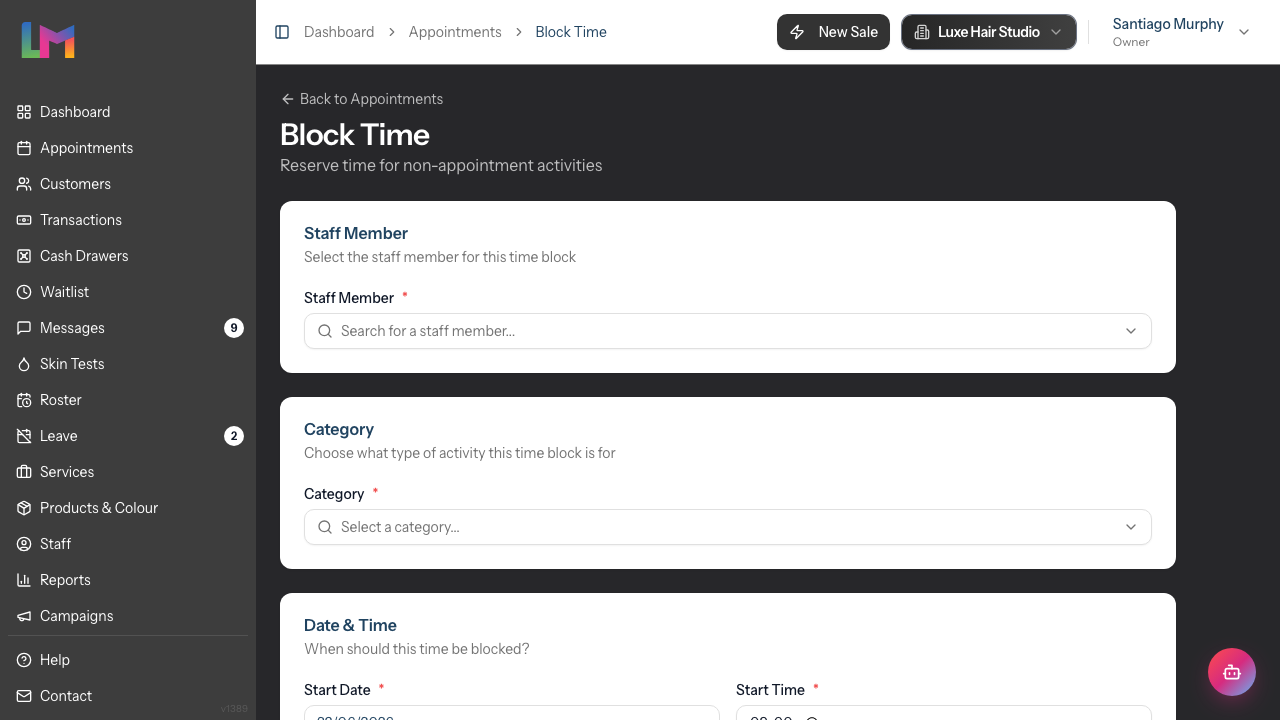
The Block Time page opens with a form to create the time block.
Step 3: Complete the Time Block Form
The form is organised into sections. Fill in the time block details:
Staff Member Section:
| Field | Required | Description |
|---|---|---|
| Staff Member | Yes | Select who the time block is for from the dropdown |
Category Section:
| Field | Required | Description |
|---|---|---|
| Category | Yes | Select the type of time block from the dropdown |
Date & Time Section:
| Field | Required | Description |
|---|---|---|
| Start Date | Yes | When the block begins (date) |
| Start Time | Yes | When the block begins (time, e.g., 09:00) |
| End Date | Yes | When the block ends (usually same as start date) |
| End Time | Yes | When the block ends (e.g., 10:00) |
Details Section (Optional):
| Field | Required | Description |
|---|---|---|
| Custom Title | No | Custom label (e.g., "Team Meeting") - leave empty to use category name |
| Notes | No | Additional details about the time block |
Step 4: Select a Category
Categories help organise and visually identify time blocks. Built-in categories include:
| Category | Typical Use |
|---|---|
| Lunch Break | Daily lunch period |
| Meeting | Team meetings, one-on-ones |
| Admin Time | Paperwork, stock takes |
| Personal Time | Doctor appointments, errands |
| Training | Skills development |
| Consultation | Extended client consultations |
Select the category that best describes the time block. Categories can be enabled/disabled and custom categories added in salon settings (see "Managing Time Block Categories" below).
Step 5: Set the Time Range
Configure when the block occurs:
- Select the Start Date using the date picker
- Select the Start Time (e.g., 12:00)
- Select the End Date (usually same as start date)
- Select the End Time (e.g., 13:00)
Note: End time must be after start time.
Step 6: Add Optional Details
Title: Add a custom label if the category isn't specific enough:
- "Team Meeting"
- "Product Training"
- "Dentist appointment"
Notes: Add context for yourself or managers:
- "Monthly team catch-up"
- "Back by 2pm"
- "Mandatory attendance"
Step 7: Handle Conflict Checking
Before saving, the system checks for conflicts:
Conflict detected:
Time Conflict
This time slot conflicts with an existing appointment or time block.
If a conflict is detected:
- The Create Time Block button is disabled
- Change the time range to avoid the conflict
- Or reschedule the conflicting appointment first
No conflict: The button is enabled, and you can proceed.
Step 8: Save the Time Block
- Review all details
- Click Create Time Block at the bottom of the form
- You'll be redirected to the appointments calendar
- The time block appears on the calendar
The blocked time now shows as unavailable for appointment booking.
Step 9: View Time Blocks on the Calendar
Time blocks appear on the calendar with:
- Category colour coding (left border)
- Lock icon indicating blocked time
- Title (custom title or category name)
- Time range
- Staff name (in week view)
- Notes preview (in day view) or notes indicator icon (in week view)
They're visually distinct from appointments with a striped background pattern, helping you see availability at a glance.
Step 10: Adjust a Time Block
You can adjust time blocks directly on the calendar using drag and resize:
Moving a Time Block:
- Hover over the time block to reveal the drag handle (grip icon on the left)
- Click and drag to move the time block to a different time
- Release to confirm the new position
Resizing a Time Block:
- Hover over the time block to reveal resize handles at the top and bottom edges
- Click and drag a resize handle to adjust the start or end time
- Release to confirm the new duration
On mobile: Drag-and-resize interactions are not available on mobile devices. Use the Edit action (Step 11) to change the time on mobile.
Note: The system checks for conflicts when you move or resize. If the new position conflicts with an existing appointment or time block, the change will be prevented.
Step 11: Edit a Time Block
To change a time block's staff member, category, title, notes, or times without deleting it:
- On desktop: Hover over the time block on the calendar to reveal the action buttons and click the Edit button (pencil icon). On mobile: Tap the time block to reveal the action buttons, then tap Edit.
- The Edit Time Block page opens with the current values pre-filled
- Change any of: Staff Member, Category, Title, Start / End Time, or Notes
- Click Save Changes to apply, or Cancel to discard
- You're returned to the calendar view (day or week) and the same date/staff selection you were on, so you can keep working without losing your place
Tip: Use the Edit page when you need to fix a category, reassign a time block to a different staff member, or correct a typo in the title — there's no need to delete and recreate.
Step 12: Delete a Time Block
To remove a time block:
- On desktop: Hover over the time block on the calendar to reveal the action buttons and click the Delete button (bin icon). On mobile: Tap the time block to reveal the action buttons, then tap Delete.
- Review the confirmation dialog showing the time block details:
- Title
- Staff member
- Time range
- Click Delete Time Block to confirm, or Cancel to keep it
The time becomes available for appointments again.
Managing Time Block Categories
Owners can customise time block categories in salon settings:
- Click on your salon name in the header
- Select Edit Salon from the dropdown
- Click the Staff tab
- Click the Time Blocks sub-tab
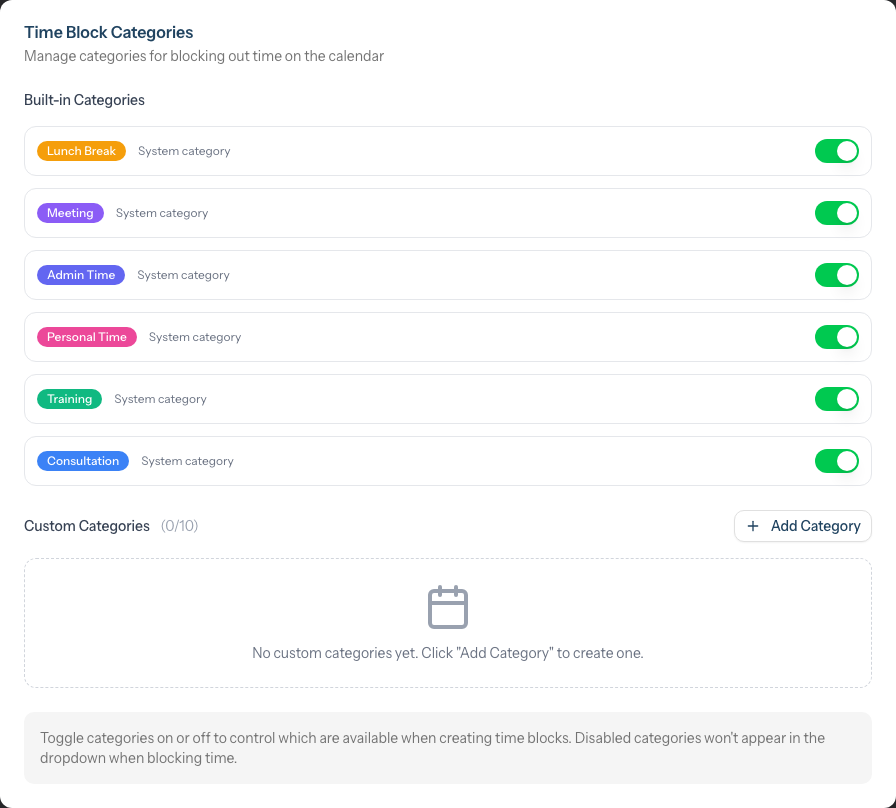
Built-in Categories: The system comes with six built-in categories (Lunch Break, Meeting, Admin Time, Personal Time, Training, Consultation). These cannot be deleted but can be toggled on/off using the switch next to each one. Disabled categories won't appear when creating time blocks.
Adding a Custom Category:
- Click the Add Category button
- Enter a name (e.g., "Photo Shoot")
- Select a colour for the category
- Save the category
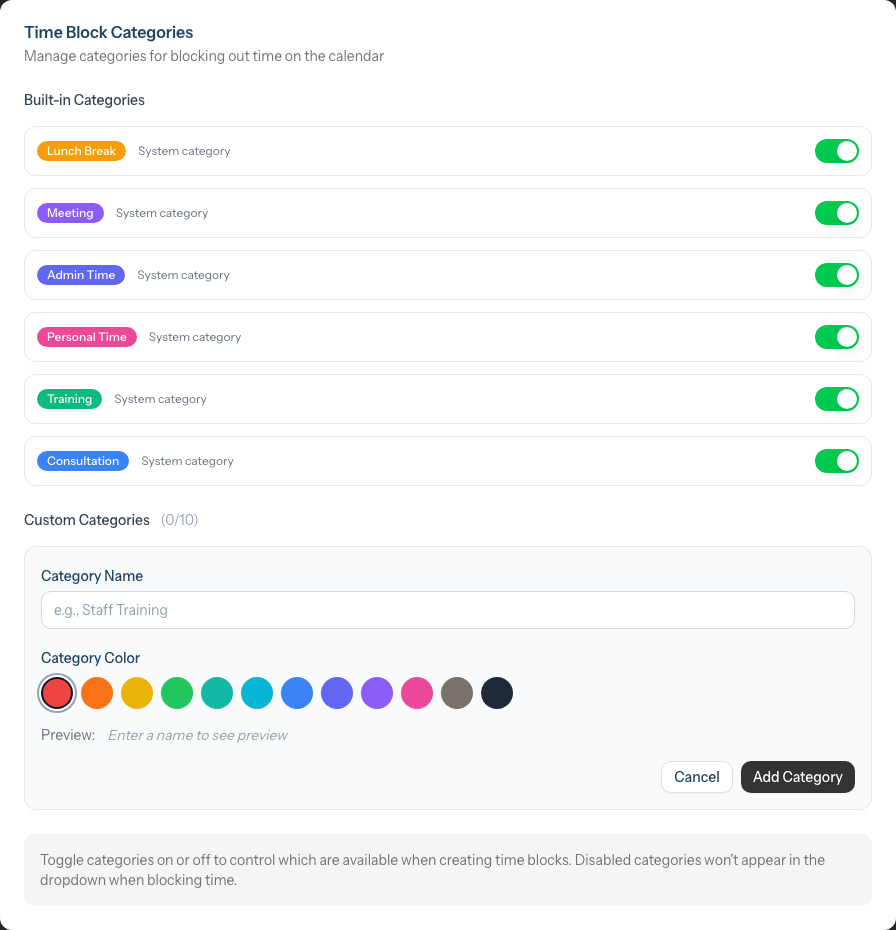
You can add up to 10 custom categories. The category counter shows your current usage (e.g., "2/10"). Custom categories can be edited or deleted.
Common Pitfalls
"I can't create a time block - there's a conflict"
The time slot has an existing appointment or time block. Either:
- Choose a different time
- Reschedule the conflicting appointment
- Delete the existing time block
"Time block doesn't show on the calendar"
Check that:
- You're viewing the correct date
- You're viewing the correct staff member's column
- The time block was saved successfully
"I want to block the same time every week"
There's no recurring time block feature in the UI. Create time blocks individually for each week, or use a shift break instead (shifts have break duration but not specific break times).
"Staff created too many time blocks"
Review your salon's policy on personal time blocks. Consider requiring approval for certain categories or limiting how much time can be blocked.
"I need to change the category or staff member"
Click the Edit button (pencil icon) on the time block — the Edit page lets you change the staff member, category, title, times, and notes in one place. Drag and resize on the calendar still works for time-only adjustments.
Tips and Best Practices
- Use categories consistently - Helps with reporting and understanding patterns
- Add titles for context - "Meeting" is clearer with "Monthly team catch-up" title
- Check for appointments first - Don't block time where appointments exist
- Block lunch breaks early - Create them when planning the week
- Review blocked time weekly - Ensure it doesn't exceed reasonable limits
- Communicate training blocks - Let affected customers know in advance
- Use notes for follow-up - Record important details
- Use drag and resize - Quickly adjust time blocks without recreating them
Related Tutorials
- Tutorial 5.1: Setting Up Your Weekly Roster - Creating staff shifts
- Tutorial 2.1: Managing Your Appointment Calendar - Understanding the calendar view
- Section 6: Leave Management - For full days or longer absences
Frequently Asked Questions
What's the difference between a time block and a shift break?
- Shift break is a duration (e.g., 30 minutes) that's deducted from paid hours but doesn't block a specific time
- Time block blocks a specific time period (e.g., 12:00-13:00) and prevents appointments
Can customers see why time is blocked?
No. Customers only see that the time is unavailable. Category names, titles, and notes are internal only.
Can I create a time block for multiple staff at once?
No. Create time blocks individually for each staff member.
Do time blocks appear on the roster?
No. Time blocks appear on the calendar only. The roster shows shifts only.
What if I need to block time but there's an appointment?
Reschedule the appointment first, then create the time block. You cannot create a time block that conflicts with an existing appointment.
Can staff create their own time blocks?
Yes, if they have calendar access. Define your salon's policy on when this is appropriate.
Are time blocks duplicated with rosters?
No. Roster duplication copies shifts only. Create time blocks separately for each week.
How long can a time block be?
No technical limit, but time blocks are typically 15 minutes to 4 hours. For full-day absences, use leave requests instead (Section 6).
Can I set a time block in the past?
Yes, for record-keeping purposes, but it won't affect past bookings.
Do time blocks affect commission or hours calculations?
Time blocks don't affect shift hours or commission. They only block appointment availability.
Can I change the staff member or category of a time block?
Yes. Click the Edit button (pencil icon) on the time block to open the Edit Time Block page, then change the staff member, category, title, times, or notes. You can also adjust times via drag and resize on the calendar (desktop only).
Last Updated: May 2026