
Setting Up Your Weekly Roster
Tutorial 5.1: Setting Up Your Weekly Roster
Introduction
The roster defines when staff are available to take appointments. A shift tells the system that a staff member is working during specific hours. Without shifts, staff won't appear as available on the appointment calendar. This tutorial shows you how to create and manage shifts for your team.
Who this is for: Owner, Admin, Manager What you'll learn:
- Navigate the weekly roster view
- Create shifts for staff members
- Configure shift times and breaks
- Edit and delete shifts
- Understand weekly hours calculations
Time to complete: 10 minutes
Prerequisites
- Logged in as Owner, Admin, or Manager with
manage-rosterpermission - At least one active staff member with Show on roster enabled exists (see Tutorial 4.1)
- Understand your salon's opening hours and staffing needs
Step-by-Step Instructions
Step 1: Access the Roster
- Click Roster in the sidebar
- The roster displays the current week by default
- You'll see a grid with days across the top and staff members down the left side
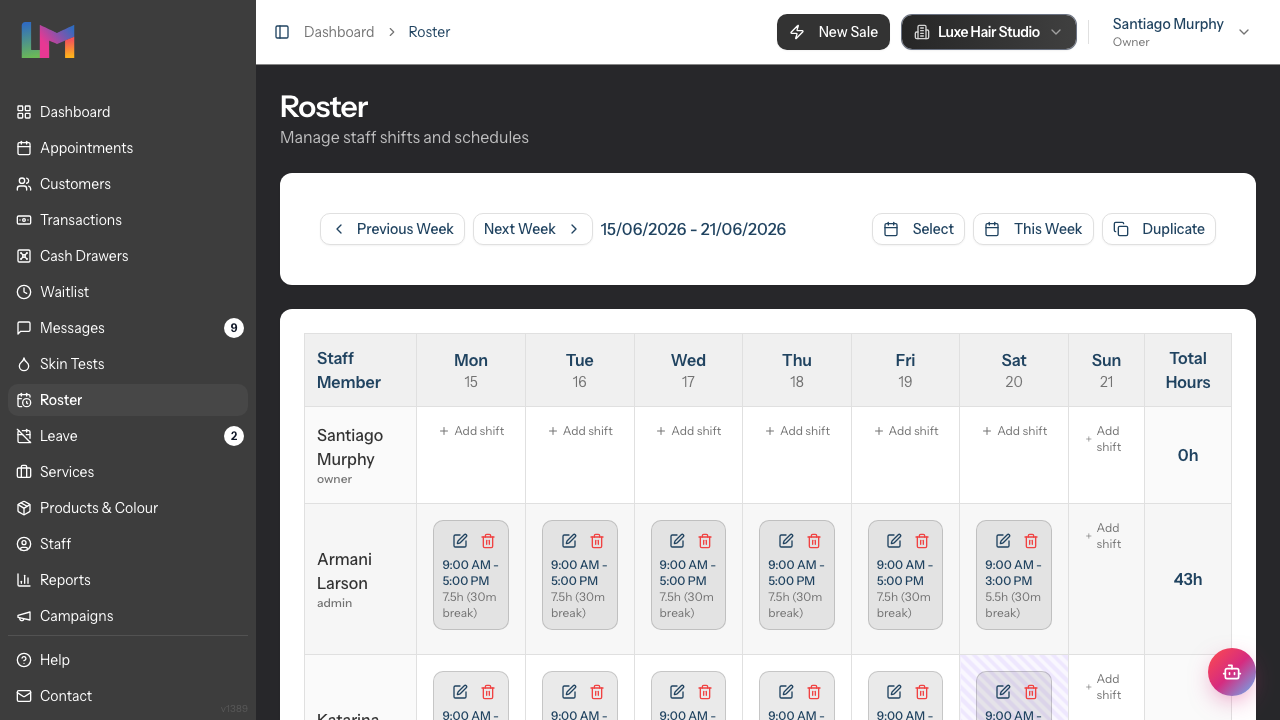
Understanding the roster layout:
| Element | Description |
|---|---|
| Week navigation | Buttons to move between weeks |
| Day columns | Monday through Sunday with date numbers |
| Staff rows | Each bookable staff member has a row |
| Shift blocks | Coloured rectangles showing scheduled shifts |
| Total Hours column | Weekly hours for each staff member |
Note: Only staff with the Show on roster setting enabled appear on the roster. This setting is found on each staff member's profile (see Tutorial 4.1). Staff hidden from the roster cannot have shifts created for them, even if they're active.
Step 2: Navigate Between Weeks
The roster displays one week at a time:
Navigation buttons:
- Previous Week - View the week before
- Next Week - View the following week
- This Week - Jump to the current week
- Select - Open a date picker to jump to any week
Click the date picker (Select) to navigate to a specific date. The roster shows the week containing that date.
Step 3: Create a Shift
To add a shift for a staff member:
- Click on an empty cell in the roster grid (intersection of staff row and day column)
- The Add Shift dialog opens with the staff member and date pre-selected
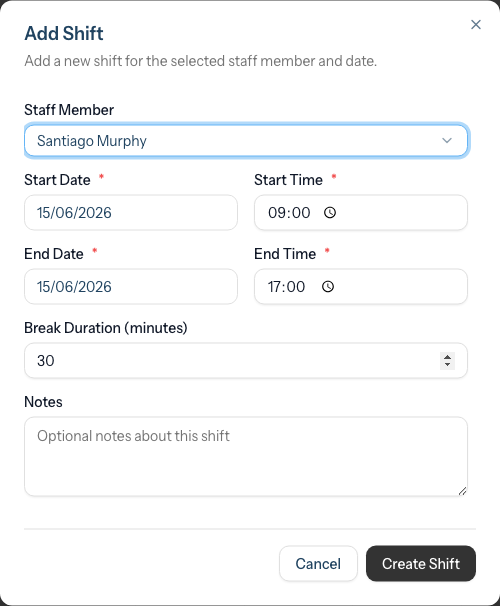
Shift form fields:
| Field | Description | Default |
|---|---|---|
| Staff Member | Pre-filled based on clicked row | Read-only |
| Start Date | The shift date | Pre-filled from clicked column |
| Start Time | When the shift begins | 09:00 |
| End Date | Usually same as start date | Same as start date |
| End Time | When the shift ends | 17:00 |
| Break Duration (minutes) | Break time in minutes | 30 |
| Notes | Optional internal notes | Empty |
Step 4: Set Shift Times
Configure the shift timing:
- Set the Start Time using the time picker (e.g., 09:00)
- Set the End Time using the time picker (e.g., 17:00)
- Times use 24-hour format
Example shift patterns:
| Shift Type | Start | End | Description |
|---|---|---|---|
| Full day | 09:00 | 17:00 | Standard 8-hour shift |
| Morning | 09:00 | 13:00 | Half-day morning |
| Afternoon | 13:00 | 18:00 | Half-day afternoon |
| Evening | 15:00 | 21:00 | Late shift |
Step 5: Configure Break Time
Set the break duration for the shift:
- Enter the Break Duration in minutes (not hours)
- Common values: 0, 15, 30, 45, 60
How breaks work:
- Break time is deducted from paid hours but not from shift duration
- A 09:00-17:00 shift with 30-minute break = 7.5 paid hours
- Breaks aren't shown as separate blocks on the roster
- Break duration cannot exceed shift duration
Step 6: Add Optional Notes
The Notes field is for internal reference:
Good uses for notes:
- "Training new team member"
- "Coverage for Sarah's leave"
- "Available for late appointments"
- "VIP client at 2pm"
Notes are visible to managers and the assigned staff member.
Step 7: Save the Shift
- Review all details
- Click Create Shift
- The shift appears as a coloured block on the roster
- Weekly hours update automatically
After saving:
- The staff member can see the shift on their schedule
- Appointments can now be booked during this shift
- The time slot becomes available on the calendar
Step 8: Understand Shift Display
Each shift block on the roster shows:
- Time range - Start and end times (e.g., "9:00 AM - 5:00 PM")
- Duration - Working hours excluding break (e.g., "7.5h")
- Break - Break duration if set, shown in brackets (e.g., "(30m break)")
- Notes - Any notes you added
Each shift block displays edit and delete buttons in the top-right corner.
Step 9: Edit an Existing Shift
To modify a shift:
- Locate the shift block on the roster
- Click the pencil icon (edit button) in the top-right of the shift
- The Edit Shift dialog opens
- Modify times, break, or notes as needed
- Click Update Shift to save changes
What can be edited:
- Start and end times
- Break duration
- Notes
Note: You cannot change the staff member. Delete the shift and create a new one instead.
Step 10: Delete a Shift
To remove a shift:
- Locate the shift block on the roster
- Click the trash icon in the top-right of the shift
- A confirmation dialog appears asking "Are you sure you want to delete this shift?"
- Click Delete Shift to confirm, or Cancel to keep the shift
Warning: Deleting a shift affects appointment availability. Check the calendar before deleting shifts that might have appointments booked.
Step 11: Review Weekly Hours
The Total Hours column on the right shows each staff member's weekly hours:
- Hours are calculated as: (End time - Start time - Break duration)
- Totals update automatically when shifts change
- The bottom Total Weekly Hours row sums every staff member's hours for the week
Use this to:
- Verify staff aren't over/under their contracted hours
- Check coverage is adequate across the week
- Spot scheduling imbalances
Step 12: Handle Public Holidays
When you try to create a shift on a public holiday:
- The day column shows a striped background pattern
- A warning dialog appears when you click to add a shift
- You can choose to Cancel or Proceed Anyway
If your salon operates on holidays, click Proceed Anyway to create the shift. See Tutorial 5.2 for holiday configuration.
Step 13: Handle Staff on Leave
When you try to create a shift for staff who have approved leave:
- A leave indicator appears in the cell showing the leave type (e.g., "Annual Leave", "Sick Leave")
- The cell has a striped background in the leave type's colour
- When you click to add a shift, a Staff on Leave warning dialog appears
- You can choose to Cancel or Add Shift Anyway
Generally, don't create shifts for staff on leave. See Section 6 for leave management.
Common Pitfalls
"I can't see a staff member on the roster"
Check that:
- The staff member is marked as Active
- The staff member has Show on roster enabled in their profile (this setting controls roster visibility regardless of role)
- You have
manage-rosterorview-rosterpermission
"The shift times look wrong"
Shifts are stored in UTC and displayed in your salon's timezone. Verify:
- Your salon timezone is correct in Settings → Edit Salon
- Refresh the page after timezone changes
"Weekly hours don't match what I calculated"
The system calculates: (End time - Start time - Break duration). Verify:
- Break is entered in minutes (30, not 0.5)
- The shift spans the times you expect
- Multiple shifts on the same day are added together
"Appointments aren't showing during shift hours"
Shifts create availability; they don't create appointments. The calendar shows available slots during shift hours. Book appointments separately.
"I can't edit someone else's shifts"
Staff with only manage-own-roster permission can only edit their own shifts. Full manage-roster permission is required to edit all staff.
Booking Outside a Shift
Shifts are enforced when you book or move appointments — not just used as a visual cue.
On the calendar:
- Faded / striped "(Not rostered)" columns and rows still mark unrostered time. Booking, dragging, or resizing an appointment into one of those cells triggers an Outside scheduled roster dialog.
- The dialog explains which staff member, day, and reason (no scheduled shift, or approved leave) is in play, and offers an explicit Book anyway override. Cancel returns you to the calendar with no change.
- The same prompt appears when pasting from the clipboard or from a rebook flow.
On the appointment Create / Edit form:
- An Outside scheduled roster warning banner surfaces near the form when the chosen slot falls outside any rostered shift or onto approved leave (if more than one service is affected it reads "N services outside the roster"). The banner is informational — you can adjust the time / staff / date, or save anyway, in which case the same Book anyway override is applied.
Online customer bookings:
- Customers booking through the public portal are hard-blocked from selecting slots outside a stylist's roster or on a day they have approved leave. There is no override on the customer side — see Tutorial 18.3 for the customer-facing experience.
This gives front-desk staff full flexibility (with an explicit confirmation) while keeping the public booking flow safe.
Tips and Best Practices
- Create rosters 1-2 weeks ahead - Give staff notice of their schedules
- Use the Duplicate feature - Copy successful weeks instead of recreating (see Tutorial 5.3)
- Stagger start times - Don't have everyone start at 9:00; stagger for smoother openings
- Include opening/closing buffer - First shift starts before opening, last shift ends after closing
- Check public holidays - Review holidays before planning (see Tutorial 5.2)
- Add meaningful notes - Help team members understand special circumstances
- Review weekly hours - Ensure contracted hours are met
- Plan for coverage - Ensure adequate staff during peak periods
Related Tutorials
- Tutorial 4.1: Adding New Staff Members - Create staff before rostering
- Tutorial 5.2: Managing Public Holidays - Configure holidays
- Tutorial 5.3: Duplicating Roster Patterns - Copy weeks efficiently
- Tutorial 5.4: Time Blocks - Block time for non-appointment activities
- Tutorial 2.1: Managing Your Appointment Calendar - Book on available shifts
Frequently Asked Questions
How far in advance can I create shifts?
There's no limit. Create shifts as far ahead as you need, though 2-4 weeks is typical.
Can staff see their roster immediately?
Yes. Staff with login accounts can see shifts as soon as they're created.
What's the maximum shift length?
No hard limit, but shifts over 12 hours may indicate errors. The system validates that end time is after start time.
Can I create split shifts?
Yes. Create two separate shifts for the same staff member on the same day:
- Morning: 09:00-13:00
- Evening: 17:00-21:00
Do shifts span midnight?
No. Shifts cannot span midnight. For overnight work, create two shifts (one ending at 23:59, one starting at 00:00).
Can two staff have identical shifts?
Yes. Create the same shift times for multiple staff members as needed.
What happens if I delete a shift with appointments?
The appointments remain but may show as having no available staff. Always check the calendar before deleting shifts.
Can I copy individual shifts?
Not directly. Use week duplication (Tutorial 5.3) or manually recreate shifts.
Do breaks block appointments?
Breaks aren't treated as blocked time. They're for hour calculations only. Use time blocks (Tutorial 5.4) to block specific times.
What's the difference between shifts and time blocks?
- Shifts define when staff are working and available
- Time blocks mark unavailable periods within working hours
Last Updated: June 2026