
Duplicating and Managing Roster Patterns
Tutorial 5.3: Duplicating and Managing Roster Patterns
Introduction
Creating the same roster week after week is time-consuming. The duplication feature lets you copy an entire week's shifts to future weeks with one click. This tutorial shows you how to use roster duplication efficiently and avoid common pitfalls.
Who this is for: Owner, Admin, Manager What you'll learn:
- Access the roster duplication feature
- Select staff to include in duplication
- Choose duplication mode and interval
- Handle overwrite options
- Manage bank holiday warnings
Time to complete: 10 minutes
Prerequisites
- Logged in as Owner, Admin, or Manager with
manage-rosterpermission - At least one week's roster already created (see Tutorial 5.1)
- Review Tutorial 5.2 if your salon observes public holidays
Step-by-Step Instructions
Step 1: Access Roster Duplication
- Navigate to Roster in the sidebar
- Navigate to the week you want to duplicate (the source week)
- Click the Duplicate button in the roster header
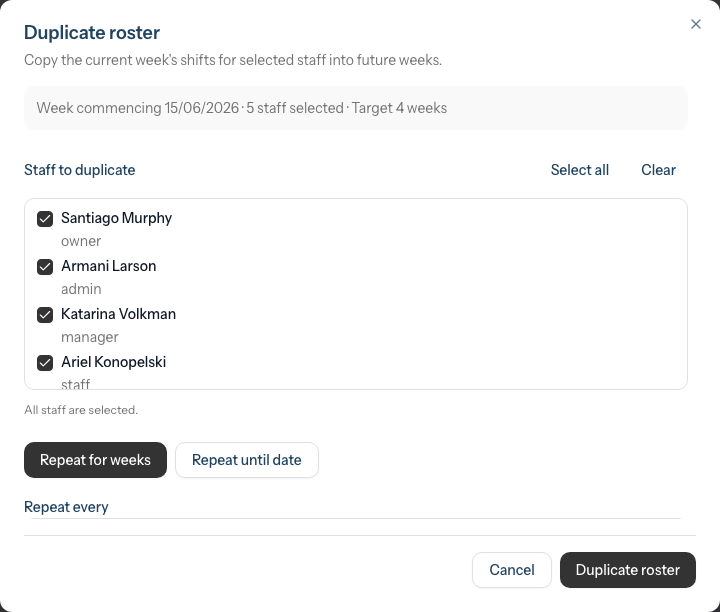
The duplication dialog opens, titled "Duplicate roster".
Step 2: Understand the Duplication Summary
At the top of the dialog, you'll see a summary panel:
Week commencing 19/01/2026 · 6 staff selected · Target 4 weeks
This updates dynamically as you change settings, showing:
- The source week being copied (week commencing date)
- How many staff members are selected
- The target duration based on your mode and interval settings
Step 3: Select Staff to Include
The Staff to duplicate section shows checkboxes for each active, rosterable staff member:
To select staff:
- Check individual staff members to include them
- Uncheck staff members to exclude them
- Click Select all to include everyone
- Click Clear to deselect all staff
By default, all staff are selected when you open the dialog.
When to exclude staff:
- Staff member is leaving soon
- Staff member has different hours in target weeks
- New staff not yet rostered
- Staff on extended leave
Example:
☑ Carroll Morissette (staff)
☑ Madelynn Marquardt (staff)
☐ Tom Brown (staff) - excluding, on leave next month
☑ Reymundo Rohan (manager)
The summary at the top updates to reflect your selection count.
Step 4: Choose Duplication Mode
Select how you want to specify the target period using the two mode buttons:
Mode 1: Repeat for weeks (default)
- Click the Repeat for weeks button
- Enter the number of weeks in the Number of weeks field
- Example: "4" creates rosters for the next 4 weeks
- Maximum: 52 weeks by default (configurable up to 104 weeks)
Mode 2: Repeat until date
- Click the Repeat until date button
- Select an end date using the date picker
- All weeks up to and including that date are filled
- Good for planning to month-end or a specific date
The active mode button appears highlighted. The summary panel updates to show the target duration.
Step 5: Set the Interval
The Repeat every dropdown controls how often shifts are copied:
| Interval | Description | Use Case |
|---|---|---|
| Every week | Consecutive weeks | Standard weekly scheduling |
| Every 2 weeks | Alternate weeks | Fortnightly patterns |
| Every 3 weeks | Every third week | Three-week rotations |
| Every 4 weeks | Monthly pattern | Four-week cycles |
Example with "Every 2 weeks" interval:
Source: Week of 2 Dec
Target weeks: 16 Dec, 30 Dec, 13 Jan (skipping alternate weeks)
Most salons use "Every week" for standard scheduling. The interval is helpful when staff work alternating weeks or you have rotating patterns.
Step 6: Configure the Target
For "Repeat for weeks" mode:
- Enter the number of weeks in the Number of weeks field
- Maximum is determined by your salon's settings (default: 52 weeks, maximum 104 weeks)
- The helper text shows: "Will duplicate into the next X week(s), up to a maximum of Y."
For "Repeat until date" mode:
- Click the Repeat until (inclusive) date picker
- Select the end date
- All weeks up to and including the week containing that date will be filled
- The helper text shows: "We will duplicate each week up to and including the week containing your chosen end date."
If you exceed the maximum weeks limit, an error message appears and the Duplicate roster button is disabled.
Step 7: Handle Overwrite Options
The overwrite section (highlighted in amber) controls what happens to existing shifts in target weeks:
Overwrite conflicting shifts (unchecked - default):
- Each shift from the source week is copied into the target week only if it doesn't clash with an existing shift for that staff member
- A "clash" means the copied shift's time would overlap an existing shift for the same staff member
- Clashing shifts are skipped (not copied) and reported back to you — so duplication never creates overlapping shifts
- Non-overlapping shifts are still added (e.g. a morning shift copied onto a day that currently only has an afternoon shift)
Overwrite conflicting shifts (checked):
- Any existing shift that clashes with a shift being copied is deleted first, then replaced by the source week's shift
- Existing shifts that don't clash are left untouched
- Requires an acknowledgment checkbox before you can proceed
When to use overwrite:
- You're replacing a draft roster with a finalised version
- You want to reset to a standard pattern
- Correcting mistakes across multiple weeks
- Target weeks were previously duplicated and you want to replace them
When NOT to use overwrite:
- Target weeks have manual adjustments you want to keep
- Staff have already seen and planned around the roster
- You only want to fill empty days (check target weeks first)
If you check Overwrite conflicting shifts, an additional checkbox appears:
☑ I understand any existing shifts for these staff in the target weeks will be replaced.
You must check this acknowledgment before the Duplicate roster button becomes active.
Step 8: Handle Bank Holiday Warnings
If your target weeks include public holidays, a warning dialog appears after you click Duplicate roster:
Bank Holiday Warning

You are attempting to duplicate shifts on a bank holiday.

┌─────────────────────────────────────────────┐
│ Christmas Day (25/12/2024)                  │
└─────────────────────────────────────────────┘

X shifts are scheduled on bank holidays.

Bank holidays are typically non-working days. Are you sure you want to proceed?

[Cancel] [Proceed Anyway]
Options:
- Cancel - Returns you to the duplication dialog to adjust your settings
- Proceed Anyway - Continues with duplication including the bank holiday shifts
Recommendation: If your salon is closed on bank holidays, click Cancel and either:
- Reduce the number of weeks to exclude the holiday period
- Proceed and manually delete shifts on holiday days afterward
- Use a shorter duplication range and handle holiday weeks separately
Step 9: Execute Duplication
Once configured:
- Review all settings in the summary panel:
- Source week correct (week commencing date)
- Staff selection accurate (check the count)
- Target duration appropriate
- Overwrite setting intentional
- Click Duplicate roster
- If bank holidays are detected, handle the warning dialog
- Wait for processing (may take a few seconds for large duplications)
- A success toast notification appears
Step 10: Review Results
A success toast notification appears showing what happened:
Success
Roster duplicated: X shift(s) created.
If you used overwrite mode, the message includes the overwritten count:
Success
Roster duplicated: X shift(s) created, Y conflict shift(s) overwritten.
If overwrite was off and some shifts clashed with existing ones, a separate warning toast also appears reporting what was skipped:
Warning
X shift(s) skipped because they conflicted with existing shifts.
Step 11: Verify Duplicated Roster
After duplication:
- Use the Next Week button to navigate to the first target week
- Check that shifts appear correctly for selected staff
- Verify times and break durations match the source week
- Check the weekly hours totals in the rightmost column
- Navigate through subsequent weeks to verify consistency
Adjustments you might need:
- Remove shifts on days the salon is closed (especially bank holidays)
- Adjust times for individual availability changes
- Update notes if they were date-specific in the source week
- If a warning reported skipped shifts, add those manually or re-run with overwrite enabled to replace the existing ones
Common Pitfalls
"Duplication created shifts on public holidays"
The bank holiday warning appears when you click Duplicate roster. If you clicked Proceed Anyway, navigate to the affected weeks and manually delete shifts on closed days.
"Some shifts weren't created"
If a target week already contained shifts that overlap the ones being copied, those clashing shifts are skipped (not duplicated) and reported in a warning toast — "X shift(s) skipped because they conflicted with existing shifts." This is by design: duplication never creates overlapping shifts. To replace the existing shifts instead, re-run the duplication with Overwrite conflicting shifts enabled.
"The wrong staff were included"
Check the staff selection before duplicating. Click Clear and re-select the correct staff. For already-duplicated weeks, delete unwanted shifts manually.
"I duplicated too many weeks"
Navigate to excess weeks and delete shifts. There's no bulk undo - delete shifts week by week. Consider using shorter duplication ranges in future.
"Overwrite deleted shifts I wanted to keep"
Overwrite cannot be undone. Recreate the custom shifts manually. Always verify the overwrite setting and read the acknowledgment checkbox carefully before submitting.
Tips and Best Practices
- Create a template week - Perfect one week's roster, then duplicate from it
- Duplicate 2-4 weeks at a time - Allows flexibility while reducing manual work
- Check holidays first - Review public holidays in target weeks before duplicating (see Tutorial 5.2)
- Review before submitting - Double-check staff selection count and overwrite setting
- Verify after duplication - Navigate to at least the first duplicated week to confirm
- Communicate with staff - Let team know when rosters are published
- Use intervals for rotations - "Every 2 weeks" interval for fortnightly alternating patterns
- Use overwrite to replace existing shifts - If a target week already has shifts you want to replace, enable overwrite; otherwise clashing shifts are skipped rather than overwritten
Related Tutorials
- Tutorial 5.1: Setting Up Your Weekly Roster - Create the source week to duplicate from
- Tutorial 5.2: Managing Public Holidays and Bank Holidays - Configure holidays that trigger warnings during duplication
- Tutorial 5.4: Time Blocks - Note: time blocks are NOT duplicated with shifts
- Section 6: Leave Management - Check staff leave before duplicating to avoid scheduling conflicts
Frequently Asked Questions
How many weeks can I duplicate at once?
By default, 52 weeks (1 year). This limit is configurable in Edit Salon → Staff tab → Roster sub-tab under "Maximum duplication weeks". You can set it between 1 and 104 weeks (2 years). For longer periods, duplicate in batches.

Are time blocks duplicated?
No. Roster duplication copies shifts only. Time blocks must be created separately for each week. See Tutorial 5.4 for more about time blocks.
Can I duplicate across years?
Yes. The system handles year boundaries correctly. Duplicating December into January works fine.
Can I undo a duplication?
No single-click undo. Delete shifts manually from unwanted weeks, or re-duplicate with overwrite enabled to replace them.
What happens to existing shifts if I don't use overwrite?
Existing shifts are left in place. Each shift being copied is added only if it doesn't overlap an existing shift for the same staff member; clashing shifts are skipped (not added) and reported in a warning toast. Duplication never creates overlapping shifts. To replace existing shifts instead, enable overwrite.
What happens to existing appointments?
Duplication doesn't affect appointments. Appointments are separate from shifts. If you delete shifts (manually or via overwrite), appointments may show warnings about staff being unavailable.
Can I duplicate from a week in the past?
Yes. Navigate to any past week and use it as the source. This is useful for recreating successful roster patterns.
Does duplication copy shift notes?
Yes. Shift notes are copied to all duplicated shifts. Edit them in target weeks if they contain date-specific information.
Can I duplicate just certain days?
No. Duplication copies all shifts for selected staff from the entire source week. To exclude certain days, delete those shifts from target weeks after duplication.
What if staff contracted hours change?
Duplication copies the source exactly. Adjust shifts in target weeks manually to match new contracted hours.
Can multiple people duplicate at the same time?
Yes. Each duplication runs inside a locked transaction and skips shifts that clash with existing ones, so two people duplicating to the same weeks won't create overlapping duplicate shifts. It's still worth coordinating so you don't make conflicting roster changes.
Why is the Duplicate button disabled?
The Duplicate roster button is disabled if:
- No staff are selected
- The number of weeks exceeds the maximum limit
- Overwrite is enabled but the acknowledgment checkbox is not checked
Last Updated: June 2026