
Managing Public Holidays and Bank Holidays
Tutorial 5.2: Managing Public Holidays and Bank Holidays
Introduction
Public holidays affect your salon's scheduling. When configured, Luminate shows visual indicators on the roster and warns you before creating shifts on holiday dates. This helps prevent accidentally scheduling staff when the salon is closed. This tutorial shows you how to configure holidays for your salon.
Who this is for: Owner, Admin What you'll learn:
- Access public holiday settings
- Understand fixed vs floating holiday rules
- Add custom holidays for your region
- See holiday indicators on the roster
- Handle the shift creation warning
Time to complete: 10 minutes
Prerequisites
- Logged in as Owner or Admin
- Access to salon settings
Step-by-Step Instructions
Step 1: Access Public Holiday Settings
Public holidays are managed in your salon settings:
- Click on your salon name in the header (the dropdown button showing your current salon)
- Select Salon Settings from the dropdown menu
- Click the Staff tab
- Click the Public Holidays sub-tab
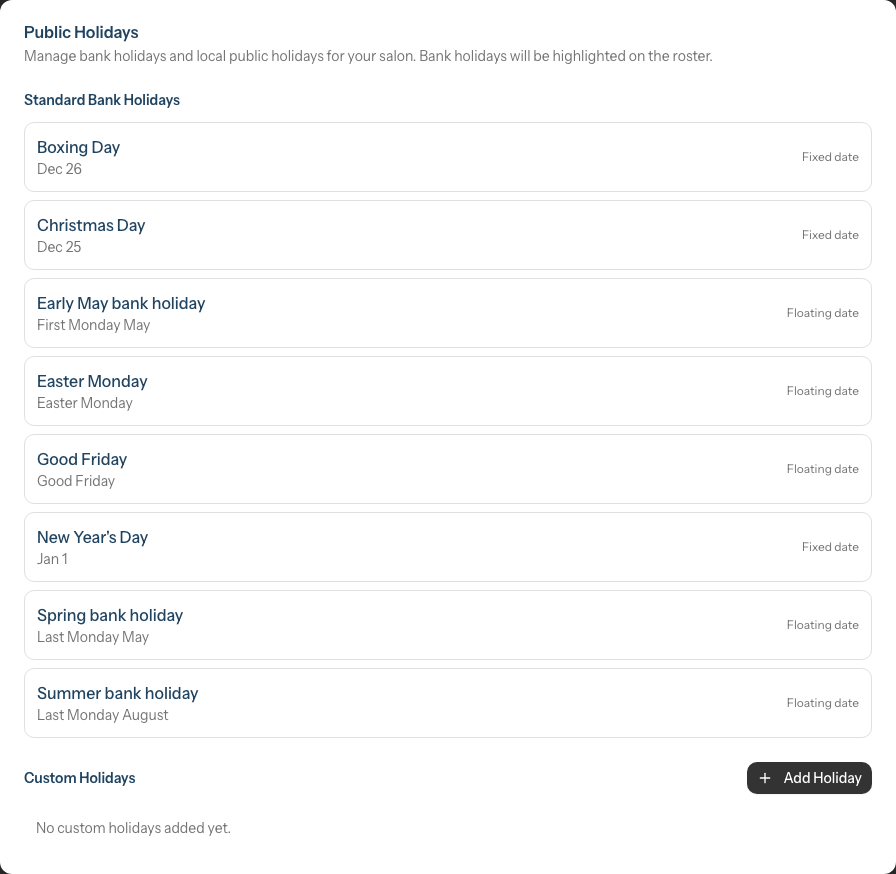
You'll see a list of holidays configured for your salon, divided into "Standard Bank Holidays" and "Custom Holidays".
Step 2: Review Standard Holidays
New salons come with UK bank holidays pre-configured:
| Holiday | Rule Type | Date |
|---|---|---|
| New Year's Day | Fixed | 1st January |
| Good Friday | Floating | Friday before Easter |
| Easter Monday | Floating | Monday after Easter |
| Early May bank holiday | Floating | First Monday in May |
| Spring bank holiday | Floating | Last Monday in May |
| Summer bank holiday | Floating | Last Monday in August |
| Christmas Day | Fixed | 25th December |
| Boxing Day | Fixed | 26th December |
These standard holidays are read-only and cannot be edited or deleted. They are automatically seeded for UK-based salons. Each row shows the holiday name, its calculated rule, and a Fixed date or Floating date label on the right.
Step 3: Understand Rule Types
Luminate supports two types of holiday date rules:
Fixed Holidays:
- Occur on the same date every year
- Example: Christmas Day is always 25th December
- You select the month and day using dropdown menus
Floating Holidays:
- Occur on a specific day of a specific week in a month
- Example: Last Monday in May
- You select the occurrence (First, Second, Third, Fourth, or Last), day of week, and month using dropdown menus
Why this matters: Floating holidays like Easter and bank holidays fall on different dates each year. Luminate calculates the correct date automatically.
Step 4: Add a Custom Holiday
To add a holiday specific to your region:
- Click Add Holiday in the Custom Holidays section
- Complete the form:
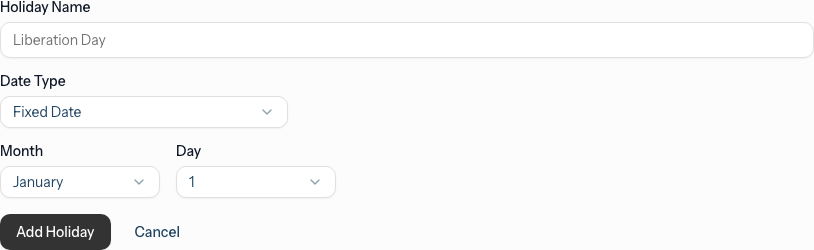
| Field | Description | Example |
|---|---|---|
| Holiday Name | Display name for the holiday | St Patrick's Day |
| Date Type | Fixed Date or Floating Date | Fixed Date |
| Month/Day or Occurrence/Day/Month | The date selection fields change based on the date type | March 17 |
Fixed holiday example:
Holiday Name: St Patrick's Day
Date Type: Fixed Date
Month: March
Day: 17
Floating holiday example:
Holiday Name: Scottish Summer Bank Holiday
Date Type: Floating Date
Occurrence: First
Day: Monday
Month: August
- Click Add Holiday
Step 5: Edit a Custom Holiday
To modify a custom holiday you've created:
- Find the custom holiday in the Custom Holidays list
- Click the Edit button
- Update the name or date selection
- Click Update Holiday
Note: Only custom holidays can be edited. Standard bank holidays are read-only.
Step 6: Delete a Custom Holiday
To remove a custom holiday you've added:
- Find the custom holiday in the Custom Holidays list
- Click the trash icon button
- Confirm deletion by clicking Delete Holiday in the dialog that appears
Note: Only custom holidays (ones you've added) can be deleted. Standard bank holidays cannot be deleted.
Step 7: See Holiday Indicators on the Roster
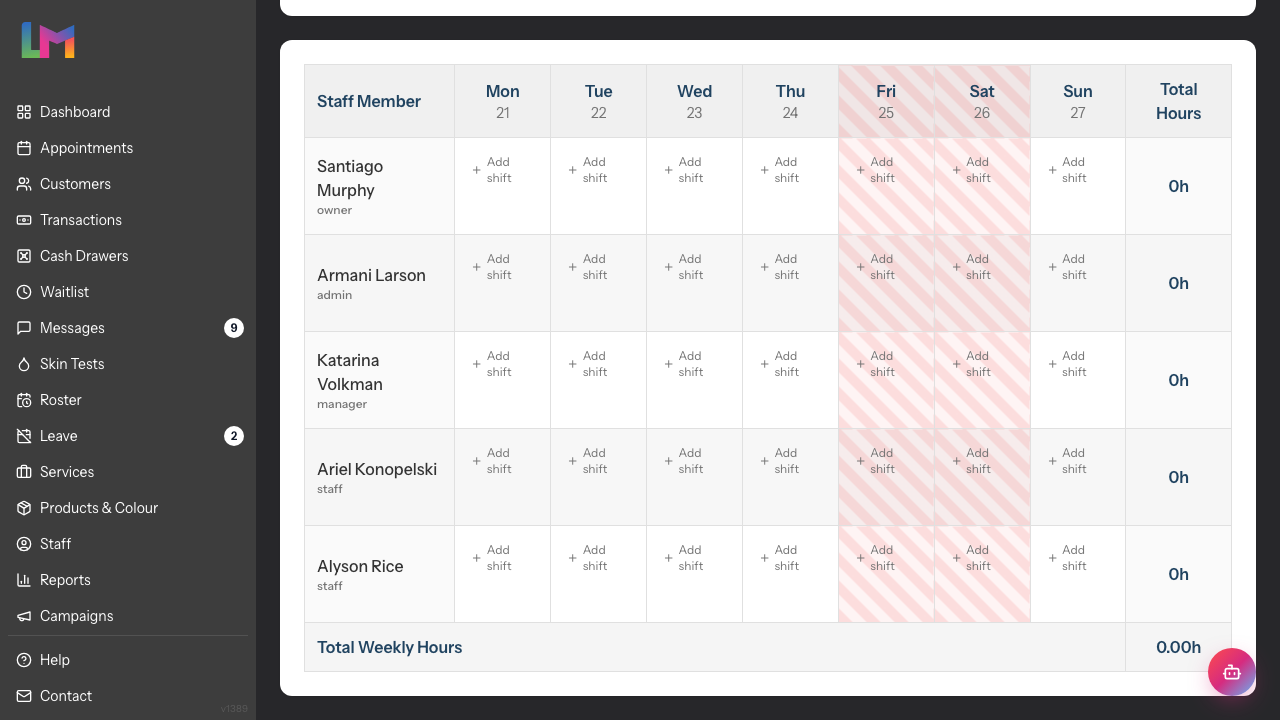
When viewing the roster, public holidays are indicated with a striped background pattern:
- Navigate to Roster in the sidebar
- Navigate to a week containing a holiday
- The day column for that holiday displays a red/pink diagonal striped pattern
This visual indicator helps you identify holiday dates at a glance. Both the header cell and all staff cells for that day show the striped pattern.
Step 8: Handle Shift Creation Warnings
When you click to create a shift on a holiday:
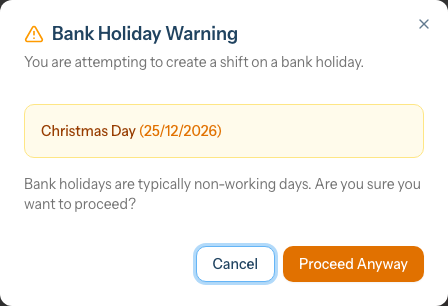
- A warning dialog appears:
Bank Holiday Warning

You are attempting to create a shift on a bank holiday.

[Holiday Name] ([Date])

Bank holidays are typically non-working days. Are you sure you
want to proceed?

[Cancel] [Proceed Anyway]
- Choose your action:
- Cancel - Don't create the shift (salon is closed)
- Proceed Anyway - Create the shift (salon operates on holidays)
When to proceed:
- Your salon opens on public holidays
- You need staff for reduced holiday hours
- The holiday doesn't apply to your region
When to cancel:
- Your salon closes for this holiday
- You clicked by mistake
Regional Considerations
UK Regional Variations
Different parts of the UK have different bank holidays:
| Holiday | England & Wales | Scotland | Northern Ireland |
|---|---|---|---|
| St Andrew's Day (30 Nov) | No | Yes | No |
| St Patrick's Day (17 Mar) | No | No | Yes |
| Battle of the Boyne (12 Jul) | No | No | Yes |
Configure holidays for your specific location by adding or removing custom holidays.
Substitute Bank Holidays
When a UK bank holiday falls on a weekend, a substitute day is usually observed on the following Monday. Add substitute holidays as custom fixed holidays:
Holiday Name: Christmas Day (Substitute)
Date Type: Fixed Date
Month: December
Day: 27 (or the appropriate substitute date)
Common Pitfalls
"I can't delete a holiday"
Only custom holidays can be deleted. Standard bank holidays (pre-configured UK holidays) cannot be removed from the system.
"The holiday isn't showing on the roster"
Check that:
- The date selection is correct (verify month and day)
- You're viewing a week that contains the holiday
- The holiday is saved (check it appears in the Custom Holidays list)
"I created a shift on a holiday by accident"
Navigate to the roster and delete the shift. The warning is informational only - it doesn't prevent shift creation.
"Holiday date seems wrong for next year"
The system calculates dates for each year. Floating holidays like Easter are calculated automatically. If a date appears wrong, check the rule type and date selection.
Tips and Best Practices
- Configure holidays early - Set up holidays before creating rosters
- Check regional variations - Add holidays specific to your location
- Review annually - Verify substitute dates for holidays falling on weekends
- Communicate closures - Update your website and voicemail with holiday hours
- Plan holiday weeks carefully - See Tutorial 5.3 for handling duplication around holidays
Related Tutorials
- Tutorial 5.1: Setting Up Your Weekly Roster - Creating shifts around holidays
- Tutorial 5.3: Duplicating Roster Patterns - Warnings when duplicating onto holidays
- Section 6: Leave Management - Staff requesting holiday time off
Frequently Asked Questions
Can I set different holidays for different staff?
No, public holidays are salon-wide. All staff see the same holiday indicators. Control who works by creating or not creating shifts.
Do holidays automatically close the salon?
No. Holidays are informational only. They show warnings but don't prevent shift creation or appointment booking. You control closure by not creating shifts.
How far ahead does the system calculate holiday dates?
The system calculates dates on demand for each year. When viewing the 2026 roster, it automatically calculates where floating holidays fall in 2026.
What if a holiday falls on our usual closing day?
The holiday indicator still appears. If you're closed anyway, there's no impact. For substitute bank holidays, add them as separate custom holidays.
Can customers see which days are holidays?
Customers see availability based on shifts. If no shifts exist on a holiday, no appointments are available. The holiday name itself isn't shown to customers.
How do I handle half-day holidays?
Holidays mark entire days. For half-day closures:
- Create shifts for the hours you're open
- The warning will appear - proceed anyway
- Add notes to shifts explaining reduced hours
Does the system calculate Easter automatically?
Yes. Easter-related floating holidays (Good Friday, Easter Monday) are calculated automatically for each year using the standard Easter algorithm.
Last Updated: June 2026