
Daily Opening Procedures
Tutorial 17.1: Daily Opening Procedures
Introduction
A consistent opening routine sets the tone for a successful day at your salon. This guide provides a recommended opening checklist that helps you prepare for the day ahead, ensuring nothing is missed before your first client arrives.
Following a structured opening procedure helps you identify potential issues early, confirms your team is ready, and ensures all systems are prepared for the day's transactions. Whether you're an owner, manager, or senior staff member responsible for opening, this checklist will help you build reliable routines.
Who this is for: Owners, Admins, Managers, and staff members responsible for opening the salon.
What you'll learn:
- How to open and prepare the cash drawer
- Reviewing today's appointment schedule
- Checking for waitlist opportunities
- Managing pending leave requests
- Checking messages and notifications
- Preparing for the day ahead
Time to complete: 10-15 minutes
Prerequisites
Before you begin, make sure you have:
- Access to your Luminate account with appropriate permissions
- Cash float ready for the day (if handling cash payments)
- Access to the salon premises
Step-by-Step Instructions
Step 1: Log In and Check the Dashboard
Start your day by logging into Luminate and reviewing your dashboard for an instant overview of the day ahead.
- Open your web browser and navigate to your Luminate URL
- Enter your email and password, then click Log in
- You'll land on the Dashboard - your command centre
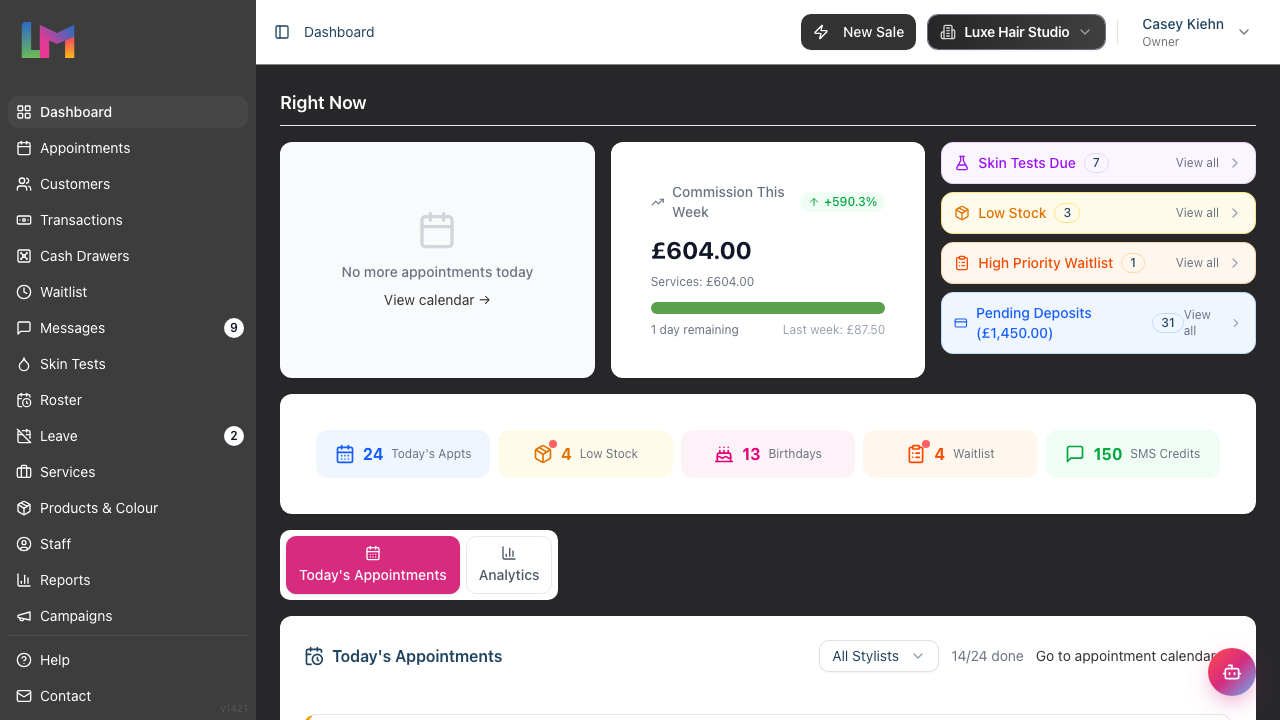
Quick Stats to Review (the row of cards across the top of the dashboard):
- Today's Appts - See how many bookings are scheduled
- Low Stock - Note any products running low on inventory
- Birthdays - See upcoming customer birthdays for personalised service
- Waitlist - Check for customers waiting for slots (a small red dot appears when high-priority entries are waiting)
- SMS Credits - Ensure you have credits for appointment reminders (a red dot appears when your balance is low)
Below the stats, the Right Now section highlights your next appointment, and the alerts panel groups anything that needs attention into collapsible categories: Skin Tests Due, Low Stock, High Priority Waitlist, and Pending Deposits (which shows the total amount outstanding). Expand any category to see the detail, and make a note to address these during quieter periods.
Step 2: Open the Cash Drawer
If your salon accepts cash payments, opening the cash drawer session is essential before processing any transactions.
- Click Cash Drawers in the sidebar menu
- Find your cash drawer (e.g., "Main Register" or "Front Desk")
- Click Open Drawer
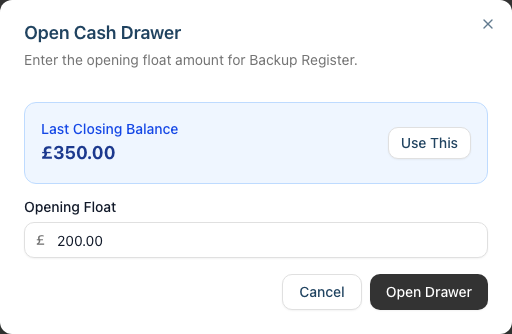
- In the Open Cash Drawer dialog that appears:
- If you see a Last Closing Balance displayed, you can click Use This to automatically set your opening float to match
- Alternatively, enter your Opening Float amount manually (e.g., £200.00)
- Click Open Drawer to confirm
What happens next:
- The drawer card turns green and shows an Active badge
- Quick action buttons appear for the session: Top Up, Payout, Safe Drop, and History
- Two live summaries are shown: Revenue (broken down by Cash, Card, Vouchers, Other, and a Total) and Cash in Drawer (Opening Float, Cash Transactions, and Expected Balance)
- All transactions during the day are tracked against this session
Tip: Count your physical cash float before entering the amount. This ensures any discrepancies are caught at the start of the day rather than at closing.
Step 3: Review Today's Appointments
Understanding the day's schedule helps you prepare resources, identify potential issues, and allocate staff effectively.
- Click Appointments in the sidebar menu
- The calendar opens in the Day view, showing the current day with every staff member in their own column side by side
- Review the appointments for each staff member
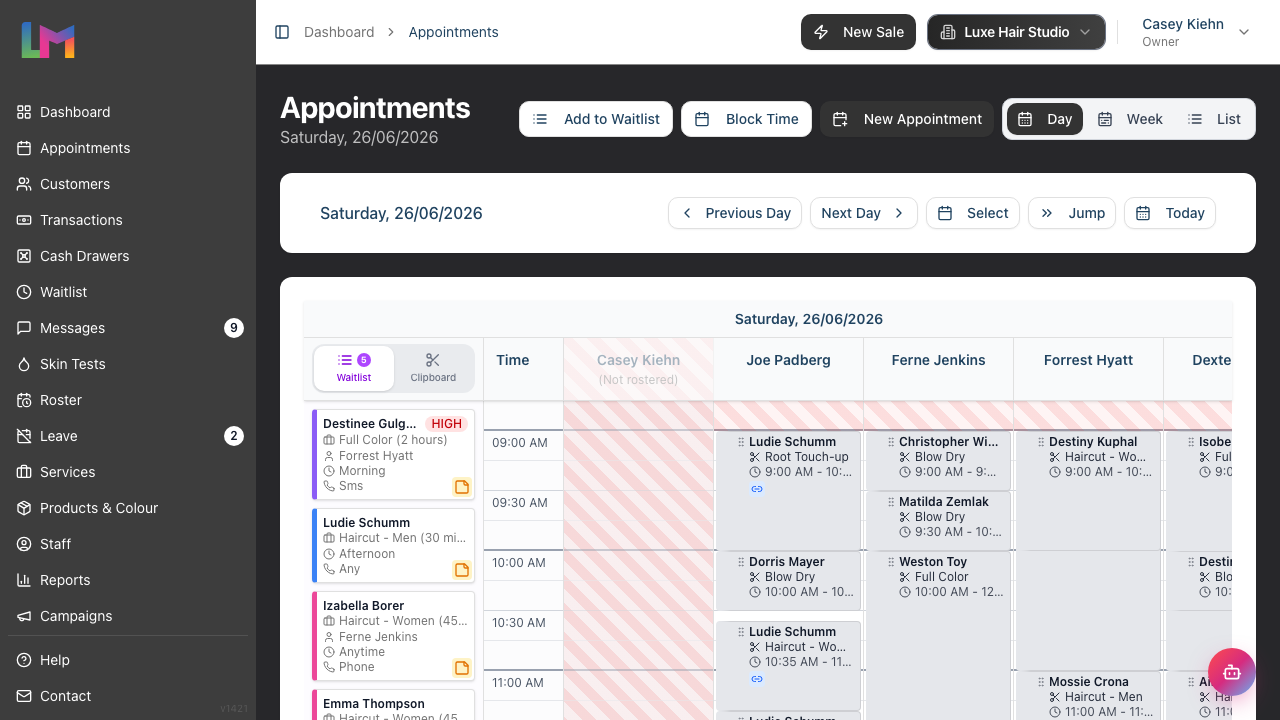
Things to look for:
- Gaps in the schedule - Could you contact waitlist customers to fill these?
- Back-to-back bookings - Ensure staff have adequate break time
- Colour services - For services that require a colour (patch) test, Luminate checks the test is valid when you book or move the appointment and prompts you if it isn't. Customers whose tests are due also appear in the dashboard Skin Tests Due alert
- New customers - Consider whether you need their details updated. Customer badges such as First Visit or VIP appear on the appointment card
- Deposits required - Appointments with a deposit show a deposit indicator on the card
Using different views:
- Day - The default view, showing every staff member's column for the selected date
- Week - See the week ahead for a single staff member
- List - See appointments in table format with filtering options
Step 4: Check the Waitlist for Opportunities
If there are gaps in today's schedule, this is the perfect time to reach out to waitlist customers.
- Click Waitlist in the sidebar menu
- Review the list of customers waiting for appointments
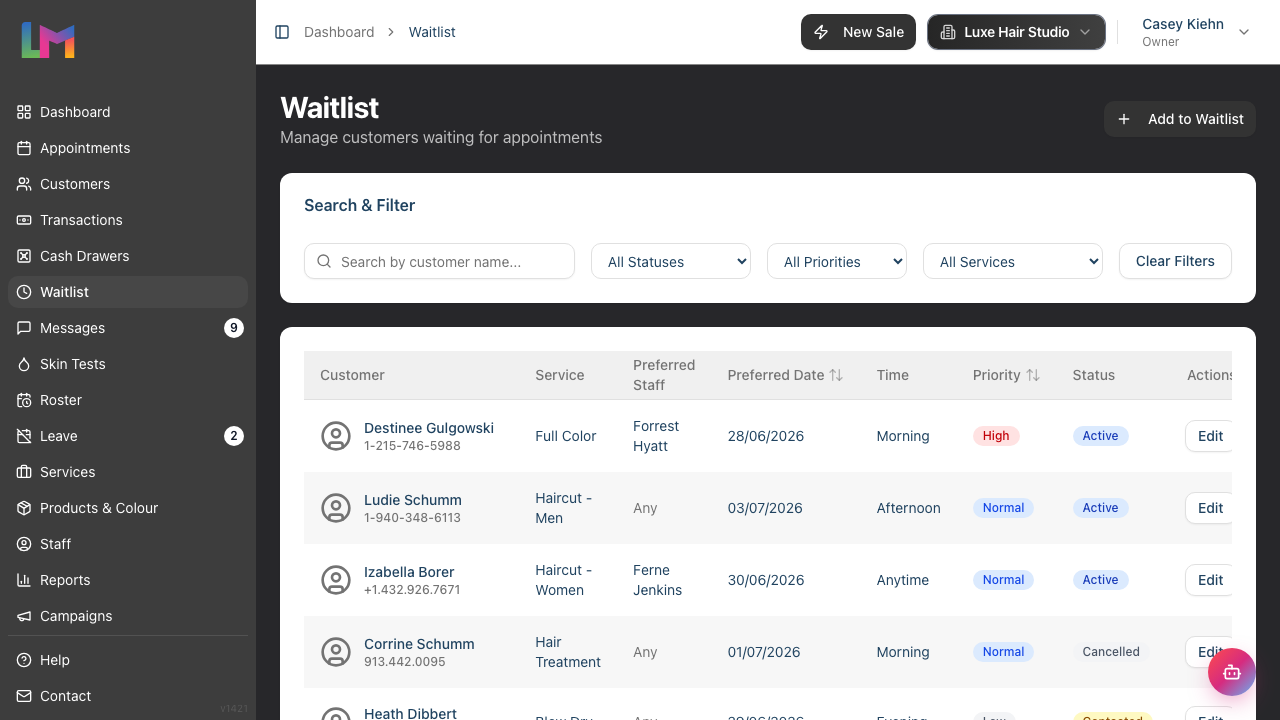 3. Look for entries that could fit into today's gaps:
- Check Priority - High-priority customers should be contacted first
- Check Preferred Staff - Match with available staff
- Check Service - Match with available time slots
- Check Preferred Date and Time - Match against today's gaps
To contact a waitlist customer:
- Click on the waitlist entry to open it
- Note their contact preference (phone, email, or SMS)
- Contact them through your preferred method
- If they confirm, click Convert to Appointment to book them in
- If they decline or don't respond, you can update the entry status
Step 5: Review Pending Leave Requests
If you're a manager, admin, or owner, check for any leave requests that need approval.
- Click Leave in the sidebar menu
- Look at the filter options and select Pending from the status dropdown
- Review any pending requests
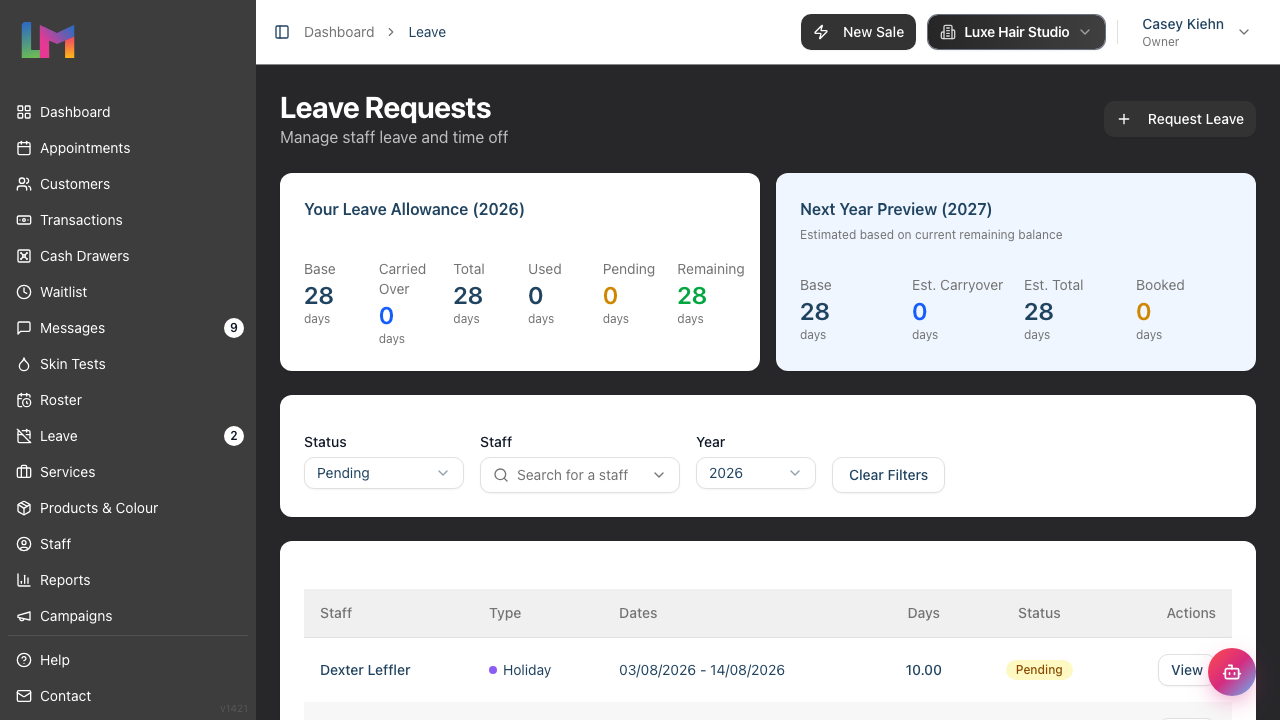 4. For each request, consider:
- Does the date clash with other approved leave?
- Will the salon have adequate cover?
- Is this a reasonable request given the notice period?
- Click on a request to view details, then Approve or Reject as appropriate
Tip: Approving leave promptly allows staff to plan their personal time with confidence and helps with roster planning.
Step 6: Check Messages and Notifications
Review any customer messages or system notifications that arrived overnight.
- Click Messages in the sidebar menu
- The inbox displays all customer conversations, with unread conversations highlighted
- Use the Status filter to focus on Open conversations that need responses
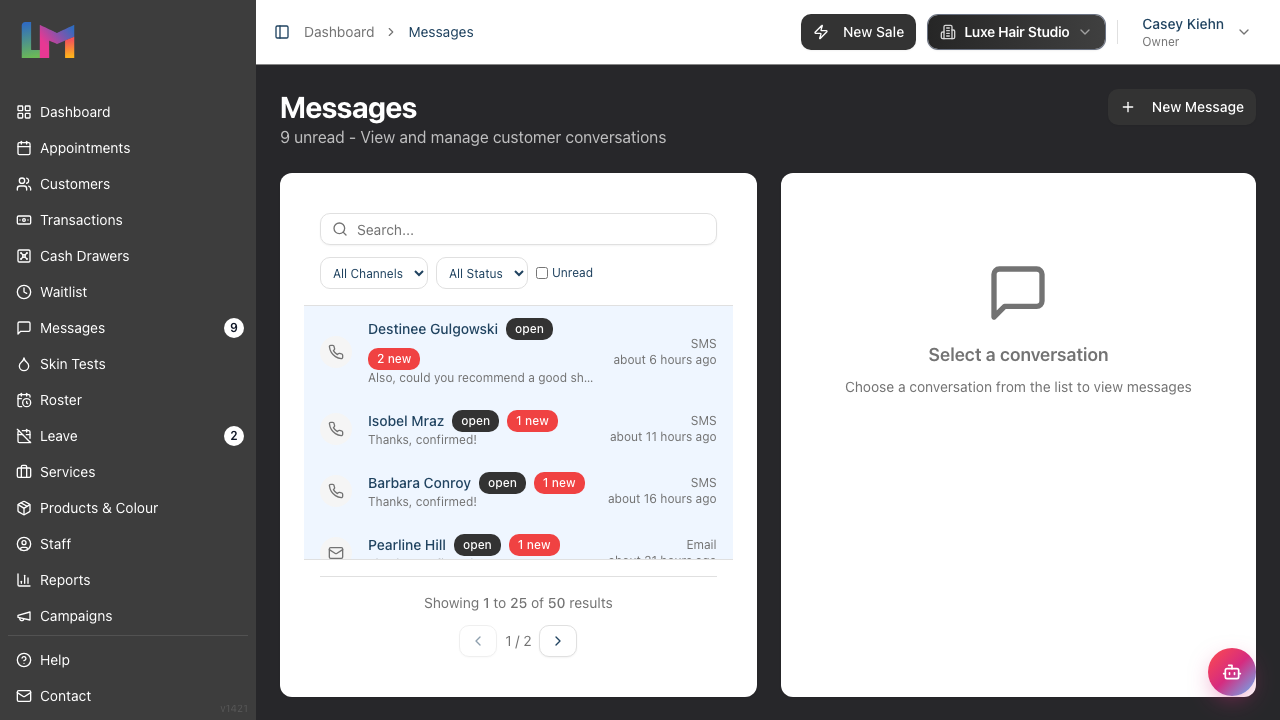 4. Review messages and respond as needed
Filtering conversations:
- Use the Channel filter to see Email, SMS, or WhatsApp messages separately
- Use the Status filter to show Open, Closed, or Archived conversations
- The unread count appears as a badge next to Messages in the sidebar
To respond to a message:
- Click on a conversation to open it in the right panel (on desktop) or full screen (on mobile)
- Type your reply in the text box at the bottom
- Click Send (for SMS conversations the button reads Send SMS)
Step 7: Review the Roster
Confirm who's working today and that all shifts are correctly recorded.
- Click Roster in the sidebar menu
- The roster shows the current week with staff listed down the left side
- Navigate to today's date if needed
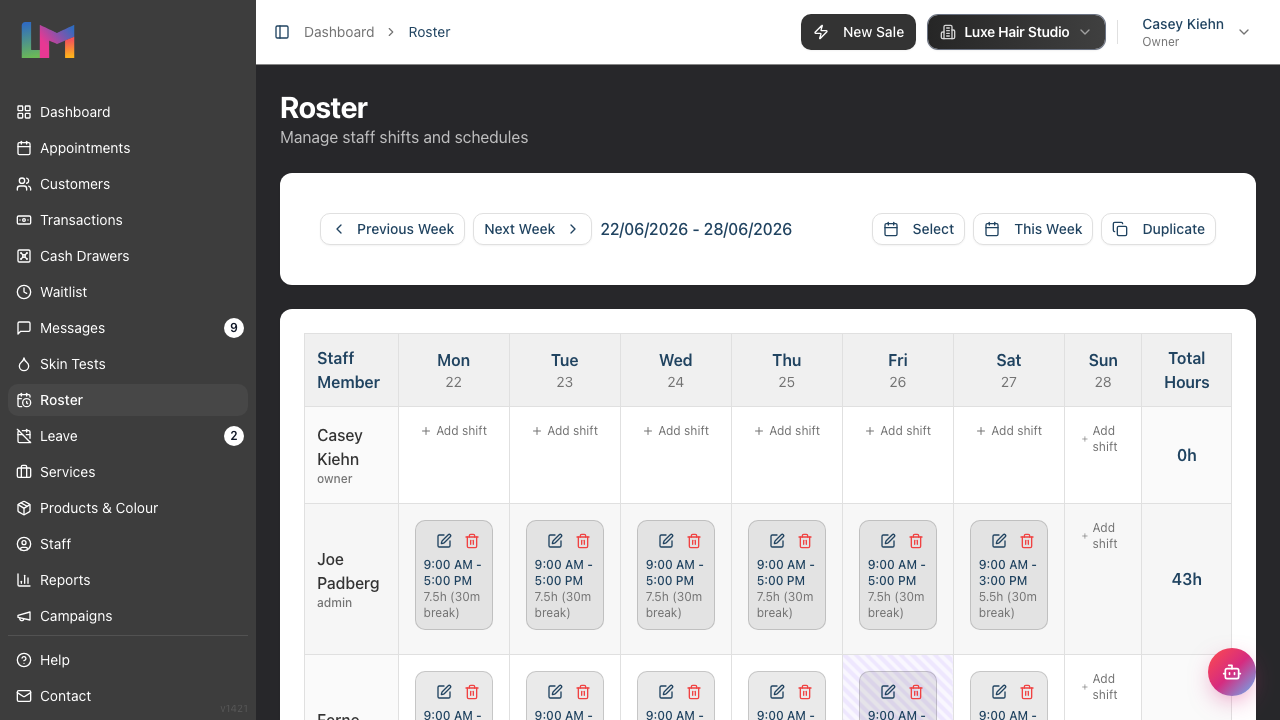 4. Verify that:
- All expected staff have shifts assigned
- Start and end times are correct
- Break times are recorded
If someone calls in sick:
- You may need to update their shift or remove it
- Check the waitlist or contact customers if appointments need rescheduling
- Consider requesting leave on their behalf (sick leave)
Daily Opening Checklist
Use this quick reference checklist each morning:
| Task | Location | Time |
|---|---|---|
| Log in and review dashboard | Dashboard | 2 min |
| Open cash drawer with float | Cash Drawers | 2 min |
| Review today's appointments | Appointments (Day view) | 3 min |
| Check waitlist for opportunities | Waitlist | 2 min |
| Review pending leave requests | Leave (filter: Pending) | 2 min |
| Check messages inbox | Messages (filter: Open) | 2 min |
| Confirm today's roster | Roster | 2 min |
Total time: approximately 15 minutes
Common Pitfalls
"I forgot to open the cash drawer and processed a cash payment"
Cash payments can still be processed, but they won't be tracked in a session. Open the drawer as soon as you realise - the session will start tracking from that point. Make a note of any cash taken before the session opened.
"The waitlist shows customers but I don't know which services fit the gaps"
When viewing the appointments calendar, note the specific time slots that are empty and for how long. Then filter the waitlist by service duration that would fit. For example, a 45-minute gap could fit a cut but not a colour.
"I can't see the pending leave requests"
Only users with leave management permissions (typically Manager, Admin, or Owner) can see and action pending leave requests. If you're in a Staff or Receptionist role, ask your manager to handle these.
Tips and Best Practices
Arrive 15-30 minutes before opening - This gives you time to complete the checklist without rushing or delaying your first client.
Create a physical backup checklist - While this guide covers the digital tasks, you may also have physical tasks (unlocking doors, turning on lights, checking supplies). Create a combined checklist for your salon.
Delegate opening tasks - If you have a team, assign specific opening tasks to different people. For example, one person handles cash drawer while another reviews appointments.
Document any issues - If you notice problems during opening (discrepancies, missing staff, system issues), document them immediately so they can be addressed.
Check the weather and local events - External factors can affect appointment attendance. If there's severe weather or major local events, be prepared for cancellations or no-shows.
Review skin test alerts - The dashboard alerts panel shows customers with colour services who need valid patch tests. Contact them early in the day if action is needed.
Acknowledge birthday customers - The dashboard shows upcoming customer birthdays. Consider offering a small gesture or mentioning it during their visit for a personal touch.
Related Tutorials
- Tutorial 17.2: Daily Closing Procedures - Complete your end-of-day routines
- Tutorial 2.5: Using the Cash Drawer - Detailed cash drawer operations
- Tutorial 2.1: Managing Your Appointment Calendar - Master the calendar views
- Tutorial 2.3: Working with the Waitlist - Convert waiting customers to bookings
- Tutorial 6.3: Approving and Rejecting Leave Requests - Handle leave approvals
Frequently Asked Questions
Should I always open the cash drawer, even if we only take card payments?
If your salon occasionally accepts cash (even rarely), it's good practice to open a cash drawer session. This creates an audit trail and helps with end-of-day reconciliation. If you're 100% card-only, you can skip this step.
What if I notice an appointment clash during my review?
If two appointments overlap for the same staff member, this indicates a scheduling error. Review both appointments to determine which was booked first, then contact the affected customers to reschedule one of them.
How early should I arrive to complete the opening procedure?
Plan to arrive 15-30 minutes before your first appointment. This gives you time to complete all checks without rushing. If your salon opens at 9:00 AM and the first appointment is at 9:30 AM, aim to arrive by 9:00 AM.
Can I complete these tasks from home before arriving?
Yes! Most of these checks can be done remotely. You can review appointments, check messages, and approve leave requests from any device. However, opening the cash drawer should be done on-site with the physical cash float.
Last Updated: January 2026