
Using Lumen — Your In-App AI Assistant
Tutorial 15.4: Using Lumen — Your In-App AI Assistant
Introduction
Lumen is Luminate's built-in AI assistant that helps you find information and answer questions about your salon without leaving the app. Instead of searching through menus and reports, you can ask Lumen in plain English — "Who's my next appointment with?", "Does Sarah have a valid patch test?", or "What time does Jamie finish today?" — and get an instant answer.
Lumen can look up customers, check appointments, review transactions, find schedule gaps, check colour test status, and much more. It works like a knowledgeable colleague who has instant access to your salon data and can point you to the right page.
Who this is for: All Luminate users (Owner, Admin, Manager, Staff, Receptionist). The information Lumen can access depends on your role and permissions.
What you'll learn:
- Where to find and open Lumen
- What kinds of questions you can ask
- How Lumen looks up information (tool badges)
- What Lumen can and cannot do
- How your role affects what Lumen can access
- Tips for getting the best answers
Time to complete: 10 minutes
Prerequisites
Before you begin, make sure:
- Lumen has been enabled for your Luminate instance (your salon owner or administrator will have configured this)
- You are logged in to Luminate
Step-by-Step Instructions
Step 1: Opening Lumen
Lumen is available in two ways: as a floating chat widget and as a full-page view.
Using the chat widget:
- Look for the gradient floating action button (the robot icon on a coloured gradient circle) in the bottom-right corner of any page — this is Lumen's launcher.
- Click the button to open the Lumen chat window.
- The chat window appears as a panel over your current page — you don't lose your place. Each assistant message is prefixed with the same robot avatar so you can tell Lumen's replies apart from your own at a glance.

Using the full-page view:
- In the Lumen chat widget, click the expand icon in the top-right corner of the chat header.
- This opens Lumen as a dedicated full-page view with more room to work — useful for longer conversations or detailed responses.
- The full-page view has its own minimize and close controls in the top-right of the page header. Minimize collapses Lumen back into the floating widget on the previous page, keeping your conversation intact. Close exits the full-page view; your conversation stays in memory until you refresh the page.
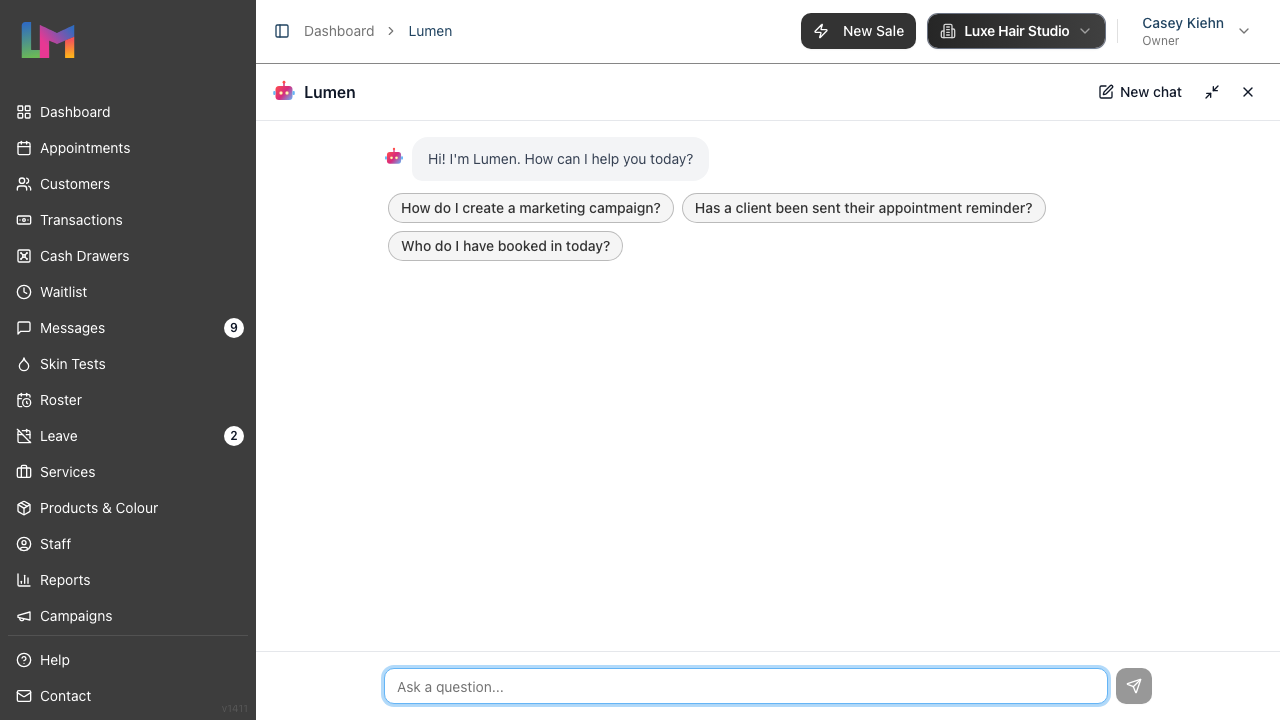
On mobile devices, the chat widget automatically expands to fill the screen when opened.
Step 2: Asking Your First Question
When you first open Lumen, you'll see a short greeting and a row of suggestion chips with example questions you can tap to send straight away.
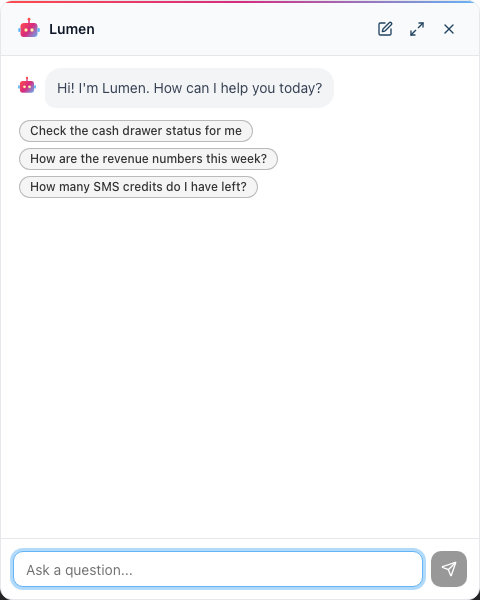
- Click the message input field at the bottom of the chat window — or tap one of the suggestion chips
- Type your question in plain English — for example, "Who are my appointments with today?"
- Press Enter or click the send button to submit
- Lumen will process your question and respond
You'll notice two things while Lumen works:
- Tool badges appear showing what Lumen is looking up (e.g., "Find customer...", "Get appointments..."). Each badge shows a spinner while it's running, then turns into a green tick once that lookup is finished.
- The response appears once Lumen has finished gathering the information it needs.
Step 3: Understanding What Lumen Can Help With
Lumen can look up information across most areas of the system. Here's what you can ask about:
| Area | Example Questions |
|---|---|
| Customers | "Find customer Sarah Jones", "What's Emma's phone number?", "Does this customer have any allergies?" |
| Customer notes | "What are Sarah's colour preferences?", "Show me consultation notes for this customer" |
| Appointments | "What appointments do I have tomorrow?", "When is Mrs. Taylor's next booking?", "Show me Thursday's schedule" |
| Availability | "When is Jamie free this Friday?", "Find me a 45-minute slot for a cut and colour next week" |
| Colour tests | "Does Sarah have a valid patch test?", "Which customers need patch tests before their next appointment?" |
| Transactions | "How much did customer 'Jane' spend last month?", "What's the balance on voucher ABC123?" |
| Roster | "Who's working today?", "What time does Alex finish on Wednesday?" |
| Services & products | "How much is a full head of highlights?", "What colour products do we stock?" |
| Gift vouchers | "Check the balance on voucher code GIFT-1234", "Has this voucher been redeemed?" |
| Waitlist | "Who's on the waitlist?", "Any waitlist requests for highlights?" |
| Leave | "Who's on holiday next week?", "Has Sarah's leave been approved?" |
| Cash drawer | "Is the till open?", "What's the current drawer balance?" |
| Public holidays | "When is the next bank holiday?", "What public holidays do we have this year?" |
| Revenue & sales | "How are the revenue numbers this week?", "What are today's takings?", "How do sales compare to last month?" |
| Commission | "How much commission have I earned this month?", "What's my commission breakdown this week?" |
| SMS credits | "How many SMS credits do we have left?", "How many texts have we sent this month?" |
| Notifications | "Was the reminder sent to Mrs. Brown?", "Did the confirmation email go out?" |
| Luminate help | "How do I set up online booking?", "How do staff levels work?" |
Step 4: Reading Lumen's Responses
Lumen's responses are formatted for easy reading:
- Bold text highlights key information like names, amounts, and dates
- Tables display structured data such as appointment lists or transaction summaries
- Links take you directly to relevant pages in Luminate — for example, a customer name might link to their profile page. Click any link to navigate there without leaving your conversation.
- Lists break down multiple results clearly
Privacy note: When Lumen displays customer contact details, phone numbers and email addresses are partially masked for security (e.g., "1234" for phone numbers, "j@example.com" for email addresses). You can view full details by clicking through to the customer's profile.
Step 5: Continuing a Conversation
Lumen remembers the context of your current conversation, so you can ask follow-up questions naturally:
- You: "Find customer Sarah Jones"
- Lumen: Shows Sarah's profile summary
- You: "When is her next appointment?"
- Lumen: Looks up Sarah's upcoming appointments (no need to repeat her name)
- You: "Does she have a valid patch test?"
- Lumen: Checks Sarah's colour test records
Your conversation is kept as you navigate between pages in Luminate. If you close the chat widget and reopen it, or move to a different page, your previous messages are still there. However, if you refresh the page or close your browser tab, the conversation will start fresh next time you open Lumen.
Step 6: Starting a New Conversation
If you want to start fresh — for example, to ask about a completely different topic:
- Click the New chat button in the Lumen header (the small pencil icon)
- Your previous conversation is cleared and Lumen greets you again
- Type your new question, or pick one of the fresh suggestion chips
Starting a new conversation is useful when switching topics, as it helps Lumen focus on your new question without confusion from earlier context.
Step 7: Understanding Role-Based Access
Lumen respects your Luminate permissions. The information it can look up depends on your role:
| Capability | Owner | Admin | Manager | Staff | Receptionist |
|---|---|---|---|---|---|
| Search documentation | Yes | Yes | Yes | Yes | Yes |
| Look up customers | Yes | Yes | Yes | Yes | Yes |
| View customer notes | Yes | Yes | Yes | Yes | Yes |
| View appointments | Yes | Yes | Yes | Yes | Yes |
| Find schedule gaps | Yes | Yes | Yes | Own only | Yes |
| Check colour tests | Yes | Yes | Yes | Yes | Yes |
| View transactions | Yes | Yes | Yes | Yes | Yes |
| Check gift vouchers | Yes | Yes | Yes | Yes | Yes |
| View waitlist | Yes | Yes | Yes | Yes | Yes |
| View staff list | Yes | Yes | Yes | No | Yes |
| View roster/schedules | Yes | Yes | Yes | Own only | Yes |
| Check cash drawer | Yes | Yes | Yes | Yes | Yes |
| View public holidays | Yes | Yes | Yes | Yes | Yes |
| View salon settings | Yes | Yes | No | No | No |
| View leave requests | Yes | Yes | Yes | No | No |
| Check notification logs | Yes | Yes | No | No | No |
| View products/inventory | Yes | Yes | Yes | Yes | Yes |
| View revenue summary | Yes | Yes | Yes | Own only | Own only |
| View commission | Yes | Yes | Yes | Own only | Own only |
| View SMS balance/usage | Yes | Yes | Yes | No | No |
If you ask about something your role doesn't have access to, Lumen will let you know that it can't look up that information for you.
Staff members: When you ask about "my appointments" or "my schedule", Lumen automatically filters results to show your own data. Roster and schedule gap lookups are also limited to your own shifts. When you ask about "my revenue" or "my commission", Lumen shows your personal figures (this may be zero for Receptionists, who don't typically earn service-based commission). Staff and Receptionists can see their own revenue but not salon-wide totals — Managers, Admins, and Owners see both.
Common Pitfalls
"Lumen says it can't find a customer I know exists"
Lumen searches by name, email, or phone number. Try:
- Using the customer's full name rather than a nickname
- Checking the spelling
- Searching by phone number or email instead
- If the customer has a common name, Lumen may ask you to clarify which one you mean
"I don't see the launcher button"
The launcher is a small gradient circle with a white robot icon, pinned to the bottom-right corner of every page.
- Lumen may not be enabled for your Luminate instance — check with your salon owner
- Try refreshing the page
- Make sure you're logged in
"Lumen gave me outdated information"
Lumen looks up live data every time you ask a question — it doesn't cache old answers. If something seems wrong, the data may have changed between when you asked and when you're reading the response. Ask again to get the latest.
"Lumen can't do what I asked"
Lumen is read-only — it can look up and display information, but it cannot make changes. It cannot book appointments, process transactions, update customer records, or modify any data. For actions, Lumen will often provide a link to the relevant page where you can make the change yourself.
"The response was cut off or seems incomplete"
For complex queries that return a lot of data (e.g., "show me all appointments this month"), Lumen limits results to keep responses manageable. Try narrowing your question — for example, "show me tomorrow's appointments" instead of an entire month.
Tips and Best Practices
- Be specific — "What appointments does Sarah Jones have next Tuesday?" works better than "appointments"
- Use natural language — Write as you would speak to a colleague. Full sentences work better than single keywords.
- Ask follow-up questions — Lumen remembers context within a conversation, so "When is her next one?" works after asking about a customer
- Use Lumen for quick lookups — It's fastest for checking one piece of information without navigating away from your current page
- Click the links — When Lumen mentions a customer, appointment, or page, the links in the response take you directly there
- Start fresh when switching topics — Use the New chat button when moving to an unrelated question to avoid confusion
- Ask for help with Luminate — Lumen can search the documentation, so questions like "How do I process a refund?" will return relevant guidance
Related Tutorials
- Tutorial 15.1: Common Issues and Quick Fixes — Self-service troubleshooting
- Tutorial 15.2: Understanding Error Messages — What error messages mean
- Tutorial 15.3: Getting Help and Contacting Support — Email support and account recovery
- Tutorial 1.3: Understanding Roles and Permissions — What each role can access
Frequently Asked Questions
Can Lumen book appointments or make changes?
No. Lumen is read-only — it can look up and display information, but it cannot create, edit, or delete anything. If you need to take action, Lumen will often include a link to the relevant page where you can do it yourself.
Is my conversation with Lumen private?
Yes. Your conversations are stored securely and are only visible to you. Other staff members cannot see your chat history.
Does Lumen have access to all customer data?
Lumen can access the same data you can based on your role permissions. It partially masks sensitive contact details (phone numbers and emails) in its responses for security. Click through to a customer's profile to see full details.
Can I use Lumen on my phone?
Yes. The chat widget works on mobile devices and expands to fill the screen for comfortable use. All the same capabilities are available.
How does Lumen know which salon's data to show?
Lumen automatically uses the salon you're currently viewing. If you manage multiple salons, make sure you're in the correct salon context before asking questions.
What if Lumen gives an incorrect answer?
While Lumen is designed to be accurate, it's an AI assistant and may occasionally misinterpret a question. If something doesn't look right, verify the information by navigating to the relevant page directly. You can also rephrase your question for a clearer answer.
Can I ask Lumen how to use Luminate?
Yes. Lumen can search through Luminate's documentation to answer how-to questions. Try asking things like "How do I set up appointment reminders?" or "How does the waitlist work?" and Lumen will find relevant guidance.
Is there a limit to how many questions I can ask?
There's no strict question limit for normal use. Lumen is designed to be available throughout your working day for quick lookups and questions.
Last Updated: May 2026