
Common Issues and Quick Fixes
Tutorial 15.1: Common Issues and Quick Fixes
Introduction
Running into problems? Don't worry - most issues in Luminate have simple solutions. This guide covers the most common problems users encounter and shows you how to resolve them quickly, so you can get back to running your salon.
Whether you're having trouble with invitation emails, appointments that won't save, payment processing, or calendar display issues, you'll find practical solutions here. We've organised these by the area of the system where you might encounter them.
Who this is for: All Luminate users - salon owners, managers, and staff members who need to quickly resolve common issues.
What you'll learn:
- How to fix invitation and login problems
- Solutions for appointment booking issues
- Resolving transaction and payment errors
- Calendar and display troubleshooting
- Quick fixes for roster and staff issues
Time to complete: 5-10 minutes (reference guide)
Prerequisites
Before troubleshooting, make sure you have:
- A modern web browser (Chrome, Firefox, Safari, or Edge)
- A stable internet connection
- Your Luminate login credentials
Step-by-Step Instructions
Invitation and Login Issues
Problem: "I sent a staff invitation but they never received it"
Quick fixes:
- Check the spam/junk folder - Ask the staff member to check their spam folder, as invitation emails sometimes get filtered
- Verify the email address - Go to Staff → find the staff member → click Edit and confirm the email address is correct (no typos)
- Resend the invitation - On the staff member's profile, click Resend Invitation to send a fresh email
- Check if invitation expired - Invitation links expire after 60 minutes for security. If expired, simply click Resend Invitation on the staff member's profile to send a new link
- Try a different email - If the email consistently fails, try using a different email address (e.g., personal email instead of work)
Problem: "I forgot my password"
Quick fix:
- Go to the Luminate login page
- Click Forgot password? below the login form
- Enter your email address
- Click Email password reset link
- Check your email (including spam folder) for the reset link
- Click the link and create a new password
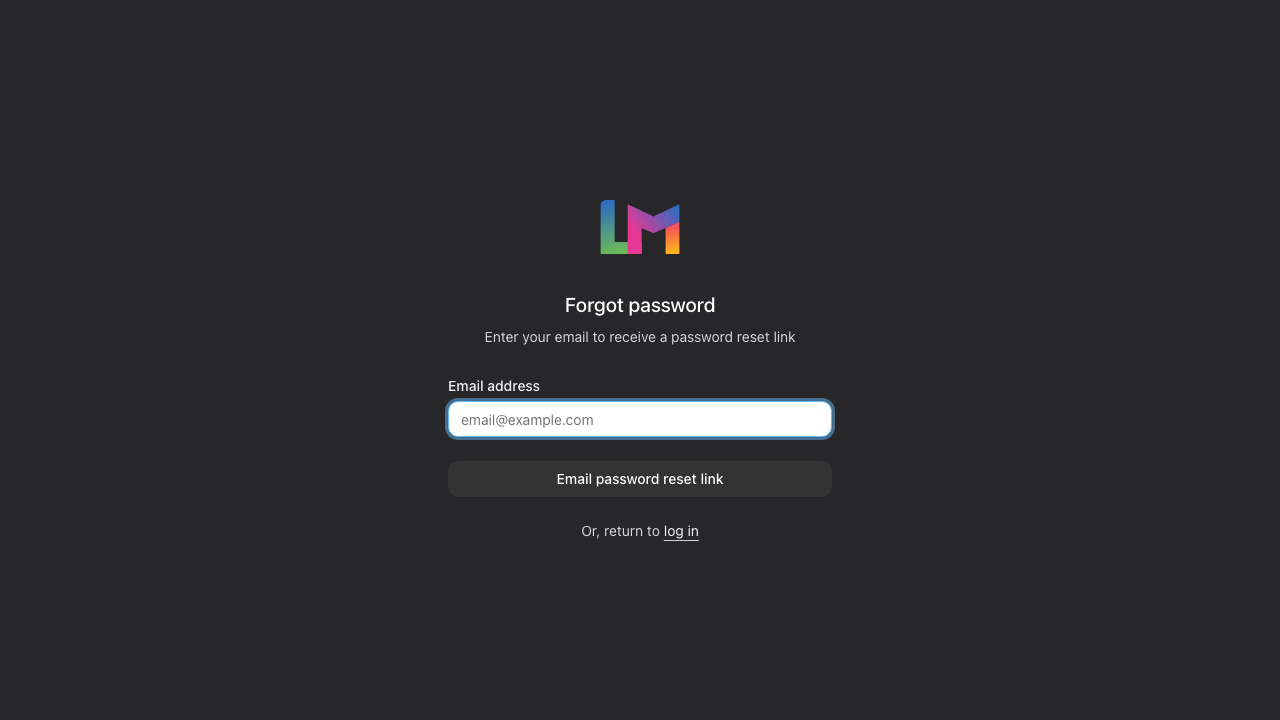
Note: Password reset links expire after 60 minutes. If yours has expired, request a new one.
Problem: "Two-factor authentication isn't working"
Quick fixes:
- Check your phone's time - Authenticator apps rely on accurate time. Make sure your phone's time is set to automatic
- Try the code quickly - Codes expire every 30 seconds, so enter them promptly
- Use a recovery code - If you saved your recovery codes during setup, use one to log in. Go to your profile settings to reconfigure 2FA
- Contact support - If you've lost access to your authenticator and recovery codes, email hello@luminate.salon for account recovery
Appointment Issues
Problem: "I can't save a new appointment"
Quick fixes:
Check required fields - Ensure you've selected:
- A customer (required)
- A staff member (required)
- A service (required)
- A date and time (required)
Check for conflicts - The staff member may already have an appointment at that time. Try:
- Selecting a different time slot
- Choosing a different staff member
- Checking the calendar view to see their availability
Check if staff is rostered - Staff who aren't rostered for a time will show "(Not rostered)" next to their name in the dropdown. You can still create the appointment, but consider whether they're actually available to work
Verify the service is active - Inactive services can't be booked. Go to Services and ensure the service is set to Active
Problem: "Appointments aren't showing on the calendar"
Quick fixes:
- Check the date - Make sure you're viewing the correct date using the date navigation controls
- Check staff filters - If you've filtered by specific staff, the appointment may be hidden. Click Clear Filters or select "All Staff"
- Refresh the page - Press F5 or click your browser's refresh button
- Check the view - Switch between Today, Week, and List views to find your appointment
Problem: "I can't cancel an appointment"
Quick fixes:
- Check appointment status - Completed appointments cannot be cancelled. You'll need to process a refund instead if payment was taken
- Check if already cancelled - The appointment may already be cancelled
- Check permissions - Some roles may not have permission to cancel appointments. Ask a manager or admin to cancel it
Problem: "Drag and drop isn't working on the calendar"
Quick fixes:
- Use a desktop browser - Drag and drop works best on desktop devices
- Check appointment status - Completed or cancelled appointments cannot be moved
- Try the edit button - Click the appointment and use the Edit button to change the time instead
Transaction and Payment Issues
Problem: "I can't complete a transaction"
Quick fixes:
- Add items first - A transaction must have at least one item (service or product) before completion
- Check payment total - If using multiple payment methods, ensure the total payments equal the transaction amount
- Verify payment method - Make sure you've selected a valid payment method
Problem: "The payment amount doesn't match"
Quick fix:
- Check that all items are correctly added with the right quantities and prices
- Verify any discounts applied are correct
- Check if tips have been added and recorded properly
- Review the breakdown showing services, products, tips, and tax
Problem: "I can't process a refund"
Quick fixes:
- Check permissions - Only Owners, Admins, Managers, and Receptionists can process refunds. Staff members do not have this permission
- Check transaction status - Only completed transactions can be refunded. Pending transactions should be cancelled instead
- Check if already refunded - A transaction can only be refunded once
Problem: "I can't edit a transaction"
Quick fixes:
- Check the date - Only transactions from today can be edited. Older transactions cannot be modified
- Check status - Cancelled or refunded transactions cannot be edited
- Contact support - For corrections to older transactions, email hello@luminate.salon
Cash Drawer Issues
Problem: "I can't open the cash drawer"
Quick fixes:
- Check if already open - Only one session can be open at a time per drawer. Check if a session is already active
- Enter opening balance - You must enter the opening cash amount to start a session
- Check permissions - Verify you have permission to manage cash drawers
Problem: "Cash drawer shows a variance"
Quick fix:
This usually means the physical cash doesn't match the expected amount. Common causes:
- Cash payments recorded incorrectly
- Change given incorrectly
- Missing cash movements (top-ups or withdrawals not recorded)
Review the day's cash movements and transaction history to identify discrepancies.
Roster and Staff Issues
Problem: "Staff member doesn't appear in appointment booking"
Quick fixes:
- Check if active - Go to Staff and ensure the staff member's status is Active
- Check if rosterable - Some staff (like receptionists) are not available for appointment booking as they don't provide services
- Check if rostered - Staff without shifts for the selected time will show "(Not rostered)" in the dropdown. They'll still appear, but you may want to add a roster shift for them
Problem: "I can't create a shift on a certain date"
Quick fixes:
- Check for public holidays - Luminate warns when creating shifts on public holidays. You can still create the shift by confirming the dialog
- Check for conflicts - The staff member may already have a shift or leave on that date
Problem: "Staff can't see their schedule"
Quick fixes:
- Check login account - The staff member needs a login account to access Luminate. Go to their profile and click Create Login Account
- Check invitation status - If invited, they must accept the invitation and set their password
- Verify permissions - Ensure their role has the "View Own Schedule" permission
Customer Issues
Problem: "I can't find a customer"
Quick fixes:
- Check spelling - Try searching with just part of the name
- Search by phone or email - The search works across name, email, and phone
- Check the status filter - If set to "Active Only", inactive customers won't appear. Set to "All Customers"
- Check for duplicates - The customer may exist under a slightly different name
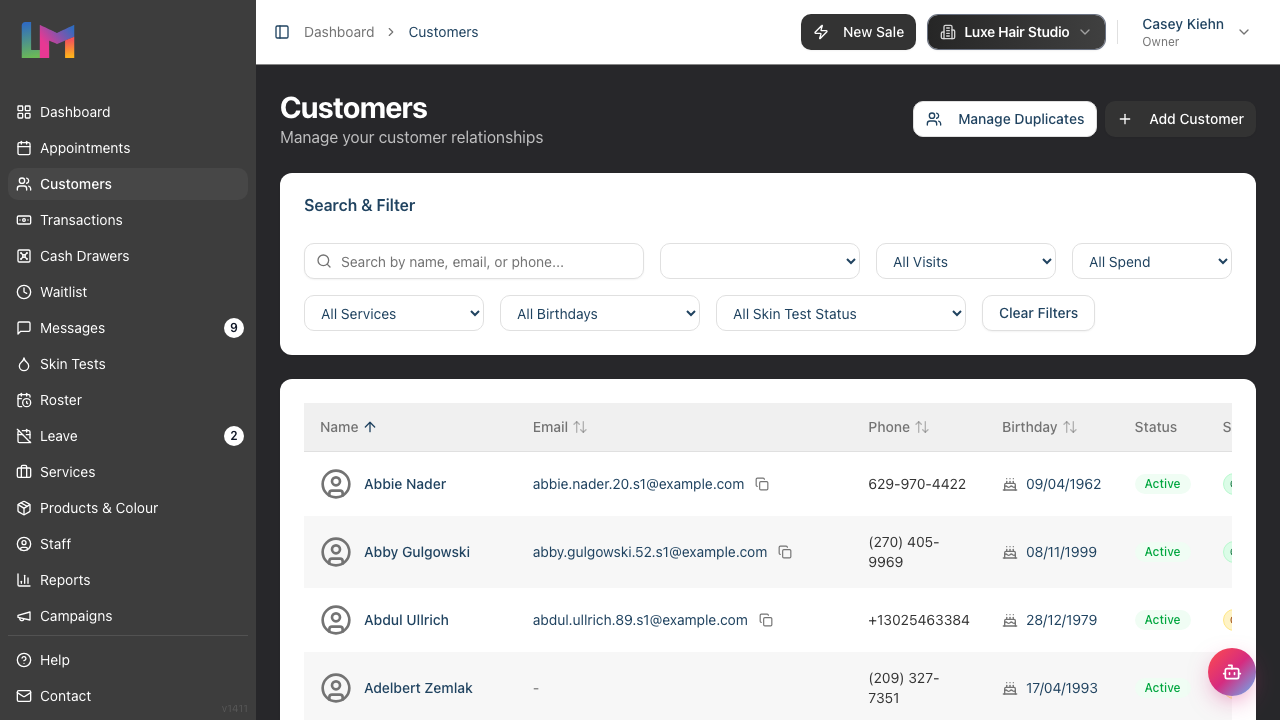
Problem: "Luminate is warning me about a possible duplicate customer"
Quick fix:
Luminate doesn't stop you from saving two customers with the same email address or phone number, but it does flag them. When you enter contact details that match an existing customer, a duplicate warning appears so you can avoid creating a second record by mistake.
If you think duplicates have already crept in:
- Go to Customers → Potential Duplicates (this option appears if you have permission to merge customers)
- Review the grouped records - Luminate groups customers that share an email address, phone number, or similar name
- Merge the records you confirm are the same person, so all their appointments, transactions, and notes are kept together under one customer
To avoid duplicates in the first place, search for an existing customer (by name, email, or phone) before creating a new one.
Display and Browser Issues
Problem: "The page looks broken or buttons aren't working"
Quick fixes:
- Refresh the page - Press F5 or Ctrl+R (Cmd+R on Mac)
- Clear browser cache - Press Ctrl+Shift+Delete and clear cached files
- Try a different browser - Chrome is recommended for best compatibility
- Check internet connection - Slow connections can cause partial page loads
- Disable browser extensions - Some ad blockers or extensions can interfere with Luminate
Problem: "Data isn't updating in real-time"
Quick fix:
- Refresh the page to see the latest data
- Check your internet connection
- If multiple people are working simultaneously, refresh more frequently to see each other's changes
Common Pitfalls
"I made changes but they weren't saved"
Always look for a Save or Update button and click it before navigating away. If you close a form without saving, changes are lost. Most forms show a confirmation message when changes are saved successfully.
"I accidentally deleted something"
Some actions cannot be undone. For critical deletions (like removing a customer), Luminate asks for confirmation. If you've deleted something by mistake, contact support at hello@luminate.salon - we may be able to help recover data depending on the situation.
"Everything was working yesterday but not today"
Try these steps in order:
- Refresh the page
- Log out and log back in
- Clear your browser cache
- Try a different browser
- Check if Luminate is experiencing any service issues
Tips and Best Practices
- Bookmark the login page - Avoid typing the URL incorrectly by saving it to your favourites
- Keep your browser updated - Old browser versions can cause compatibility issues
- Save frequently - Click Save after making changes rather than making multiple changes at once
- Use Chrome - While other browsers work, Chrome provides the best experience
- Check the notification area - Success and error messages appear briefly in the bottom-right corner
- Look for red text - Validation errors appear in red below the field that needs attention
Related Tutorials
- Tutorial 15.2: Understanding Error Messages - Learn what different error messages mean
- Tutorial 15.3: Getting Help and Contacting Support - How to get additional help
- Tutorial 1.1: Welcome to Luminate - Review the basics if you're new
- Tutorial 4.2: Managing Staff Login Accounts - Detailed guide on staff invitations and login access
Frequently Asked Questions
Why do some buttons seem disabled?
Buttons may be disabled because:
- You don't have permission for that action
- The action isn't available in the current state (e.g., can't refund a pending transaction)
- Required fields haven't been completed
Can I undo an action?
Most actions cannot be undone automatically. For critical actions like deletions, Luminate asks for confirmation first. If you need to reverse something, you'll typically need to manually create a new record or contact support.
Why is my session timing out?
For security, Luminate logs you out after a period of inactivity. Simply log back in to continue. If this happens frequently, check that your browser accepts cookies from Luminate.
What should I do if nothing in this guide helps?
Contact support at hello@luminate.salon with:
- A description of the problem
- What you were trying to do
- Any error messages you saw
- Your salon name
Last Updated: June 2026