
Understanding Error Messages
Tutorial 15.2: Understanding Error Messages
Introduction
When something goes wrong in Luminate, the system displays error messages to help you understand the problem. Learning to read these messages makes troubleshooting faster and often lets you fix issues without needing to contact support.
This guide explains the different types of error messages you'll encounter, what they mean, and how to resolve the most common ones. We'll cover validation errors, permission errors, conflict errors, and system messages.
Who this is for: All Luminate users who want to understand and resolve error messages independently.
What you'll learn:
- The different types of error messages in Luminate
- How to read and interpret validation errors
- What permission and conflict errors mean
- How to resolve common error scenarios
- When to contact support for help
Time to complete: 10-15 minutes
Prerequisites
Before you begin, make sure you have:
- Basic familiarity with Luminate navigation
- Access to your Luminate account
Step-by-Step Instructions
Understanding How Errors Appear
Luminate displays errors in three main ways:
1. Toast Notifications (Bottom-Right Corner)
These temporary messages appear in the bottom-right corner of your screen:
| Icon | Colour | Type | Meaning |
|---|---|---|---|
| ✓ | Green | Success | Action completed successfully |
| ⚠ | Yellow/Orange | Warning | Action completed but with a caveat |
| ✕ | Red | Error | Action failed - needs attention |
Success toasts disappear automatically after a few seconds (typically 4-5 seconds). Warning toasts stay longer (8 seconds) to give you time to read them. Error toasts remain on screen indefinitely until you dismiss them by clicking the X, ensuring you don't miss important information.
2. Inline Field Errors
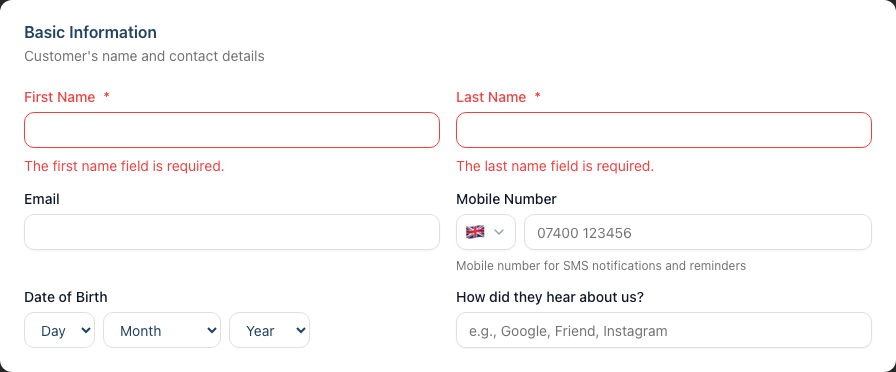
When you submit a form with invalid data, error messages appear in red text directly below the problem field:
First Name *
[_______________]
The first name field is required.
The field label also turns red to draw your attention.
3. Alert Banners
For more significant issues, a red alert box may appear at the top of the form or page, listing all problems:
┌──────────────────────────────────────────┐
│ ⚠ Something went wrong.                  │
│ • The first name field is required.      │
│ • The email has already been taken.      │
└──────────────────────────────────────────┘
Validation Errors
Validation errors occur when the information you've entered doesn't meet the system's requirements. These are the most common errors you'll encounter.
Required Field Errors
Message: "The [field name] field is required."
Meaning: You must fill in this field before submitting.
How to fix: Look for fields marked with an asterisk (*) and ensure they contain data.
Common examples:
- "The first name field is required."
- "The last name field is required."
- "The customer field is required."
- "The service field is required."
Format Errors
Message: "The [field name] must be a valid [format]."
Meaning: The data you entered is in the wrong format.
How to fix: Check the expected format and correct your entry.
Common examples:
- "The email field must be a valid email address." - Check for typos (missing @ symbol, wrong domain)
- "The date of birth field must be a date before or equal to today." - You cannot enter future dates
Length Errors
Message: "The [field name] must not be greater than [X] characters."
Meaning: Your text is too long for this field.
How to fix: Shorten your text or abbreviate where appropriate.
Common examples:
- "The first name field must not be greater than 100 characters."
- "The notes field must not be greater than 1000 characters."
Uniqueness Errors
Message: "The [field name] has already been taken."
Meaning: This value already exists and must be unique within your salon.
How to fix: Use a different value or find and update the existing record.
Common examples:
- "The email has already been taken." - A customer with this email already exists
- "The name has already been taken." - A service or tag with this name exists
Permission Errors
Permission errors occur when you try to perform an action your role doesn't allow.
Access Denied
Message: "You do not have permission to perform this action."
Meaning: Your user role doesn't include this capability.
How to fix: Ask an Owner or Admin to perform the action, or request a role change if you need regular access.
Common scenarios:
- Staff members trying to process refunds (Owner/Admin only)
- Managers trying to export data (Owner/Admin only)
- Staff trying to access settings (varies by role)
Resource Not Found
Message: "Page not found" or "Resource not found"
Meaning: Either:
- The page doesn't exist
- You don't have access to view this resource
- The item has been deleted
How to fix:
- Check the URL for typos
- Verify you're in the correct salon
- Ask someone with access to check if the resource exists
Conflict Errors
Conflict errors occur when your action would create an inconsistent or impossible situation.
Appointment Conflicts
Message: "This staff member has a conflicting appointment at this time."
Meaning: The selected staff member already has an appointment that overlaps with your requested time.
How to fix:
- Choose a different time slot
- Select a different staff member
- Check the calendar to see the existing appointment
Staff Availability Conflicts
Message: "The selected staff member is not active."
Meaning: The staff member has been deactivated and cannot be assigned to appointments.
How to fix:
- Select an active staff member
- If the staff member should be active, go to Staff and reactivate them
Service Availability Conflicts
Message: "The selected service is not active."
Meaning: The service has been deactivated and cannot be booked.
How to fix:
- Select an active service
- If the service should be active, go to Services and reactivate it
Status-Based Errors
These errors occur when you try to perform an action that isn't valid for the current status of an item.
Appointment Status Errors
| Error Message | Meaning | Solution |
|---|---|---|
| "Cannot cancel a completed appointment." | The appointment has already been marked complete | Process a refund instead if needed |
| "Appointment is already cancelled." | This appointment was previously cancelled | No action needed - it's already cancelled |
Note: Luminate deliberately lets you create appointments in the past (for example, to record a walk-in you forgot to log). You won't be blocked from booking a past date or time.
Transaction Status Errors
| Error Message | Meaning | Solution |
|---|---|---|
| "Cannot complete transaction: current state is '[state]', expected 'pending'" | Transaction is not in pending status | Check the transaction status first |
| "Cannot refund transaction: current state is '[state]', expected 'completed'" | You're trying to refund a pending or cancelled transaction | Complete the transaction first, or cancel it instead |
| "Cannot cancel transaction: current state is '[state]', must be 'draft' or 'pending'" | Transaction is completed or refunded | Completed transactions must be refunded instead |
| "Cannot update cancelled or refunded transactions." | These transactions are locked | Create a new transaction if needed |
| "Only transactions from today can be edited. Please contact support for older transaction corrections." | You're editing an older transaction | Contact support for historical corrections |
| "Transaction must have at least one item before completion." | No services or products added | Add at least one item before completing |
Waitlist Status Errors
| Error Message | Meaning | Solution |
|---|---|---|
| "Cannot cancel a waitlist entry that has already been converted to an appointment." | Entry was already converted | The customer has an appointment now |
| "This waitlist entry is already cancelled." | Already cancelled | No action needed |
| "This staff member already has an appointment during the selected time." | Conflict when converting waitlist entry | Choose a different time slot or staff member |
| "No service specified for this waitlist entry." | Waitlist entry has no service selected | Edit the waitlist entry to add a service before converting |
| "Preferred date cannot be in the past." | The preferred date you entered has already passed | Choose today or a future date |
Cash Drawer Errors
| Error Message | Meaning | Solution |
|---|---|---|
| "This drawer already has an open session." | Only one session can be open at a time | Close the existing session first |
| "Cannot record movements on a closed session." | The session has ended | Open a new session to record movements |
| "This session is already closed." | Session is already closed | No action needed |
| "Cannot delete a drawer with an open session." | The drawer has an active session | Close the session before deleting the drawer |
Account and Invitation Errors
| Error Message | Meaning | Solution |
|---|---|---|
| "This staff member already has a login account." | Can't create duplicate accounts | Use the existing account or resend the invitation |
| "This email address is already registered with a salon. The staff member may need to use a different email." | Email in use by another user | Use a different email address for the staff member |
| "This staff member does not have a login account." | Trying to remove access from staff without an account | No action needed - they don't have login access |
System Errors
Occasionally you may see technical errors. These usually indicate a temporary problem.
Connection Errors
Message: "Network error" or page fails to load
Meaning: Your internet connection was interrupted or Luminate's servers are temporarily unavailable.
How to fix:
- Check your internet connection
- Refresh the page
- Wait a few minutes and try again
- If persistent, check if other websites work
Server Errors
Message: "Something went wrong" or "Server error"
Meaning: An unexpected problem occurred on the server.
How to fix:
- Refresh the page and try again
- Wait a few minutes and retry
- If the problem persists, contact support with details of what you were doing
Common Pitfalls
"I keep getting the same error after fixing the field"
Make sure to:
- Actually change the value (not just click in and out of the field)
- Click Save or Submit again after making corrections
- Check if there are multiple errors - you may have fixed one but not others
"The error message doesn't make sense"
Sometimes error messages can be technical. Common translations:
- "Unique constraint" = "Already exists"
- "Foreign key" = "Referenced item doesn't exist or was deleted"
- "Validation failed" = "Check required fields and formats"
"I fixed the error but now there's a different one"
Forms validate multiple things. Fix each error as it appears - you may need to make several corrections.
Tips and Best Practices
- Read the full error message - Don't just skim; the details often explain exactly what's wrong
- Check all highlighted fields - When multiple fields have errors, address them all before resubmitting
- Scroll to see all errors - Sometimes errors appear outside your current view
- Take note of error messages - If you need to contact support, knowing the exact error helps
- Try refreshing first - Some errors resolve after a page refresh
- Check your role - Permission errors often mean you need someone with higher access
Related Tutorials
- Tutorial 15.1: Common Issues and Quick Fixes - Practical solutions for frequent problems
- Tutorial 15.3: Getting Help and Contacting Support - When and how to get additional help
- Tutorial 1.3: Understanding Roles and Permissions - Learn what each role can do
Frequently Asked Questions
Why do some errors disappear before I can read them?
Success and info messages auto-dismiss, but error messages should stay on screen. If an error disappeared, try the action again to see it. You can also check the browser console (F12 → Console tab) for additional information.
Can I see a history of errors?
Luminate doesn't maintain a user-visible error log. If you're experiencing repeated issues, note down the error messages and contact support.
What does "validation failed" mean?
This generic message means the data you submitted didn't pass the system's checks. Look for specific field errors below the form fields to see what needs correcting.
Why am I seeing errors in a language I don't understand?
Luminate displays messages in English. If you see errors in a different language, they may be coming from your browser. Try switching your browser language to English.
What if I see an error code or technical message?
Technical error messages (like "500 Internal Server Error") indicate a system problem. Try refreshing the page. If it persists, contact support with the error code/message and what you were doing when it appeared.
Last Updated: June 2026 Documentation verified against application version as of June 2026