
Leave Settings - Allowances and Carryover Policies
Tutorial 13.4: Leave Settings - Allowances and Carryover Policies
Introduction
Managing staff leave is an important part of running a salon. Luminate's leave settings let you define how much annual leave your staff receive, when the leave year starts, and what happens to unused leave at the end of the year. These salon-wide defaults apply to all staff members, though individual staff can have custom allowances if needed.
This tutorial covers configuring your default leave allowance, setting up your leave year, and choosing the right carryover policy for your business. Getting these settings right ensures fair and consistent leave management across your team.
Who this is for: Salon owners and administrators managing staff leave policies.
What you'll learn:
- Setting the default annual leave allowance
- Configuring when your leave year starts
- Understanding carryover policies (none, full, or capped)
- How these settings affect staff leave calculations
Time to complete: 5-10 minutes
Prerequisites
Before you begin, make sure you have:
- Owner or Admin role in Luminate
- Understanding of your business's leave policy
- Knowledge of when your leave year typically runs (e.g., calendar year, tax year)
Step-by-Step Instructions
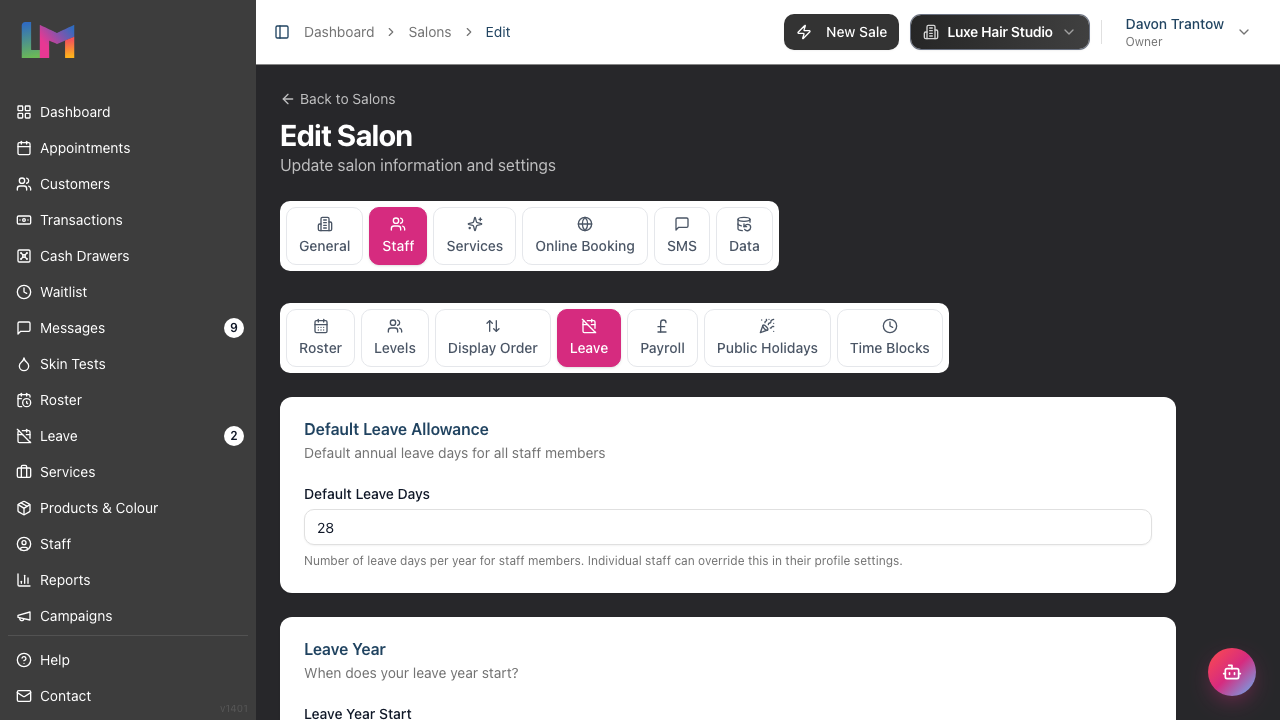
Step 1: Access Leave Settings
- Click your salon name in the header bar
- Select Salon Settings from the dropdown
- Click the Staff tab
- Click the Leave sub-tab
You'll see three configuration sections:
- Default Leave Allowance
- Leave Year
- Carryover Policy
Step 2: Set the Default Leave Allowance
The default leave allowance determines how many days of annual leave each staff member receives by default.
To configure:
- Find the Default Leave Allowance card
- Enter the number of days in the Default Leave Days field
- This number applies to all staff members unless individually overridden
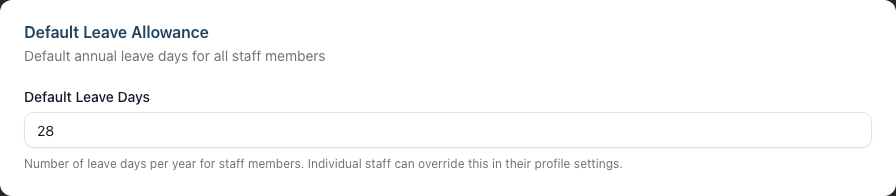
Default value: 28 days (standard UK statutory minimum for full-time employees)
How it works:
- This is the standard allowance applied to all staff
- Individual staff members can have custom allowances set in their profile
- The default applies to new staff and any staff without a custom setting
Example settings:
| Business Type | Typical Allowance |
|---|---|
| UK standard (inc. bank holidays) | 28 days |
| UK (excluding bank holidays) | 20 days |
| Part-time pro-rata | Calculate based on hours |
| US typical | 15-20 days |
| Australian standard | 20 days |
Step 3: Configure Your Leave Year Start
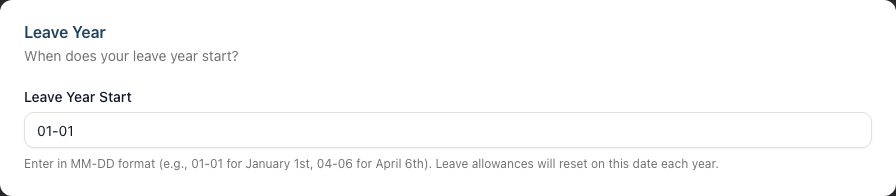
The leave year determines when leave allowances reset. All staff in your salon share the same leave year.
To configure:
- Find the Leave Year card
- Enter the start date in MM-DD format (month-day)
- Common examples:
- 01-01 for calendar year (January 1st)
- 04-06 for UK tax year (April 6th)
- 07-01 for financial year (July 1st)
How it works:
- On this date each year, leave allowances reset
- New allowances are calculated based on the default (or individual custom settings)
- Any carryover from the previous year is applied according to your carryover policy
Choosing a start date:
- Calendar year (01-01): Simple to understand, aligns with January-December
- Tax year (04-06 for UK): Aligns with payroll and tax calculations
- Anniversary-based: Some businesses use each employee's start date (not currently supported as a salon-wide setting)
Step 4: Choose Your Carryover Policy
The carryover policy determines what happens to unused leave at the end of the leave year.
To configure:
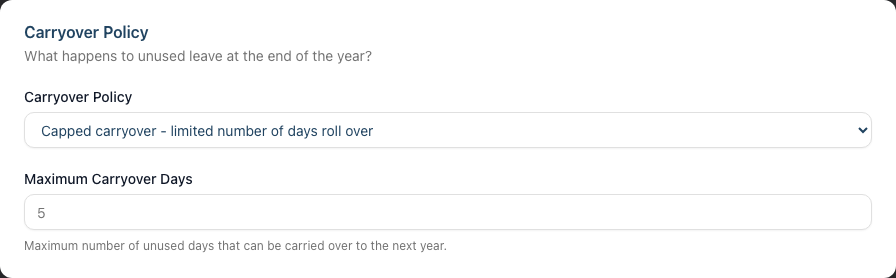
- Find the Carryover Policy card
- Select one of three options from the dropdown:

Option 1: No carryover - unused days are lost
- Any unused leave at year end is forfeited
- Staff must use all allowance within the leave year
- Encourages staff to take regular breaks
- Simpler to administer
Option 2: Full carryover - all unused days roll over
- All unused leave carries forward to the next year
- No limit on accumulated leave
- Good for flexible working arrangements
- May result in staff accumulating large balances
Option 3: Capped carryover - limited number of days roll over
- Unused leave carries forward up to a maximum
- Balance between flexibility and accumulation limits
- Most common policy for UK businesses
If you select capped carryover:
- An additional field appears: Maximum Carryover Days
- Enter the maximum number of days that can carry over
- Example: If set to 5, and a staff member has 8 unused days, only 5 carry forward
Example scenarios:
| Policy | Unused Days | Carried Over | Lost |
|---|---|---|---|
| No carryover | 5 | 0 | 5 |
| Full carryover | 5 | 5 | 0 |
| Capped (max 3) | 5 | 3 | 2 |
| Capped (max 3) | 2 | 2 | 0 |
Step 5: Save Your Changes
- Review all three settings
- Click Update Salon at the bottom of the page
- A success message confirms your changes
When changes take effect:
- New settings apply immediately to leave calculations
- Existing booked leave is not affected
- Carryover calculations use the policy in effect at year end
Common Pitfalls
"Staff member has different allowance than expected"
Individual staff can have custom allowances set in their profile that override the salon default. Check the staff member's individual settings if their allowance differs.
"Leave year reset didn't apply carryover correctly"
Verify the carryover policy was set before the year-end date. Changes made after the reset date won't affect that year's calculation.
"Part-time staff have the same allowance as full-time"
The default allowance doesn't automatically pro-rate for part-time staff. Set custom allowances in individual staff profiles for part-time workers.
"I need different leave years for different staff"
Currently, the leave year is salon-wide. All staff share the same reset date. For businesses requiring individual anniversary dates, track this separately or use custom allowances.
Tips and Best Practices
Set policy before staff start booking leave - Configure leave settings when setting up your salon, before staff begin requesting time off.
Communicate carryover policy clearly - Ensure staff understand what happens to unused leave, especially if using "no carryover" policy.
Consider legal requirements - In the UK, workers must be allowed to carry over statutory leave if they couldn't take it due to illness or maternity leave. Factor this into your policy.
Use capped carryover for balance - A cap (e.g., 5 days) encourages regular leave-taking while allowing some flexibility.
Review annually - Check if your leave policy still meets business needs and complies with any regulatory changes.
Document exceptions - If staff have special arrangements, record them in notes and adjust individual allowances accordingly.
Plan for year-end - Remind staff of their remaining balance before year-end, especially with "no carryover" or capped policies.
Related Tutorials
- Tutorial 4.1: Adding New Staff Members - Setting up new staff profiles
- Tutorial 6.1: Understanding Staff Leave Allowances - How leave allowances work
- Tutorial 6.2: Requesting and Managing Leave - Processing leave requests
- Tutorial 6.3: Approving and Rejecting Leave Requests - Manager approval workflows
- Tutorial 6.4: Leave Reports and Year-End Management - Viewing leave reports and carryover
- Tutorial 5.1: Setting Up Your Weekly Roster - Planning around staff availability
Frequently Asked Questions
Can I have different allowances for different roles?
The salon-wide setting is a default. Individual staff members can have custom allowances set in their profile, allowing you to give managers more leave than junior staff, for example.
What happens if I change the allowance mid-year?
New allowances apply from the change date. Staff who have already taken leave may show as over or under their new allowance. Adjust individual allowances if needed for mid-year changes.
Does Luminate track bank holidays separately?
Currently, leave allowance includes all leave days. If you include bank holidays in the allowance (UK statutory approach), staff should book these as leave. If you treat bank holidays as separate salon closure days, use a lower allowance.
Can staff carry over more than the cap if they were sick?
Luminate applies the configured policy automatically. For exceptional circumstances (like illness), you can manually adjust individual staff allowances for the new year.
What's the difference between accrued leave and annual allowance?
The annual allowance is the total days available for the year. Accrued leave would be leave earned over time (e.g., monthly). Luminate currently uses a simple annual allowance model.
How do I handle part-time staff leave?
Calculate their pro-rata allowance based on working hours (e.g., 3 days/week = 60% of full-time allowance) and set this as their custom allowance in their staff profile.
Can I see how much carryover each staff member received?
Staff leave balances reflect total available days including carryover. To see carryover specifically, compare year-end unused days with the next year's starting balance.
What if I have salons in different countries with different policies?
Each salon has independent leave settings. Configure each location according to local requirements and practices.
When does the leave year actually reset?
At midnight on the date specified in Leave Year Start, using your salon's timezone. Leave balances for the new year become available from this point.
Can I run a report on leave usage?
Yes. Staff leave reports are available in the Reports section. See Tutorial 6.4 for leave reports and year-end management, or Tutorial 9.3 for staff performance reports.
Last Updated: January 2026