
Timezone, Currency, and Regional Settings
Tutorial 13.2: Timezone, Currency, and Regional Settings
Introduction
Regional settings ensure Luminate displays information correctly for your location. The timezone determines when appointments appear on calendars and when reminders are sent. Currency controls how prices display throughout the system. Date format affects how all dates appear to you and your team.
Getting these settings right is essential, especially the timezone. An incorrect timezone means appointments might show at the wrong time, and automated reminders could reach customers at unexpected hours. This tutorial guides you through configuring each setting and explains how they affect your daily operations.
Who this is for: Salon owners and administrators configuring regional preferences.
What you'll learn:
- How to set your salon's timezone correctly
- Choosing and changing your currency
- Configuring tax rates and labels
- Selecting a date format that suits your team
- Understanding how these settings affect appointments, reports, and communications
Time to complete: 10-15 minutes
Prerequisites
Before you begin, make sure you have:
- Owner or Admin role in Luminate
- Knowledge of your local timezone (if unsure, check your computer's time settings)
- Your tax registration details (rate and type, e.g., VAT at 20%)
Step-by-Step Instructions
Step 1: Access Regional Settings
- Click your salon name in the header bar and select Salon Settings (or choose Manage Salons and then Edit next to the salon you want to configure)
- On the Edit Salon page, make sure the General tab is selected — it opens by default
- Within the General tab, ensure the Details sub-tab is active (alongside Themes and Badges)
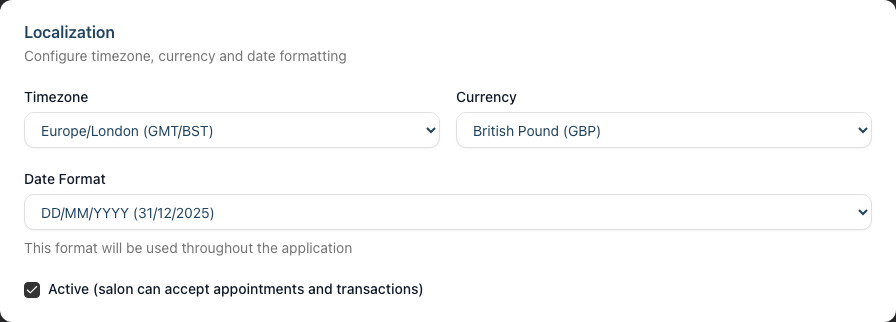
- Scroll down to the Localization card
Step 2: Set Your Timezone
The timezone setting is critical. It affects:
- How appointment times display on the calendar
- When automated reminders and notifications are sent
- Time calculations in reports and analytics
To set your timezone:
- Find the Timezone dropdown in the Localization section
- Select your local timezone from the list
- Verify the selection shows the correct offset for your location
Available Timezones:
| Timezone | Description | Typical Use |
|---|---|---|
| Australia/Sydney (AEST/AEDT) | Australian Eastern time | Sydney, Melbourne |
| Australia/Melbourne (AEST/AEDT) | Australian Eastern time | Victoria |
| Australia/Brisbane (AEST) | Queensland time (no DST) | Brisbane |
| Australia/Adelaide (ACST/ACDT) | Australian Central time | South Australia |
| Australia/Perth (AWST) | Australian Western time | Western Australia |
| Pacific/Auckland (NZST/NZDT) | New Zealand time | New Zealand |
| America/New_York (EST/EDT) | US Eastern time | New York, Florida |
| America/Los_Angeles (PST/PDT) | US Pacific time | California, Washington |
| America/Chicago (CST/CDT) | US Central time | Texas, Illinois |
| Europe/London (GMT/BST) | UK time with daylight saving | United Kingdom |
| Europe/Paris (CET/CEST) | Central European time | France, Germany, Spain |
| Asia/Singapore (SGT) | Singapore time | Singapore, Malaysia |
| Asia/Tokyo (JST) | Japan Standard time | Japan |
Daylight Saving Time: Luminate automatically adjusts for daylight saving. Timezones with "/BST", "/DST", or similar notations handle the clock changes automatically. You don't need to update settings when clocks change.
Step 3: Select Your Currency
The currency setting determines:
- How prices display throughout Luminate
- The currency symbol on receipts and invoices
- Currency formatting in reports
To set your currency:
- Find the Currency dropdown in the Localization section
- Select your operating currency
Available Currencies:
| Code | Currency | Symbol |
|---|---|---|
| AUD | Australian Dollar | $ |
| USD | US Dollar | $ |
| EUR | Euro | € |
| GBP | British Pound | £ |
| NZD | New Zealand Dollar | $ |
| CAD | Canadian Dollar | $ |
| SGD | Singapore Dollar | $ |
| JPY | Japanese Yen | ¥ |
Important: The currency setting is for display only. It changes the symbol shown but does not convert prices. If you've entered services at £50, changing to USD shows $50—not a converted amount.
Step 4: Configure Tax Settings
Tax settings appear on receipts and affect how tax is calculated on transactions.
To configure tax:
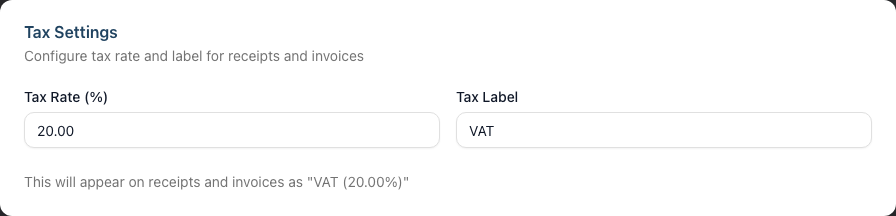
- Scroll to the Tax Settings card (just below Localization on the Details sub-tab)
- Enter your Tax Rate (%) (e.g., "20" for 20% VAT)
- Enter your Tax Label (e.g., "VAT" or "GST")
Country-Specific Defaults:
When you select a country in the Location section, Luminate suggests appropriate tax defaults. If your current tax settings match the old country's defaults, they update automatically when you change country. If you've customised your tax settings, they remain unchanged.
| Country | Default Rate | Default Label |
|---|---|---|
| United Kingdom | 20% | VAT |
| Jersey | 5% | GST |
| Guernsey | 0% | GST |
| Other countries | 10% | GST |
How tax appears: The preview below the fields shows how tax will display on receipts: "VAT (20%)" or similar. This combines your label and rate into a clear format.
Customising tax:
- You can set any rate from 0% to 100%
- Custom labels are supported (though standard terms like VAT/GST are recommended)
- Changing tax rate only affects future transactions; historical records remain unchanged
Step 5: Choose Your Date Format
Date format affects how dates display throughout Luminate:
- Calendar headers and appointment dates
- Report dates and filters
- Customer communications
- Receipt dates
To set date format:
- Find the Date Format dropdown in the Localization section
- Select your preferred format
Available Formats:
| Format | Example | Common Usage |
|---|---|---|
| DD/MM/YYYY | 31/12/2025 | UK, Europe, Australia |
| MM/DD/YYYY | 12/31/2025 | United States |
| YYYY-MM-DD | 2025-12-31 | International (ISO) |
| DD-MM-YYYY | 31-12-2025 | Alternative European |
| DD.MM.YYYY | 31.12.2025 | Germany, Switzerland |
| Month Day, Year | December 31, 2025 | Formal documents |
| Day Month Year | 31 December 2025 | Formal UK |
| Day 31st Month Year | Mon 31st December 2025 | Friendly format |
| Day DD/MM/YY | Mon 31/12/25 | Compact with day name |
| Day MM/DD/YY | Mon 12/31/25 | US compact with day |
| Day YYYY-MM-DD | Mon 2025-12-31 | ISO with day name |
Choosing a format: Select a format your team reads naturally. UK salons typically use DD/MM/YYYY, while US salons prefer MM/DD/YYYY. The format applies consistently throughout Luminate.
Step 6: Review and Save
- Double-check all settings, especially timezone
- Click Update Salon at the bottom of the page
- A success message confirms your changes
After saving:
- New dates immediately display in your chosen format
- The currency symbol updates throughout the interface
- Timezone affects all future time displays and notifications
Common Pitfalls
"Appointments are showing at the wrong time"
This is almost always a timezone issue. Verify your timezone setting matches your actual location. Remember that some cities have multiple timezone options (e.g., different Australian states).
"I changed the timezone and now my appointments look wrong"
Changing the timezone affects how existing times display but doesn't change the underlying data. An appointment booked for "10:00" is stored as a specific moment in time. If you change timezones, that same moment might display as a different local time. Set your timezone correctly before adding appointments.
"My currency symbol changed but amounts didn't convert"
This is expected. Currency is a display setting only. Luminate doesn't perform currency conversion. Your prices remain the same numerical values; only the symbol changes.
"The tax rate I set isn't appearing on old transactions"
Tax changes only affect new transactions. Historical records preserve the tax rate that was in effect when they were created. This ensures accurate financial records.
"I'm not sure which timezone to choose"
If you're unsure, check your computer's timezone settings or search for your city name in the list. UK salons should use "Europe/London (GMT/BST)" which automatically handles British Summer Time.
Tips and Best Practices
Set timezone before adding appointments - This is the most important setting. Get it right before scheduling any appointments to avoid confusion.
Choose a date format your team knows - If your staff are used to seeing DD/MM/YYYY on paper records, use the same in Luminate for consistency.
Update tax settings when rates change - If VAT rates change, update your settings before processing new transactions on the new rate.
Match currency to your bank account - Use the currency you actually charge customers to avoid confusion when reconciling payments.
Test with a sample appointment - After changing timezone, create a test appointment and verify it appears at the expected time on the calendar.
Document your tax setup - Keep a note of your tax rate and label for reference, especially if you operate across multiple jurisdictions.
Related Tutorials
- Tutorial 13.1: Salon Profile and Business Information - Update name, contact details, and logo
- Tutorial 1.2: Setting Up Your Salon Profile - Initial configuration guide
- Tutorial 9.1: Understanding Your Dashboard - How regional settings affect dashboard data
Frequently Asked Questions
What happens when the clocks change for daylight saving?
Luminate handles daylight saving automatically. Timezones like "Europe/London (GMT/BST)" automatically adjust when clocks change. You don't need to update any settings.
Can I have different currencies for different salons?
Yes. Each salon has independent regional settings. If you manage salons in different countries, each can have its own currency, timezone, and date format.
Does the date format affect how I enter dates?
No. Date pickers throughout Luminate work consistently regardless of format. The format setting only affects how dates are displayed, not how you input them.
What if my timezone isn't listed?
The list includes the most common timezones for salon businesses. If you need a specific timezone not listed, contact support at hello@luminate.salon for assistance.
Will changing the currency affect my Stripe integration?
The display currency should match your Stripe account currency. The setting is for display purposes—actual payment processing uses your Stripe account's configured currency.
Can I show prices without a currency symbol?
No. Prices always display with the currency symbol selected in settings. This provides clarity and prevents confusion.
How do I know if my timezone is correct?
The easiest test is to check the current time on your Luminate dashboard. It should match the actual time in your salon. If it's off by hours, your timezone setting is incorrect.
Does tax configuration affect payment processing?
Tax is calculated on transactions and displayed on receipts. It doesn't directly affect how payments are processed through your payment provider—it determines what appears on invoices and receipts.
Can I set a 0% tax rate?
Yes. If you're in a tax-exempt jurisdiction or not VAT-registered, set the rate to 0%. Receipts will still show the tax line (e.g., "GST (0%)") confirming no tax was charged.
What's the most common format for UK salons?
Most UK salons use DD/MM/YYYY (31/12/2025) which matches the format used on most British documents and is familiar to UK staff and customers.
Last Updated: January 2026