
Salon Profile and Business Information
Tutorial 13.1: Salon Profile and Business Information
Introduction
Your salon profile is the foundation of your Luminate account. It contains the essential business information that appears on receipts, customer communications, and throughout the system. Keeping this information accurate ensures your customers receive professional communications and your business records are complete.
This tutorial covers how to update your salon name, contact details, address, branding, logo, and theme. Whether you're moving to a new location, rebranding, or simply updating your phone number, this guide walks you through every field in the salon profile.
Who this is for: Salon owners and administrators who need to update business information.
What you'll learn:
- How to access salon settings
- Updating your salon name and legal business name
- Managing contact details (email, phone)
- Updating your location and address
- Uploading and replacing your salon logo
- Customising your salon's theme and appearance
- Understanding where this information appears
Time to complete: 10-15 minutes
Prerequisites
Before you begin, make sure you have:
- Owner or Admin role in Luminate (other roles cannot access salon settings)
- Your current business details ready (address, phone, email)
- If updating your logo: an image file in PNG or JPG format (max 5MB)
Step-by-Step Instructions
Step 1: Access Salon Settings
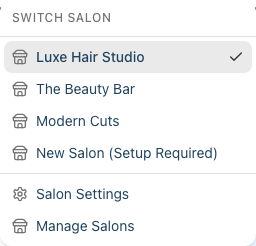
There are two ways to access your salon settings:
Option A - From the header:
- Click your salon name in the top navigation bar
- Select Salon Settings from the dropdown menu
Option B - From the Salons page (Owners only):
- Click Manage Salons from the salon dropdown, or navigate directly to the Salons page
- Click Edit next to the salon you want to update
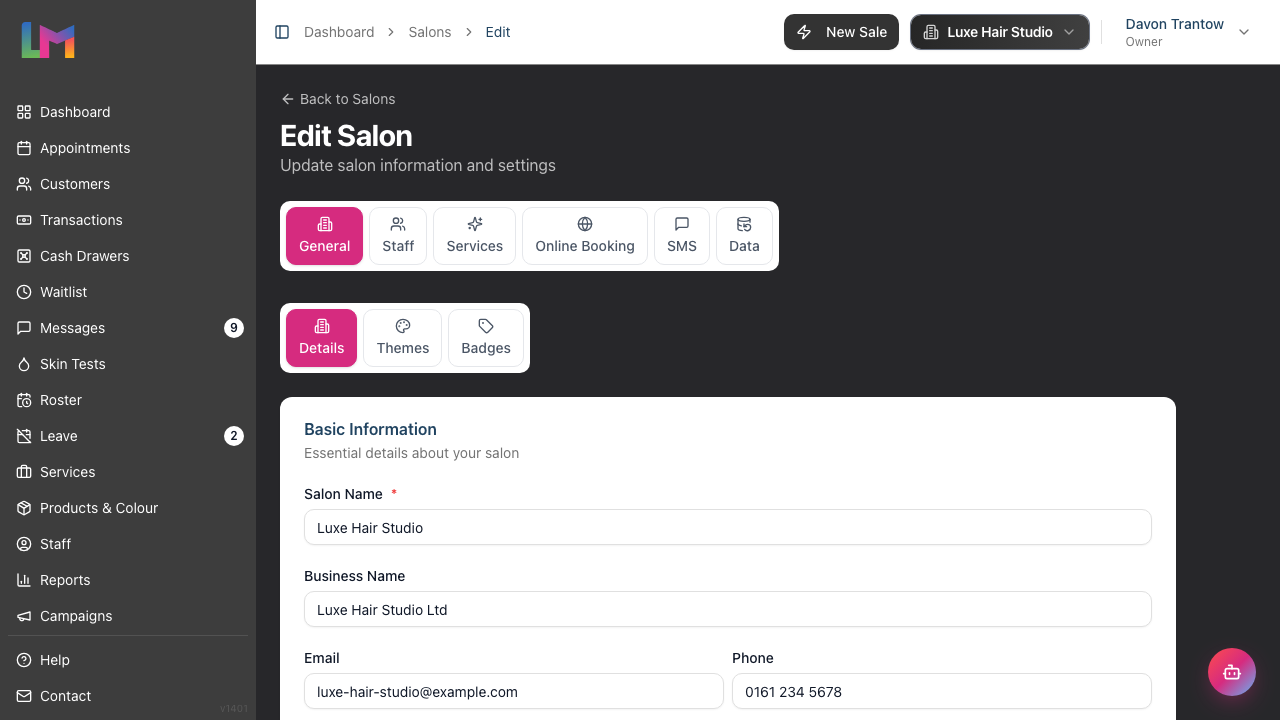
You'll arrive at the Edit Salon page. Across the top is a row of six tabs — General, Staff, Services, Online Booking, SMS, and Data. The General tab is selected by default, and within it the Details sub-tab — which holds your salon profile information — is shown first. This tutorial focuses on the Details and Themes sub-tabs of the General tab.
Understanding the settings tabs
Salon settings are organised into six top-level tabs, several of which contain their own sub-tabs. Here is what each one covers and where to read more:
| Tab | Sub-tabs | What it covers | More detail |
|---|---|---|---|
| General | Details, Themes, Badges | Salon profile, contact details, address, branding, theme, and appointment/customer badges | This tutorial |
| Staff | Roster, Levels, Display Order, Leave, Payroll, Public Holidays, Time Blocks | Rostering, staff levels, leave allowances, payroll periods, holidays and time blocks | Tutorials 13.4 and the staff-management section |
| Services | Colour, Skin Tests, Gift Vouchers | Colour formula mode and charges, skin/colour test settings, gift voucher rules | Sections 11 and 12 |
| Online Booking | — | Online booking portal settings, booking link, and bookable services | Online booking section |
| SMS | — | SMS credit balance, packs and auto top-up | Tutorial 13.3 |
| Data | — | Data exports (full salon or per customer) | Tutorial 12.4 |
Note: A Localization section (timezone, currency, date format) and a Tax Settings section both also live on the Details sub-tab. These are covered in Tutorial 13.2: Timezone, Currency, and Regional Settings.
Step 2: Update Basic Information
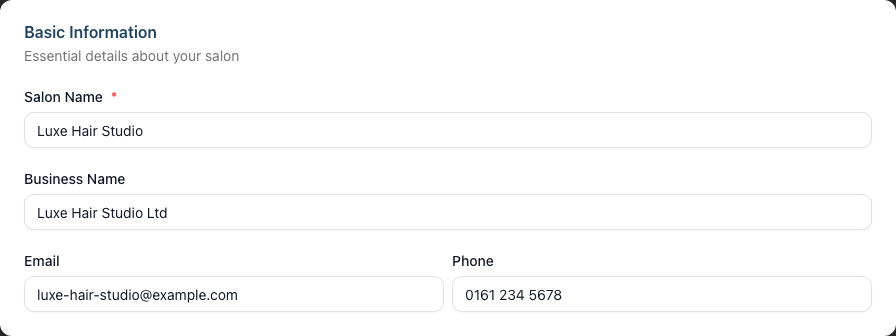
The Basic Information section contains your core business identity:
Salon Name (required)
- This is your trading name that customers see
- Appears on receipts, emails, appointment confirmations, and the booking page
- Example: "Luxe Hair Studio"
Business Name (optional)
- Your registered legal business name
- Used on official documents and invoices where a legal name is required
- Example: "Luxe Hair Studio Ltd"
To update these fields:
- Find the Basic Information card at the top of the Details sub-tab
- Edit the Salon Name field with your preferred trading name
- If different from your trading name, enter your Business Name
- Continue to the next section (changes are saved when you click Update Salon)
Step 3: Update Contact Details
Contact details ensure customers can reach you and receive communications from the correct address:
| Field | Purpose | Example |
|---|---|---|
| Primary salon email for customer communications | bookings@luxehair.example.com | |
| Phone | Main contact number for your salon | 020 7946 0958 |
To update contact details:
- In the Basic Information section, find the Email and Phone fields
- Enter your salon's primary email address
- Enter your main phone number
Where these appear:
- Email: Used as the sender address for automated notifications
- Phone: Displayed on appointment confirmations and reminders
Step 4: Update Your Location
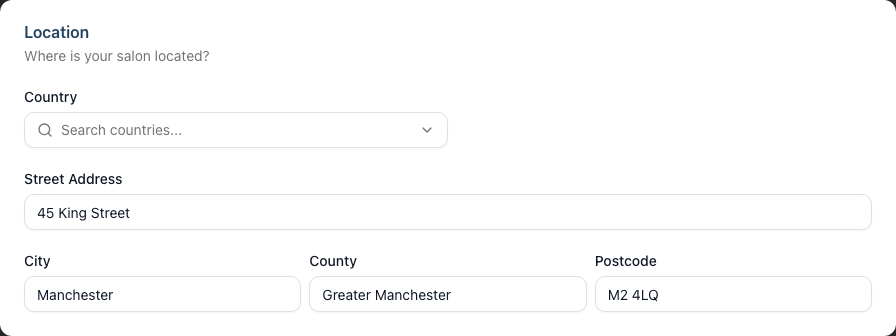
The Location section captures your salon's physical address:
Select your Country from the dropdown
- This determines the format of subsequent address fields
- Labels change based on country (e.g., "State" for USA, "County" for UK)
Enter your Street Address
- Your salon's street address including building number
- Example: "123 High Street, Unit 4"
Complete the remaining address fields:
- City - Your town or city
- County/State - Region or administrative area
- Postcode - Your postal or ZIP code
Why address matters:
- Appears on receipts and invoices
- Used for location-based features
- Helps customers find your salon
Step 5: Manage Your Salon Logo
Your logo provides brand recognition across Luminate. It appears on:
- Customer-facing emails
- Receipt headers
- PDF exports and invoices
- The online booking page (if enabled)
To upload a new logo:
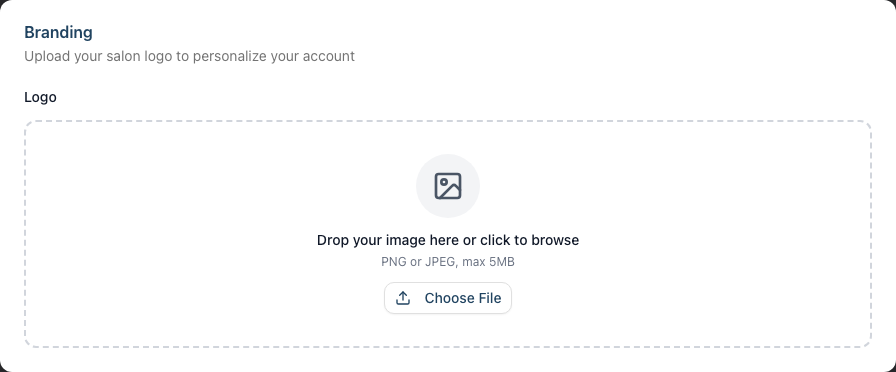
- Scroll to the Branding section
- Drag and drop your image file onto the upload area, or click Choose File
- Wait for the upload to process
- Your new logo will appear in the preview
To replace an existing logo:
- Click Remove Logo to clear the current image
- Upload your new logo following the steps above
To remove your logo entirely:
- Click Remove Logo
- If you change your mind, click Cancel Removal
- Save changes to confirm removal
Logo requirements:
- Formats: PNG or JPEG
- Maximum file size: 5MB
- Recommended: Square images (e.g., 500x500 pixels)
- Best results: PNG with transparent background
Step 6: Customise Your Theme
The Themes sub-tab lets you personalise the look and feel of your Luminate dashboard. Your chosen theme changes the sidebar colour, button highlights, active navigation states, and page header accents throughout the interface.
- From the Edit Salon page, make sure the General tab is selected, then click the Themes sub-tab (alongside Details and Badges)
- You'll see the Appearance section with the heading "Customise the look and feel of your salon dashboard"
Choosing a theme:
Themes are organised into two categories:
Solid themes use clean, flat colours with no texture. Each theme swatch shows a preview of two colours side by side — the left colour is the sidebar background and the right colour is the accent used for hover states, active tabs, and highlighted elements. Solid themes come in both dark variants (with light text) and light variants (with dark text), so you can choose whichever suits your preference.
Pattern themes add a subtle texture or pattern over the background colour. These use the same two-colour system as solid themes but include a visual pattern such as pinstripes, dots, a checkerboard, grid lines, or a speckled texture. Pattern themes give your dashboard a more distinctive, textured appearance.
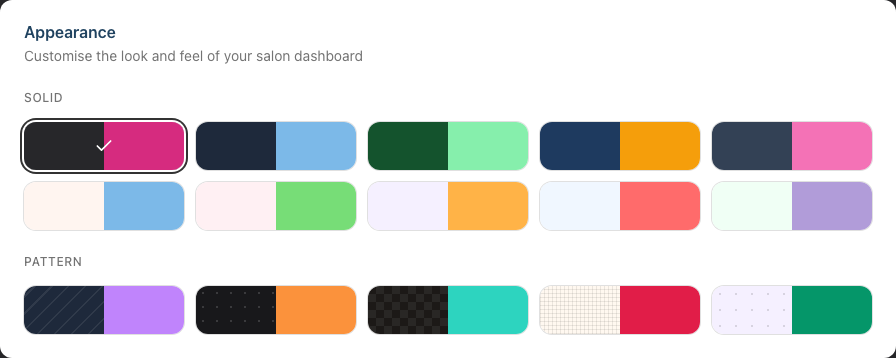
- Click any theme swatch to select it — a tick appears on the selected theme (which is also outlined with a highlight ring) and the dashboard updates immediately so you can preview how it looks
- Try a few options to see which one you prefer. The preview is live, so your sidebar and page accents change in real time as you click different swatches
- When you're happy with your choice, click Update Salon to save
If you change your mind, simply click Cancel and the dashboard reverts to your previously saved theme.
Note: The default theme for new salons is a dark charcoal with a magenta accent. You can change it at any time.
Where your theme appears:
- Sidebar background colour and pattern
- Active navigation item highlights
- Button hover states
- Tab indicators and selected states
- Page header text colour
Note: Your theme applies to the main Luminate dashboard only. The online booking page uses a separate, clean design with your salon logo and name rather than your dashboard theme.
Step 7: Review the Active Status
The Active checkbox (found in the Localization section) controls whether your salon is operational:
- Checked (Active): Salon can accept appointments and transactions
- Unchecked (Inactive): Salon is hidden from selection and cannot process bookings
This is useful when:
- Temporarily closing a location
- Setting up a new salon before launch
- Decommissioning an old location
Note: The Localization section also contains timezone, currency, and date format settings. A separate Tax Settings section below it lets you configure your tax rate and label (e.g., VAT, GST) for receipts and invoices. Both are covered in detail in Tutorial 13.2: Timezone, Currency, and Regional Settings.
Step 8: Save Your Changes
- Review all fields to ensure accuracy
- Click Update Salon at the bottom of the page
- A success message confirms your changes have been saved
Common Pitfalls
"I can't find the Salon Settings option"
Only Owners and Admins can access salon settings. If you don't see the option, check your role with your salon owner. See Tutorial 1.3 for role information.
"My logo looks blurry"
The uploaded image may be too small. For best results, use an image at least 500x500 pixels. Luminate scales your logo for different contexts, so starting with a larger image ensures quality.
"I changed the salon name but old receipts show the old name"
This is expected behaviour. Historical records preserve the information from when they were created. Only new receipts and communications use the updated name.
"I changed my theme but it went back to the old one"
You likely clicked Cancel instead of Update Salon after selecting a new theme. The live preview is temporary — you must save your changes for the theme to persist.
"The address fields have different labels than expected"
Address labels adapt to your selected country. For example, selecting "United States" shows "State" and "ZIP Code", while "United Kingdom" shows "County" and "Postcode". Select the correct country first.
Tips and Best Practices
Use a professional email address - Create a dedicated email like bookings@yoursalon.com rather than using a personal email
Keep your phone number consistent - Use the same format customers see on your website and signage
Update logo when rebranding - A new logo instantly refreshes all customer communications
Complete all address fields - Even if some seem optional, complete addresses look more professional on receipts
Check settings after moving - Update your address, phone, and any location-specific details promptly after relocating
Use themes to distinguish salons - If you manage multiple salons, give each one a different theme so you can tell at a glance which salon you're working in
Review quarterly - Add a reminder to check your salon profile every few months to catch outdated information
Related Tutorials
- Tutorial 1.2: Setting Up Your Salon Profile - Initial setup guide
- Tutorial 13.2: Timezone, Currency, and Regional Settings - Configure localisation options
- Tutorial 12.1: Multi-Salon Management for Owners - Managing multiple locations
Frequently Asked Questions
Can I have different contact details for different purposes?
Currently, Luminate uses one primary email and phone number per salon. For dedicated booking emails, consider using an email alias that forwards to your main inbox.
What's the difference between Salon Name and Business Name?
- Salon Name: Your trading name shown to customers (required)
- Business Name: Your legal/registered company name (optional)
Sole traders might use the same for both. Limited companies typically have a different legal name.
Does changing my address affect existing appointments?
No, address changes only affect future communications. Existing appointment confirmations already sent retain the old address.
Can I use an animated GIF as my logo?
No, animated images are not supported. Use a static PNG or JPG file.
What happens if I mark a salon as inactive?
Inactive salons cannot accept new appointments or transactions. Existing data is preserved, but staff cannot select the salon as their current context. Reactivate anytime by checking the Active box again.
Can I delete my salon instead of making it inactive?
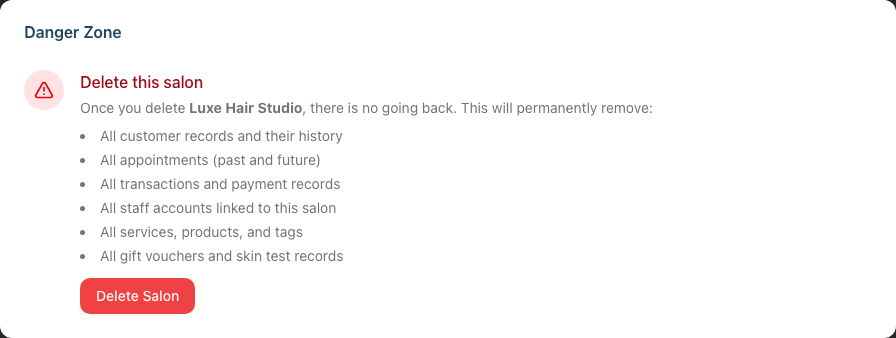
Yes, but use extreme caution. Deleting a salon permanently removes all data including customers, appointments, transactions, staff records, and financial history. This cannot be undone. The Danger Zone section at the bottom of the Details sub-tab allows salon deletion. You'll need to type your salon name exactly to confirm the deletion.
Does my theme affect what customers see?
No. Your theme only changes the appearance of the Luminate dashboard for you and your staff. Customer-facing pages like the online booking portal use a separate, neutral design with your salon logo and name.
Can different staff members have different themes?
No. The theme is set per salon, not per user. Everyone who accesses a salon sees the same theme. If you manage multiple salons, each salon can have its own theme.
Will my logo appear on customer emails?
Yes, your logo appears in the header of automated emails like appointment confirmations, reminders, and receipts.
Last Updated: January 2026