
SMS Balance and Usage Tracking
Tutorial 10.5: SMS Balance and Usage Tracking
Introduction
SMS messages have higher open rates than email - studies show over 90% of SMS messages are read within three minutes. This makes SMS perfect for appointment reminders, time-sensitive updates, and quick customer communications. However, unlike email, sending SMS costs money.
Luminate tracks your SMS credit balance and provides detailed usage reports so you can monitor spending, understand patterns, and ensure you never run out of credits at a critical moment. With features like low balance warnings and auto top-up, you can keep your notification system running smoothly without constant manual oversight.
This tutorial covers how to check your balance, understand usage, purchase credits, and set up automatic top-ups.
Who this is for: Salon owners and administrators who manage the salon's SMS budget and notification systems.
What you'll learn:
- Checking your current SMS balance
- Understanding how SMS credits are used
- Purchasing additional credits
- Setting up automatic top-up
- Reading the SMS usage report
- Optimising SMS usage to reduce costs
- Understanding trial period SMS restrictions
Time to complete: 10-15 minutes
Prerequisites
Before you begin, make sure you have:
- Owner or Admin role access
- Access to the salon's Settings area
Step-by-Step Instructions
Step 1: Check Your Current SMS Balance
There are two places to view your SMS balance:
From Salon Settings:
- Click Settings in the main sidebar menu
- Select your salon
- Click the SMS tab
You'll see two summary cards at the top:
- Current Balance - How many credits you have available right now
- Last Top-up - When you last purchased credits (or "Never" if you haven't)
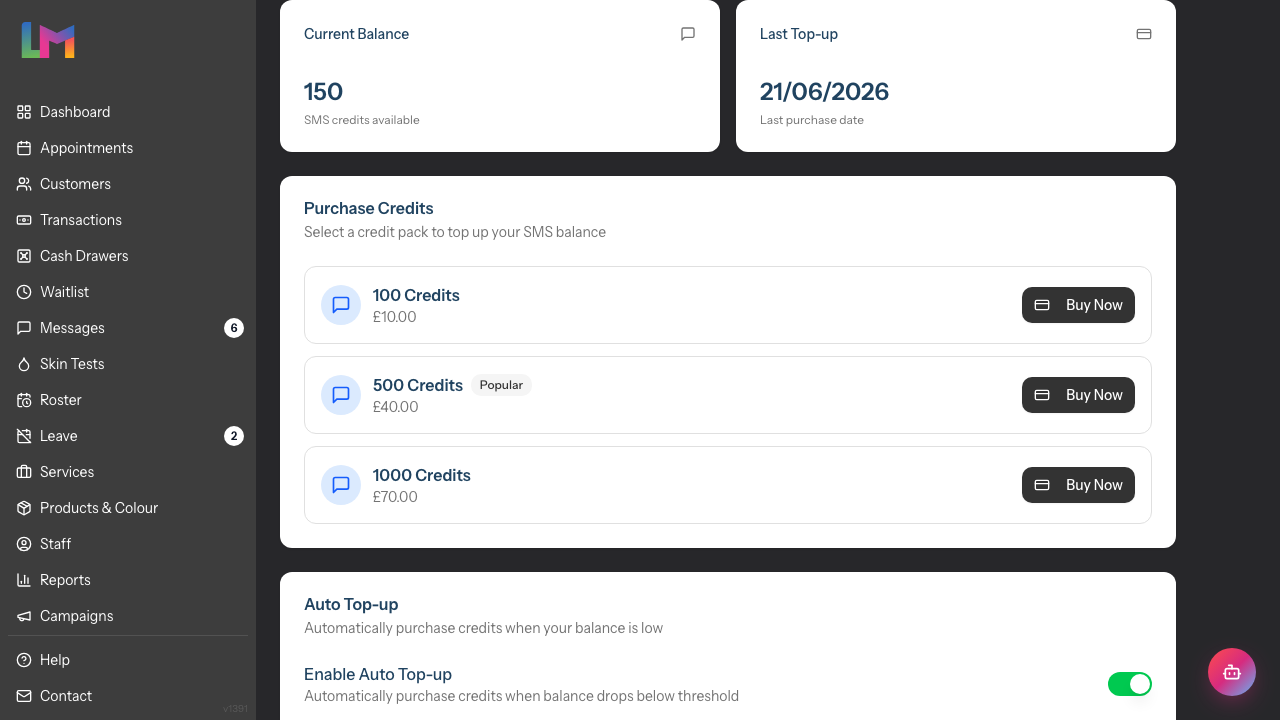
Low balance warnings: If your balance is running low, you'll see an alert banner:
- Yellow warning - Balance is low, consider topping up soon
- Red critical warning - Balance is critically low, top up immediately to avoid disruption
When your balance is critically low, a prominent banner also appears at the top of the app (for owners and admins), not just on the settings page, with a Top Up Now shortcut.
You'll also receive a once-daily low-balance reminder by email and in-app. To avoid pointless nudges, this reminder is only sent when your salon can actually send paid messages — so it is not sent if your SMS isn't set up, if you're on a trial with SMS disabled (beta accounts and salons with an active WhatsApp number still receive it, as those can use credits), if your account is suspended, or if you've paused automated messaging. The in-app balance banners above are unaffected and always reflect your current balance.
Step 2: Understand SMS Credit Usage
Each SMS message uses credits based on message length:
| Message Length | Credits Used |
|---|---|
| Up to 160 characters | 1 credit |
| 161-306 characters | 2 credits |
| 307-459 characters | 3 credits |
| And so on... | +1 per ~153 chars |
What uses credits:
- Appointment reminders via SMS
- Follow-up messages via SMS
- Birthday notifications via SMS
- Manual SMS messages from the inbox
- Two-way SMS replies to customers
What doesn't use credits:
- Email notifications (free)
- Messages to customers without valid phone numbers (skipped)
- Failed messages that don't deliver (may not be charged)
Step 3: Purchase SMS
To buy more credits:
Navigate to Settings > SMS
Under Purchase Credits, you'll see available credit packs:
Credits Description GBP EUR USD AUD 100 Ideal for light SMS usage £10.00 €12.00 $13.00 $15.00 500 Popular choice for regular reminders £40.00 €48.00 $52.00 $60.00 1,000 Best value for busy salons £70.00 €84.00 $91.00 $105.00 You're only charged in your salon's own currency — the price shown next to each pack matches the currency on your account. Larger packs offer a better per-credit rate: the 100 pack works out at 10p per credit, the 500 pack at 8p, and the 1,000 pack at 7p (GBP equivalent).
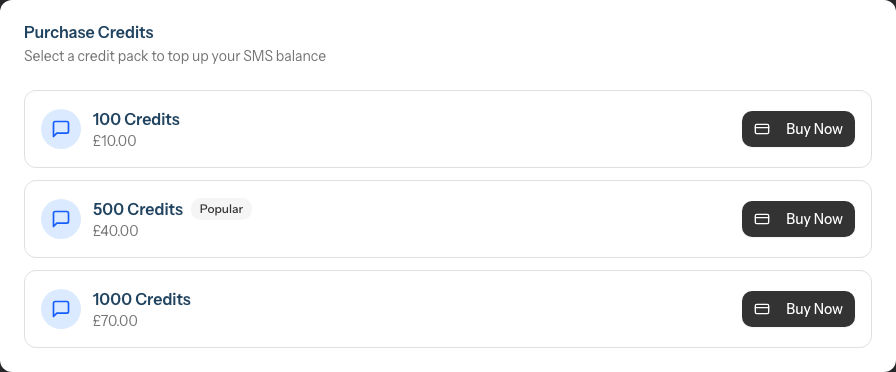
Click Buy Now next to your chosen pack
A confirmation dialog opens showing the credits and total cost
Complete the payment. What happens next depends on your account:
- If you have a saved payment method (the card on your subscription), the dialog button reads Purchase Now. Click it and the card is charged securely — your credits are added immediately.
- If you don't have a saved card, the button reads Proceed to Payment. Click it to be redirected to our secure payment provider (Stripe Checkout) to complete the purchase. Once payment succeeds you're returned to the SMS tab with a confirmation, and your credits are added shortly after.
Notes:
- You cannot purchase credits during your free trial — the Buy Now buttons are disabled and a notice explains that purchasing is unavailable until you subscribe (see Step 7).
- If online payments haven't been enabled on your account yet, the confirmation dialog shows a Payment Integration Coming Soon message. In that case, contact hello@luminate.salon and we'll add credits to your account.
Step 4: Set Up Automatic Top-up
Never run out of credits unexpectedly by enabling auto top-up:
- Navigate to Settings > SMS
- Scroll to the Auto Top-up section
- Toggle Enable Auto Top-up to ON
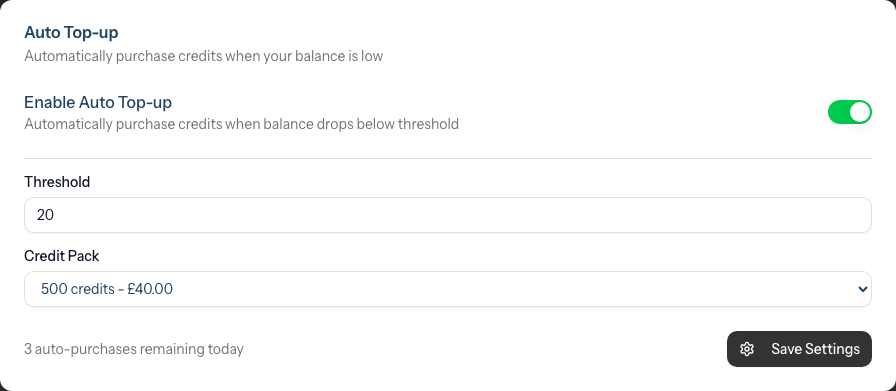 4. Configure the settings:
Threshold - The balance level that triggers a purchase
- Example: Set to 20 means when balance drops below 20 credits, auto-purchase activates
- Choose a number that gives you buffer before running out
Credit Pack - Which pack to purchase automatically
- Select from the dropdown of available packs
- Consider your typical monthly usage when choosing
- Click Save Settings
Auto top-up safety:
- Limited to a maximum number of automatic purchases per day (shown on screen)
- You'll see "X auto-purchases remaining today" to track this limit
- Prevents runaway costs if something goes wrong
Step 5: View the SMS Usage Report
For detailed usage history and analytics:
- From the SMS tab, click View Report
- Or open it from the Reports area
Who can see the report: The SMS Usage Report is available to anyone with reports access (owners, admins and managers). Note that purchasing credits and managing auto top-up remain owner/admin only, and exporting the report requires export permission (owners and admins).
- The SMS Usage Report shows:
Summary Cards:
- Current Balance - Your available credits
- Total Purchased - All credits ever purchased
- Total Used - All credits ever consumed
- Last Top-Up - Date of most recent purchase
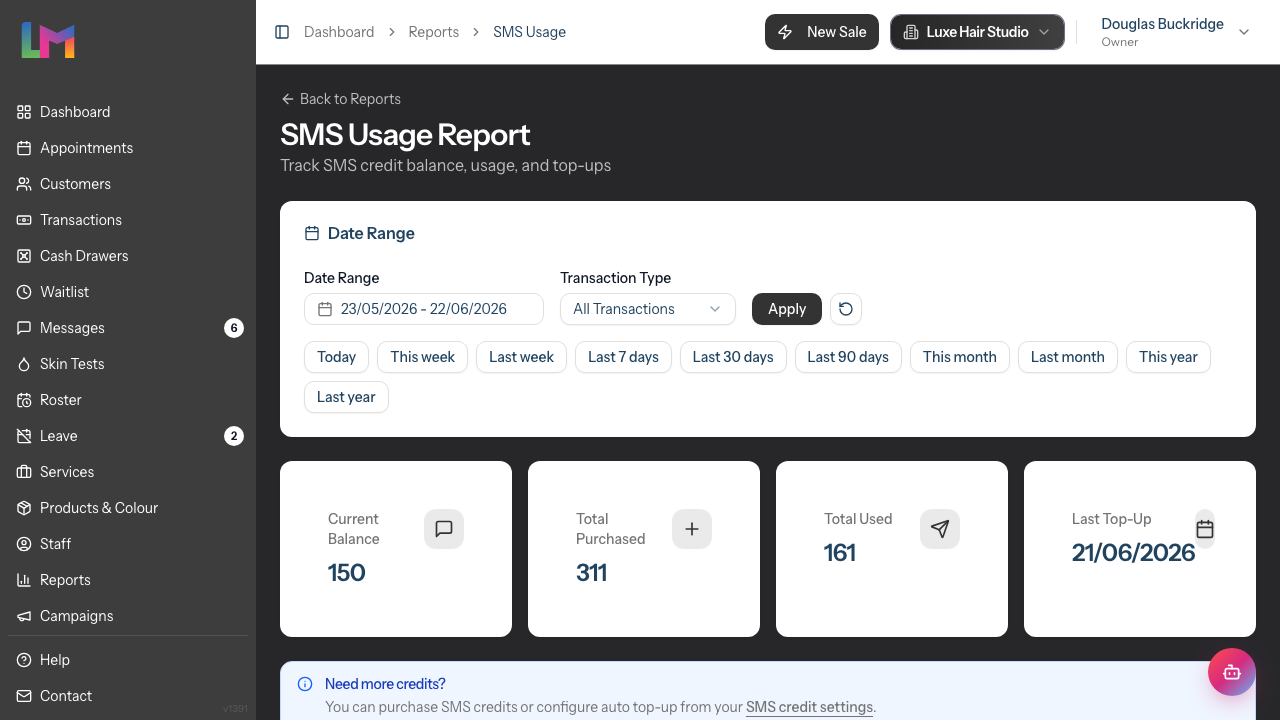
Usage Trend Chart:
- Visual graph showing daily credit usage over time
- Helps identify patterns (busy days, seasonal trends)
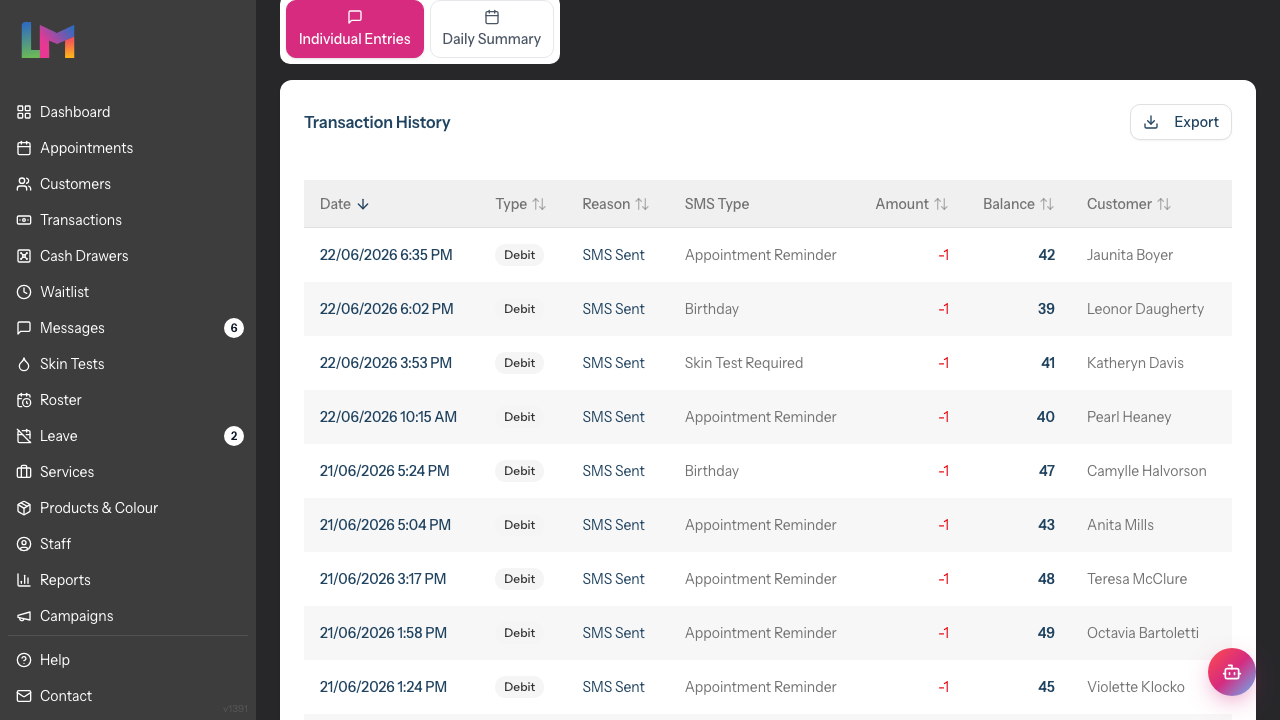
Transaction History: Two tabs show different views of the data:
Individual Entries tab: Each row shows a single transaction:
- Date - When the transaction occurred
- Type - Credit (credits added), Debit (credits used) or Set (a manual balance correction)
- Reason - Why credits were added or used
- SMS Type - The notification type (e.g., appointment reminder, follow-up, messaging)
- Amount - How many credits (+added or -used)
- Balance - Running balance after this transaction
- Customer - Who received the message (for usage entries)
Daily Summary tab: Aggregated daily view:
- Date - The day
- Credits Added - Total purchased that day
- Credits Used - Total consumed that day
- Net Change - Difference (+gained or -spent)
- Transactions - Number of individual transactions
Step 6: Filter and Export Usage Data
The SMS Usage Report offers filtering options:
Date Range:
- Set start and end dates to focus on a specific period
- Useful for monthly reviews or billing reconciliation
Transaction Type:
- All Transactions - See everything
- Usage Only - See only credit consumption
- Top-Ups Only - See only purchases
- Adjustments - See manual balance changes
Export:
- Click the Export button and choose Export as CSV or Export as PDF
- CSV is great for accounting, expense tracking, or analysis in spreadsheets; PDF is handy for a printable record
- The export reflects whichever tab you're viewing (Individual Entries or Daily Summary) and your current filters
Step 7: Understand Trial Period SMS Restrictions
If you're using Luminate during your free trial period, SMS messaging has the following restrictions:
During your trial:
- SMS reminders and notifications cannot be sent
- Two-way SMS messaging in the inbox is disabled
- Buying credits and auto top-up are disabled — the SMS tab shows an "SMS unavailable during trial" notice with a link to subscribe, and the Buy Now buttons are greyed out
- Your SMS credit balance is visible but cannot be used
What still works during trial:
- Email notifications continue to work normally
- You can configure SMS templates and reminder settings (they'll be ready when you subscribe)
- You can view the SMS tab and understand pricing
When you subscribe:
- SMS messaging is enabled immediately
- Any configured SMS reminders will start sending automatically
- Credits you've purchased or received will become usable
Beta users: If you're part of the Luminate beta programme, SMS restrictions do not apply during your trial. This allows beta testers to fully evaluate the SMS features.
Step 8: Monitor and Optimise Usage
Review your SMS usage periodically to optimise costs:
Check for waste:
- Are reminders going to invalid phone numbers?
- Are messages longer than needed (using multiple credits)?
Balance cost vs effectiveness:
- Email is free but has lower open rates
- SMS costs credits but gets immediate attention
- Consider email for first reminder, SMS for same-day
Seasonal patterns:
- Busy periods need more credits
- Plan top-ups before expected rushes
Common Pitfalls
"I'm using more credits than expected"
Check these common causes:
- Long messages - Each 160 characters uses one credit. A 200-character message uses 2 credits.
- Multiple reminders - If you have three SMS reminders per appointment, each uses credits.
- Special characters - Emojis and certain characters reduce the per-segment limit to 70 characters.
"Auto top-up isn't working"
Verify:
- Auto top-up is toggled ON
- A credit pack is selected
- You haven't hit the daily purchase limit
- Payment method is valid
"I can't see the SMS tab"
Only Owners and Admins can access credit management (buying credits and auto top-up). Staff, Managers, and Receptionists won't see this tab. Managers do, however, have reports access, so they can still open the SMS Usage Report to review usage — they just can't purchase credits or export the report.
"The critical balance warning won't go away"
The banner disappears once you add sufficient credits. If you've just topped up, try refreshing the page.
"My SMS messages aren't sending"
Check these possible causes:
- Trial period - SMS is disabled during your free trial. Subscribe to enable SMS.
- Insufficient credits - Check your balance in Settings > SMS.
- Customer opted out - The customer may have unsubscribed from SMS notifications.
- Invalid phone number - The customer's phone number may be incorrectly formatted.
Tips and Best Practices
Set threshold higher than you think - If you use 100 credits/month, set threshold to 50 so you're alerted with plenty of buffer.
Enable auto top-up for peace of mind - Manually topping up is easy to forget, especially during busy periods.
Review usage monthly - The report helps you understand patterns and forecast needs.
Keep SMS messages short - Every character counts. "Reminder: Tomorrow 2pm at Luminate - {first_name}" is better than a long paragraph.
Avoid special characters - Emojis are tempting but can triple your credit cost per message. Stick to plain text.
Use email for longer messages - If you need to share detailed information, email is free and allows more content.
Check failed messages - Failed deliveries to invalid numbers waste credits. Regularly clean up your customer phone data.
Plan for promotions - Birthday campaigns or marketing pushes via SMS can spike usage. Top up beforehand.
Export for expense tracking - Download reports monthly for your accounting records.
Contact support if stuck - If you need credits urgently or have billing questions, email hello@luminate.salon.
Related Tutorials
- Tutorial 10.1: Setting Up Appointment Reminders - Configure SMS reminders
- Tutorial 10.3: Creating Custom Notification Templates - Write efficient SMS templates
- Tutorial 10.4: Managing the Messaging Inbox - Send manual SMS messages
- Tutorial 14.1: Understanding Your Luminate Subscription - General billing overview
Frequently Asked Questions
Can I use SMS during my free trial?
No, SMS messaging is disabled during the trial period. This includes SMS reminders, follow-ups, and two-way messaging. Email notifications continue to work during your trial. Once you subscribe, SMS is enabled immediately. Beta users are exempt from this restriction.
How much does one SMS credit cost?
It depends on which pack you buy — larger packs offer a better per-credit rate. In GBP, the 100 pack is 10p per credit (£10.00), the 500 pack is 8p per credit (£40.00), and the 1,000 pack is 7p per credit (£70.00). See the pack table under "Purchase SMS" above for prices in EUR, USD and AUD. The current prices are always shown next to each pack on the Settings > SMS tab.
Do unused credits expire?
No, SMS credits do not expire. Once purchased, they remain in your account until used.
What happens when I run out of credits?
SMS notifications will fail to send. Customers won't receive SMS reminders or messages until you add more credits. Email notifications are unaffected.
Can I get a refund for unused credits?
Contact support at hello@luminate.salon to discuss your situation.
Are credits shared across multiple salons?
No, each salon has its own separate SMS credit balance. Multi-salon owners must top up each salon individually.
How are international SMS charged?
Currently, Luminate SMS is optimised for UK numbers. International rates may vary - contact support for details.
Can I see which specific messages used credits?
Yes, the Individual Entries view in the SMS Usage Report shows each message, including the customer who received it.
Why did a single message use multiple credits?
SMS messages over 160 characters (or 70 with special characters like emojis) are split into multiple segments, each costing one credit.
Is there a minimum purchase?
The smallest available pack sets the minimum purchase. Check your SMS tab for current pack options.
How quickly are purchased credits available?
Credits are typically available immediately after successful payment. If you don't see them, try refreshing the page.
Last Updated: June 2026 Reviewed: June 2026