
Birthday Notifications and Customer Engagement
Tutorial 10.2: Birthday Notifications and Customer Engagement
Introduction
Birthday messages are a simple but powerful way to make customers feel valued and drive bookings. A well-timed birthday greeting, especially one that includes a special offer, can turn an inactive customer into a regular visitor and strengthen loyalty among your existing clientele.
Luminate's birthday notification system automatically sends personalised greetings to customers on or around their birthday. You choose when to send them (on the day, a few days before, or after), which channel to use (email, SMS, or WhatsApp), and what message template to use. You can even set up multiple birthday notifications at different times.
This tutorial shows you how to configure birthday notifications and use them as part of your customer engagement strategy.
Who this is for: Salon owners, administrators, and managers who want to build customer loyalty and drive birthday bookings.
What you'll learn:
- How birthday notifications work in Luminate
- Setting up birthday notifications via email, SMS, or WhatsApp
- Choosing the right timing for birthday messages
- Managing multiple birthday notifications
- Understanding marketing consent requirements
- Ideas for effective birthday campaigns
Time to complete: 10-15 minutes
Prerequisites
Before you begin, make sure you have:
- The Manage notifications permission (Owners, Admins, and Managers have this by default)
- Customer records with birth dates entered
- Customers with marketing consent enabled for the relevant channel (birthday messages are marketing, not transactional — consent is recorded separately for email, SMS, and WhatsApp)
- Birthday notification templates created (or plan to use the built-in defaults)
- For SMS and WhatsApp: sufficient SMS/messaging credits in your account
- For WhatsApp: WhatsApp is available to all salons — you simply choose it as the channel when adding a notification. WhatsApp messages use pre-approved Meta templates
Step-by-Step Instructions
Step 1: Navigate to Birthday Notifications
- From any page in Luminate, click Notifications in the main sidebar menu
- Ensure the Configuration tab is selected
- Scroll down to find the Birthday Notifications section
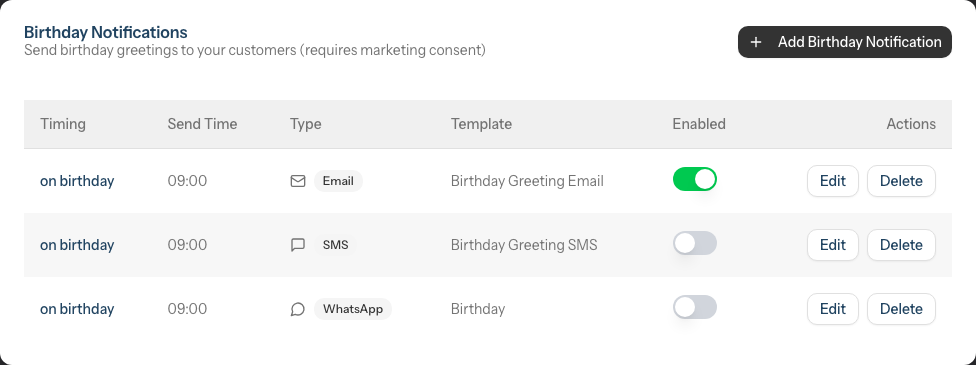
The section heading reads Birthday Notifications with the subtitle "Send birthday greetings to your customers (requires marketing consent)" - this is important to understand before proceeding.
You don't start from a blank slate. Luminate pre-creates three default birthday notifications for every salon, all set to send on the customer's birthday at 09:00:
- Birthday Email - enabled by default
- Birthday SMS - disabled by default (to avoid spending credits until you're ready)
- Birthday WhatsApp - disabled by default
You can edit these defaults, switch them on or off, or add more notifications at different timings.
Step 2: Understand Marketing Consent Requirements
Birthday notifications are classified as marketing communications because they often include promotional offers and aren't essential for service delivery. This means:
- Only customers who have opted in to marketing will receive birthday messages
- Consent is recorded separately for each channel - a customer might allow marketing email but not SMS. A birthday email only goes to customers who have opted in to marketing email; a birthday SMS only to those who have opted in to marketing SMS; and a birthday WhatsApp only to those who have opted in to marketing WhatsApp
- Customers set their marketing consent when their profile is created or updated
- You can check individual customer consent in the Communication Preferences section of their profile
- Sending to customers without consent could violate GDPR and marketing regulations
To maximise your birthday campaign reach, encourage customers to opt in to marketing communications when they visit or book online.
Step 3: Add a Birthday Notification
In the Birthday Notifications section, click Add Birthday Notification
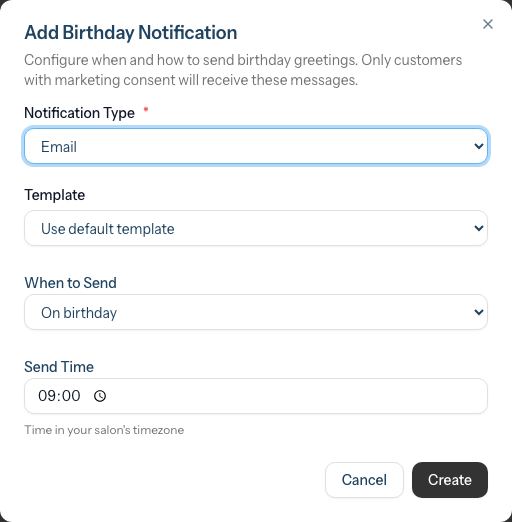
A dialog appears with four configuration options:
Notification Type - Choose the channel:
- Email - Free, allows longer messages with images and formatting
- SMS - Costs credits, but has immediate impact
- WhatsApp - Costs credits and uses a pre-approved Meta template
Template - Select a birthday message template:
- For Email and SMS, only templates categorised as "Birthday" type will appear. If none exist for that channel, you'll see a note that the default birthday template will be used
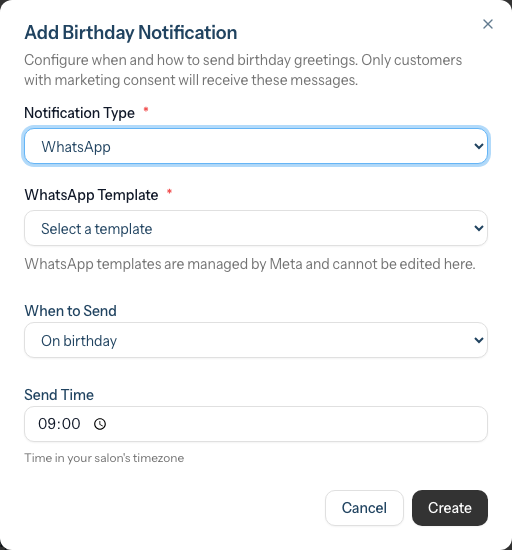
- For WhatsApp, the field becomes a WhatsApp Template picker showing the pre-approved templates managed by Meta. These cannot be edited within Luminate, and a read-only preview is shown
- See Tutorial 10.3 to create custom birthday templates
When to Send - Choose the timing relative to the birthday:
Option Description 1 week before Send a "birthday coming up" message 3 days before Pre-birthday reminder 1 day before "Tomorrow is your birthday!" On birthday Send on the actual day 1 day after Belated birthday greeting 3 days after Extended birthday wishes 1 week after Late birthday greeting Send Time - Choose what time of day to send:
- Enter a time in 24-hour format (e.g., 09:00 for 9am)
- The time uses your salon's configured timezone
- Morning times (9:00-10:00) typically have good engagement
Click Create to save your birthday notification (the button reads Update when you're editing an existing one)
Note: You can only have one birthday notification per timing-and-channel combination. If you try to add a second notification with the same timing and channel (for example a second "On birthday" SMS), Luminate shows the error "A birthday notification with this timing and channel already exists."
When you choose WhatsApp as the type, the editable template field is replaced by the read-only WhatsApp Template picker and preview:
Step 4: View Your Birthday Notifications
Each notification appears in the Birthday Notifications table with:
| Column | Shows |
|---|---|
| Timing | When it's sent (e.g., "on birthday", "1 week before birthday", "3 days after birthday") |
| Send Time | The scheduled time of day (24-hour) |
| Type | An Email, SMS, or WhatsApp badge |
| Template | The template name, or "Default birthday template" |
| Enabled | Toggle switch to activate/deactivate |
| Actions | Edit and Delete buttons |
Step 5: Create a Multi-Touch Birthday Campaign
For maximum impact, consider sending multiple birthday messages. Here's an effective approach:
Pre-Birthday Teaser (1 week before, Email)
- Build anticipation with "Your birthday is coming up!"
- Mention that a special treat awaits
- Include a booking link
Birthday Day Message (On birthday, SMS)
- Send a personal "Happy Birthday!" greeting
- Include a time-limited offer (e.g., "20% off this week")
- Keep it short and celebratory
Reminder (3 days after, Email)
- If they haven't booked, send a gentle reminder
- "We'd love to pamper you for your birthday - offer ends soon!"
To set this up, simply add three separate birthday notifications with different timings.
Step 6: Enable or Disable Birthday Notifications
Use the toggle switch in the Enabled column to control each notification:
- Toggle ON - Notification is active and will be sent
- Toggle OFF - Notification is saved but won't be sent
This is useful for:
- Seasonal adjustments (pause during quiet periods)
- A/B testing different approaches
- Temporarily disabling without losing your configuration
Step 7: Edit a Birthday Notification
To modify an existing notification:
- Find it in the Birthday Notifications table
- Click Edit in the Actions column
- Update any settings: channel, template, timing, or send time
- Click Update to save changes
Step 8: Delete a Birthday Notification
To remove a notification:
- Click Delete in the Actions column
- Confirm by clicking Delete in the dialog
- The notification is permanently removed
Common Pitfalls
"No customers are receiving birthday notifications"
Check these common causes:
- Missing birth dates - Customer profiles need a birth date entered
- Marketing consent - Customers must have marketing enabled for the matching channel (email, SMS, or WhatsApp)
- Notification disabled - Verify the toggle switch is ON (remember the default SMS and WhatsApp notifications start switched off)
- No valid contact info - Email notifications need an email address; SMS and WhatsApp need a mobile number
- Messaging paused - Check that the Pause All Messaging switch at the top of the Configuration tab isn't turned on
"I want to include a discount code but it's the same for everyone"
Currently, Luminate sends the same message to all birthday recipients. For personalised codes, consider using template tokens like {first_name} and setting up a general birthday discount code in your booking system that's valid during each customer's birthday month.
"Some customers received two birthday messages"
If you have multiple birthday notifications set up at different timings, each one will send separately. Review your notification list to ensure you don't have overlapping notifications. Note that Luminate prevents you from creating two notifications with the same timing and channel, but you can still have, say, an email and an SMS both set to "On birthday".
"I get an error when adding a notification"
If you see "A birthday notification with this timing and channel already exists", you already have a notification with that exact combination of timing and channel. Either edit the existing one, or pick a different timing or channel.
Tips and Best Practices
Capture birth dates consistently - Train staff to ask for birth dates during booking or check-in. You can't send birthday notifications without this information.
Make consent easy - When customers update their preferences via the QR code or email link, the marketing opt-in is clearly presented. Mention the birthday perks!
Include a clear offer - Birthday messages perform much better when they include a concrete benefit:
- Percentage discount (e.g., "20% off your birthday visit")
- Free add-on service (e.g., "Complimentary conditioning treatment")
- Gift (e.g., "Collect your birthday gift when you visit")
Set an expiry - Create urgency by limiting when the offer can be used (e.g., "Valid during your birthday week" or "Use within 14 days").
Personalise your templates - Use tokens like
{first_name}to make messages feel personal, not mass-produced.Test your timing - Morning messages (9-10am) often work well for emails, while early afternoon (12-1pm) can be effective for SMS during lunch breaks.
Track results - Note which customers book after receiving birthday messages to measure the campaign's effectiveness.
Consider your brand voice - A formal salon might send "We'd like to wish you a wonderful birthday", while a trendy salon might say "Happy birthday, gorgeous! Time to treat yourself!"
Related Tutorials
- Tutorial 3.1: Adding and Managing Customer Profiles - Ensure birth dates are captured
- Tutorial 3.3: Customer Preferences and Communication Consent - Understand marketing opt-in
- Tutorial 10.1: Setting Up Appointment Reminders - Configure transactional notifications
- Tutorial 10.3: Creating Custom Notification Templates - Design custom birthday messages
Frequently Asked Questions
Do birthday notifications count as transactional or marketing?
Birthday notifications are marketing communications. They're not essential for delivering a booked service, so they require explicit marketing consent from the customer.
What if a customer doesn't have a birth date in their profile?
They won't receive birthday notifications. The system only sends to customers with a valid birth date on file.
Can I send a gift voucher automatically as a birthday present?
Currently, the birthday notification system sends messages only - it doesn't automatically create gift vouchers. However, you could include a unique code in your template that staff can apply manually when the customer books.
How many birthday notifications can I set up?
You can add one notification per timing-and-channel combination - with seven timings and three channels, that's a theoretical maximum of 21. In practice we recommend no more than three (before, on, and after) to avoid overwhelming customers.
Can I send birthday messages via WhatsApp?
Yes. WhatsApp is available to all salons as a channel alongside email and SMS. WhatsApp messages use a pre-approved Meta template that can't be edited inside Luminate, and they consume messaging credits. Customers must have opted in to marketing WhatsApp to receive them.
What happens if a customer has a birthday during a salon closure (e.g., Christmas)?
The system will still attempt to send the notification. If your salon is closed for extended periods, consider temporarily disabling birthday notifications or adjusting your offer validity period.
Are birthday notifications sent for staff members too?
No, birthday notifications only go to customers. Staff birthdays would need to be managed separately.
Can I see a list of upcoming birthdays?
Currently, Luminate doesn't have a dedicated upcoming birthdays report. You could export your customer list and sort by birth date to identify upcoming birthdays manually.
Last Updated: June 2026