
Leave Reports and Year-End Management
Tutorial 6.4: Leave Reports and Year-End Management
Introduction
The Leave Report provides a team-wide view of leave allowances and usage. This tutorial covers accessing leave reports, understanding the summary data, and how year-end carryover is handled automatically based on your salon's settings.
Who this is for: Owner, Admin What you'll learn:
- Access and interpret the Leave Report
- View team-wide allowance summaries
- Export leave data for payroll or records
- Understand how year-end carryover works automatically
Time to complete: 8 minutes
Prerequisites
- Logged in as Owner or Admin (the Leave Report requires the view leave report permission, which Managers and other staff roles do not have)
- Staff members with leave data to report on
- Complete Tutorial 6.1 (Understanding Staff Leave Allowances)
Step-by-Step Instructions
Step 1: Access the Leave Report
- Click Reports in the sidebar
- Under Staff Reports, click Leave Report
- The Leave Report page opens
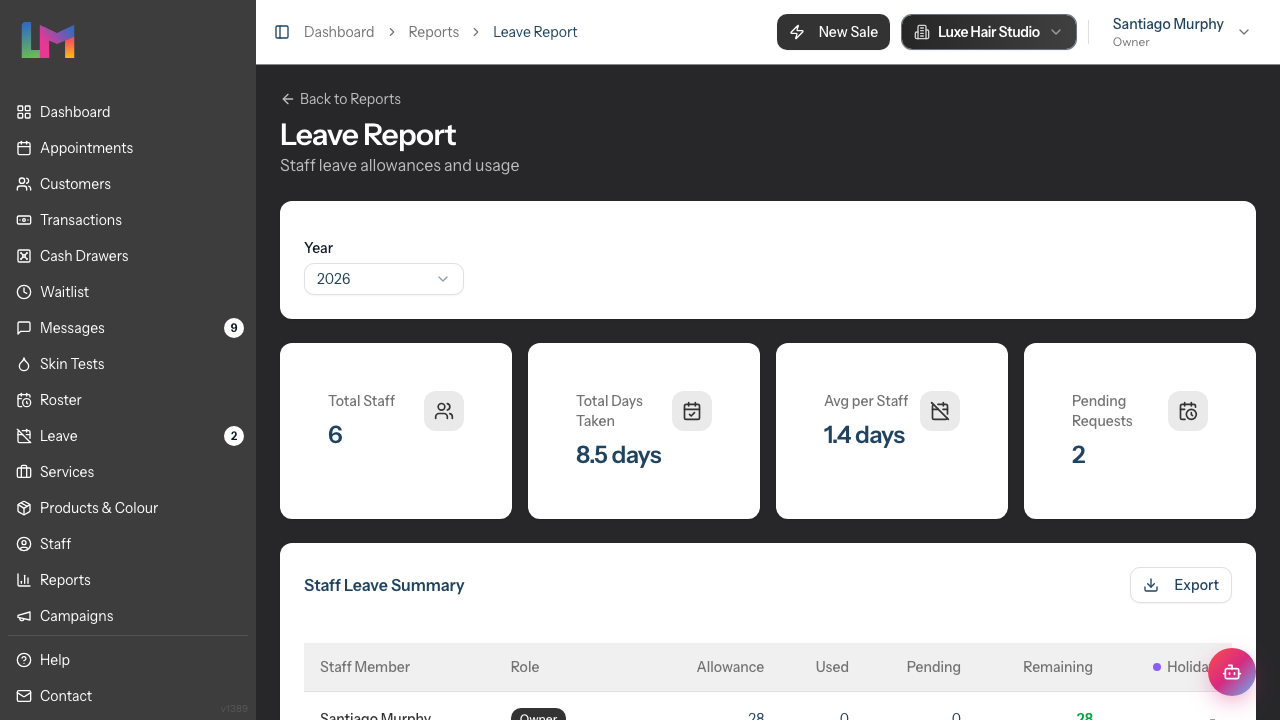
The report covers your active staff. Staff who haven't yet had a leave allowance created for the selected year still appear in the table, but with dashes in their figures.
Step 2: Filter by Year
The report defaults to the current year. To view a different year:
- Use the Year dropdown at the top
- Select the desired year — the dropdown offers next year, the current year, and the two previous years
- The report updates to show data for that year
Step 3: Review Summary Cards
At the top of the report, four summary cards display:
| Card | Description |
|---|---|
| Total Staff | Number of staff with a leave allowance record for the selected year |
| Total Days Taken | Combined approved leave days across all staff (for types that deduct from allowance) |
| Avg per Staff | Average days taken per staff member (Total Days Taken ÷ Total Staff) |
| Pending Requests | Number of pending leave requests awaiting approval |
Note: If "Pending Requests" shows a number greater than 0, there are requests waiting for manager review.
Step 4: Review the Staff Leave Table
The main table shows leave data for each staff member:
| Column | Description |
|---|---|
| Staff Member | Name (links to staff profile) |
| Role | Staff role badge |
| Allowance | Total allowance for the year (Base + Carried Over) |
| Used | Days taken from approved leave requests |
| Pending | Days from pending requests |
| Remaining | Allowance - Used - Pending |
The table also includes columns for each leave type that deducts from allowance (typically just Holiday), showing how many days of that type each staff member has taken.
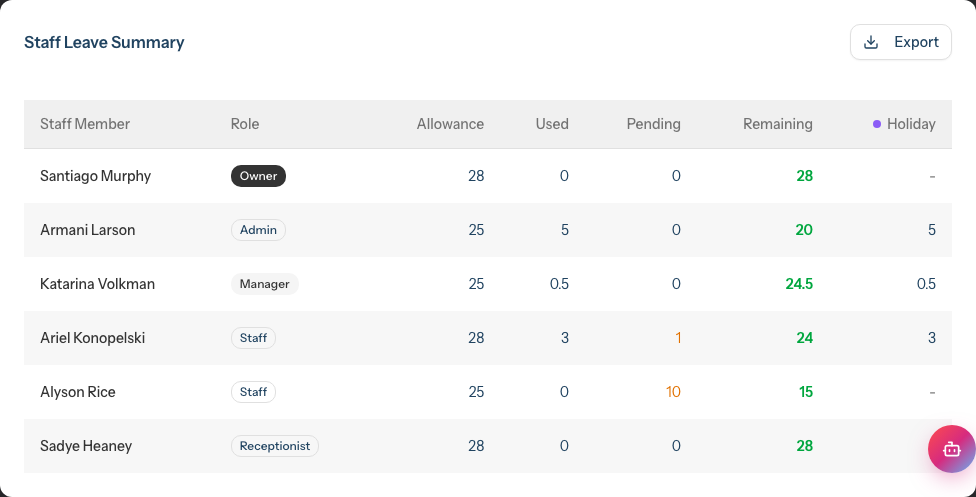
Colour coding for Remaining (based on the percentage of the allowance still remaining):
- Green: Healthy balance (more than 25% remaining)
- Amber: Low balance (11–25% remaining)
- Red: Very low balance (10% or less remaining)
Step 5: Review Leave Types Legend
At the bottom of the page, a Leave Types legend shows all leave types with their colours and whether they deduct from allowance:

- Leave types marked "(deducts)" reduce the staff member's allowance when approved
- Leave types without this marker are tracked separately (e.g., Sick, Unpaid)
Step 6: Export Leave Data
To export the report data:
- Click Export at the top of the Staff Leave Summary table
- Select Export as CSV from the dropdown menu
- The download starts automatically (the file is named
leave-report-<year>.csv) - Open the file in Excel or your preferred spreadsheet application
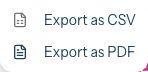
Note: The Export dropdown also lists an Export as PDF option, but the Leave Report only produces a CSV file — choose Export as CSV.
The export includes:
- Staff name and role
- Allowance, used, pending, and remaining columns
- Days taken by each leave type that deducts from allowance
Use cases for export:
- Payroll processing (verify leave balances)
- HR records (archive annual data)
- Management reporting (share with owners)
Understanding Year-End Carryover
How Carryover Works
Carryover is handled automatically based on your salon's leave settings (configured in Edit Salon → Staff → Leave tab):
Carryover Policy options:
| Policy | Behaviour |
|---|---|
| No carryover | Unused days are lost at year end |
| Full carryover | All unused days roll over to the next year |
| Capped carryover | Up to a maximum number of days roll over |
When a staff member first views their leave page or requests leave in the new year, the system:
- Checks the previous year's remaining balance
- Applies the carryover policy to calculate carried days
- Creates a new allowance record for the current year with the carried amount
Checking Carryover
To see carried over amounts:
- Navigate to Leave in the sidebar
- Look at the Your Leave Allowance card
- The Carried Over field shows days brought forward from the previous year
In the Leave Report:
- The Allowance column shows the total (Base + Carried Over)
- To see the breakdown, click through to the individual staff member's leave page
Preparing for Year End
Before the leave year ends:
- Run the Leave Report for the current year
- Export the data for your records
- Review pending requests and approve or reject them
- Communicate carryover rules to staff so they know what to expect
Example communication: "Our leave year ends on December 31st. Unused holiday allowance is subject to our carryover policy (maximum 5 days). Please use your remaining days or they may be forfeited."
Common Pitfalls
"Staff member shows 0 allowance in the report"
If no leave has been requested or viewed for that year, the allowance record may not exist yet. The record is created when the staff member first accesses their leave page for the year.
"Carryover didn't apply correctly"
Carryover is calculated when the new year's allowance record is created. If the previous year's remaining balance was incorrect, the carryover will be incorrect. Check the previous year's data using the Year filter.
"The report doesn't show all leave types"
The table columns only show leave types that deduct from allowance (typically Holiday). Other types (Sick, Unpaid, etc.) are tracked in leave requests but don't appear as separate columns in the summary table.
"Total Days Taken seems too low"
Only approved leave for types that deduct from allowance is counted. Pending requests and non-deducting leave types aren't included in this total.
"A Manager can't open the Leave Report"
The Leave Report is restricted to Owner and Admin roles. A Manager may see the Leave Report tile on the Reports page, but opening it returns a permissions error. To give someone access to leave reporting, assign them the Admin role.
Tips and Best Practices
- Review monthly - Run the Leave Report at the start of each month to monitor team usage patterns
- Export before year end - Archive the year's leave data before the new year starts
- Identify high balances early - Staff with high remaining balances in October/November should be encouraged to book leave
- Check pending requests - If the summary shows pending requests, review and process them promptly
- Use for annual reviews - The Leave Report provides useful context for staff performance discussions
Related Tutorials
- Tutorial 6.1: Understanding Staff Leave Allowances - Configuring leave settings
- Tutorial 6.2: Requesting and Managing Leave - Staff perspective
- Tutorial 6.3: Approving and Rejecting Leave Requests - Manager workflow
Frequently Asked Questions
Can I see historical leave data?
Yes, within range. The Year filter covers next year, the current year, and the two previous years. Historical leave requests are preserved even after year-end, but the report only reaches back two years.
Is there a manual year-end rollover button?
No. Carryover is calculated automatically when staff first access leave for the new year. There's no manual rollover process required.
Can I change carryover amounts after they're calculated?
The system calculates carryover based on settings and previous balance. To adjust an individual's allowance, you would need to modify their allowance override in their staff profile.
What happens to pending requests at year end?
Pending requests remain pending. They count against the year they fall in based on the leave dates, not when they were submitted.
Can I generate reports for a date range rather than a full year?
The Leave Report shows annual data by year. For more granular analysis, export the data and filter in Excel.
Do all leave types appear in the report?
Only leave types that deduct from allowance appear as columns. All types are visible in the Leave Types legend at the bottom.
How often is the report data updated?
The report shows real-time data. Any approved leave requests are immediately reflected in the totals.
Last Updated: June 2026