
Requesting and Managing Leave
Tutorial 6.2: Requesting and Managing Leave
Introduction
Staff can submit leave requests through Luminate for manager approval. This tutorial covers how to create leave requests, check your allowance balance, and manage pending requests. Managers can also request leave on behalf of staff members.
Who this is for: Owner, Admin, Manager, Staff, Receptionist What you'll learn:
- Submit a new leave request
- Choose the correct leave type
- Use half-day periods (AM/PM)
- View your allowance and remaining balance
- Edit or cancel pending requests
Time to complete: 10 minutes
Prerequisites
- Logged in to Luminate
- Staff profile exists in the system
- Complete Tutorial 6.1 (Understanding Staff Leave Allowances)
Step-by-Step Instructions
Step 1: Access Leave Management
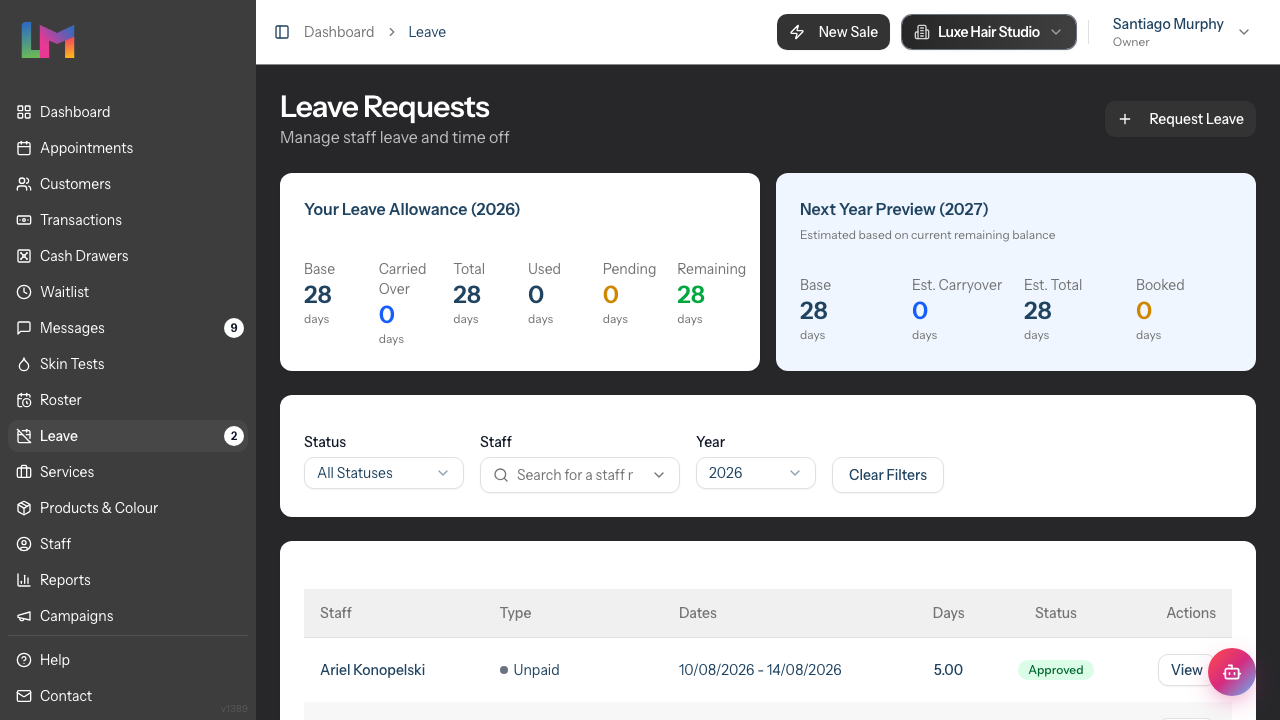
- Click Leave in the sidebar
- The Leave page displays:
- Your leave allowance summary card (if you're staff), showing Base, Carried Over, Total, Used, Pending, and Remaining days
- Filters for Status, Staff, and Year
- A table of leave requests
- Click Request Leave in the top-right corner
Step 2: Select Staff Member (Managers Only)
If you have permission to manage leave for other staff:
- The Staff Member section appears at the top of the form
- Search for and select the staff member
- The allowance summary updates to show their balance
If you're requesting leave for yourself, this section doesn't appear (or shows only your name).
Step 3: Choose Leave Type
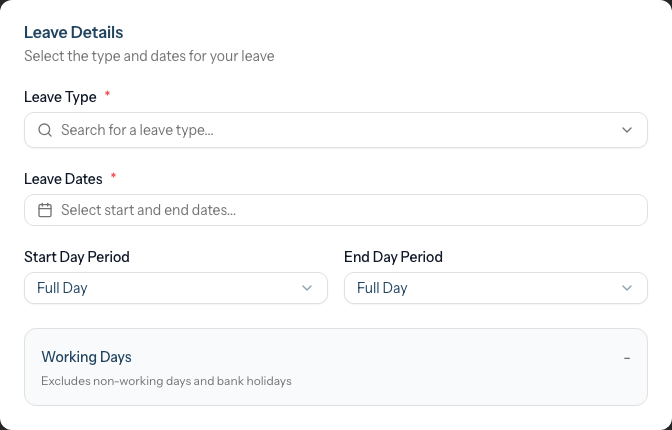
- Click the Leave Type dropdown
- Search for or select the appropriate type:
| Leave Type | Use For | Deducts from Allowance? |
|---|---|---|
| Holiday | Annual leave, holidays, time off | Yes |
| Sick | Illness, medical appointments | No |
| Unpaid | Extended time off without pay | No |
| Compassionate | Bereavement, family emergencies | No |
| Maternity | Maternity leave | No |
| Paternity | Paternity leave | No |
| Other | Any other absence type | No |
Each leave type shows whether it deducts from the allowance beneath the type name.
The Leave Details card brings together the leave type, dates, day periods and the live working-days total:
Step 4: Select Leave Dates
- Click the Leave Dates field
- Select your start date from the calendar
- Select your end date (automatically set to start date for single-day requests)
- Click outside the calendar to confirm
For single-day leave: The start and end dates will be the same.
For multi-day leave: Select the first and last days of your absence.
Step 5: Set Day Periods (Optional)
For half-day leave or partial days:
Start Day Period:
- Full Day (default) - Off all day
- Morning Only (AM) - Off in the morning, working in the afternoon
- Afternoon Only (PM) - Working in the morning, off in the afternoon
End Day Period:
- Same options as above
- Only relevant for multi-day requests
Examples:
- Single half-day off: Set dates to same day, period to AM or PM
- Week off starting afternoon Monday: Start period = PM, End period = Full Day
- Two days finishing at lunch: Start period = Full Day, End period = AM
Step 6: Review Working Days Calculation
The form automatically calculates Working Days:
- Excludes non-working days based on the staff member's configured working days (or salon defaults if not set for the staff member)
- Excludes bank holidays configured for your salon
- Adjusts for half-day periods (0.5 days for AM or PM only)
The calculation updates automatically as you change dates or periods.
Note: Working days are determined by the staff member's schedule. If a staff member works Tuesday to Saturday, Sunday and Monday would be excluded from the calculation. If no specific working days are set for the staff member, the salon's default working days are used.
Step 7: Check Allowance Impact
If you select a leave type that deducts from allowance (Holiday), the Leave Allowance Summary card shows:
| Field | Description |
|---|---|
| Current Remaining | Days available before this request |
| This Request | Working days being requested |
| After Approval | Remaining balance if approved |
If "After Approval" shows a negative number (displayed in red), you're requesting more than your remaining allowance. You can still submit, but the request may be rejected.
Note: This summary only appears for leave types that deduct from allowance (Holiday).
Step 8: Add Reason (Optional)
- Enter details in the Reason (optional) field
- This helps managers understand the context
Examples:
- "Family holiday to Spain"
- "Doctor's appointment - can provide sick note if needed"
- "Attending wedding"
Step 9: Submit the Request
- Review all details
- Click Submit Request
- You're redirected to the leave request detail page
- Your request shows with Pending status
Managing Your Leave Requests
View Your Requests
- Navigate to Leave in the sidebar
- Use filters to narrow results:
- Status: All Statuses, Pending, Approved, Rejected, Cancelled
- Staff: Filter by staff member (managers only)
- Year: Current year or next year
- Click any row or View to see request details
The detail page shows the full request (staff member, leave type, dates, working days and reason) alongside a status timeline. If any appointments are already booked during the requested dates, an amber Conflicting Appointments card lists them (date and time, service and customer) so they can be rescheduled before the leave begins.
Edit a Pending Request
You can only edit requests that are still Pending:
- Click on the request to view details
- Click Edit in the top-right corner
- Modify dates, periods, leave type, or reason
- Click Save Changes
Note: Once a request is approved, rejected, or cancelled, it cannot be edited.
Cancel a Request
You can cancel a request that is still Pending or one that has already been Approved — handy if your plans change after approval:
- Click on the request to view details
- Click Cancel Request
- In the Cancel Leave Request dialog, choose Cancel Request to confirm (or Keep Request to back out)
Cancelling is final and cannot be undone, but you can always submit a fresh request afterwards. Cancelled requests remain visible in your history and don't count against your allowance — if you cancel an approved holiday, those days are returned to your remaining balance.
Understanding Request Status
| Status | Meaning | What You Can Do |
|---|---|---|
| Pending | Awaiting manager review | Edit or Cancel |
| Approved | Leave confirmed | View or Cancel |
| Rejected | Request denied | View rejection reason |
| Cancelled | Withdrawn by requester | View only |
Common Pitfalls
"Working days shows 0 but I selected dates"
The selected dates might all be non-working days or bank holidays for that staff member. Check the staff member's configured working days and the salon's bank holiday settings.
"I can't see the Staff Member dropdown"
You can only request leave for others if you have Manager, Admin, or Owner permissions. Staff members can only request for themselves.
"The allowance warning says I'm exceeding my balance"
You're requesting more holiday than you have remaining. Options:
- Reduce the number of days requested
- Submit anyway (manager may still approve)
- Use a different leave type (Unpaid doesn't deduct from allowance)
"I selected Holiday but it's not deducting from my allowance"
Deduction only happens when the request is approved. Pending requests show in the "Pending" column but don't reduce "Remaining" until approved.
"I can't edit my approved leave"
Approved requests can't be edited directly. Instead, open the request and click Cancel Request, then submit a new request with the correct details. You don't need to involve your manager to do this.
Tips and Best Practices
- Request early - Submit leave requests as soon as you know your dates, especially for popular holiday periods
- Check your balance first - Review your allowance summary before requesting to avoid exceeding limits
- Use the correct type - Sick leave shouldn't be used for holidays; it affects reporting accuracy
- Add context - A brief reason helps managers approve faster
- Check for conflicts - Consider team schedules when requesting peak holiday dates
- Plan half-days carefully - Use AM/PM periods for medical appointments or early starts
Related Tutorials
- Tutorial 6.1: Understanding Staff Leave Allowances - How allowances work
- Tutorial 6.3: Approving and Rejecting Leave Requests - Manager workflow
- Tutorial 5.1: Setting Up Your Weekly Roster - Understanding scheduling
Frequently Asked Questions
Can I request leave for dates in the past?
No. Leave requests must start from today or later. If you need to record historical leave (such as unexpected sick leave), ask your manager to record it through other means.
How far in advance can I request leave?
There's no system limit. You can request leave for next year using the Year filter. However, your salon may have policies about advance notice.
What if I need to change approved leave?
Open the approved request and click Cancel Request, then submit a new request with the correct dates. Cancelling an approved holiday returns those days to your remaining balance. Approved requests can't be edited in place, so cancel-and-resubmit is the way to change them.
Can I see when other staff are off?
Not directly from the Leave page. Check the Roster page to see who's scheduled and when shifts are blocked. Managers can see all staff requests on the Leave page.
Will my manager be notified when I submit a request?
The system tracks requests but notifications depend on your salon's configuration. It's good practice to also inform your manager directly.
What counts as a working day?
Working days are determined by the staff member's configured working days, or the salon's default working days if the staff member has no specific settings. Bank holidays configured for your salon are also excluded from the calculation.
Can I take half days?
Yes. Use the Start Day Period or End Day Period options to select Morning Only (AM) or Afternoon Only (PM).
Last Updated: June 2026