
Approving and Rejecting Leave Requests
Tutorial 6.3: Approving and Rejecting Leave Requests
Introduction
Managers review pending leave requests and decide whether to approve or reject them. This tutorial covers the approval workflow, including checking for conflicting appointments, adding rejection reasons, and managing requests on behalf of staff.
Who this is for: Owner, Admin, Manager What you'll learn:
- View and review pending leave requests
- Approve requests with confirmation
- Reject requests with a required reason
- Handle conflicting appointments
- Request leave on behalf of staff members
Time to complete: 10 minutes
Prerequisites
- Logged in as Owner, Admin, or Manager
- At least one staff member with a pending leave request
- Complete Tutorial 6.1 (Understanding Staff Leave Allowances)
Step-by-Step Instructions
Step 1: Access Pending Leave Requests
- Click Leave in the sidebar
- The default view shows all leave requests for the current year
- Use the Status filter to select Pending to see only requests awaiting review
- If you can manage leave for multiple staff, use the Staff filter to narrow results
- Use the Year filter to switch between the current and next year. A Clear Filters button appears whenever a filter is active
The table shows:
- Staff: Who submitted the request
- Type: Leave type (Holiday, Sick, etc.)
- Dates: Start and end dates with period indicators (AM/PM)
- Days: Calculated working days
- Status: Pending, Approved, Rejected, or Cancelled
Step 2: Open a Leave Request
- Click on any row in the table, or click View
- The leave request detail page opens
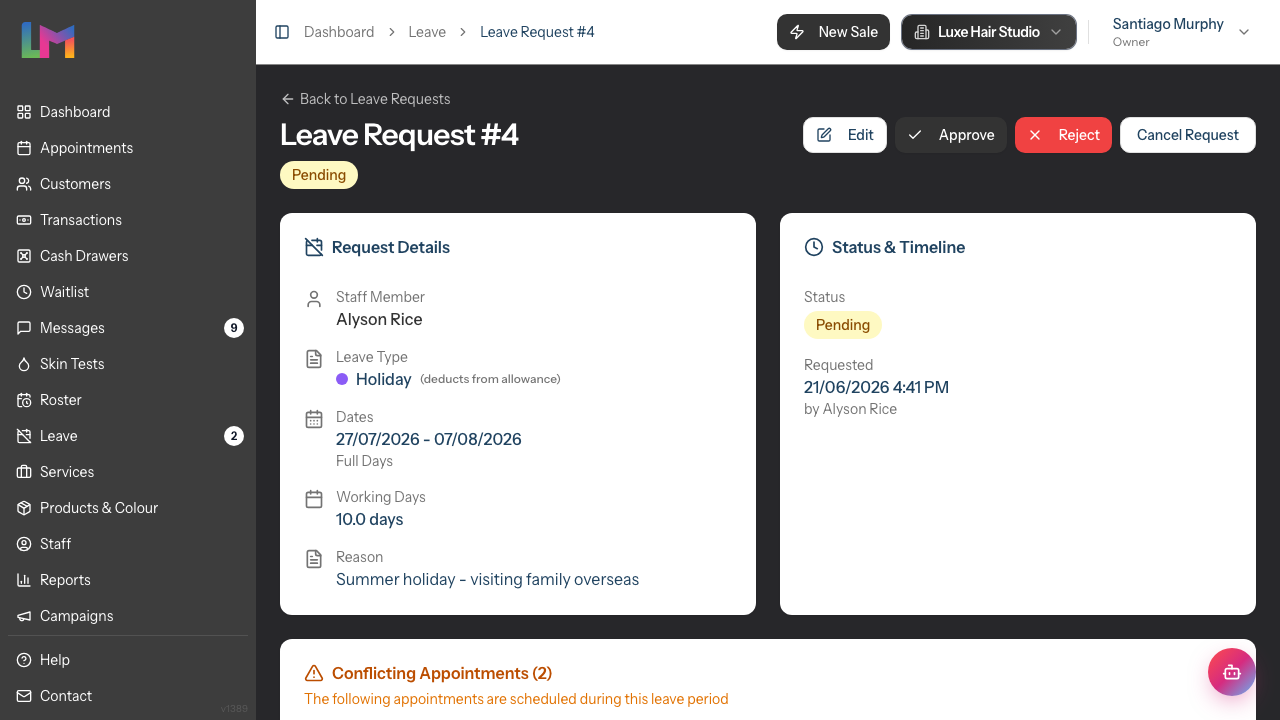
The detail page shows two main cards, side by side:
Request Details:
- Staff Member name
- Leave Type (with a colour dot, plus a "(deducts from allowance)" note for types that draw down the holiday balance)
- Dates (formatted as a range, with the period — Full Days, or Morning Only (AM) / Afternoon Only (PM) — shown on the line beneath)
- Working Days (calculated)
- Reason (if provided)
Status & Timeline:
- Current status badge
- Requested date and time, and who submitted it (shows the manager's name when requested on behalf of staff)
- Approved date and by whom, shown in green (if approved)
- Rejected date and by whom, shown in red (if rejected)
- Rejection reason displayed in a highlighted red box (if rejected)
- Cancelled date (if cancelled)
Step 3: Check for Conflicting Appointments
If the staff member has appointments scheduled during the requested leave period, a Conflicting Appointments card appears (the card is always present; when there are no conflicts it simply reads "No conflicting appointments"):
The card shows:
- The number of conflicts in the card title (for example, "Conflicting Appointments (2)")
- A table with: Date & Time, Service, Customer
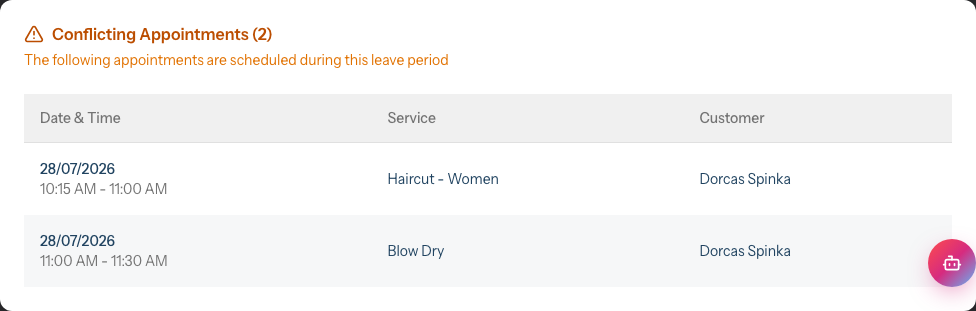
Important: Conflicting appointments aren't automatically cancelled. If you approve the leave, you'll need to manually reschedule or reassign these appointments.
Step 4: Approve a Leave Request
To approve a pending request:
- Click the Approve button (top-right, the green button with a tick)
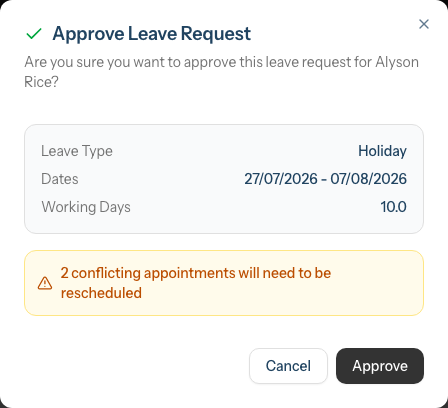
- A confirmation dialog appears. The staff member's name is in the question at the top, and a summary box shows:
- Leave type
- Dates
- Working days
- A warning about conflicting appointments (if any exist), for example "2 conflicting appointments will need to be rescheduled"
- Click Approve to confirm
What happens when approved:
- Status changes to Approved
- The approval date and your name are recorded in the Timeline
- For leave types that deduct from allowance (Holiday), the working days are deducted from the staff member's balance, so their Remaining decreases
- Future-dated approved leave is counted under Pending on the allowance summary; once the leave dates have passed it moves into Used
Step 5: Reject a Leave Request
To reject a pending request:
- Click the Reject button (top-right, the red button with a cross)
- A dialog prompts for a Rejection Reason (required, minimum 10 characters). The Reject button stays disabled until you've typed at least 10 characters
- Enter an explanation, for example:
- "We're short-staffed that week - could you take the following week instead?"
- "Peak period - please discuss alternative dates"
- "Insufficient allowance remaining"
- Click Reject to confirm
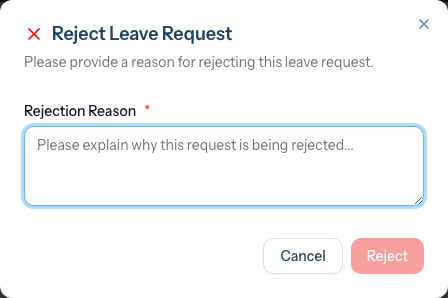
Rejection reason is mandatory: You cannot reject without providing a reason of at least 10 characters. This ensures staff receive a meaningful explanation for why their request was declined.
What happens when rejected:
- Status changes to Rejected
- The rejection date, your name, and your reason are recorded
- The rejection reason appears on the request detail page
- Requested days return to the staff member's "Remaining" balance (they were never deducted)
Step 6: Edit a Pending Request
If you need to modify a pending request before approving:
- Open the request detail page
- Click Edit (top-right)
- Update the dates, periods, leave type, or reason, then Save Changes
- Then approve or reject as needed
Note: You can only edit pending requests — the Edit button is hidden once a request is approved, rejected, or cancelled. The staff member can't be changed on an existing request; to log leave for someone else, create a new request instead.
Step 7: Cancel a Request
Staff members can cancel their own pending requests. As a manager, you can also cancel requests:
- Open the request detail page
- Click Cancel Request
- Confirm the cancellation
Cancelled requests remain visible in the history but don't count against allowance.
Requesting Leave on Behalf of Staff
Managers can submit leave requests for staff members. This is useful for:
- Logging sick leave after the fact
- Recording time off for staff without system access
- Entering agreed leave from verbal discussions
To create a leave request on behalf of a staff member:
- Navigate to Leave in the sidebar
- Click Request Leave
- In the Staff Member section, search for and select the staff member
- Complete the form as usual (leave type, dates, periods, reason)
- Click Submit Request
The request is created with your staff selection. It follows the normal workflow and appears as a pending request until approved.
Approval hierarchy: Leave requests follow a role-based approval hierarchy:
- Owners can approve any leave request
- Admins can approve any leave request, including their own
- Managers can approve requests from Staff and Receptionists, but not from other Managers or Admins
- Staff and Receptionists cannot approve leave requests
If you create a leave request for yourself and don't have permission to self-approve (Managers and below), another authorised user must approve it.
Common Pitfalls
"I approved leave but appointments weren't cancelled"
Approving leave doesn't automatically cancel appointments. You must manually reschedule or reassign conflicting appointments from the Calendar or Appointments pages.
"I can't reject without a reason"
The rejection reason field is mandatory and requires at least 10 characters to ensure staff receive meaningful feedback. Write a brief, constructive explanation of why the request couldn't be approved.
"Staff says they didn't get notified"
Notifications depend on your salon's configuration. For important approvals or rejections, it's good practice to also inform staff directly.
"I want to undo an approval"
Once approved, a request cannot be directly reversed. The staff member would need to cancel the request (if it's still before the leave dates), or you'd need to create an adjustment to their allowance.
"Who can see rejection reasons?"
The staff member can see their rejection reason when viewing the request detail. Other staff members cannot see each other's requests.
Tips and Best Practices
- Review requests promptly - Aim to approve or reject within 48 hours so staff can plan accordingly
- Check conflicts first - Always look at the Conflicting Appointments card before approving
- Offer alternatives when rejecting - Instead of just "no", suggest alternative dates
- Consider team coverage - Before approving, mentally check who else is off that week
- Document verbal agreements - If you discussed leave in person, add that context to the request reason
Related Tutorials
- Tutorial 6.1: Understanding Staff Leave Allowances - How allowances work
- Tutorial 6.2: Requesting and Managing Leave - Staff perspective
- Tutorial 6.4: Leave Reports and Year-End Management - Team-wide leave data
Frequently Asked Questions
Can I approve leave that exceeds the staff member's balance?
The system shows a warning if a request exceeds the remaining allowance, but you can still approve it. The balance will go negative for leave types that deduct from allowance.
What if two staff request the same dates?
Review each request individually. There's no automatic rule for overlapping requests - you decide based on operational needs and when each request was submitted.
Can I bulk-approve multiple requests?
No. Each request must be individually reviewed to ensure proper consideration of conflicts and coverage.
Can I approve my own leave request?
This depends on your role. Admins can approve their own leave requests. Managers and below cannot self-approve and need another authorised user to approve their requests.
What happens to the rejection reason after I reject?
It's permanently recorded and visible to the staff member on their request detail page.
Can I change a rejection to an approval?
No. Once rejected, the request cannot be changed. The staff member would need to submit a new request.
Do I need to approve sick leave?
Sick leave requests can be approved or rejected like any other leave type. However, since sick leave doesn't deduct from the holiday allowance, you may have a more lenient approval policy.
Last Updated: 21 June 2026