
Using Customer Badges
Tutorial 3.5: Using Customer Badges
Introduction
Customer badges are visual indicators that help staff identify important customer traits at a glance. Badges appear on customer profiles and help personalise the service experience by highlighting things like VIP status, preferences, and behavioural patterns.
Who this is for: Owner, Admin, Manager, Staff, Receptionist What you'll learn:
- Understand the available built-in badges
- Toggle badges on and off for customers
- View badges on customer profiles
- Configure badge settings (Owners/Admins)
- Create custom badges for your salon
Time to complete: 8 minutes
Prerequisites
- Logged in with at least Staff permissions
- Complete Tutorial 3.1 (Adding and Managing Customer Profiles)
- Owners/Admins should complete this to configure salon badge settings
Step-by-Step Instructions
Step 1: Understanding Built-in Badges
Luminate includes these built-in customer badges:
| Badge | Colour | When to Use |
|---|---|---|
| VIP | Amber | High-value customers deserving special treatment |
| Prefers Silence | Blue | Customer prefers quiet during appointments |
| Often Late | Red | Customer has a pattern of arriving late |
| Often Early | Green | Customer tends to arrive early |
| Frequent Visitor | Indigo | Regular customer who visits often |
| New Customer | Teal | Recently added to your salon |
Each badge can be enabled or disabled by salon Owners/Admins.
Step 2: View Badges on a Customer Profile
- Navigate to Customers in the sidebar
- Click on a customer to open their profile
- Click the Details tab
- Find the Badges section
The Badges section displays all available badges for your salon. Selected badges appear coloured with a checkmark; unselected badges appear grey.

Step 3: Toggle Badges On and Off
To add or remove a badge:
- Open the customer profile
- Go to the Details tab
- In the Badges section, click any badge to toggle it
How it works:
- Click an unselected (grey) badge to apply it
- Click a selected (coloured) badge to remove it
- Changes save automatically - no save button needed
Note: A customer can have up to 10 badges at a time.
Step 4: Strategic Badge Usage
VIP Badge:
- Apply to your top customers (top 10-20% by spending)
- Staff should provide premium service: drinks, extra time, personalised attention
- Define clear criteria: "VIP = £500+ annual spend OR 20+ visits"
Prefers Silence Badge:
- Apply when a customer explicitly requests quiet service
- Staff should minimise chat and focus on the service
- Still provide excellent service, just with less conversation
Often Late / Often Early:
- Apply when you notice a pattern (3+ occurrences)
- Helps receptionists prepare appropriately
- For late customers: call 15 minutes before appointment
- For early customers: prepare station sooner
Frequent Visitor:
- Apply to loyal, regular customers
- Staff can acknowledge: "Great to see you again!"
- Consider loyalty rewards
New Customer:
- Apply to recently added customers
- Staff should be extra welcoming and explain processes
- Remove after 2-3 visits when they're established
Step 5: Configure Badge Settings (Owners/Admins)
Owners and Admins can control which badges are available:
- Click the salon name in the top navigation bar
- Select Salon Settings from the dropdown menu
- On the General tab, click the Badges sub-tab
- Click the Customer Badges sub-tab
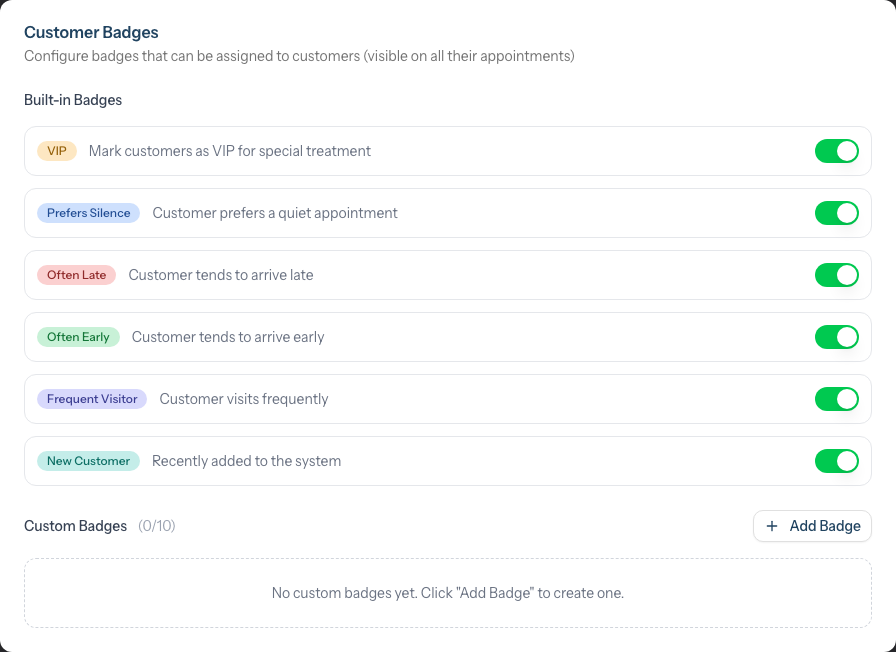
Enable/Disable Built-in Badges:
- Toggle the switch next to each built-in badge
- Disabled badges won't appear for staff to use
Add Custom Badges:
- Click Add Badge
- Enter a Badge Name (e.g., "Ambassador")
- Choose a Badge Color from the 12-colour palette
- Click Add Badge
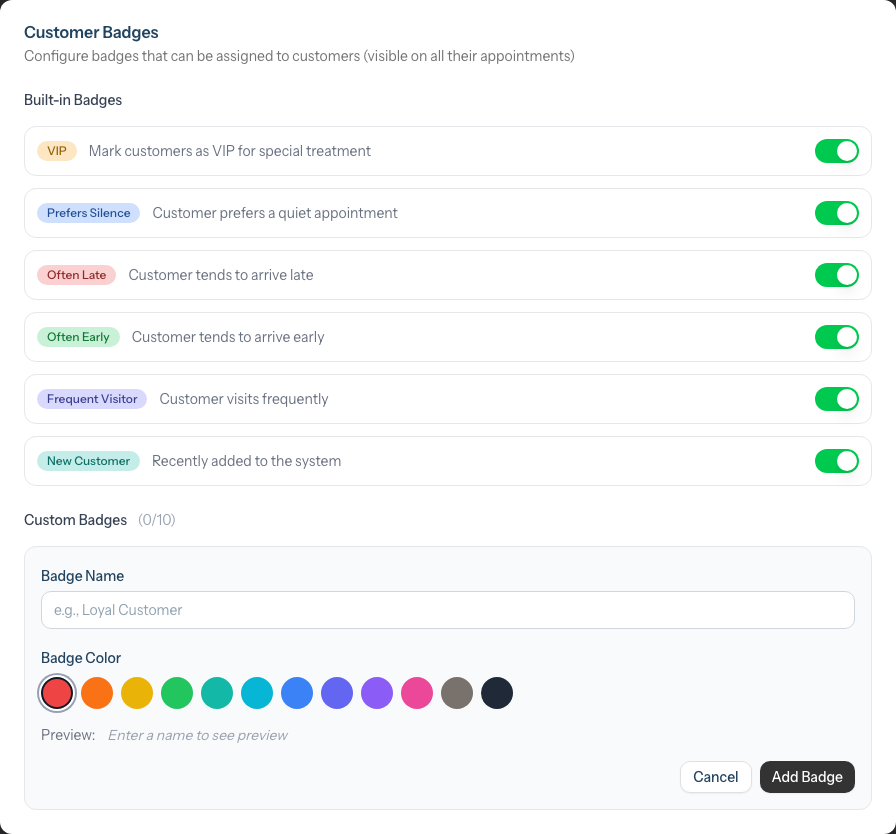
Edit Custom Badges:
- Click the Edit button next to a custom badge
- Update the name or colour inline
- Click Save
Delete Custom Badges:
- Click the trash icon next to a custom badge
- Confirm deletion in the modal
- Warning: This removes the badge from all customers who have it
Step 6: Creating Custom Badges
Common custom badge ideas:
| Badge Name | Colour | Use Case |
|---|---|---|
| Ambassador | Orange | Customers who actively refer others |
| Staff Family | Violet | Family members of staff |
| Influencer | Pink | Social media influencers |
| Accessibility | Blue | Customers with accessibility needs |
| Colour Sensitive | Red | Known sensitivities to colour products |
| Price Conscious | Green | Customers who appreciate value |
The available colours are: Red, Orange, Yellow, Green, Teal, Cyan, Blue, Indigo, Violet, Pink, Stone, and Gray.
To create:
- Go to Salon Settings > General tab > Badges sub-tab > Customer Badges sub-tab
- Click Add Badge
- Enter name and select colour
- Click Add Badge
Where Badges Appear
Badges are visible in several places:
| Location | What Shows |
|---|---|
| Customer profile header | "Has Allergies" indicator (auto-applied if allergies are recorded - this is separate from customer badges) |
| Customer profile Details tab | All available customer badges in the Badges section, where you toggle them on and off |
| Appointment sidebar | When you open an appointment from the calendar, the customer's badges appear under the Customer section, where you can also toggle them |
| Appointment detail page | The customer's badges appear and can be toggled |
| Dashboard | Customer badges show alongside today's and the next upcoming appointment |
Note: The main customer list doesn't show badges - you need to open the customer profile to see them. Badges are also not shown on the calendar grid itself, only in the appointment sidebar that opens when you click an appointment.
Common Pitfalls
"Badge changes aren't saving"
Badges save automatically via the network. Ensure you have a stable internet connection. If a badge shows animation for too long, refresh the page and try again.
"I can't see the badges section"
Your salon may have disabled all built-in badges. Ask the salon owner to enable at least one badge in settings.
"Staff are using VIP badge inconsistently"
Define clear criteria and document them. Share with all staff: "VIP = £500+ annual spend OR 20+ visits"
"Too many badges cluttering the view"
Owners can disable unused built-in badges. Delete custom badges that aren't being used. Aim for 6-10 total badges maximum.
"Customer was marked 'Often Late' unfairly"
Be careful with negative badges. One late arrival doesn't make a pattern. Apply after 3+ occurrences.
"I can't add more badges to a customer"
Customers can have a maximum of 10 badges. Remove less relevant badges before adding new ones.
Tips and Best Practices
- Review badges during check-in - Glance at badges before greeting to personalise the interaction
- Update badges promptly - If a customer mentions they prefer quiet, add the badge immediately
- Don't over-badge - Not every customer needs badges; use them for notable traits only
- Remove outdated badges - A "New Customer" who has visited 10 times is no longer new
- Colour code strategically - Red for caution, green for positive, blue for preferences, amber for VIP
- Train staff on meanings - Everyone should know what each badge means
- Combine with notes - Badge: "Accessibility" + Note: "Uses wheelchair, prefers station #3"
- Review VIP criteria quarterly - Customer spending patterns change; update accordingly
Related Tutorials
- Tutorial 3.1: Adding and Managing Customer Profiles - Where customer information lives
- Tutorial 3.4: Organising Customers - Other ways to categorise customers
- Tutorial 3.3: Customer Preferences and Communication Consent - Recording preferences
Frequently Asked Questions
Can customers see their badges?
No. Badges are internal tools for staff only. Customers don't see badges in any communications.
How many badges can one customer have?
Up to 10 badges. However, we recommend using 3-5 for clarity.
Who can toggle badges?
All staff members with access to view customers can toggle badges. Badge configuration (adding/removing custom badges) is restricted to Owners and Admins.
Do badges appear on the calendar?
Not on the calendar grid itself. However, when you click an appointment to open its sidebar, the customer's badges appear under the Customer section. Customer badges also show on the dashboard's today's and upcoming appointment cards.
What happens if I delete a custom badge?
The badge is removed from all customers who have it. This cannot be undone.
Can I create badges for products or services?
Products and services use Categories (not badges). See the Categories section under Products or Services.
Will badges sync across multiple salons?
No. Each salon has its own badge configuration. Customers visiting multiple salons would have separate badges per salon.
Is there a badge for allergies?
Allergies are handled separately in the Preferences section with the Allergies & Sensitivities toggle. When enabled, a "Has Allergies" indicator appears automatically on the profile.
Last Updated: January 2026