
Customer Preferences and Communication Consent
Tutorial 3.3: Customer Preferences and Communication Consent
Introduction
Managing customer preferences and communication consent is essential for excellent service and legal compliance. This tutorial explains the communication preference system in Luminate, how to record customer preferences, and how to ensure you're communicating appropriately.
Who this is for: Owner, Admin, Manager, Staff, Receptionist What you'll learn:
- Understand the two communication categories (appointment information vs. marketing)
- Configure channel preferences (Email, SMS, WhatsApp)
- Record allergies and sensitivities
- Handle opt-out and data removal requests
- Understand GDPR requirements for consent
- Request customers to update their own profile information
Time to complete: 15 minutes
Prerequisites
- Logged in with at least Staff permissions
- Complete Tutorial 3.1 (Adding and Managing Customer Profiles)
Step-by-Step Instructions
Step 1: Understanding Communication Categories
Luminate divides customer communications into two categories:
Appointment Information (Transactional): These are service-related messages:
- Appointment confirmations
- Appointment reminders
- Cancellation notifications
- Rescheduling confirmations
Promotions & Offers (Marketing): These require explicit consent:
- Special offers and discounts
- New service announcements
- Birthday greetings with offers
- Seasonal promotions
- Newsletter content
Step 2: Access Communication Preferences
Communication preferences are set per customer:
- Navigate to Customers in the sidebar
- Select a customer or click Add Customer
- Scroll to the Communication Preferences section
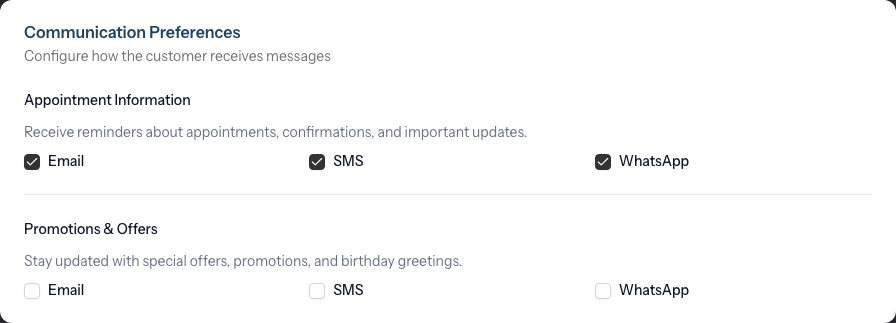
The section is split into two groups of checkboxes — Appointment Information and Promotions & Offers — each with an Email, SMS, and WhatsApp checkbox.
Step 3: Configure Appointment Information
The Appointment Information group controls transactional messages:
| Channel | Default | Purpose |
|---|---|---|
| Enabled | Confirmation emails, reminder emails | |
| SMS | Enabled | Text message reminders |
| Enabled | WhatsApp message reminders |
To change a setting:
- Tick a checkbox to enable that channel, or untick it to disable
- A ticked box means the customer receives messages on that channel
- An unticked box means that channel is off
When to disable:
- Customer requests no reminders
- Customer doesn't have that channel (no phone = disable SMS)
- Customer prefers one channel over others
Note: Even with all reminders disabled, the customer can still be booked for appointments. They simply won't receive automated notifications.
Step 4: Configure Promotions & Offers
The Promotions & Offers group controls marketing messages:
| Channel | Default | Purpose |
|---|---|---|
| Disabled | Marketing emails | |
| SMS | Disabled | Promotional text messages |
| Disabled | Promotional WhatsApp messages |
Important: All marketing options default to disabled (unticked). Only enable them with explicit customer consent.
To enable marketing:
- Obtain verbal or written consent from the customer
- Tick the checkbox for their preferred channel(s)
- Save the customer profile
GDPR Requirement: Never assume consent. The customer must actively agree to receive marketing communications.
How opt-outs are enforced when staff send messages: Opt-outs are honoured at compose time, not just at delivery. When a staff member opens New Message in the inbox (Tutorial 10.4), shares a deposit link, sends a profile-update link, or triggers any other send flow, a channel the customer has disabled here is not shown as a selectable button in the channel picker at all — it simply disappears from the row of channel buttons. In its place, a one-line notice with the channel icon appears beneath the picker reading "Customer has opted out of Email" (or SMS, etc.). There is no greyed-out button, no tooltip, and no "send anyway" override. The only way to restore a channel is for the customer to opt back in — via the email footer link, the SMS opt-in keyword, or by a staff member updating this page on their behalf with the customer's consent on record.
Step 5: Record Allergies and Sensitivities
Safety information goes in the dedicated Allergies & Notes section:
- Toggle the Allergies & Sensitivities switch on
- Enter details in the text area that appears
Examples:
- "PPD allergy - no permanent colour"
- "Sensitive scalp - patch test required"
- "Latex allergy - use nitrile gloves"
This information displays prominently throughout the system, including during appointment booking. Service-specific preferences (timing preferences, staff requests, conversation cues) and consultation detail are best captured in the unified Notes store on the customer's profile rather than the allergy field — see Tutorial 3.7 (Recording and Managing Notes) for how those work.
Step 6: Handle Opt-Out Requests
When a customer asks to stop receiving marketing:
- Open their profile → Edit
- Untick the relevant marketing checkboxes in Promotions & Offers
- Save immediately
- Add a note: "Opted out of marketing [date] via [method]"
You must:
- Process opt-out requests immediately (same day)
- Stop all marketing to that channel
- Continue transactional messages (unless specifically requested)
- Keep a record of when they opted out
Step 7: Handle Data Removal Requests
Under GDPR, customers can request their personal data be removed:
Open the customer profile
Click the Edit button (top-right)
Scroll down to the Data Privacy section at the bottom of the form
Click Remove Data
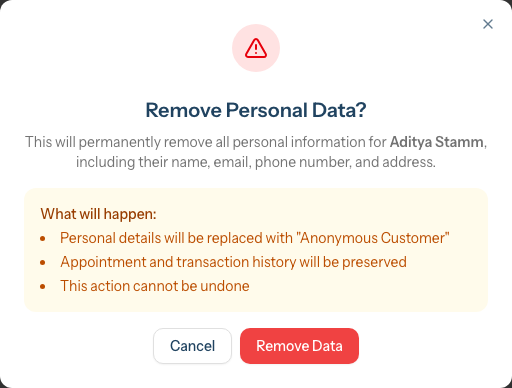
A confirmation dialog titled Remove Personal Data? appears, stating: "This will permanently remove all personal information for [Customer Name], including their name, email, phone number, and address."
Review what will happen:
- Personal details will be replaced (the dialog refers to this as "Anonymous Customer"; the saved record is renamed to "Deleted Customer")
- Appointment and transaction history will be preserved
- This action cannot be undone
Click Remove Data to confirm
What is anonymised or cleared:
- Name (replaced with "Deleted Customer")
- Email, phone number, country code
- Address, city, county, postcode, country
- Date of birth
- Allergies (toggle and description)
- Badges and referral source
- All communication preference settings (transactional and marketing, all channels) — reset to off, since consent cannot persist past anonymisation
- Profile-update tokens, identity-verification PINs, and booking-access tokens (all deleted)
- Personal data redacted from any merge log entries
What is preserved (for business records):
- Transaction history
- Appointment history
- Notes (consultation and appointment notes, Tutorial 3.7) and colour tests (Tutorial 11.1) — these stay attached to the now-anonymised customer record so service and clinical history remains intact
The customer record is anonymised but not deleted, ensuring your financial and appointment records remain intact. The customer is also automatically deactivated and cannot be reactivated.
Warning: This action cannot be undone. Ensure the request is legitimate before proceeding.
Understanding Consent Requirements
Valid Consent Must Be:
| Requirement | What It Means |
|---|---|
| Freely given | Not a condition of service |
| Specific | Clear what they're consenting to |
| Informed | They understand how data will be used |
| Unambiguous | Active opt-in, not silence or pre-checked boxes |
How to Obtain Consent
Verbally at first visit: "May we send you occasional updates about special offers and new services? You can unsubscribe anytime."
On a registration form:
☐ Yes, I'd like to receive special offers and news from [Salon Name]
Note: This box should NOT be pre-checked.
What Doesn't Count as Consent
- Providing contact details for appointments
- Pre-checked boxes on forms
- Silence or non-response
- Assumed consent from existing relationship
Customer Self-Service
When a customer opens a profile update link (see Requesting Profile Updates below), they land on a self-service preferences page where they can update their information directly.
What's Available Without Verification
Customers can immediately view and update:
- First name and last name
- Communication Preferences — all transactional and marketing channel toggles (Email, SMS, WhatsApp)
Their email and phone number are shown in masked form (e.g. j***@email.com) for reference.
Accessing Sensitive Information
To protect customer data, contact details, address, and allergy information require identity verification before they can be viewed or edited:
- The customer clicks Verify Identity on the preferences page
- They choose to receive a verification code via Email or SMS
- A PIN code is sent to their contact details on file
- They enter the code to unlock access
Once verified, the customer can update:
- Email address (requires a separate verification code sent to the new email)
- Phone number (requires a separate verification code sent to the new number)
- Address — street, city, county, postcode, country
- Allergies & Sensitivities — toggle and description
Verification remains active for 30 minutes. After that, the customer must verify again to access sensitive fields.
How Changes Are Saved
Updates are saved immediately to the customer record in Luminate. Staff will see the updated information next time they view the customer's profile.
Requesting Profile Updates
Staff can request customers to update their profile information directly. This is useful for verifying contact details, collecting address information, or updating allergy records.
How to Request a Profile Update
- Navigate to the customer's profile page
- Click the Request Update button in the header
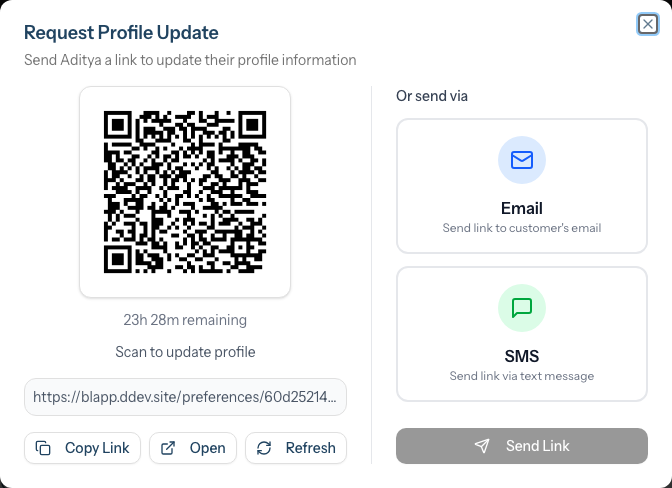
- A modal opens with multiple options for sharing the update link
QR Code (In-Salon)
The quickest method when the customer is physically present:
- The modal displays a QR code that the customer can scan
- Customer scans with their phone camera
- The profile update page opens directly on their device
- They can update their information and submit
Tip: This is ideal during checkout or while waiting for their appointment.
Copy Link
Share the link via your preferred method:
- Click the Copy Link button
- The link is copied to your clipboard
- Paste it in any messaging app, email, or text
You can also click Open to preview the profile update page yourself, or Refresh to generate a new link (this invalidates the previous link).
Send via Email or SMS
If the customer has contact details on file:
- Select Email or SMS from the channel options
- Click Send Link
- The customer receives a message with the update link
- They can open the link on any device to update their details
Note: The send options only appear if the customer has the corresponding contact details on file and has not opted out of that channel. If they have opted out, the modal shows a "Customer has opted out of [channel]" message instead — fall back to the QR code or copy-link options, or update their preferences (with their consent) on the Edit page first.
What Customers Can Update
The profile update page allows customers to modify:
| Section | Fields | Verification Required? |
|---|---|---|
| Personal Information | First name, last name | No |
| Communication Preferences | All transactional and marketing channel settings | No |
| Contact Details | Email address, phone number | Yes — PIN verification + new contact verification |
| Address | Street address, city, county, postcode, country | Yes — PIN verification |
| Allergies | Toggle on/off, allergy description | Yes — PIN verification |
See Customer Self-Service above for details on the verification process.
Link Expiry
Profile update links are valid for 24 hours by default. After expiry:
- The customer sees an "expired link" message
- They need to contact the salon for a new link
- This protects customer data from old links being accessed
Tip: Send the link when the customer is ready to update promptly, as the 24-hour window is intentionally short for security.
When to Use This Feature
| Scenario | Recommended Approach |
|---|---|
| Customer at the till | Show QR code for immediate scan |
| Follow-up after visit | Send via email or SMS |
| Address collection | Send link with request note |
| Annual data refresh | Send to update/verify details |
| Allergy confirmation | Send before patch test appointments |
Common Pitfalls
"Can I pre-enable marketing to save time?"
No. Pre-checked marketing options violate GDPR. Customers must actively opt in.
"A customer gave me their email, so can I add them to marketing?"
Not unless they explicitly consented to marketing. An email for appointments is not marketing consent.
"A customer opted out but this offer is really good"
Respect opt-out requests always. Sending marketing after opt-out is a GDPR violation.
"I accidentally enabled marketing for everyone"
Disable marketing immediately for those who haven't consented. Document the error and take corrective action.
Tips and Best Practices
- Ask at the right time - After a great service experience, customers are more likely to opt in
- Explain benefits - "Birthday treats, early access to offers, seasonal tips"
- Keep consent separate - Don't bundle marketing with service terms
- Make opting out easy - Honour requests immediately
- Review preferences regularly - Update after each visit with new information
- Train all staff - Everyone needs to understand consent requirements
Related Tutorials
- Tutorial 3.1: Adding and Managing Customer Profiles - Creating customer records
- Tutorial 3.2: Understanding Customer History and Analytics - Viewing customer data
- Tutorial 3.7: Recording and Managing Notes - Capturing service preferences and consultation detail in the unified Notes store
- Tutorial 10.4: Managing the Messaging Inbox - How channel opt-outs are enforced when staff send messages
- Tutorial 11.2: GDPR Compliance - Wider data-protection responsibilities
Frequently Asked Questions
What's the penalty for sending marketing without consent?
Under UK GDPR, fines can reach millions of pounds. More commonly, you risk customer complaints and reputation damage.
Can I email a customer who opted out about their appointment?
Yes - appointment reminders are transactional, not marketing. Respect channel preferences though.
How long do I keep consent records?
Keep consent records while active, plus 2 years after they stop being a customer.
Do I need separate consent for email and SMS marketing?
Luminate treats each channel separately. A customer might consent to email marketing but not SMS.
What if a customer says "I never opted in"?
Apologise, remove them from marketing immediately, and review your records. When in doubt, err on the customer's side.
Can I transfer consent from my old system?
Only if the original consent met GDPR standards. If uncertain, re-request consent.
What about customers under 16?
For marketing to under-16s in the UK, obtain parental consent. Transactional messages don't require this.
How long are profile update links valid?
Profile update links expire after 24 hours by default. After expiry, the customer will see an "expired link" page and will need to request a new link from the salon. The short expiry window is a security measure to protect customer data.
Can I send a profile update link to a customer without contact details?
You can still use the QR code or copy the link directly. The email/SMS send options only appear if the customer has those contact details on file.
What happens when a customer updates their profile?
Their changes are saved immediately to their customer record in Luminate. You'll see the updated information next time you view their profile.
Why does the customer need to verify their identity?
Sensitive information like contact details, address, and allergy records are protected behind a PIN verification step. This ensures that only the actual customer can access and modify this data, even if someone else obtains the profile update link.
Can I see when a customer last updated their profile?
The profile update link tracks when it was last accessed. This helps you know if a customer has opened the link but not completed the update.
Last Updated: May 2026