
Organising Customers
Tutorial 3.4: Organising Customers
Introduction
Luminate provides several ways to organise and categorise your customers: status (active/inactive), badges for quick identification, and search and filtering tools. This tutorial covers how to use these features to keep your customer database organised and easy to navigate.
Who this is for: Owner, Admin, Manager, Staff, Receptionist What you'll learn:
- Filter customers by status, visit history, spending, and services booked
- Use search to find customers quickly
- Understand how badges help identify customers
- Use the customer list effectively
- Identify and re-engage lapsed customers
- Keep your customer database organised
Time to complete: 12 minutes
Prerequisites
- Logged in with at least Staff permissions
- Complete Tutorial 3.1 (Adding and Managing Customer Profiles)
- Some customer profiles in the system
Step-by-Step Instructions
Step 1: Understanding Customer Organisation Tools
Luminate offers these methods for organising customers:
| Tool | Purpose |
|---|---|
| Active/Inactive Status | Archive customers who no longer visit |
| Badges | Visual indicators for quick identification (VIP, allergies, etc.) |
| Search | Find customers by name, email, or phone |
| Filters | Filter by status, visit history, spending, services booked, birthdays, or skin test requirements |
| Preferences/Notes | Record information for reference when viewing profiles |
Step 2: Using Customer List Filters
The customer list includes several filters to help you find customers:
- Navigate to Customers in the sidebar
- Use the filter dropdowns to narrow results:
Status Filter:
- All Customers - Shows everyone, both active and inactive (default)
- Active Only - Shows active customers only
- Inactive Only - Shows deactivated customers only
Visit History Filter:
- All Visits - No visit filtering
- Last 30 Days - Customers who visited in the past month
- Last 90 Days - Customers who visited in the past three months
- Not in 6+ Months - Lapsed customers who haven't visited recently
- Never Visited - Customers with no appointment history
Spend Filter:
- All Spend - No spend filtering
- Over £100 - Customers with total spend exceeding £100
- Over £500 - Customers with total spend exceeding £500
- Over £1000 - Customers with total spend exceeding £1000
- £0 (No Spend) - Customers with no transaction history
Service Booked Filter:
- All Services - No service filtering
- [Service Name] - Filter to customers who have booked a specific service
Birthday Filter:
- All Birthdays - No birthday filtering
- Upcoming (7 days) - Customers with birthdays in the next week
Skin Test Filter:
- All Skin Test Status - No skin test filtering
- Needs Test (Upcoming Appts) - Customers with colour appointments who need testing

When to deactivate customers:
- Customer has moved away
- Customer hasn't visited in over 12 months
- Customer requests removal from your system
To deactivate a customer:
- Navigate to Customers
- Click on the customer's name to open their profile
- Click the Details tab
- Scroll to the Customer Status section at the bottom
- Toggle the switch from Active to Inactive

Inactive customers:
- Still appear in the customer list by default (which shows All Customers) — use the Active Only status filter to hide them
- Don't appear in the customer picker when booking appointments or taking payments (Quick POS)
- Are excluded from marketing campaign audiences
- Retain all their history
Step 3: Use Search Effectively
The customer list search bar matches against:
- First name
- Last name
- Full name (first and last combined)
- Email address
- Phone number (with or without formatting)
Search tips:
- Search by partial name: "Thom" finds "Thompson"
- Search by phone to find customers quickly at check-in
- Search by email to find customers who book online
Note: The search does not match against Preferences or Notes content. To organise customers by custom categories, use badges instead (see Tutorial 3.5).
Step 4: Understanding Customer Badges
Badges provide visual identification on customer profiles. See Tutorial 3.5 for full details.
Built-in badges:
- VIP - High-value customer
- Prefers Silence - Prefers quiet during appointments
- Often Late - Pattern of late arrivals
- Often Early - Pattern of early arrivals
- Frequent Visitor - Regular customer
- New Customer - Recent first visit
Badges appear on:
- Customer profile header
- Customer list (for selected badges)
- Appointment views
Note: Allergies are displayed separately as a warning indicator, not as a badge. When a customer has allergies recorded, you'll see "⚠️ Allergies noted" in the customer list and a red "Has Allergies" indicator on their profile header.
Step 5: Using Notes for Organisation
You can use Preferences and Additional Notes fields to record useful information about customers:
Examples:
- Add "Corporate account" for business clients
- Add "Referred by Sarah" for tracking referrals
- Add styling preferences or service history notes
Note: These fields are for reference when viewing individual customer profiles. The customer list search does not match against notes content. For categorising customers that you can filter or identify at a glance, use badges instead (see Tutorial 3.5).
Step 6: Keeping Your Database Organised
Regular maintenance tasks:
Monthly:
- Review recent customers - are profiles complete?
- Check for duplicate records
Quarterly:
- Review customers who haven't visited - consider outreach
- Deactivate customers who have moved or churned
- Update outdated notes and preferences
Annually:
- Full database review
- Verify contact details are current
- Archive long-inactive customers
Step 7: Finding Inactive or At-Risk Customers
To identify customers who may need attention, use the Visit History filter:
- Navigate to Customers in the sidebar
- Set the Visit History filter to Not in 6+ Months to find lapsed customers
- Review the filtered list and consider outreach campaigns
Alternative method using Visit Insights:
- Open individual customer profiles
- Check the Visit Insights section on the Appointments tab
- Look for "Overdue" warnings
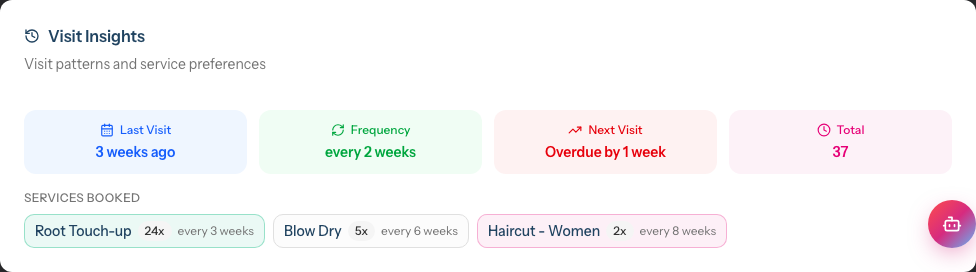
Customers who haven't visited within their typical interval are flagged for follow-up.
Re-engagement workflow:
- Use the Not in 6+ Months filter to identify lapsed customers
- Review their profiles and transaction history
- Consider a re-engagement message or special offer
- If they've permanently churned, deactivate their record
Common Pitfalls
"I can't find a customer in search"
Check the status filter. If set to Active Only, inactive customers won't appear. Switch to All Customers and try again.
"I have duplicate customer records"
Use the Manage Duplicates button on the Customers page to review and merge duplicate records. Luminate automatically detects customers sharing email addresses, phone numbers, or similar names. See Tutorial 3.6: Merging Duplicate Customer Records for the full process.
"The customer list is too long to browse"
Always use search instead of scrolling. Type the customer's name, email, or phone to filter instantly.
"I want to segment customers for marketing"
Use the customer list filters to segment your audience:
- Spend Filter - Target high-value customers (Over £500, Over £1000)
- Visit History Filter - Re-engage lapsed customers (Not in 6+ Months) or reward recent visitors
- Service Booked Filter - Target customers who use specific services
Combine with Promotions & Offers communication preferences to ensure you only contact customers who have opted in to marketing.
Tips and Best Practices
- Keep profiles complete - Full profiles with phone and email enable better communication
- Use notes consistently - If you add organisational keywords, use the same terms across all relevant customers
- Deactivate, don't delete - Deactivated customers retain their history for reporting
- Search by phone at check-in - Fastest way to pull up a customer profile
- Review badges regularly - Ensure badges like VIP are still accurate
- Clean up quarterly - Regular maintenance prevents database bloat
Related Tutorials
- Tutorial 3.1: Adding and Managing Customer Profiles - Creating customer records
- Tutorial 3.2: Understanding Customer History and Analytics - Using visit insights
- Tutorial 3.3: Customer Preferences and Communication Consent - Managing preferences
- Tutorial 3.5: Using Customer Badges - Visual customer identification
Frequently Asked Questions
Can I create custom categories for customers?
Luminate uses badges (not tags) for customer categorisation. Badges include built-in options (VIP, Often Late, etc.) plus custom badges you can configure. See Tutorial 3.5.
How do I find all VIP customers?
VIP is a badge applied to individual customers. To identify high-value customers systematically, use the Spend Filter (Over £500 or Over £1000) on the customer list, or use the Top Customers report in the Reports section.
Can I bulk-update customer status?
Currently, status changes are made one customer at a time. For large-scale updates, consider using the data export/import features.
What's the difference between inactive and deleted?
- Inactive: Customer hidden from default views but history preserved
- Deleted/Anonymised: Personal data removed (GDPR compliance), but transaction/appointment history preserved
Can I search by notes content?
No, the main search bar searches name, email, and phone only. Notes and preferences content is not included in search. To categorise customers for quick identification, use badges instead (see Tutorial 3.5). To find customers by notes content, you would need to use data export to search externally.
How do I identify customers from a specific referral source?
When creating customers, record their referral source in the "How did they hear about us?" field. You can then export customer data and filter by this field.
How do I find customers who haven't visited recently?
Use the Visit History filter on the customer list:
- Not in 6+ Months shows customers who may have lapsed
- Never Visited shows customers with profiles but no appointment history
This is useful for re-engagement campaigns or database cleanup.
Can I find customers who book a specific service?
Yes, use the Service Booked filter dropdown to select any service. The list will show only customers who have booked that service at least once. This is helpful for targeted promotions or when a service is being discontinued.
Last Updated: January 2026