
Using the Cash Drawer
Tutorial 2.5: Using the Cash Drawer
Introduction
The cash drawer system tracks physical cash in your salon. This tutorial covers opening and closing cash drawer sessions, recording cash movements, and reconciling balances at the end of the day.
Who this is for: Owner, Admin, Manager What you'll learn:
- Create and manage cash drawers
- Open a cash drawer session with an opening float
- Record top-ups, payouts, and safe drops
- View session history
- Close the drawer and reconcile variances
Time to complete: 10 minutes
Prerequisites
- Manager, Admin, or Owner permissions
- A cash drawer configured in the system
Understanding the Cash Drawer System
| Term | Definition |
|---|---|
| Cash Drawer | A named till location in your salon |
| Session | The period when a drawer is open for business |
| Opening Float | The starting cash amount |
| Top Up | Adding cash to the drawer |
| Payout | Removing cash for expenses |
| Safe Drop | Removing excess cash to a safe |
| Expected Closing | Calculated balance based on activity |
| Variance | Difference between counted cash and expected |
Step-by-Step Instructions
Step 1: Access the Cash Drawer
- Click Cash Drawers in the sidebar
- The Cash Drawers page displays all configured drawers
- Each drawer shows its name and current status
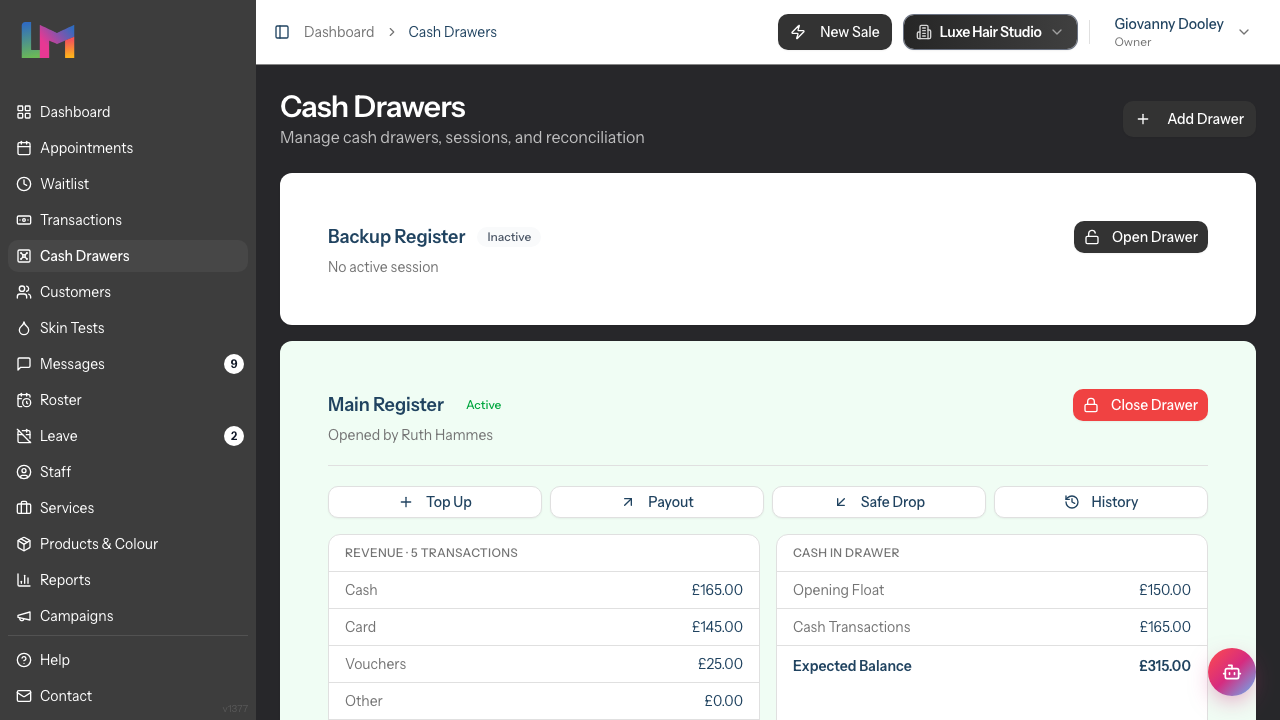
Drawer Status:
- Active badge (green) - Drawer has an open session
- Inactive badge - Drawer is closed or not in use
Step 2: Create a Cash Drawer (First Time Setup)
If no drawers exist:
- Click Add Drawer in the top-right corner
- In the Create Cash Drawer dialog, enter a Drawer Name (e.g., "Main Register", "Front Desk")
- Click Create Drawer to save
- Repeat for additional drawers if needed
Step 3: Open a Cash Drawer Session
At the start of each business day:
- Find the drawer you want to open
- Click Open Drawer
- A dialog appears asking for the Opening Float
Opening Float Options:
If there's a previous closing balance, you'll see:
- Last Closing Balance displayed (e.g., "£150.00")
- A Use This button to apply the last balance as your opening float
Otherwise:
Enter the Opening Float amount manually
This is the cash you're starting with (your float for making change)
Click Open Drawer to confirm
The drawer status changes to Active
Step 4: View Open Session Details
When a drawer is open, the card displays:
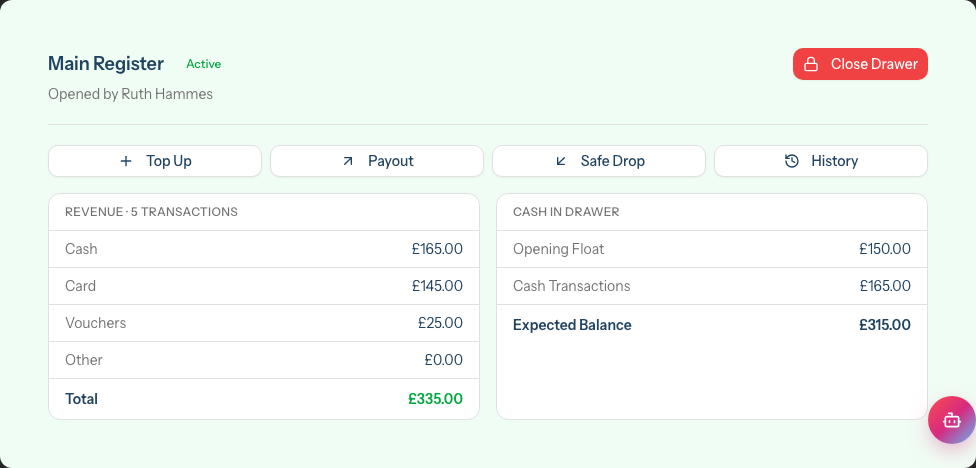
Session Information:
- Who opened the session
- Current session statistics
Revenue Breakdown: The first section shows revenue by payment method with a transaction count header (e.g., "Revenue · 6 transactions"):
| Row | Description |
|---|---|
| Cash | Total cash received from transactions |
| Card | Total card payments taken |
| Vouchers | Total gift voucher redemptions |
| Other | Total other payment method amounts |
| Total | Combined revenue across all methods |
Cash in Drawer: The second section tracks the physical cash position:
| Row | Description |
|---|---|
| Opening Float | The starting cash amount |
| Cash Transactions | Cash received from sales (net of movements) |
| Expected Balance | Calculated current cash in the drawer |
Available Actions:
- Top Up - Add cash to the drawer
- Payout - Remove cash for expenses
- Safe Drop - Remove excess cash to a safe
- History - View all session activity
- Close Drawer - End the session (in the drawer card header)
Step 5: Record a Top Up
When adding cash to the drawer (e.g., more change from the bank):
- Click Top Up on the open drawer
- Enter the Amount being added
- Enter a Reason (optional) explaining why (e.g., "Change from safe")
- Click Record Top Up to confirm
- The Expected balance increases
Step 6: Record a Payout
When removing cash for expenses (e.g., petty cash for supplies):
- Click Payout on the open drawer
- Enter the Amount being removed
- Enter a Reason explaining why (e.g., "Coffee for staff")
- Click Record Payout to confirm
- The Expected balance decreases
Step 7: Record a Safe Drop
When removing excess cash to a safe or for banking:
- Click Safe Drop on the open drawer
- Enter the Amount being removed
- Enter a Reason (optional) (e.g., "Mid-day safe drop")
- Click Record Drop to confirm
- The Expected balance decreases
Step 8: View Movement History
To review all activity for the current session:
- Click History on the open drawer
- The Session Activity dialog appears showing all transactions and movements for the drawer
- The table displays:
- Type - The entry type badge (e.g., Cash Sale, Card, Gift Voucher, Payout, Safe Drop)
- Amount - The cash amount (green for incoming, red for outgoing)
- Details - The reason for cash movements, or the payment reference/transaction number for non-cash payments
- Date - When the entry occurred
Step 9: Close the Cash Drawer Session
At the end of the day:
- Count all cash in the drawer carefully
- Click Close Drawer on the active session
- The Close Cash Drawer dialog appears with a reconciliation table
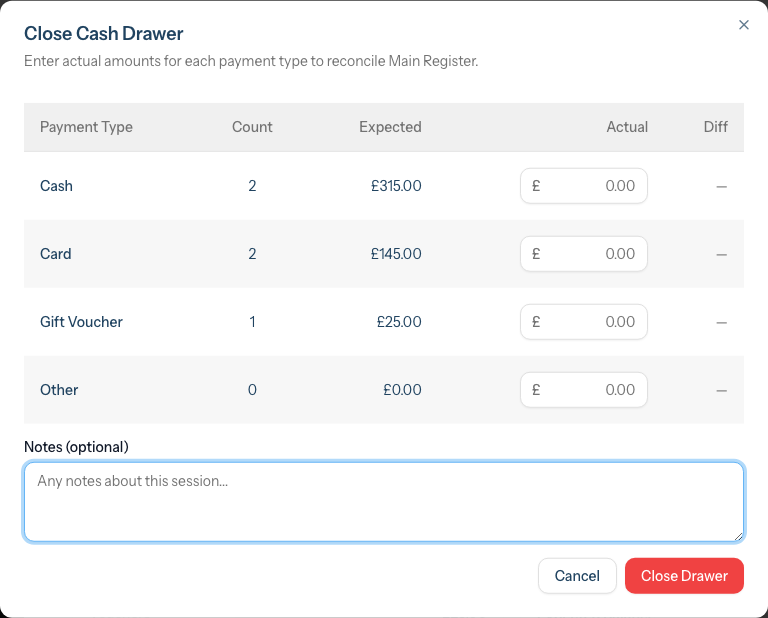
Reconciliation Table: The table shows expected vs actual amounts broken down by payment method:
| Column | Description |
|---|---|
| Payment Type | The method — Cash, Card, Gift Voucher, or Other |
| Count | Number of transactions for that method during the session |
| Expected | System-calculated amount based on transaction payments linked to the session |
| Actual | Your counted/verified amount (enter this) |
| Diff | Variance between actual and expected for that method |
The Cash expected amount accounts for the opening float plus cash sales, minus payouts and safe drops.
- Enter the actual amount for each payment method
- Review the per-method Diff column and the Overall variance indicator below the table:
Variance Indicators:
- Green "Balanced" - Actual matches expected (shows +£0.00)
- Blue "Over" - More than expected (e.g., +£5.00)
- Red "Short" - Less than expected (e.g., -£5.00)
- Optionally add notes in the Notes (optional) field
- Click Close Drawer to confirm
- The session is closed and recorded
Handling Variances
Perfect Balance (Variance = £0.00)
The drawer balances exactly. Close the session - great job!
Small Variance (Under £5)
- Recount the amounts for the affected payment method (check the Diff column to see which method is off)
- If still showing variance, it may be:
- Change given incorrectly (cash)
- Rounding from multiple transactions
- Record the variance and close
- Note the discrepancy
Large Variance (Over £5)
- Recount the affected payment method carefully (the Diff column highlights which methods have variances)
- Review the day's transactions
- Check movement records
- Document findings in the notes
- Report to management
- Close session with variance recorded
Investigating per-method variances:
- Cash variance — Check for miscounted change, unrecorded payouts or drops
- Card variance — Check for missed or double card taps, failed transactions not voided
- Gift voucher variance — Check for unredeemed or incorrectly entered voucher codes
- Other variance — Check for unrecorded alternative payments
Common Causes:
| Issue | Effect | Prevention |
|---|---|---|
| Change miscounted | Cash short | Count change back to customer |
| Movement not recorded | Either | Record all movements immediately |
| Transaction error | Either | Verify totals before completing |
| Missed card tap | Card short | Confirm card terminal shows approved |
Multi-Drawer Setup
If your salon has multiple till stations:
Managing Multiple Drawers
- Each drawer operates independently
- Open/close sessions separately
- Cash payments are assigned to the selected till
- Reconcile each drawer individually
Till Selection
When processing transactions with multiple open drawers:
- The system prompts you to select a till
- Your selection is remembered for the session
- You can switch tills if needed
Automatic Midnight Rollover
Every till closes itself and reopens with a fresh session at your salon's local midnight. This keeps each business day's cash, card, voucher, and "other" tallies in their own session — without it, sales rung after midnight would land on yesterday's session and skew your reports.
What you'll see in the morning
- In the normal case, the till is shown as open with an Auto badge and the subtitle "Auto-opened at midnight".
- If the till is currently closed and its most recent close was the midnight rollover (for example, you closed the auto-opened session yourself to recount the float), the closed-state subtitle reads "Last session auto-closed at midnight" with an Auto badge.
How it works
- If you forgot to close the till — the system closes it for you with the actual amounts set to match the expected amounts (variance £0). The closing reflects what the system expected to be in the drawer; it can't physically count cash. If you find a real discrepancy when you arrive, correct the new session before you start trading: record a Top Up or Payout to bring the drawer to the amount you actually counted, or close the auto-opened session straight away and reopen it with the correct opening float.
- If you closed the till before midnight — the system simply opens a fresh session for the new day at midnight, ready for your first transaction.
Opening float
The auto-opened session carries forward the previous session's closing balance — whatever the till finished the day with becomes the next morning's opening float. The cash physically in the drawer at close stays in the drawer overnight, so the system tracks it consistently.
If you bank the day's takings overnight (or move cash to the safe), record that as a Safe Drop on the closing session before midnight. If you find the morning balance doesn't match what's actually in the drawer (e.g. you banked after the auto-close), close the auto-opened session and reopen it with the correct float. This keeps your variance honest and your tallies clean.
What if the system was offline at midnight?
The rollover catches up if it runs within the first hour after midnight. If your server was down longer than that, the till will stay on yesterday's session until staff manually close it — this is intentional, so a delayed rollover doesn't retroactively change the previous day's tallies.
Common Pitfalls
"I forgot to open a session before taking cash"
Open the session now with the current cash amount. Cash payments made before opening won't be tracked in the session.
"Cash variance keeps appearing"
Small variances are normal. For consistent issues, review cash handling procedures with staff.
"Someone took cash without recording"
Enforce that all cash movements must be recorded immediately. Consider limiting drawer access.
"I closed with the wrong amount"
Contact an Admin or Owner who may be able to adjust the record.
"The drawer shows as inactive but I need it open"
Click Open Drawer to start a new session with your opening float.
Tips and Best Practices
- Use consistent float amounts - Same opening balance each day makes verification easy
- Record movements immediately - Don't wait until end of day
- Count carefully at close - Take your time to avoid errors
- Use the last balance feature - When cash stays overnight, use the "Use This" button
- Add clear notes - Document reasons for all movements
- Bank excess cash regularly - Don't keep large amounts in the drawer
- Review history if unsure - Check movements if the balance seems wrong
Related Tutorials
- Tutorial 2.4: Processing Transactions - Cash payments flow to the drawer
- Tutorial 2.2: Booking and Managing Appointments - Appointments link to transactions
Frequently Asked Questions
Can multiple people use the same drawer?
Yes, but accountability is harder. Consider closing and reopening at shift changes, or using separate drawers per station.
What if we don't accept cash?
If your salon is card-only, you don't need to use the cash drawer feature.
How do I handle petty cash?
Record a Payout from the drawer when taking petty cash. Keep a separate log for what the money was spent on.
What counts as an acceptable variance?
| Range | Guidance |
|---|---|
| Under £1 | Normal operational variance |
| £1-£5 | Acceptable but document it |
| Over £5 | Investigate and report |
Can I have multiple drawers open at once?
Yes, each drawer can have its own open session. Useful for salons with multiple reception points.
Why use Safe Drop vs Payout?
- Safe Drop - Removing excess cash for security (moving to safe)
- Payout - Removing cash for expenses (petty cash, supplies)
Both reduce the expected balance, but the distinction helps with reporting.
Last Updated: May 2026