
Managing Your Appointment Calendar
Tutorial 2.1: Managing Your Appointment Calendar
Introduction
The appointment calendar is the central hub of your daily salon operations. It provides a visual overview of all scheduled appointments, allowing you to see at a glance who is booked, when, and with which staff member.
This tutorial covers how to navigate the calendar, switch between different views, and understand the visual cues that help you manage your day effectively.
Who this is for: Owner, Admin, Manager, Staff, Receptionist What you'll learn:
- Navigate between dates using the calendar controls
- Switch between Day, Week, and List views
- Understand staff columns and rostered indicators
- Use the Waitlist and Clipboard panels
- Interpret the "now" line and appointment cards
- Use keyboard shortcuts for faster navigation
Time to complete: 10 minutes
Prerequisites
- Access to a salon with at least one staff member configured
- Permission to view appointments (all roles have this by default)
Step-by-Step Instructions
Step 1: Access the Appointment Calendar
- Click Appointments in the sidebar navigation
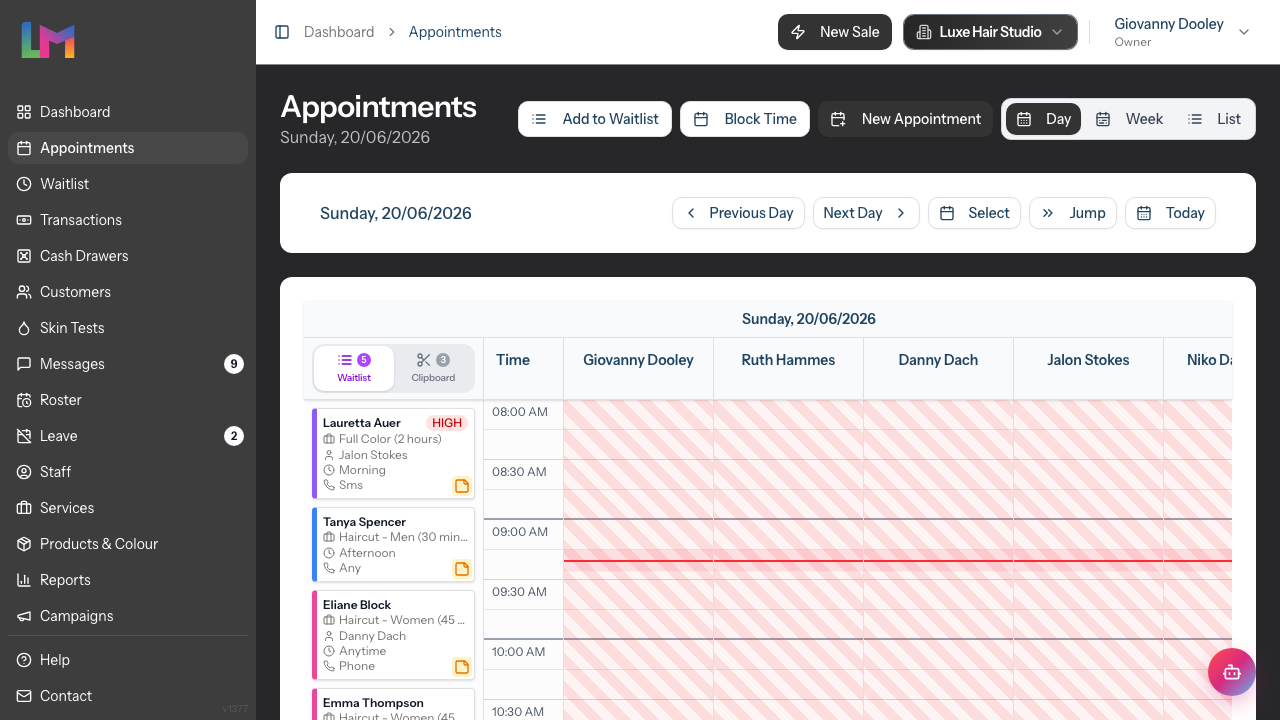
- The calendar opens in Day view by default, showing the current date
The page header displays "Appointments" with the current date formatted below it (e.g., "Saturday, 28 December 2025").
Step 2: Navigate Between Dates
The date navigation bar appears below the header with these controls:
- Previous Day - Click to move to the previous day
- Next Day - Click to move to the next day
- Select - Opens a calendar picker to jump to any date
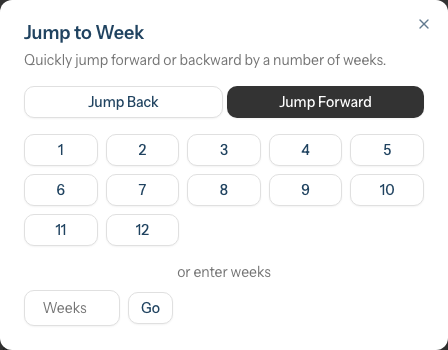
- Jump - Opens the Jump to Week dialog to quickly skip forward or backward by a number of weeks (see Step 5 for details)
- Today - Returns to the current date
The selected date appears between the navigation buttons showing the day name and formatted date.
Step 3: Switch Between Calendar Views
Three view modes are available via the toggle buttons in the top-right corner:
Day - Shows a single day with all staff members as columns
- Each staff member has their own column
- Time slots run vertically from top to bottom
- Best for managing a single day's schedule
Week - Shows a full week for one staff member
- Days of the week appear as columns (Monday to Sunday)
- A staff selector appears at the top showing the selected staff member's name (with a "(You)" suffix when it's your own profile). Use the Previous staff (left chevron) and Next staff (right chevron) buttons to switch between team members
- Best for planning individual staff schedules
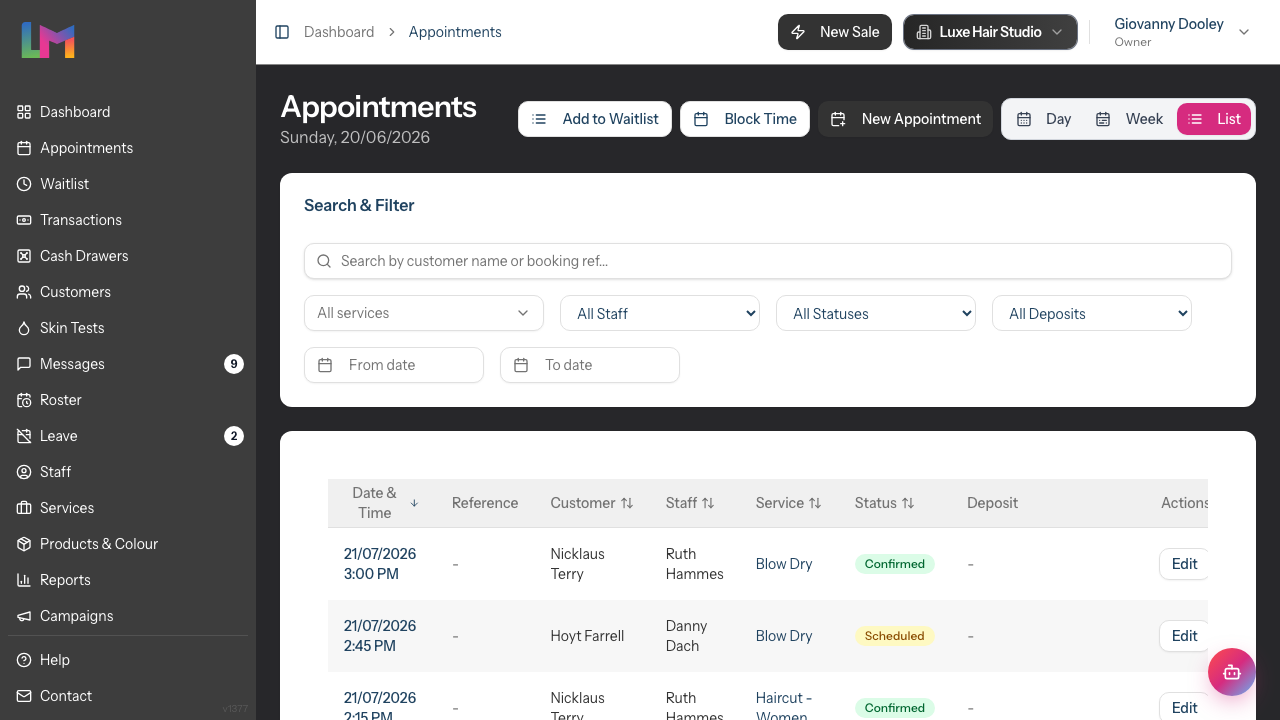
List - Shows appointments in a table format
- Filterable by customer, staff, status, service (multi-select chip filter — pick any combination of services and the list narrows to appointments that include at least one of them), deposit status, and date range
- Search by customer name or booking reference
- Sortable columns — click a column header to sort by that field; click again to reverse direction. The current sort column shows an arrow indicator (and an
aria-sortattribute for screen readers) so the order is always clear. - Best for searching and filtering across many appointments
Click the Day, Week, or List button to switch views. The currently active view is highlighted.
Step 4: Understand the Day View Layout
The Day view displays a grid with:
Header Row:
- Waitlist/Clipboard tabs on the left (see Step 6)
- Time column showing the time scale
- Staff columns - one column per active staff member
Staff Column Headers:
- Staff name displayed at the top
- (Not rostered) appears below the name if the staff member is not rostered for this date
- On [Leave Type] appears in purple if the staff member is on approved leave
Time Grid:
- Time slots display in 30-minute increments at a compact density that fits a full working day on screen at the default zoom level
- The grid adjusts dynamically based on your salon's operating hours
- A red horizontal line indicates the current time (only visible when viewing today)
- Sticky header — the staff/day header row pins to the top of the viewport when you scroll a long day, so you can always tell which column you're looking at
Visual Indicators:
- Striped/faded columns indicate staff who are not rostered for the selected date (booking into one of these triggers the Roster override dialog — see Tutorial 5.1)
- Off-shift blocks appear as grey overlays during times outside a staff member's shift
Step 5: Understand the Week View Layout
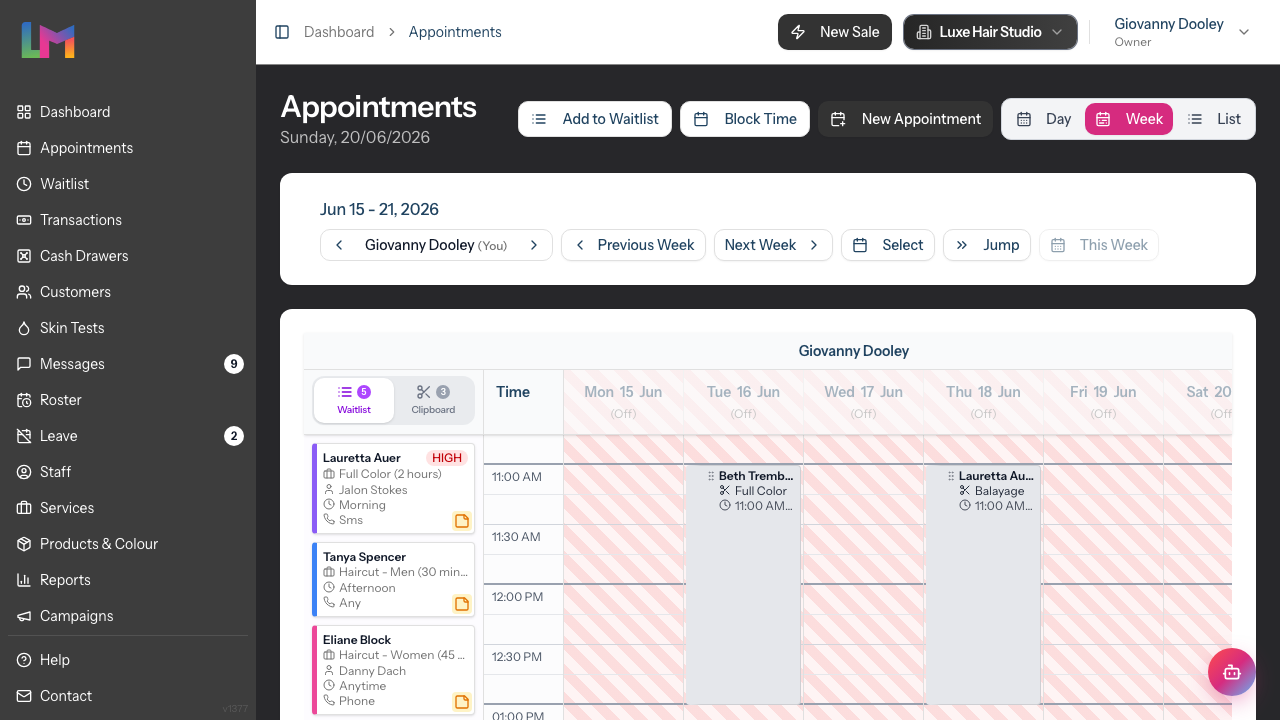
When you switch to Week view:
- A staff selector appears at the top showing the staff member's name (with a "(You)" suffix when it's your own profile). Use the chevron buttons on either side to switch between team members, or click the name to pick from a dropdown. The last staff member you viewed is remembered per salon — if you manage multiple salons, each one keeps its own preference, so switching salons doesn't reset the view
- Days of the week appear as column headers (Mon, Tue, Wed, etc.) with the date number below
- The current day is highlighted if viewing the current week
- The selected date column shows a blue background highlight, helping you see which day you've navigated to — even when it's not today
- Days where the staff member is not rostered appear faded
Week Navigation:
- Previous Week and Next Week buttons navigate between weeks
- This Week returns to the current week (this button is disabled when already viewing the current week)
- Jump — Opens the Jump to Week dialog. Toggle between Jump Back and Jump Forward, then choose from preset buttons for 1–12 weeks or enter a custom number. This is useful for quickly checking a client's availability several weeks out without clicking through one week at a time. You can also press j on your keyboard to open this dialog
- The date range is displayed at the top (e.g., "Jan 19 - 25, 2026")
Step 6: Use the Waitlist and Clipboard Panels
The left panel in the Day view has two tabs:
Waitlist Tab:
- Shows customers waiting for an appointment slot
- Entries can be dragged onto the calendar to create appointments
- A badge shows the count of waitlist entries
- Click an entry to view or edit it
Clipboard Tab:
- Shows items that can be placed on the calendar by clicking a time slot
- Cut items (amber, scissors icon): Appointments you've cut for rescheduling. On desktop, hover over an appointment card and click the scissors icon. On mobile, tap an appointment card and select Cut
- Rebook items (blue, calendar icon): New appointments queued from the rebook prompt after completing a transaction in Quick POS (see Tutorial 2.2 for details)
- Select a clipboard item, then click/tap an empty calendar slot to place it
Step 7: Interact with Appointment Cards
Each appointment appears as a coloured card on the calendar. The card background is the service colour, so the calendar at a glance still tells you what kind of work is happening.
Appointment Card Information:
- Customer name
- Service name
- Appointment time
- Status hex stripe — a thin coloured strip on the card's left edge encodes the appointment's status (e.g. confirmed, arrived, no-show, cancelled). The stripe sits against the service-coloured background so you can see status and service type at the same time without losing the service association.
Actions available by clicking/tapping an appointment:
On desktop: Clicking an appointment opens a sidebar showing full appointment details, customer information, appointment status, notes, and action buttons (Edit, Cancel, Open Quick POS). The Notes entry in the sidebar shows an amber count badge when the appointment has any notes attached — click it to open the notes modal where you can read, add, or edit notes for the customer.
Hover toolbar: Hovering over an appointment card on the calendar reveals a small toolbar of icons flush to the card's right edge — Cut to clipboard, Copy to clipboard, View appointment, and Open transaction (for billed appointments). The toolbar sits outside the card so it doesn't cover the bottom resize handle, which means even short 15-minute appointments can be resized without fighting the icons for space. The toolbar flips to the left side automatically near the right edge of the calendar.
On mobile: Tapping an appointment opens a popup menu with three options:
- View — Opens the appointment details sidebar
- Edit — Opens the appointment edit form
- Cut — Cuts the appointment to the clipboard for pasting elsewhere
Drag and Drop:
- Drag an appointment to a different time slot to reschedule it
- Drag an appointment to a different staff column to reassign it
- Resize an appointment by dragging its bottom edge to adjust the duration
- If a drag or resize fails validation (e.g., staff not available, outside working hours), a toast notification appears explaining why the action could not be completed
Staff-level duration on drag: When you drag an appointment to a different staff member, the appointment automatically resizes to match that staff member's level-specific duration for the service (configured under Services — see Tutorial 4.3 and 7.1). The drag preview itself live-resizes while you hover over a different column, so the ghost matches what will be saved when you release. If you've manually resized an appointment yourself, that custom duration is preserved when you move it to another staff column.
Step 8: Use Keyboard Shortcuts
Luminate provides keyboard shortcuts to help you navigate the calendar quickly. These shortcuts only work when you're not focused on an input field (such as a search box).
Global Shortcuts (work from any page):
- d - Go to Dashboard
- a - Go to Appointments (Day view)
- w - Go to Appointments (Week view)
- t - Go to QuickPOS
Calendar-Specific Shortcuts (only work on the Appointments page):
- ← (Left arrow) - Previous day (in Day view) or previous week (in Week view)
- → (Right arrow) - Next day (in Day view) or next week (in Week view)
- j - Open the Jump to Week dialog
These shortcuts are disabled when you're typing in a search field, text box, or any other input element.
Common Pitfalls
"No staff are rostered for this time"
This warning appears when you're viewing a date where no shifts have been created. Create shifts in the Roster section to indicate when staff are available.
Striped columns in the calendar
Striped/faded columns indicate staff members who are not rostered on the selected date. You can still book appointments with them, but this serves as a visual reminder.
Staff not appearing on the calendar
If a staff member doesn't appear, check that:
- They are marked as Active in their staff profile
- They have a shift on the roster for the selected date
Tips and Best Practices
- Use the Today button - Quickly return to the current date after browsing other dates
- Check the now line - The red line shows the current time, helping you see what's coming up next
- Monitor the Waitlist panel - Keep an eye on the waitlist count to fill cancellations quickly
- Use Week view for planning - Review individual staff schedules when planning ahead
- Use List view for searching - When you need to find a specific appointment, the List view's filters are fastest
- Jump ahead with j - Press j or click Jump to skip multiple weeks at once, ideal for checking availability weeks out
Related Tutorials
- Tutorial 2.2: Booking and Managing Appointments - Learn how to create and modify appointments
- Tutorial 2.3: Working with the Waitlist - Master the waitlist system for managing demand
Frequently Asked Questions
Can I see multiple staff members in Week view?
No, Week view shows one staff member at a time. Use the Previous staff and Next staff buttons (chevron icons) to switch between team members. For viewing all staff on one day, use Day view.
Why do some staff columns appear faded?
Faded/striped columns indicate staff who are not rostered on the selected date. This visual cue helps you see at a glance who is scheduled to work.
How do I know what time it is on the calendar?
In Day view, a red horizontal line indicates the current time. This line only appears when viewing the current date and automatically updates every minute.
Can I drag appointments to reschedule them?
Yes, in Day and Week views you can drag appointments to a new time slot or staff column. The appointment will be updated automatically. If the move fails validation (e.g., staff not available at that time), a toast notification will explain why. For linked appointments (multi-service bookings), you'll be prompted about whether to move all linked appointments together.
What do the appointment colours mean?
Each appointment takes its colour from the service it's booked for. You can customise service colours by editing the service in Services settings.
What keyboard shortcuts are available?
Press d to go to Dashboard, a for Appointments (Day view), w for Week view, or t for QuickPOS. On the Appointments page, use the arrow keys (← and →) to navigate between days or weeks, or press j to open the Jump to Week dialog. Shortcuts don't work when typing in a form field.
Can I block out time on the calendar?
Yes, there are two ways to block time:
- From the header - Use the Block Time button in the top-right corner of the calendar
- From the calendar - Click on any empty time slot and select Time Block from the popup menu
Time blocks reserve calendar space for non-appointment activities like breaks, training, or admin time.
Last Updated: May 2026 Verified against Luminate codebase: May 2026