
Processing Transactions
Tutorial 2.4: Processing Transactions
Introduction
The Point of Sale (POS) system lets you process payments for services and products. This tutorial covers creating transactions from appointments, processing walk-in sales, accepting different payment methods, and completing transactions.
Who this is for: Owner, Admin, Manager, Staff, Receptionist What you'll learn:
- Access the Point of Sale
- Create transactions from appointments
- Add services and products to a sale
- Apply discounts and tips
- Process payments (cash, card, gift voucher)
- Handle split payments
- Select the correct till for cash payments
- Understand the automatically staged colour overage line
- Swap or remove appointment services at the till and sync the calendar
- View gift voucher details after purchase
- Rebook the customer's next appointment after payment
Time to complete: 15 minutes
Note: Transactions are created and edited in Quick POS only (no separate create/edit screen).
Prerequisites
- Services configured in the system
- Products configured (if selling retail)
- Cash drawer opened (if accepting cash payments - see Tutorial 2.5)
- Staff assigned to the transaction items
Step-by-Step Instructions
Step 1: Access the Point of Sale
Using the keyboard shortcut (quickest):
- Press t on your keyboard from any page (when not typing in a form field)
- The Quick POS interface opens immediately
From the header:
- Click the New Sale button in the top-right corner of the app header (visible on every page)
- The Quick POS interface opens immediately
From the navigation:
- Click Transactions in the sidebar
- The transaction list appears
- Click New Sale in the top-right corner
- The Quick POS interface opens
From an appointment:
- Click on an appointment in the calendar
- Click Create Transaction in the sidebar (or on the appointment detail page)
- Quick POS opens with the customer and service pre-filled
From a linked appointment (multi-service booking): If the appointment is part of a linked group (e.g., a cut and colour booked together), a Linked Appointments dialog appears when you click Create Transaction:
- The dialog tells you the appointment is part of a group of X linked appointments
- Choose one of two options:
- All X Appointments — loads all linked services into the cart at once
- This Appointment Only — loads just the single service you clicked on
- Quick POS opens with the selected appointments pre-filled, including correct staff assignments and any level-based pricing
If a draft transaction already exists for the linked group (e.g., someone started but didn't finish), the dialog buttons change to Continue Transaction (All X) and Continue Transaction (This Only), so you can pick up where you left off.
Tip: For multi-service bookings, choosing "All Appointments" saves time — all services, staff, and prices are loaded into one transaction automatically.
Step 2: Select a Customer
- Click the Customer search field at the top of the POS
- Start typing the customer's name
- Select from the dropdown results
- Their name appears in the customer field
What happens when you select a customer:
- Their unbilled appointments appear in the Unbilled Appointments panel above the item tabs
- You can click an appointment to add it to the cart, or click Add All to Cart to add all unbilled appointments at once
- You can click Take Deposit on an appointment to process a deposit payment
- Their contact details are available for receipts
Step 3: Add Items to the Cart
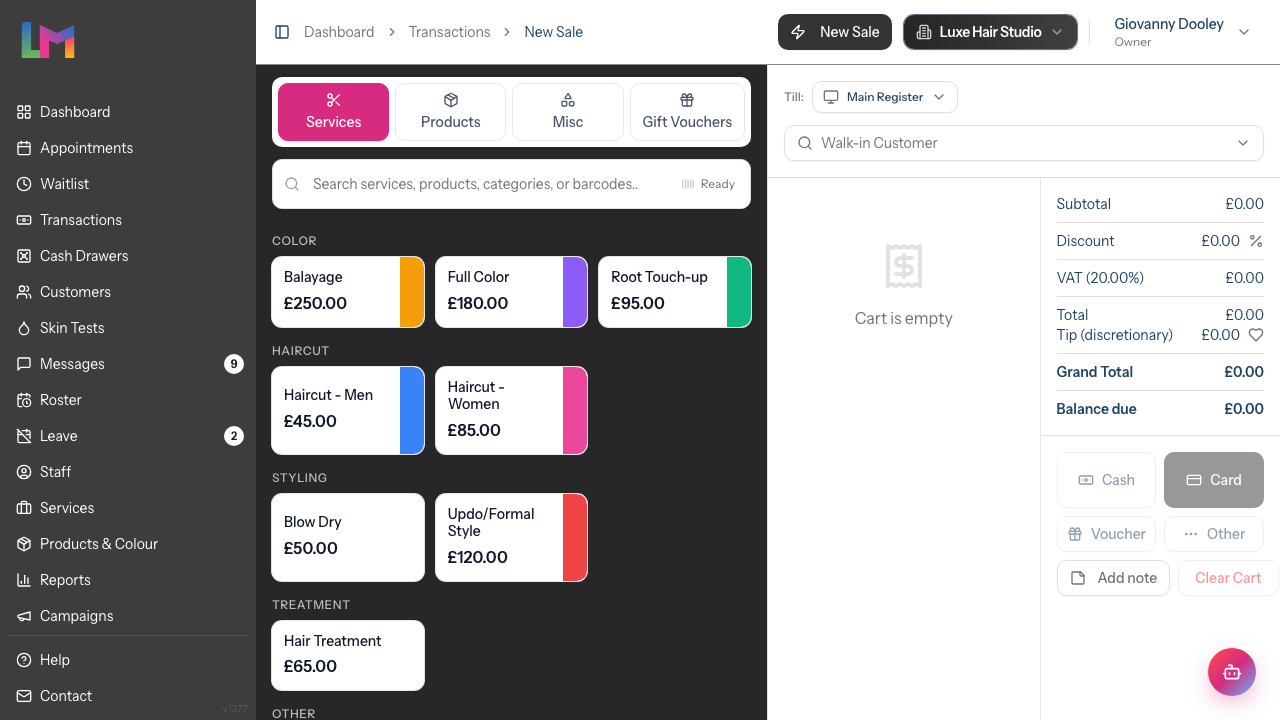
The POS has four tabs for adding items:
Services Tab:
- Services are organised by tag (e.g., Color, Haircut, Styling, Treatment)
- Click a tag to expand and see services in that category
- Use the search field to find specific services
- Click a service to add it to the cart
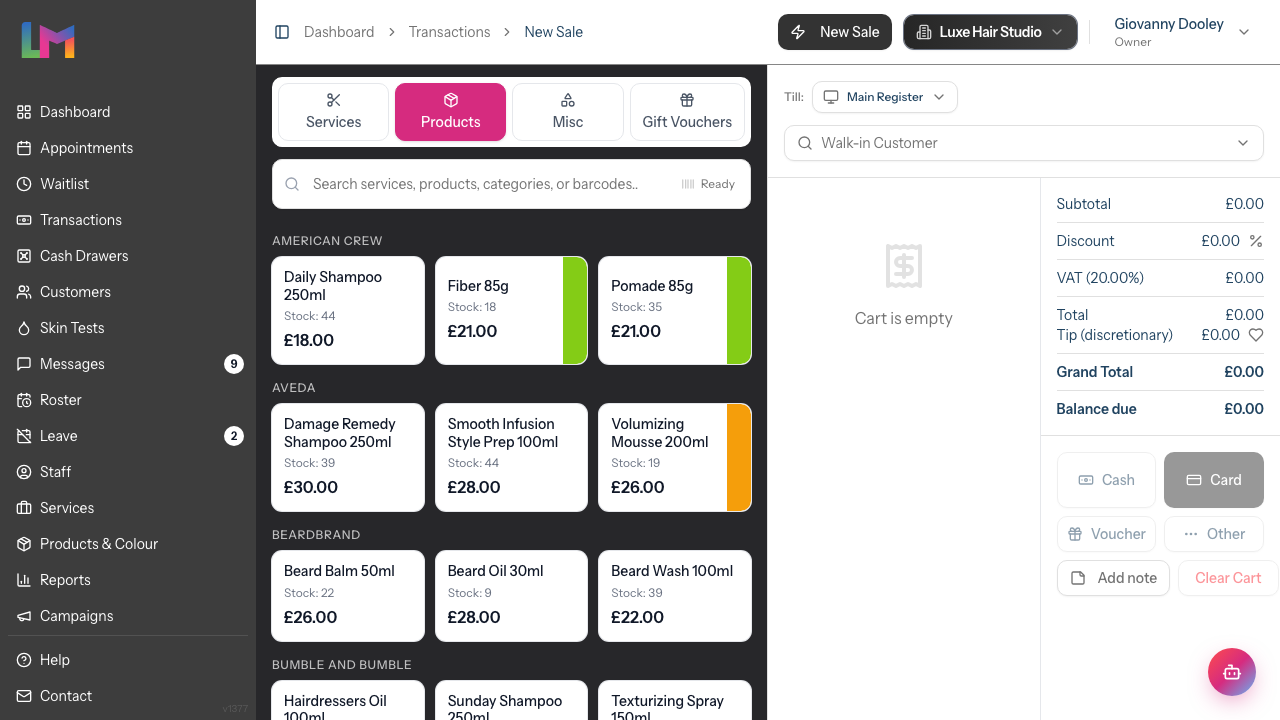
Products Tab:
- Products are organised by brand
- Each product shows the available stock count
- Use the search field to find specific products
- Click a product to add it (quantity 1)
- Use + and - buttons to adjust quantity
Misc Tab:
- Add miscellaneous products with custom names and prices
- Useful for one-off items not in the system
Gift Vouchers Tab:
- Sell gift vouchers to customers
- Choose from preset amounts (£25, £50, £100, £150, £200, £250) or enter a custom amount
- The valid value range is displayed (e.g., £5 - £500)
- Enter recipient details (if required by your settings)
Adding from Unbilled Appointments: When a customer has unbilled appointments:
- Select the customer
- Their unbilled appointments appear in the Unbilled Appointments panel above the tabs
- Click an appointment to add it to the cart, or click Add All to Cart
- The service and staff are automatically assigned
Step 4: Review the Cart
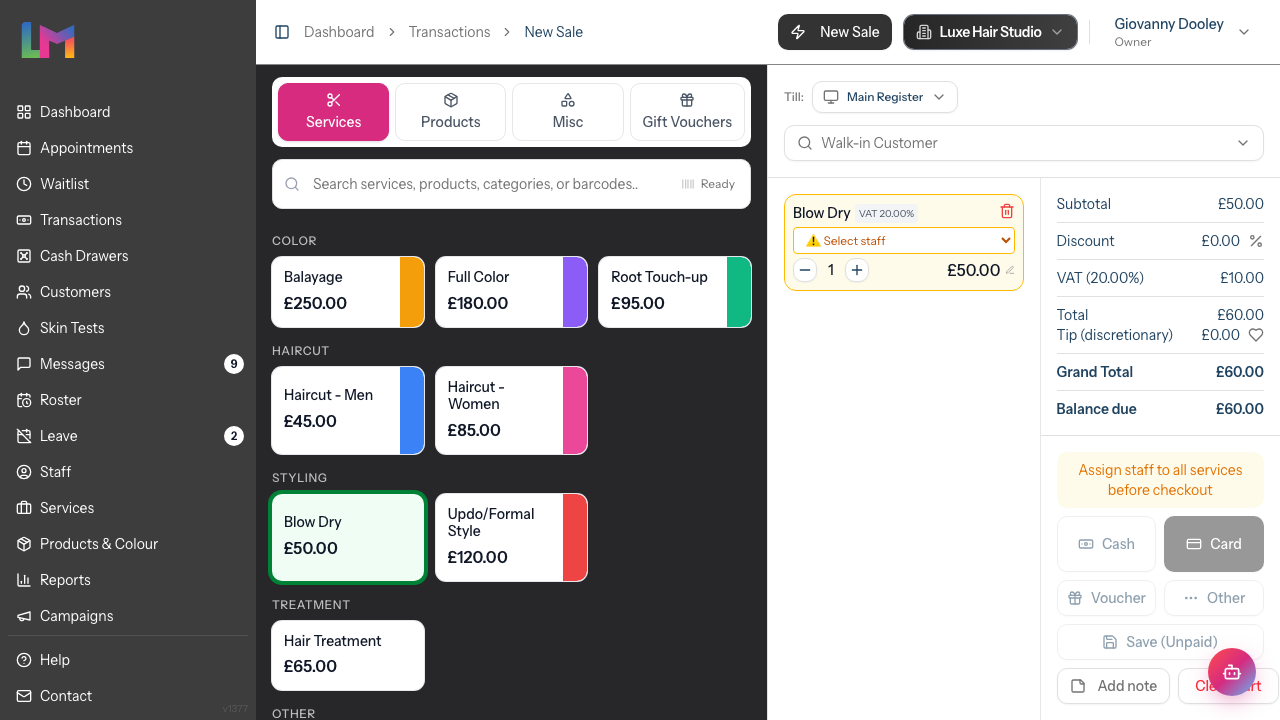
The cart panel on the right shows:
- All items added to the sale
- Staff assignment for each service
- Quantities for products
- Line item prices
For each item you can:
- Adjust quantity (products)
- Assign/change staff member (services)
- Remove the item (click the trash icon)
Swapping or removing an appointment service:
When a cart line came in from an appointment (it shows a small calendar icon and a faint pencil next to the service name), you can update what's actually being billed without breaking the link to the original calendar entry:
- Swap the service — Click the service name to open an inline service picker. Type to filter and click the replacement service. The line is updated in place and stays linked to the same appointment, so any change can be confirmed against the calendar at finalize time.
- Remove the service — Click the trash icon on the line. The line comes off the cart, but the original appointment isn't cancelled yet — that's also confirmed at finalize.
When you finish the sale, if the cart no longer matches the calendar (because of swaps or removals), a Calendar Sync confirmation dialog appears so you can choose whether to update the calendar in line with the till. See Step 11 for the full flow.
Colour overage lines (Full mode only): If the appointment has a finalised colour formula that used more than the service's included colour grams, an emerald-tinted Colour overage line appears in the cart with a beaker icon. This line is staged automatically by the colour formula — you don't add it manually.
- The unit price is editable if you need to waive or adjust the charge for this customer
- Removing the line here unlinks it from the draft but does NOT delete the formula — the colourist can still Revert from the formula itself (see Tutorial 12.5)
- If you edit or Revert the formula before completing the transaction, the line updates in real time
- Once the transaction is completed, the line is locked — refund or modify (Tutorial 8.2) to change it
See Tutorial 20.8 for how overage pricing is calculated and why a formula might or might not produce a line item.
Totals displayed:
- Subtotal
- Exempt items and Taxable amount (shown only when the cart mixes taxable and exempt items)
- Discount (click to apply, update, or remove)
- Net (after discount) — shown only when a discount is applied
- Tax — labelled with your salon's tax name and rate (e.g., "VAT 20%")
- Total — running total before tip
- Tip (discretionary) — click the heart icon to add or update
- Grand Total
Once payments are recorded, additional lines appear:
- Less: Deposit (if appointments had deposits paid)
- Less: [Payment method] for each payment applied
- Balance due (remaining amount owed)
- Change due (if cash tendered exceeds the balance)
Step 5: Apply Discounts
To apply a discount:
- Click the discount amount (shows £0.00 by default) in the totals section
- A discount modal opens with two tabs:
- Percentage (%) — Enter a percentage discount
- Fixed (£) — Enter a fixed amount discount
- Use a quick percentage button (5%, 10%, 15%, 20%) or enter a custom value
- Click Apply (or Update if changing an existing discount)
- The cart total recalculates automatically
To remove a discount, open the discount modal and click Remove.
Discount is applied to the entire transaction, not individual items.
Step 6: Add a Tip
If the customer wants to add a tip:
- Click the tip amount (shows £0.00 with a heart icon) in the totals section
- A tip modal opens with:
- Quick percentage buttons: 10%, 15%, 20%, 25%
- A field to enter a custom amount
- Select a quick percentage or enter a custom amount, then click Add Tip
- The tip appears in the cart totals
Tips are tracked separately from service revenue and attributed to the staff member(s) on the transaction.
Step 7: Add Notes
To add notes to the transaction:
- Click the Add note button below the totals
- Enter any relevant information in the Add Note modal
- Click Save Note
- Notes appear on the transaction record
Step 8: Select Your Till (If Applicable)
If your salon has multiple cash drawers with open sessions:
- A modal appears asking "Which till are you using?" when you open the POS
- Click a till to select it (the selected till is highlighted)
- Click Continue to confirm
- Your selection is remembered for future transactions
The selected till also appears in a small selector in the POS header, so you can switch tills mid-session if needed.
If only one till is open, it's selected automatically and no modal appears.
Step 9: Process Payment
When ready to take payment:
Single Payment Method:
- View the total amount due
- Click the payment method button:
- Cash — Opens cash tendering
- Card — Records card payment
- Voucher — Redeem a gift voucher
- Other — For alternative payment methods
- Enter the amount (defaults to amount due)
- Click to confirm the payment
Cash Payments:
- Click Cash
- Enter the amount the customer gives you
- If they give more than due, change is calculated
- Record the payment
- Give the customer their change
Gift Voucher Payments:
- Click Voucher
- Enter the voucher code
- Click to check the balance
- If valid, the voucher balance appears
- Confirm to apply the voucher amount
Step 10: Split Payments
When a customer pays with multiple methods:
- Accept the first payment (e.g., £50 cash)
- The Amount Due updates to show remaining balance
- Accept the second payment (e.g., £30 card)
- Continue until the balance is zero
Example: £80 total
- Pay £50 cash → Amount due shows £30
- Pay £30 card → Amount due shows £0
- Transaction is fully paid
Step 11: Complete the Transaction
Once fully paid:
- Review the transaction summary
- The transaction is automatically saved and completed when fully paid
- For unpaid transactions, click Save (Unpaid) to save without payment
- You're taken to the transaction detail page
What happens next depends on the transaction:
- If the cart's services differ from what was booked — A Calendar Sync confirmation dialog appears first (see below)
- If gift vouchers were sold — A Gift Voucher Purchased modal appears (see further below)
- Named customer — A Rebook Appointment modal prompts you to book the customer's next appointment (see Step 12)
- Walk-in (no customer) — You're returned to the dashboard
If the cart no longer matches the calendar:
If you swapped a service or removed an appointment-linked line during the sale, an Update calendar to match till? dialog appears at finalize time. It lists the changes per appointment so you can confirm them in one place:
- A Swap badge with the old service struck through and the new service alongside it
- A Removed — will be cancelled badge for any appointment service you took off the cart
- An Unchanged badge for any other services in the same booking group, for context
Two buttons at the bottom:
- Complete sale — Finishes the transaction and leaves the calendar untouched. The sale is recorded but the original appointments stay as booked.
- Update calendar & complete — Finishes the transaction and applies the calendar changes: removed services are cancelled, swapped services have their service updated. Both happen as part of the same save, so either everything succeeds or nothing does.
No customer-facing notifications go out when you update the calendar this way — the customer is right in front of you at the till, so the system doesn't email or text them about the cancellation or change. Reception/manager still see the updated appointment in the calendar afterwards.
If the cart matches what was booked (the usual case), this dialog doesn't appear at all and the sale completes straight away.
If the transaction includes gift voucher sales:
A Gift Voucher Purchased modal appears showing:
- The voucher code(s) in monospace text with a Copy button for each
- The value of each voucher
- Recipient name (if provided)
Click Continue to dismiss the modal and proceed to the rebook prompt (or the dashboard for walk-in customers).
Tip: Use the Copy button to quickly share voucher codes with the customer or paste them into a message.
Transaction Status:
- Completed — Transaction finished (auto-completes when fully paid)
- Paid — Full payment received
- Linked appointments marked as "Billed"
Note: Transactions are auto-saved as drafts while you work, so you won't lose your progress.
Step 12: Rebook the Customer's Next Appointment
After completing a transaction for a named customer, a Rebook Appointment modal appears automatically. This is a prompt to schedule their next visit while they're still in the salon.
What you'll see:
- A success banner confirming the payment amount and customer name
- Service badges for the services they just had
- The staff member who performed the services
- A Book from anchor date picker — defaults to today, but you can change it (e.g., the customer's holiday return date)
- Quick timeframe buttons: 1 week, 2 weeks, 3 weeks, 4 weeks, 6 weeks, 8 weeks, 10 weeks, 12 weeks, 14 weeks, 16 weeks
- A custom Or pick a date picker for choosing a specific date instead
- A collapsible Upcoming appointments section showing the customer's future appointments — expand this to check for existing bookings and avoid double-booking
To rebook using a quick timeframe:
- (Optional) Set a different Book from date if the customer wants to count from somewhere other than today
- Click a timeframe button (e.g., 4 weeks) — a preview appears showing "Will book on [date]"
- Click Go to Calendar
- You're taken to the appointment calendar on the target date
- The customer's services appear as rebook items on the calendar clipboard (blue cards with a calendar icon)
- Click a time slot on the calendar to book the appointment directly — no form needed
To rebook using a custom date:
- Select a date in the Or pick a date picker
- Click Go to Calendar
- The same clipboard flow applies — click a time slot to book
What happens on the calendar:
- Each service from the transaction becomes a separate rebook item on the clipboard
- The clipboard auto-selects the first item, ready for booking
- Click a time slot to create the appointment instantly
- If there are multiple services, the clipboard advances to the next one after each booking
- Multi-service rebookings are linked together automatically
For full details on using rebook items on the calendar, see Tutorial 2.2: Booking and Managing Appointments.
If you don't want to rebook right now:
- Click No thanks to dismiss the rebook prompt and return to the dashboard
Tip: Use the rebook prompt to encourage regular visits — suggest 4–6 weeks for colour clients or 6–8 weeks for cuts.
Step 13: View Receipt or Invoice
To view a receipt or invoice, open the transaction from the Transactions list:
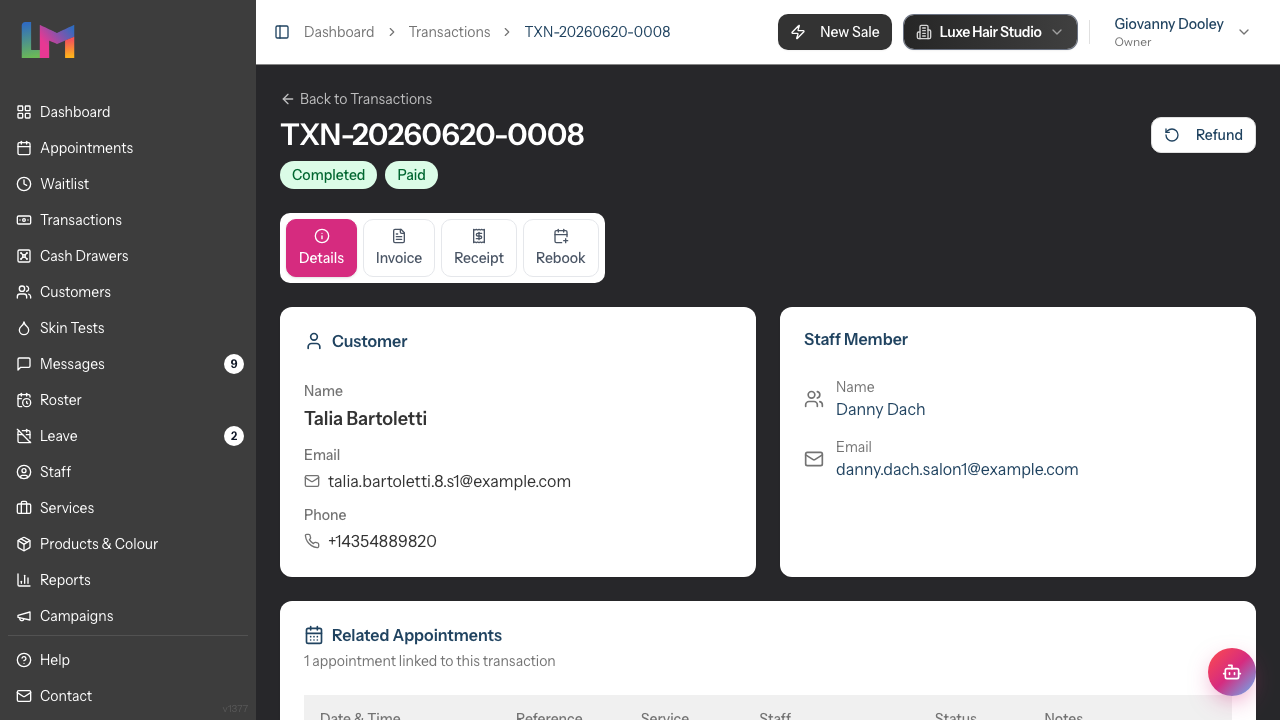
- Click on a transaction row to open the detail page
- The page opens on the Details tab; use the tabs to switch between views:
- Details — Line-by-line breakdown of items, staff, discounts, tips, and payments
- Invoice — Formal invoice format with full salon details, customer information, and tax breakdown
- Receipt — Compact thermal-printer-style format showing items, totals, and payment methods
- Rebook — Schedule the customer's next visit (the same flow as the post-payment rebook prompt in Step 12)
- Click Download to save the current view as a PDF
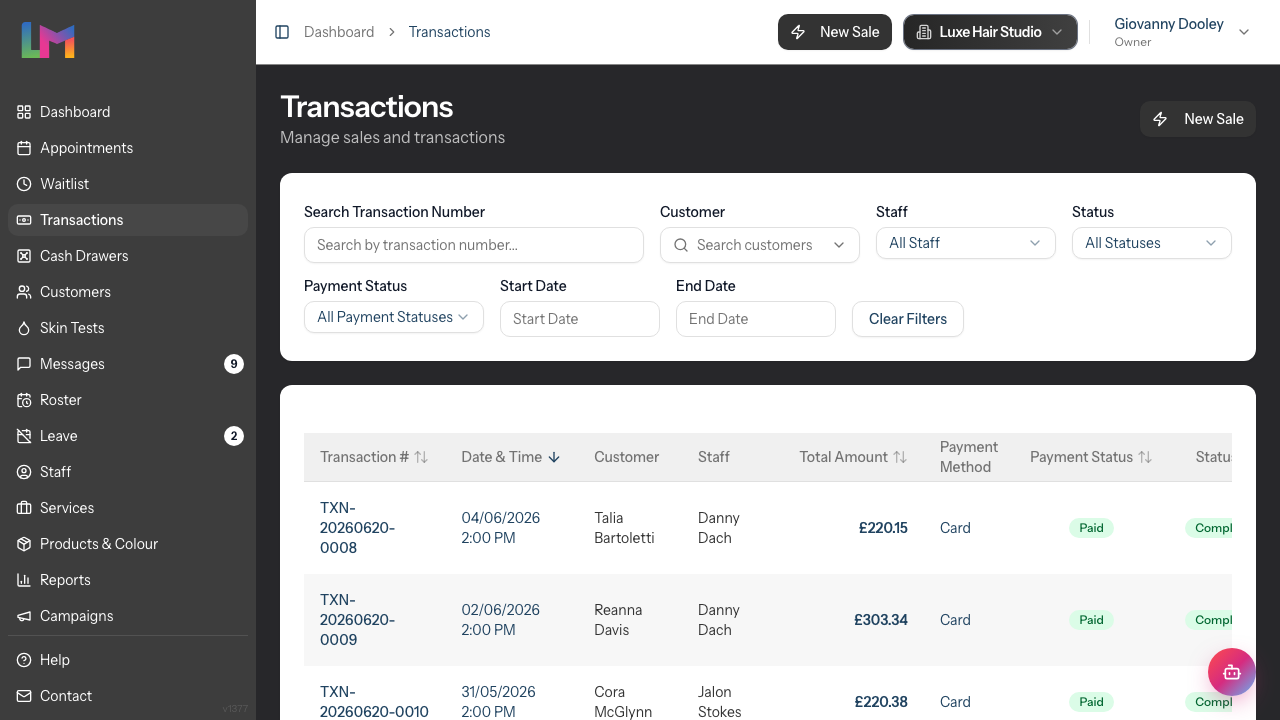
Reading the Transactions list: The Transactions list includes a Payment Method column (between Total Amount and Payment Status) that shows how each transaction was settled — Cash, Card, Gift Voucher, or Other. If a transaction was paid with multiple methods (e.g., a split payment), all methods are listed comma-separated (e.g., "Cash, Card"). An em dash ("—") indicates no payments have been recorded yet. This makes it quick to scan the day's takings without opening each transaction.
You can also filter the list by Payment Status — including an Outstanding option that combines Unpaid and Partial so you can see every transaction with a balance due in one view.
Understanding Transaction Status
| Status | Description |
|---|---|
| Draft | Transaction being created in Quick POS (auto-saved) |
| Pending | Transaction saved but not completed |
| Completed | Transaction finished |
| Refunded | Transaction was refunded |
| Cancelled | Transaction was cancelled |
| Payment Status | Description |
|---|---|
| Unpaid | No payment recorded |
| Partial | Some payment received, balance outstanding |
| Outstanding | Filter option combining Unpaid + Partial — shows all transactions with balances due |
| Paid | Fully paid |
| Overpaid | More than the total amount was paid |
Common Pitfalls
"I can't find the customer's appointment"
Make sure you've selected the customer first. Unbilled appointments only appear after a customer is selected.
"The service shows a different price than expected"
Staff members can have different pricing levels. The price adjusts based on who is assigned to perform the service.
"I processed the wrong payment method"
Contact an Admin or Owner who can help process a refund and create a new transaction with the correct method.
"The cash drawer didn't open"
Cash drawers require a hardware connection. Check that your drawer is connected and the session is open.
"Gift voucher shows as invalid"
Check that the voucher code is entered correctly and hasn't expired. The voucher must have a positive balance.
"I removed the appointment service from the cart but the calendar still shows it"
Removing a service from the cart doesn't cancel the appointment on its own. At finalize time, choose Update calendar & complete in the Update calendar to match till? dialog so the calendar reflects what actually happened. If you've already chosen Complete sale, you can still cancel the appointment from the calendar in the usual way.
Tips and Best Practices
- Confirm the total with the customer before processing payment
- Check staff assignment to ensure commission is recorded correctly
- Add products before checkout - "Would you like any products to take home?"
- Use barcode scanning if available for faster product entry - the scanner status indicator shows Ready or Scanning
- Select the correct till if your salon has multiple cash drawers
- Review the cart before completing to avoid errors
- Use quick tip percentages (10%, 15%, 20%, 25%) for faster tip entry
- Rebook before they leave - Use the rebook prompt after payment to schedule the customer's next visit while they're still in the salon
Related Tutorials
- Tutorial 2.2: Booking and Managing Appointments - Rebooking from the calendar clipboard after a transaction
- Tutorial 2.5: Using the Cash Drawer - Managing cash sessions and reconciliation
- Tutorial 12.5: Colour Formulas - How a finalised formula stages an overage line in the cart
- Tutorial 20.8: Overage Billing Explained - Calculation of the colour overage amount
Frequently Asked Questions
Can I edit a transaction after completing it?
No — once a transaction is completed, the only action on its detail page is Refund. To correct a completed sale, process a refund (Owner or Admin) and create a new transaction with the right details.
A transaction that was only saved as unpaid is different: its detail page shows a Take Payment button, which reopens it in Quick POS so you can adjust items, staff assignments, or take the outstanding payment.
How do refunds work?
Refunds require Owner or Admin permission. Open the transaction and click Refund to process.
Can I take partial payment?
Yes, accept the amount the customer pays. The transaction will show "Partial" payment status with an outstanding balance.
What if the card machine fails?
Don't complete the transaction. Wait for successful payment confirmation, or select a different payment method.
How are tips handled?
Tips are added to the transaction total and attributed to the staff member(s). They're tracked separately in reporting.
Can I scan barcodes?
Yes, if your products have barcodes set up. Use a barcode scanner and scan directly - products are added automatically.
What's the difference between "Other" payment and "Card"?
"Card" is for standard card payments. "Other" is for alternative methods like bank transfer, account credit, or payment apps.
What if I don't want to rebook right away?
You can skip the rebook step entirely. Click No thanks to dismiss the rebook prompt. It's optional — just a convenient shortcut to encourage regular bookings.
Why don't I see the rebook prompt?
The rebook prompt only appears when the transaction has a named customer and the transaction is completed. Walk-in transactions (with no customer selected) skip the rebook step entirely.
Why is there an emerald "Colour overage" line I didn't add?
Your salon is in Full colour mode and the appointment's colour formula used more than the grams included in the service price. The line is staged automatically. You can edit its unit price, remove it from this draft, or ask the colourist to Revert the formula — see Tutorials 12.5 and 20.8.
Can I change the service the customer actually had at the till?
Yes — click the service name on the appointment-linked cart line to swap it for any other service. The link to the original appointment is preserved. When you finish the sale, the Update calendar to match till? dialog asks whether to apply the swap to the calendar entry too.
Why didn't the Update calendar to match till? dialog appear?
The dialog only appears when the cart's billed services differ from what was originally booked — for example, you swapped a Cut & Blow Dry for a Blow Dry, or you removed one of the linked services from the cart. If the cart matches the appointment, there's nothing to confirm and the sale completes straight away.
Will the customer be notified when I update the calendar from the till?
No. Because the customer is at the till with you, no email or text goes out when you choose Update calendar & complete. The calendar change is silent on the customer side.
Last Updated: May 2026