
Collecting Online Booking Deposits with Stripe
Tutorial 18.5: Collecting Online Booking Deposits with Stripe
Introduction
If you require deposits for certain services, Luminate can automatically collect them when customers book online. This uses Stripe Connect to securely process card payments during the booking flow. Customers are redirected to a Stripe-hosted checkout page after confirming their booking, and the deposit lands directly in your connected Stripe account.
This tutorial covers everything you need to set up, manage, and understand online deposit collection for your salon.
Who this is for: Salon owners and administrators who want to collect deposits automatically when customers book online.
What you'll learn:
- How online deposit collection works
- Connecting your Stripe account
- Ensuring services have deposit requirements configured
- Testing the deposit flow
- Understanding the customer payment experience
- How deposits reach your account
- Viewing your Stripe Express dashboard
- Refunding an online deposit
- Disconnecting Stripe Connect
Time to complete: 20-30 minutes
Prerequisites
Before you begin:
- Owner or Admin access to your salon
- Online booking enabled (Tutorial 18.1)
- At least one service configured with a deposit requirement (Tutorial 7.1, Step 6)
- A bank account you can connect to Stripe
Step-by-Step Instructions
Step 1: Understanding How Online Deposit Collection Works
Online deposit collection requires two things to be in place:
- Stripe Connect connected - Your salon must have a connected Stripe Express account
- Service deposit settings configured - At least one bookable service must require a deposit
When both conditions are met, customers who book a service requiring a deposit are redirected to a Stripe Checkout page after confirming their booking. They have 30 minutes to complete payment. If payment is not completed within that window, the booking is automatically cancelled.
Key details:
- A 2.5% platform fee is deducted from each deposit payment
- Deposits are collected per service - if a customer books multiple services with deposits, the total is combined into a single checkout
- The booking is created before payment - customers receive a confirmation immediately, and the deposit status updates once payment completes
- Stripe handles all card processing securely; Luminate never sees or stores card details
Step 2: Connect Your Stripe Account
- Click your salon name in the header bar
- Select Salon Settings from the dropdown menu
- Click the Online Booking tab
- Scroll down to the Deposit Payments section
- Click Connect Stripe Account
- If you previously started but didn't finish, you'll see Continue Setup instead
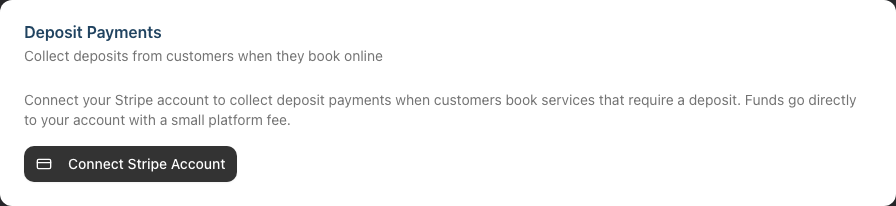 6. You'll be redirected to Stripe's onboarding page
7. Follow Stripe's steps to:
6. You'll be redirected to Stripe's onboarding page
7. Follow Stripe's steps to:
- Verify your identity
- Provide your business details
- Connect your bank account
- Once complete, Stripe redirects you back to Luminate
- The Deposit Payments section now shows your connection status
What you'll see after connecting:
- A Connected status indicator
- A Stripe Dashboard button to access your Stripe Express dashboard
- A Disconnect option
Note: Stripe may take a moment to verify your details. If you see a "pending" state after returning, wait a few minutes and refresh the page. The account.updated webhook from Stripe will mark your onboarding as complete once verification finishes.
Step 3: Ensure Services Have Deposit Requirements Configured
Online deposits are driven by individual service settings. If a service doesn't require a deposit, no payment is collected for that service during online booking.
To configure deposits on a service:
- Navigate to Services in the sidebar
- Edit the service you want to require a deposit for
- In the deposit section, enable Requires deposit
- Choose a Deposit Type:
- Fixed amount - A specific amount (e.g., 20.00)
- Percentage of price - A percentage of the service price (e.g., 50%)
- Enter the Deposit Amount (for fixed) or Deposit Percentage (for percentage)
- Save the service
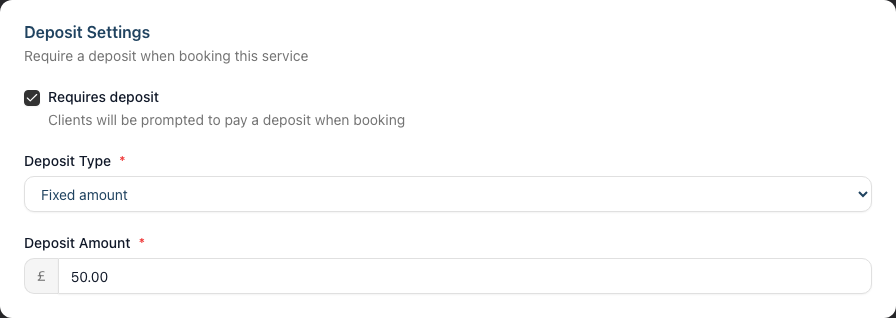
For full details on configuring service deposits, see Tutorial 7.1, Step 6.
How percentage deposits work with staff level pricing: If your salon uses staff levels (e.g., Junior, Senior, Director) with different prices for the same service, a percentage deposit is calculated based on the price for the specific staff member the customer selects. For example, a 50% deposit on a service priced at 60.00 for a Senior stylist would be 30.00, while the same service priced at 80.00 for a Director would require a 40.00 deposit.
Step 4: Test the Flow Before Going Live
Before promoting deposit collection to customers:
- Ensure at least one service has a deposit requirement configured
- Verify your Stripe account is connected (check the Deposit Payments section in settings)
- Open your booking page in a private/incognito browser window
- Complete a test booking for a service that requires a deposit
- On the Stripe Checkout page, use Stripe's test card number if you're in test mode
- Verify the booking appears in your appointments with the correct deposit status
- Check your Stripe Express dashboard (see Step 7) to confirm the payment arrived
Step 5: Understanding the Customer Payment Experience
Here's what customers see when they book a service requiring a deposit:
- Booking flow (Steps 1-5) - The customer selects services, chooses a stylist, verifies their identity, picks a date and time, and reviews their booking as normal (see Tutorial 18.3)
- Redirect to Stripe Checkout - After clicking Confirm & Pay Deposit, the customer is redirected to a Stripe-hosted payment page
- Stripe Checkout page shows:
- Your salon's name
- Line items for each service requiring a deposit, with the deposit amount
- The total deposit amount
- A secure card entry form
- On successful payment - The customer is returned to the booking confirmation page showing a Deposit Paid status with the amount confirmed. If Stripe's confirmation is still settling at the moment they return, they briefly see a Deposit Processing status instead, which updates to Deposit Paid within moments.
- On abandonment - If the customer closes the Stripe page or doesn't pay, the booking is automatically cancelled after 30 minutes
Important: The booking is created before the customer pays. This means:
- The customer receives a booking confirmation immediately
- The deposit status updates separately once payment completes
- If payment never completes, the automatic cleanup cancels the booking
Step 6: How Deposits Reach Your Account
When a customer pays a deposit:
- The payment is processed through your connected Stripe account
- A 2.5% platform fee is automatically deducted (with a minimum fee per currency - e.g., 25p for GBP, 30c for EUR/USD)
- The net amount settles to your bank account according to your Stripe payout schedule (typically 2-7 business days, depending on your country and Stripe settings)
Example:
- Customer pays a 50.00 deposit
- Platform fee: 1.25 (2.5%)
- You receive: 48.75
A completed deposit transaction is also recorded in Luminate, providing a full audit trail alongside your Stripe records.
Step 7: Viewing Your Stripe Express Dashboard
Your Stripe Express dashboard lets you view payouts, transaction history, and manage your connected account settings.
- Go to Salon Settings > Online Booking tab
- In the Deposit Payments section, click Stripe Dashboard
- You'll be redirected to your Stripe Express dashboard in a new tab
From the dashboard you can:
- View individual payments and payouts
- Check your payout schedule
- Update your bank account details
- Review your account status
Step 8: Refunding an Online Deposit
If you need to refund a deposit collected through Stripe:
Card refund (back to customer's card):
- Navigate to the deposit transaction in Luminate
- Process the refund as a card refund (see Tutorial 8.2)
- Luminate calls the Stripe API to process the refund on your connected account
- The refund appears on the customer's card statement (typically within 5-10 business days)
- The appointment's deposit status is reset to unpaid
Cash or manual refund:
- If you refund by cash or another method, process the refund as a cash refund in Luminate
- No Stripe API call is made - you handle the refund manually
- The transaction is marked as refunded in Luminate
Note: If a full refund is processed directly through the Stripe dashboard (outside Luminate), the system will detect it via webhook and mark the deposit as unpaid on the relevant appointments. Partial refunds made through the Stripe dashboard are not automatically reflected in Luminate.
Step 9: Disconnecting Stripe Connect
If you no longer want to collect online deposits:
- Go to Salon Settings > Online Booking tab
- In the Deposit Payments section, click Disconnect
- Confirm the disconnection
What happens when you disconnect:
- New online bookings will no longer collect deposits (customers can still book, just without a payment step)
- Existing paid deposits are unaffected - they've already been processed
- Your service deposit settings remain unchanged (they're still used for manual POS deposits)
- If you reconnect later, deposit collection resumes automatically
Common Pitfalls
"My deposits aren't being collected on online bookings"
Check both prerequisites:
- Is your Stripe account connected? Go to Salon Settings > Online Booking and check the Deposit Payments section shows Connected
- Do your services require deposits? Edit the service and verify Requires deposit is enabled with a deposit amount set
Both must be true for deposits to be collected during online booking.
"The customer says they paid but the deposit shows as unpaid"
There can be a short delay between payment and the deposit status updating in Luminate. Payment is confirmed both when the customer returns from Stripe and via a backup webhook from Stripe, so it usually completes within seconds — but it can occasionally take a few minutes. Refresh the appointment page to check for updates.
"A booking was cancelled even though the customer intended to pay"
Bookings with unpaid deposits are automatically cancelled after 30 minutes. If the customer was delayed (slow internet, card issues, distraction), the booking may have been cancelled before they completed payment. The customer would need to book again.
"Stripe says my onboarding is incomplete"
If you see Continue Setup instead of Connected, you may not have completed all of Stripe's verification steps. Click Continue Setup to return to Stripe and finish providing the required information.
"The deposit amount looks wrong for a percentage deposit"
Percentage deposits are calculated based on the service price for the selected staff member's level. If the customer chose a higher-level stylist, the deposit will be higher than expected for a lower-level stylist. This is correct behaviour.
"I refunded a deposit but the customer hasn't received it"
Card refunds typically take 5-10 business days to appear on the customer's statement, depending on their bank. Check the Stripe Express dashboard to confirm the refund was processed.
Tips and Best Practices
Start with your highest-value services - Enable deposits for bridal, colour corrections, and other high-value services first, then expand to others based on your experience.
Set clear terms - Update your booking terms and conditions to mention your deposit policy (see Tutorial 18.2, Step 5). Customers should know what to expect before they book.
Test regularly - After changing service prices or deposit settings, do a test booking to verify the correct deposit amount appears at checkout.
Monitor your Stripe dashboard - Check your Stripe Express dashboard periodically to ensure payouts are arriving as expected.
Communicate with customers - If a customer contacts you about a deposit, you can look up the transaction in both Luminate and your Stripe dashboard for a complete picture.
Keep deposit amounts reasonable - Very high deposits may discourage online bookings. Consider 20-50% for most services, with higher amounts only for premium or specialist services.
Related Tutorials
- Tutorial 18.1: Setting Up Online Booking for Your Salon - Enable online booking
- Tutorial 18.2: Managing Your Online Booking Settings - Add deposit policy to terms
- Tutorial 18.3: The Customer Booking Experience - What customers see including the deposit step
- Tutorial 7.1: Creating and Managing Your Service Menu - Configure deposit requirements on services
- Tutorial 8.2: Handling Refunds and Cancellations - Processing deposit refunds
- Tutorial 8.4: Deposits and Pre-Payments - Manual POS deposit collection
Frequently Asked Questions
Do all my services need to require deposits?
No. Only services with Requires deposit enabled will trigger deposit collection during online booking. Services without a deposit requirement can still be booked online - customers simply won't be asked to pay anything upfront.
What happens if a customer books multiple services and only some require deposits?
The Stripe Checkout page shows line items only for the services that require deposits. The customer pays the combined deposit total for those services. Services without deposit requirements are included in the booking but not in the payment.
Can I set different deposit amounts for different customers?
No. Deposit amounts are configured per service (and adjusted by staff level pricing if using percentage deposits). All customers booking the same service with the same stylist pay the same deposit.
What happens if I disconnect Stripe while customers have upcoming bookings with paid deposits?
Existing paid deposits are not affected by disconnecting. The payments have already been processed through Stripe. Only new bookings will stop collecting deposits.
Does this affect how I take deposits at the point of sale?
No. Online Stripe deposits and POS deposits are separate flows. You can continue taking manual deposits through Quick POS as described in Tutorial 8.4, regardless of your Stripe Connect status. Both types of deposits appear in the appointment's deposit tracking.
Is there a minimum deposit amount?
There is no minimum deposit amount enforced by Luminate. However, Stripe has its own minimum charge amounts (typically 0.30 in your currency). Very small deposits may not be practical due to payment processing fees.
When is the platform fee charged?
The 2.5% platform fee is deducted automatically from each deposit payment at the time of the transaction. You receive the net amount in your Stripe payouts. There is no separate invoice for platform fees.
How can I tell if a deposit was collected via Stripe or manually at the POS?
Deposit transactions created from Stripe payments include a card payment reference starting with pi_ (Stripe's payment intent ID). Manual POS deposits show the payment method used at the till (cash, card via terminal, etc.). Both types are visible on the appointment's payment history.
Last Updated: June 2026