
Setting Up Online Booking for Your Salon
Tutorial 18.1: Setting Up Online Booking for Your Salon
Introduction
Online booking allows your customers to book appointments directly through a public booking page, available 24/7. Instead of calling during business hours or waiting for a response to an enquiry, customers can browse your services, choose their preferred stylist, select an available time slot, and confirm their booking instantly.
This tutorial walks you through enabling online booking for your salon, creating your unique booking URL, and understanding the key settings that control how the booking system works.
Who this is for: Salon owners and administrators who want to offer online booking to their customers.
What you'll learn:
- How to enable online booking for your salon
- Creating and customising your booking URL
- Understanding the booking page settings
- How to share your booking link with customers
- How to find deposit collection settings for online bookings
Time to complete: 10-15 minutes
Prerequisites
Before you begin, make sure you have:
- Owner or Admin access to your salon
- At least one active service configured (see Tutorial 7.1: Creating and Managing Your Service Menu)
- At least one active staff member with a roster (see Tutorial 4.1: Adding New Staff Members)
Step-by-Step Instructions
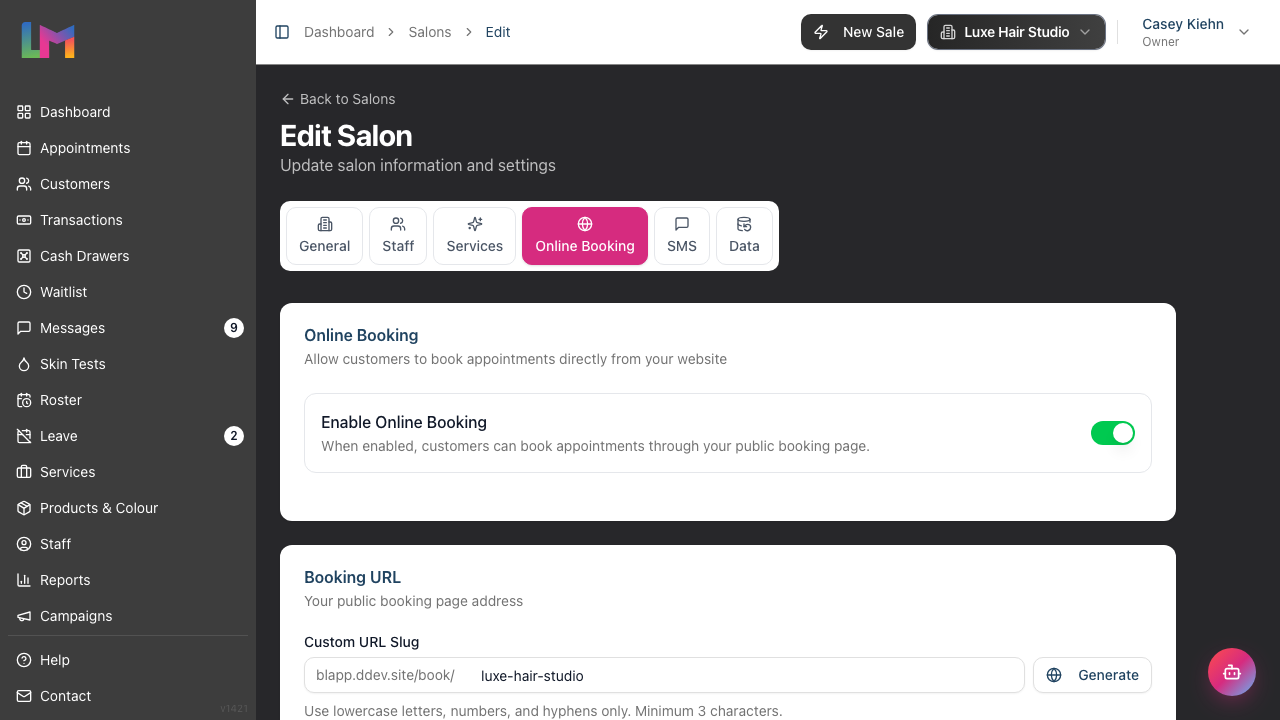
Step 1: Access Online Booking Settings
- Click your salon name in the header bar
- Select Salon Settings from the dropdown menu
- Click the Online Booking tab at the top of the settings page
You'll see the online booking configuration panel with several sections.
Step 2: Enable Online Booking
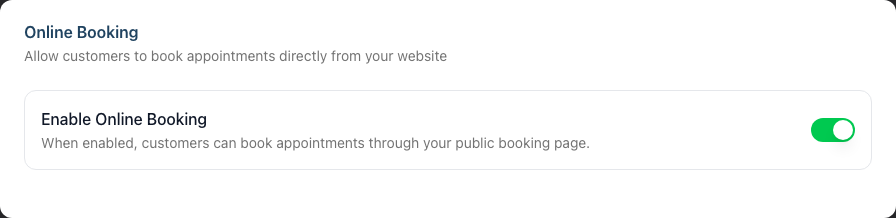
- Find the Online Booking section at the top
- Toggle the Enable Online Booking switch to the on position
- When enabled, the switch will show as active (highlighted)
What this does:
- Makes your public booking page accessible to customers
- Allows customers to browse services and book appointments
- The booking URL becomes active and functional
Step 3: Set Up Your Booking URL
Every salon needs a unique URL slug for their booking page. This creates a memorable web address customers can use to book.
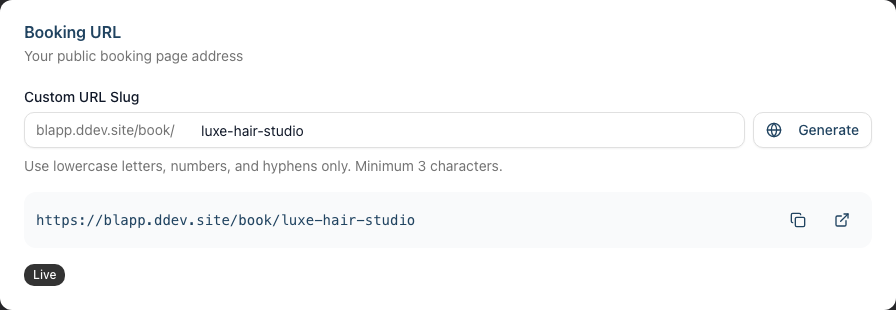
- In the Booking URL section, find the Custom URL Slug field
- Enter a short, memorable name using only:
- Lowercase letters (a-z)
- Numbers (0-9)
- Hyphens (-)
- The slug must be at least 3 characters long
Example URLs:
luxe-hair-studiocreateshttps://app.luminate.salon/book/luxe-hair-studiodowntown-cutscreateshttps://app.luminate.salon/book/downtown-cutshair-by-sarahcreateshttps://app.luminate.salon/book/hair-by-sarah
Using the Generate Button: Click Generate to automatically create a URL slug based on your salon name. The system will convert your salon name to a URL-friendly format (lowercase, spaces replaced with hyphens).
Step 4: Verify Your URL is Available
As you type, Luminate checks if your chosen slug is available:
- A green tick indicates the URL is available
- A red cross indicates the URL is already taken - choose a different slug
- A loading spinner appears while checking
Once you see a green tick, your URL is ready to use.
Step 5: Preview Your Booking URL
Below the slug input, you'll see:
- A preview of your full booking URL
- A copy button to copy the URL to your clipboard
- An external link button to open the booking page in a new tab (only visible when online booking is enabled)
- A status badge showing Live (when enabled) or Disabled
If you haven't entered a slug yet, a reminder reading "Set a URL slug to enable the booking page" appears next to the badge.
Step 6: Save Your Settings
- Scroll to the bottom of the settings page
- Click Update Salon
- You'll see a confirmation message when the settings are saved
Step 7: Setting Up Deposit Collection (Optional)
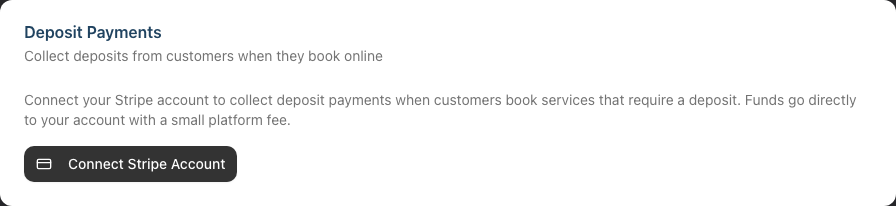
If you want to collect deposits when customers book online, you'll need to connect a Stripe account. The Deposit Payments card is located below the booking settings on the same Online Booking tab. Click Connect Stripe Account to begin onboarding. For full setup instructions, see Tutorial 18.5: Collecting Online Booking Deposits with Stripe.
Testing Your Booking Page
After saving, test your booking page to ensure everything works correctly:
- Click the external link icon next to your booking URL, or
- Copy the URL and paste it into a new browser tab
- You should see your salon's booking page with:
- Your salon name and logo (if uploaded)
- Services marked as available for online booking
- A step-by-step booking process
Sharing Your Booking Link
Once your booking page is live, share it with customers through:
Your Website: Add a "Book Now" button that links to your booking URL
Social Media: Include the link in your Instagram bio, Facebook page, or other social profiles
Email Signatures: Add the booking link to staff email signatures
Text Messages: Send the link directly to customers when they enquire about appointments
QR Codes: Generate a QR code from your booking URL for printed materials, window displays, or business cards
Common Pitfalls
"My booking page says it's disabled"
Check that the Enable Online Booking switch is turned on and you've clicked Update Salon to save the changes.
"Customers can't see any services"
Services must be marked as available for online booking. By default, all new services are available. Check that you have active services configured and that they haven't been disabled for online booking. You can manage which services appear on your booking page from Salon Settings > Online Booking tab (see Tutorial 18.2).
"No time slots are available"
This usually means:
- Staff don't have roster shifts covering the dates customers are trying to book
- The minimum lead time setting is preventing same-day bookings
- All available slots are already booked
See Tutorial 18.2 for details on configuring availability settings.
"The URL slug I want is taken"
Each booking URL must be unique across all salons. Try adding your location, a number, or variation to create a unique slug (e.g., luxe-hair-london or luxe-hair-2).
Tips and Best Practices
Keep your URL short and memorable - Customers may need to type it or remember it.
luxe-hairis better thanluxe-hair-studio-london-branch-1.Test on mobile devices - Most customers will book from their phones. Open your booking page on a mobile device to check the experience.
Set up before promoting - Configure all your settings (see Tutorial 18.2) before widely sharing your booking link.
Add services gradually - If you're new to online booking, start by enabling only your most popular services. You can control which services appear on your booking page from the Online Booking tab in Salon Settings or from each service's settings page.
Monitor your bookings - After launching, keep an eye on incoming online bookings to ensure the system is working as expected.
Related Tutorials
- Tutorial 18.2: Managing Your Online Booking Settings - Configure constraints and self-service options
- Tutorial 18.3: The Customer Booking Experience - Understanding what customers see
- Tutorial 18.4: Customer Self-Service - How customers manage their bookings
- Tutorial 18.5: Collecting Online Booking Deposits with Stripe - Set up deposit collection
- Tutorial 7.1: Creating and Managing Your Service Menu - Setting up services for booking
- Tutorial 5.1: Setting Up Your Weekly Roster - Ensuring availability
Frequently Asked Questions
Can I have different booking URLs for different services?
No, each salon has one booking URL. All services marked as available for online booking appear on that page. You can control which services appear from Salon Settings > Online Booking tab or from each service's settings (see Tutorial 18.2). Customers can select multiple services in a single booking.
What happens if I disable online booking?
The booking page will show a message that online booking is currently unavailable. Existing bookings are not affected - only new bookings are prevented.
Can customers book without verifying their email or phone?
No, all customers must verify their identity via a one-time code sent to their email or mobile phone. This prevents fake bookings and ensures you have valid contact details.
Does the booking page work on mobile?
Yes, the booking page is fully responsive and optimised for mobile devices. Most customers will book from their phones.
Can I customise the appearance of my booking page?
The booking page displays your salon name, logo (if uploaded), and uses a clean, professional design. Your salon's theme colour is applied to buttons and highlights.
What timezone is used for the booking page?
The booking page uses your salon's configured timezone. Customers see available times in your local timezone, regardless of where they're located.
Is the booking URL case-sensitive?
No, booking URLs are not case-sensitive. luxe-hair-studio and LUXE-HAIR-STUDIO will both work.
Can I require customers to pay a deposit when they book online?
Yes. If you connect a Stripe account and configure deposit requirements on your services, customers will be asked to pay a deposit during the booking process. See Tutorial 18.5 for full setup instructions.
Last Updated: June 2026