
Managing Payment Methods and Billing
Tutorial 14.2: Managing Payment Methods and Billing
Introduction
Keeping your payment details up to date ensures uninterrupted access to Luminate. This tutorial shows you how to add a payment method, view your billing history, and understand what to do if a payment fails.
A valid payment method is required to continue using Luminate after your trial ends. If payments fail, your account may enter a restricted state, so it's important to keep your card details current.
Who this is for: Salon owners who need to manage their payment details and billing.
What you'll learn:
- How to add a payment method to your account
- How to view and download invoices
- What to do when a payment fails
- How to contact support for billing issues
Time to complete: 5-10 minutes
Prerequisites
Before you begin, make sure you have:
- A Luminate account with owner access
- A valid payment method (credit or debit card)
Step-by-Step Instructions
Step 1: Access the Billing Page
- Click your name in the top-right corner of the header
- Select Billing from the dropdown menu
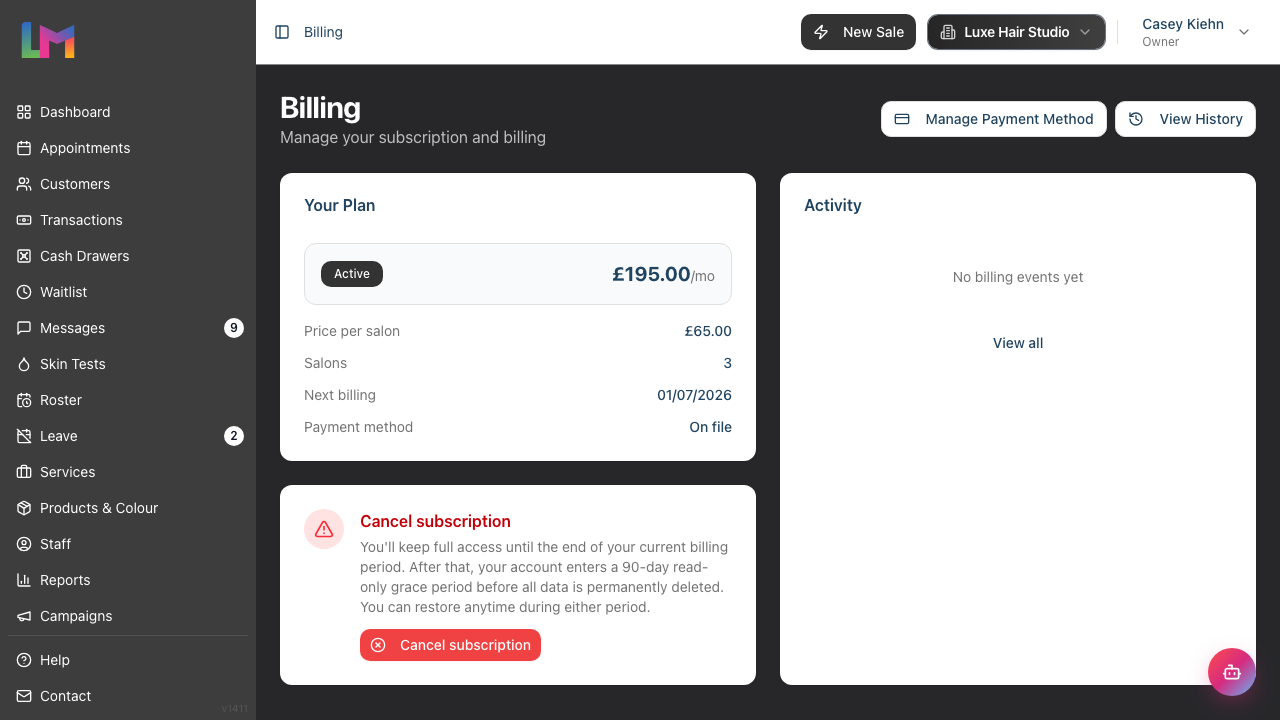
The billing page shows your current plan, recent activity, and — once you have an active subscription with a card on file — the Manage Payment Method and View History buttons in the top-right corner.
Step 2: Add a Payment Method
If you're on a trial, the billing page shows a banner near the top reminding you that your trial is ending and inviting you to add a card. If your account has lapsed into the grace period, you'll instead see a restore banner.
- On the billing page, find the trial banner (or, in the grace period, the restore banner)
- Click Add Payment Method (in the grace period this button reads Add Payment to Restore)
- You'll be redirected to our secure payment provider's (Stripe) checkout page
- Enter your card details on the secure checkout page:
- Card number
- Expiry date
- CVC/security code
- Billing address (if required)
- Complete the checkout to store your payment method and start your subscription
Once added, the Your Plan card shows Payment method: On file.
Step 3: Update an Existing Payment Method
If you need to update your card details (e.g., new card, expired card):
- Go to the billing page
- Your payment management options depend on your subscription status:
- Active subscription with a payment method: Click Manage Payment Method in the top-right corner of the billing page
- No payment method on file: Use the Add Payment Method button to add your first payment method (see Step 2)
The Manage Payment Method button opens the Stripe Customer Portal — our secure payment processor's self-service page. It only appears once you have an active subscription with a card on file. From the portal you can:
- Update your card details
- View, download, and print invoices
- Manage your payment preferences
When updating your card:
- Your new card will be used for all future payments
- Any outstanding balance will be charged to the new card
- Your billing cycle and dates remain unchanged
Step 4: View Billing History
To see all your billing events:
- On the billing page, click View History in the top-right corner
- The Billing History page lists all events, newest first, as a card for each event
Each billing event displays:
| Information | Description |
|---|---|
| Event Type | What happened (payment, status change, etc.) |
| Date/Time | When the event occurred |
| Status Change | The before and after subscription status |
| Amount | Payment amount (for payment events) |
Types of billing events you may see:
| Event | What It Means |
|---|---|
| Trial Started | Your free trial began |
| Trial Extended | Your free trial was extended |
| Trial Expired | Your free trial has ended |
| Payment Succeeded | A payment was successfully processed |
| Payment Failed | A payment attempt was unsuccessful |
| Subscription Created | Your paid subscription started |
| Subscription Updated | Your subscription details changed (e.g., salon count) |
| Subscription Canceled | You cancelled your subscription |
| Subscription Restored | You reactivated a cancelled subscription |
| Subscription Past Due | Your subscription has an outstanding payment |
| Grace Period Started | Your account entered the 90-day grace period |
| Deletion Scheduled | Your account is scheduled for deletion |
| Salon Added | A new salon was added to your subscription |
| Salon Removed | A salon was removed from your subscription |
Step 5: Handle a Failed Payment
If a payment fails, your subscription status will change to Past Due. Here's what to do:
- Go to the billing page - you'll see a "Payment Failed" warning banner
- Click Update Payment Method - this opens the Stripe Customer Portal
- Enter valid card details in the portal
- Save your new payment method - Luminate will retry the outstanding payment
Luminate will automatically retry failed payments according to this schedule:
- First retry: 1 day after initial failure
- Second retry: 3 days after initial failure
- Third retry: 7 days after initial failure
If all three retries fail and the payment is still not settled, your subscription is eventually cancelled and your account enters the 90-day grace period with read-only access. See Tutorial 14.3 for what happens during the grace period.
Common reasons for payment failures:
- Expired card
- Insufficient funds
- Card blocked for online payments
- Incorrect billing address
- Bank security restrictions
Step 6: Contact Support for Billing Issues
If you have billing problems you can't resolve:
- Email hello@luminate.salon with:
- Your account email address
- Your salon name
- Description of the issue
- Any error messages you've seen
- Include "Billing Issue" in the subject line for faster routing
Common issues support can help with:
- Incorrect charges
- Refund requests
- Currency questions
- Invoice copies
- Account discrepancies
Common Pitfalls
"I added a payment method but the Your Plan card still shows 'Not added'"
It can take a few moments for payment status to update. Refresh the page after a minute. If the problem persists, try adding the payment method again or contact support.
"My card keeps being declined"
Check that:
- The card number, expiry date, and CVC are correct
- Your card allows online/international payments
- You have sufficient funds/credit
- The billing address matches what your bank has on file
If issues persist, try a different card or contact your bank.
"I was charged the wrong amount"
Check your salon count - you're billed per active salon. If you recently added a salon, your monthly cost will have increased. For genuine billing errors, contact hello@luminate.salon.
Tips and Best Practices
- Set a calendar reminder - Note when your card expires and update it before that date
- Use a card that won't expire soon - When adding a payment method, prefer a card with a distant expiry date
- Enable bank notifications - Set up alerts from your bank so you know immediately if a payment fails
- Keep contact details current - Ensure your email address is up to date so you receive billing notifications
- Check billing history monthly - Review your billing history to catch any issues early
Related Tutorials
- Tutorial 14.1: Understanding Your Luminate Subscription - Overview of your subscription and pricing
- Tutorial 14.3: Subscription Lifecycle - Trial, Grace Period, and Cancellation - What happens at each stage
- Tutorial 16.1: Guide for Salon Owners - Everything You Can Do - Complete owner capabilities
Frequently Asked Questions
What payment methods do you accept?
Luminate accepts major credit and debit cards including Visa, Mastercard, and American Express through our secure payment processor.
When am I charged?
You're charged monthly on your billing date. The first charge occurs when your trial ends (if you've added a payment method) or when you first add a payment method after trial.
Can I get a refund?
Refund requests are handled on a case-by-case basis. Contact hello@luminate.salon to discuss your situation.
Do you store my card details?
No. Your card details are stored securely by our payment processor. Luminate never sees or stores your full card number.
Can I pay by bank transfer or direct debit?
Currently, Luminate only accepts card payments. Contact hello@luminate.salon if you need alternative payment arrangements.
How do I get an invoice/receipt?
Invoices for successful payments are available through the Stripe Customer Portal. Access it from your billing page when you have an active subscription - you can view, download, and print invoices for all past payments. For historical invoices before the portal was available, contact support.
What happens if I dispute a charge with my bank?
Please contact hello@luminate.salon first to resolve any billing concerns. Bank disputes (chargebacks) may result in service suspension while the dispute is investigated.
Can I change my billing date?
Your billing date is set based on when your paid subscription started. Contact support if you need to discuss changing your billing cycle.
Last Updated: January 2026