
Colour Formulas
Tutorial 12.5: Colour Formulas
Introduction
Colour formulas let you record exactly what products went into each colour mix, with precise gram measurements. Every formula is tied to a customer (and optionally to an appointment), so the next colourist can reproduce the recipe — and, in Full mode, any overage above the grams included in the service price is billed automatically.
This tutorial covers the unified Colour Formula dialog that appears everywhere you record colour work in the main app: the customer profile, the appointment detail page, and the calendar's appointment sidebar. For the tablet-based Colour Bar flow (Mix, Reweigh, live scale weighing) see Tutorial 20.9 and the rest of Section 20.
Who this is for: Staff, Receptionist, Manager, Admin, Owner What you'll learn:
- Enable colour formulas for your salon
- Plan a formula and its bowls, products and developer line
- Record actuals later in mixing mode
- Finalise, revert, and recognise the charge badge
- Duplicate a formula from the customer's history
- Run a colour stock take
Time to complete: 15 minutes
Prerequisites
- Logged in as Staff or above
- Your salon's colour formula mode must be Formulas or Full (see Step 1, or Tutorial 20.2). In Notes mode the formula UI does not appear; stick with consultation notes (Tutorial 3.7).
- For Full-mode overage billing: colour services must have Colour grams included set (Tutorial 7.1) and at least one default Colour Charge Rule (Tutorial 20.2).
How the dialog works: plan first, mix later
There is one dialog, and it has two modes. Understanding the split is the key to the whole feature:
- Plan mode (the dialog opens as Plan Colour Formula) — you build the recipe: bowls, products, target grams and the developer line. Saving stores the targets as a draft. Planning never touches stock and never bills.
- Mixing mode (the dialog opens as Mix Colour) — you reopen an existing formula to record what you actually weighed. This is where you Finalise, which decrements stock and, in Full mode, stages any overage charge.
You will not see a "Finalise" button while planning — finalising always happens in mixing mode, against a saved formula.
Where the formula dialog appears
The same dialog opens from five places, so any colourist can reach it from wherever they are in the system:
| Entry point | Opens in | Tied to |
|---|---|---|
| Customer profile → Colour Formulas tab | Plan mode (create / edit) | Customer only |
| Customer profile → Colour Formulas list page | Plan mode (create / edit) | Customer only |
| Appointment detail page | Plan (new) or Mixing (record actuals) | Customer + appointment |
| Appointment sidebar on the calendar | Plan (new) or Mixing (record actuals) | Customer + appointment |
| Formula detail page | Plan mode (edit existing) | Whatever the formula is tied to |
The customer-profile entry points only ever plan — you cannot finalise from a customer page because there's no appointment to bill against. To record actuals and finalise, open the formula from its appointment (detail page or calendar sidebar), or weigh it live on the Colour Bar (Section 20). Formulas saved from a customer-only page can be picked up later on an appointment.
Step-by-Step Instructions
Step 1: Enable colour formulas
- Go to Salon Settings → Services → Colour (Admin or Owner)
- Under Colour Formula Mode, choose:
- Notes only — freeform colour notes only (default; this tutorial doesn't apply)
- Formulas — structured bowls, products and gram entries. No stock tracking, no billing.
- Full — formulas plus gram-level stock tracking and automatic overage billing
- Charge rules appear below the mode options once Full is selected.
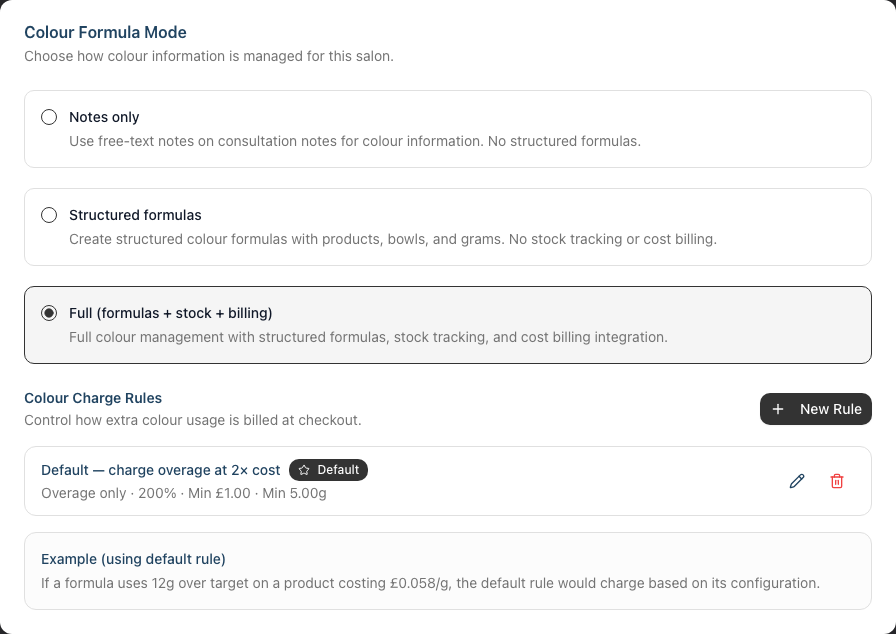
See Tutorial 20.2 for full settings coverage, including charge rules.
Step 2: Plan a formula
Planning builds the recipe and saves the target grams. You can plan from any of the five entry points.
- Open the customer's Colour Formulas tab (or the appointment detail / sidebar) and click New Formula. The dialog opens as Plan Colour Formula.
- Click Add Products to open the catalogue picker — drill Brand → Line → Shade Family (or switch to a flat searchable list), tap one or more shades and choose Add To Formula. You can also scan a barcode to drop a product straight in. A row appears for each product, with a bowl selector and a weight field.
- Type each product's target weight in grams. Add more products to the same bowl, or click Add bowl for another bowl (up to six bowls). Give a bowl a name with the pencil icon if you like.
- To add developer to a bowl, use the bowl's Add developer line: pick a developer product, then set the ratio (1x, 1.5x, 2x or a custom multiplier). The developer's grams are calculated automatically as the ratio × the bowl's product total, so they stay correct as you adjust the colours.
- Enter a Formula name and any Notes (both optional).
- Click Save plan (or Update when editing an existing formula). The formula is stored as a draft; nothing is decremented or billed yet.
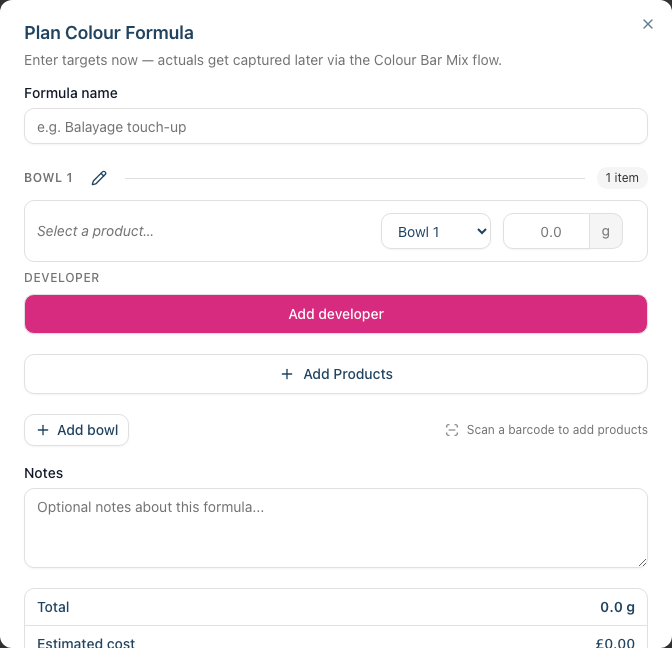
Developer is a real product now. The old fixed "developer volume" dropdown (10/20/30/40) has been replaced by a stocked developer product dosed by ratio, so developer is costed and tracked like any other item. Older formulas created before the change still show their original volume.
Step 3: Record actuals (mixing mode)
When you reopen a saved formula from its appointment, the dialog opens as Mix Colour with two weight columns:
- Target — read-only, what you planned
- Actual — editable, what you weighed
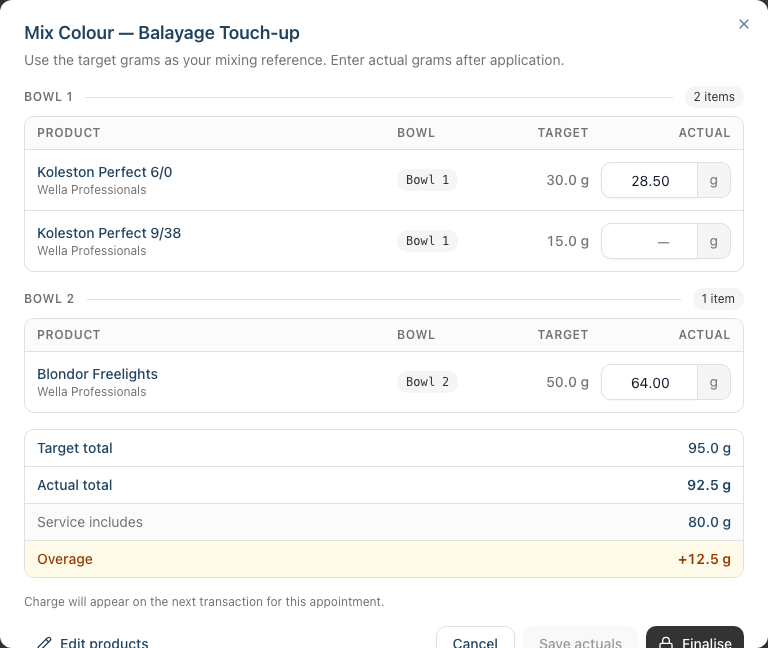
Work through each row entering the actuals, then choose an action:
- Save actuals — preserves progress without finalising (useful if you step away)
- Finalise — commits the mix after a confirmation dialog. Stock is decremented and, in Full mode, any overage is staged onto the appointment's draft transaction.
- Edit products — reopens the formula in plan mode so you can swap products, change bowls or adjust targets without leaving the flow
- Revert — only appears after a formula is finalised. It returns the stock that was marked as used, strips any draft overage charge, and reopens the formula for editing. In Full mode Revert disappears once the overage charge has been committed on a completed transaction — refund or modify that transaction first (Tutorial 8.2).
To weigh live against a connected scale instead of typing actuals, use the Colour Bar Mix screen (Tutorial 20.12).
Step 4: Recognise the charge badge
In Full mode, a finalised formula that exceeded the service's included grams shows a green Charged badge — with the overage amount in your salon currency — on the formula card (and in the Mix dialog header). This is the overage line that appears on the appointment's transaction when you ring it up.
If you Revert or edit the formula while the draft is still open, the badge and the POS line update in step. Once the transaction is completed, the formula becomes read-only and the Revert action disappears — see Tutorial 20.8 for the full lifecycle.
The badge does not appear in Formulas mode — no billing runs, so no charge is staged.
Step 5: Duplicate from history
When a returning customer wants the same formula:
- Open the customer's Colour Formulas tab
- Click Duplicate on any historical formula
- A new formula is created with the same products and target grams, ready to adjust
The new formula links back to the original so you can trace the history.
Step 6: Colour stock take
Keep your gram balances accurate so overage calculations stay honest:
- Go to Products → Colour tab (anyone with catalogue management — Receptionist, Manager, Admin or Owner)
- Work through the product list, narrowing with the brand filter
- Enter the remaining grams for each product — the row saves automatically
- Add new colour products or deactivate discontinued ones directly from the same tab
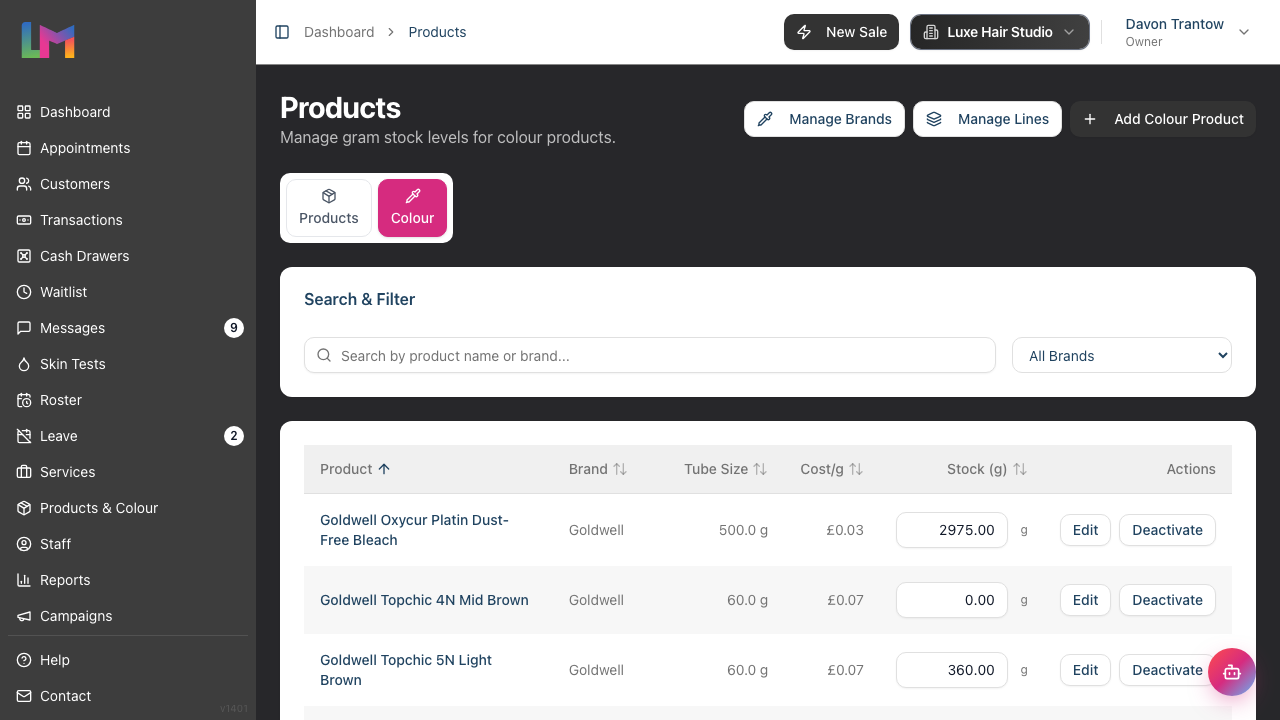
Tutorial 20.5 covers the full stock-take workflow including the movement log.
Who can do what
| Action | Staff | Receptionist | Manager | Admin | Owner |
|---|---|---|---|---|---|
| View formulas | Yes | Yes | Yes | Yes | Yes |
| Create / edit / plan formulas | Yes | Yes | Yes | Yes | Yes |
| Record actuals / finalise | Yes | Yes | Yes | Yes | Yes |
| Revert a finalised formula (draft still open) | Yes | Yes | Yes | Yes | Yes |
| Delete formulas | No | No | No | Yes | Yes |
| Colour stock take | No | Yes | Yes | Yes | Yes |
| Change colour settings / charge rules | No | No | No | Yes | Yes |
View, create/edit, finalise and revert all use the manage customers permission (every role above has it). Delete is restricted to Admin and Owner. The colour stock take uses the manage products permission, which Staff don't have. Colour settings and charge rules use the manage salon settings permission — Admin and Owner.
Common Pitfalls
"The New Formula button isn't showing"
Your salon is in Notes mode. Switch to Formulas or Full via Salon Settings → Services → Colour (Tutorial 20.2).
"There's no Finalise button"
You're in plan mode (the dialog title reads Plan Colour Formula). Planning only saves targets. Save the plan, then reopen the formula from its appointment to enter mixing mode, where Finalise lives.
"I can't see the Revert button"
Revert only shows after a formula is finalised and the overage charge is still on a draft transaction. Once the transaction is completed, the formula is locked — refund or modify the transaction (Tutorial 8.2) to free the formula.
"Stock looks wrong after finalising"
Finalising decrements gram-level stock; reverting reverses it. If you edited a finalised formula, the system wrote compensating reversal rows and re-decremented — the net stock is correct but the movement log shows every step. Check Tutorial 20.5 for reading the movement log.
"Overage badge isn't appearing"
Overage only calculates when the service has Colour grams included set (Tutorial 7.1), your salon has an active Colour Charge Rule (Tutorial 20.2), and the formula's actual grams exceed the threshold (or the minimum overage grams on the rule).
Tips and Best Practices
- Plan ahead for future visits — plan a formula while you still remember today's mix, then record actuals at the next appointment.
- Finalise at the station, not afterwards — the sooner you capture actuals, the more accurate the charge and the stock movement log.
- Let the colourist Revert, not delete — Revert preserves the audit trail and cleanly updates the draft; delete only if the formula was created in error.
- Reconcile stock weekly — a short stock take keeps overage calculations tight; a long one becomes a chore.
- Pin the formula name to the mix, not the bowl — "Rachael root touch-up 6N/6A" travels between appointments; "Bowl 1" doesn't.
Related Tutorials
- Tutorial 3.7: Recording and Managing Notes — for the freeform Colour note type used in Notes mode
- Tutorial 7.1: Creating and Managing Your Service Menu — set included colour grams on services
- Tutorial 8.2: Handling Refunds and Cancellations — free a committed formula for reverting
- Tutorial 20.1: Getting Started with Colour Management — the whole feature set end-to-end
- Tutorial 20.2: Configuring Colour Settings & Charge Rules — modes, rules, pricing
- Tutorial 20.5: Colour Stock Take — stock movement log and reconciliation
- Tutorial 20.6: Creating a Colour Formula — a deeper walk-through of the dialog
- Tutorial 20.8: Overage Billing Explained — how the charge flows into POS
- Tutorial 20.9–20.13: Colour Bar tablet flow — weighing live against the scale
Frequently Asked Questions
Can a formula exist without an appointment?
Yes. A customer-level formula records colour work outside a specific booking, and can be copied onto a future appointment when the customer returns. (Note you can only finalise a formula from an appointment.)
Can two colourists edit the same formula at the same time?
Avoid it — the last save wins. If you both open the dialog, the second to finalise overwrites the first's actuals.
What happens when I delete a formula that has an overage charge on a draft?
The charge line is removed from the draft cleanly. You cannot delete a formula whose charge has already been committed on a completed transaction — refund or modify the transaction first.
Does planning a formula decrement stock?
No. Planning saves target grams only; stock only moves when a formula is finalised in mixing mode.
We're moving from Notes mode to Formulas mode — do my old Colour notes convert?
No. Historical Colour notes stay on the customer profile for reference. New colour work should be recorded as structured formulas from the switchover date.
Last Updated: April 2026