
Managing Customer and Staff Data Retention
Tutorial 11.3: Managing Customer and Staff Data Retention
Introduction
When customers stop visiting or staff members leave your salon, you need to decide what to do with their data. Simply deleting everything isn't always possible - you may need records for tax purposes, legal disputes, or business analysis.
Luminate provides two approaches: deactivation (hiding records while preserving data) and anonymisation (permanently removing personal information while keeping business records). This tutorial explains when to use each approach and walks you through the process.
Who this is for: Salon owners and administrators managing customer and staff records.
What you'll learn:
- The difference between deactivation and anonymisation
- When to deactivate vs anonymise customers
- When to deactivate vs anonymise staff members
- What data is preserved vs removed in each case
- Step-by-step instructions for both processes
Time to complete: 10-15 minutes
Prerequisites
Before you begin, make sure you have:
- Owner or Admin role (required for deactivation and anonymisation)
- Understanding of your legal data retention requirements
- Knowledge of any outstanding balances or ongoing matters
Understanding the Difference
Before managing any records, understand these two distinct approaches:
| Aspect | Deactivation | Anonymisation |
|---|---|---|
| Purpose | Hide from active lists | Comply with data deletion requests |
| Reversible? | Yes | No - permanent |
| Personal data | Preserved | Removed/replaced |
| Visible in lists | No (unless filtered) | No (appears as "Deleted Customer" or "Former Staff Member") |
| Transaction history | Fully intact | Preserved but de-identified |
| Can log in (staff) | No (login account is deleted) | No (login account is deleted) |
| Can be reactivated | Yes | No |
Use deactivation when:
- A customer hasn't visited in a while but might return
- A staff member is on extended leave
- You want to hide old records from daily views
- You might need to restore access later
Use anonymisation when:
- A customer requests data deletion (GDPR right to be forgotten)
- A staff member has permanently left and requests data removal
- You're legally required to remove personal data
- Sufficient time has passed after their last transaction
Step-by-Step Instructions
Managing Customer Records
Deactivating a Customer
- Click Customers in the sidebar
- Search for and click on the customer's name
- Click the Details tab
- Scroll to the Customer Status card
- Toggle the Active switch to off
- The change saves automatically

What happens:
- Customer no longer appears in the main customers list
- Customer no longer appears in search results (unless you filter by inactive)
- All appointment history is preserved
- All transaction history is preserved
- All skin tests are preserved
- Customer profile remains fully accessible if you navigate to it directly
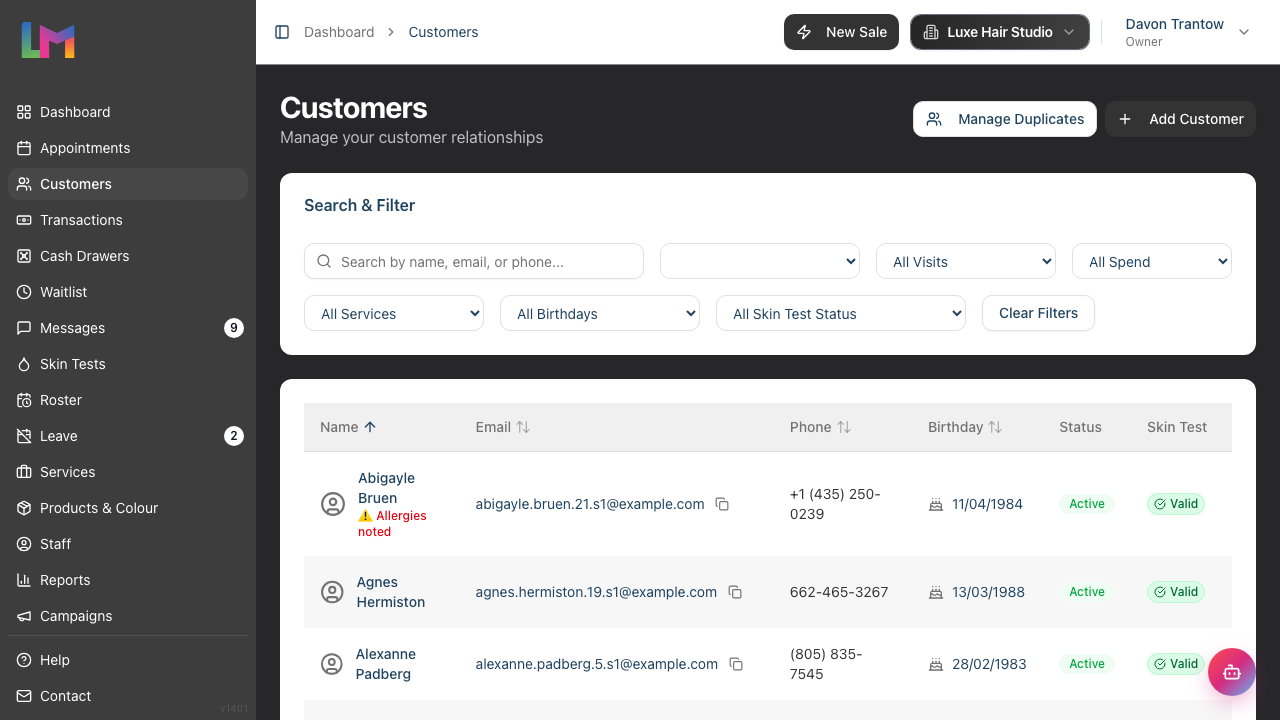
To view deactivated customers:
- Go to Customers
- Use the status filter dropdown next to the search box. It offers Active Only, All Customers, and Inactive Only - select "All Customers" to see everyone, or "Inactive Only" to see only deactivated customers
Reactivating a Customer
- Navigate to the deactivated customer's profile (via filter or direct link)
- Click the Details tab
- Toggle the Active switch to on
- The customer reappears in active lists
Anonymising a Customer (Permanent)
Warning: This action cannot be undone. Proceed only when certain.
- Click Customers in the sidebar
- Search for and click on the customer's name
- Click the Details tab
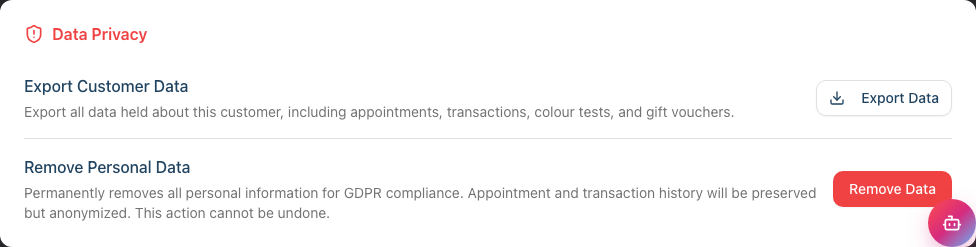
- Scroll to the Data Privacy card at the bottom of the tab
- Under Remove Personal Data, review the warning text:
"Permanently removes all personal information for GDPR compliance. Appointment and transaction history will be preserved but anonymized. This action cannot be undone."
- Click Remove Data
- In the confirmation dialog, review the lists of what will be removed and what will be preserved, then click Remove Personal Data to confirm
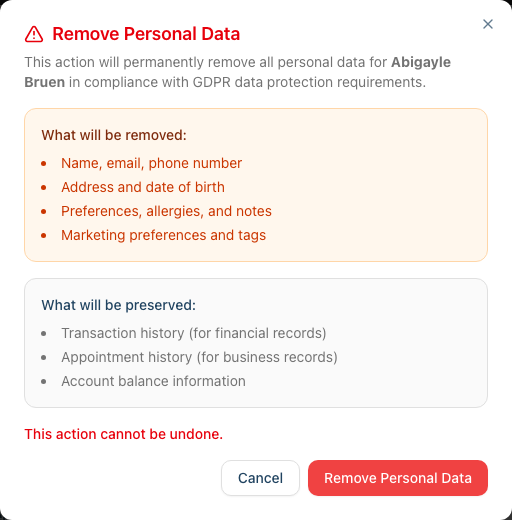
What happens:
| Data Field | Before | After |
|---|---|---|
| First Name | "Sarah" | "Deleted" |
| Last Name | "Johnson" | "Customer" |
| "sarah@email.com" | Removed | |
| Phone | "07700 123456" | Removed |
| Address | "123 High Street..." | Removed |
| Date of Birth | "15/03/1985" | Removed |
| Preferences | "Likes tea" | Removed |
| Notes | "Regular client" | Removed |
| Communication Consent | Various | All set to off |
| Appointments | 15 appointments | 15 appointments (linked to "Deleted Customer") |
| Transactions | £2,450 total spend | £2,450 total spend (linked to "Deleted Customer") |
| Skin Tests | 3 tests | Deleted entirely |
| Status | Active/Inactive | Anonymised |
Key points:
- Financial records remain for tax/accounting purposes
- Skin test records are deleted (contains medical data)
- The customer cannot be identified from remaining records
- The record shows as "Deleted Customer" in all historical data
- This cannot be reversed
Managing Staff Records
Deactivating a Staff Member
From the staff profile (recommended):
- Click Staff in the sidebar
- Click on the staff member's name to view their profile
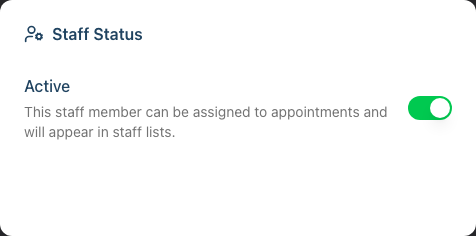
- Find the Staff Status card
- Toggle the Active switch to off
- The change saves automatically
From the staff edit form:
- Click Staff in the sidebar
- Click on the staff member's name
- Click Edit
- In the Status section, toggle the Active switch to off
- Click Update Staff Member
What happens:
- Staff member no longer appears in active staff lists or staff selectors
- Staff member cannot be assigned to new appointments
- If they had a login account, that account is deleted - they can no longer log in, and their email is freed up so it can be re-invited later
- All historical appointments still show their name
- All commission and payroll records are preserved
- All skin tests they administered are preserved
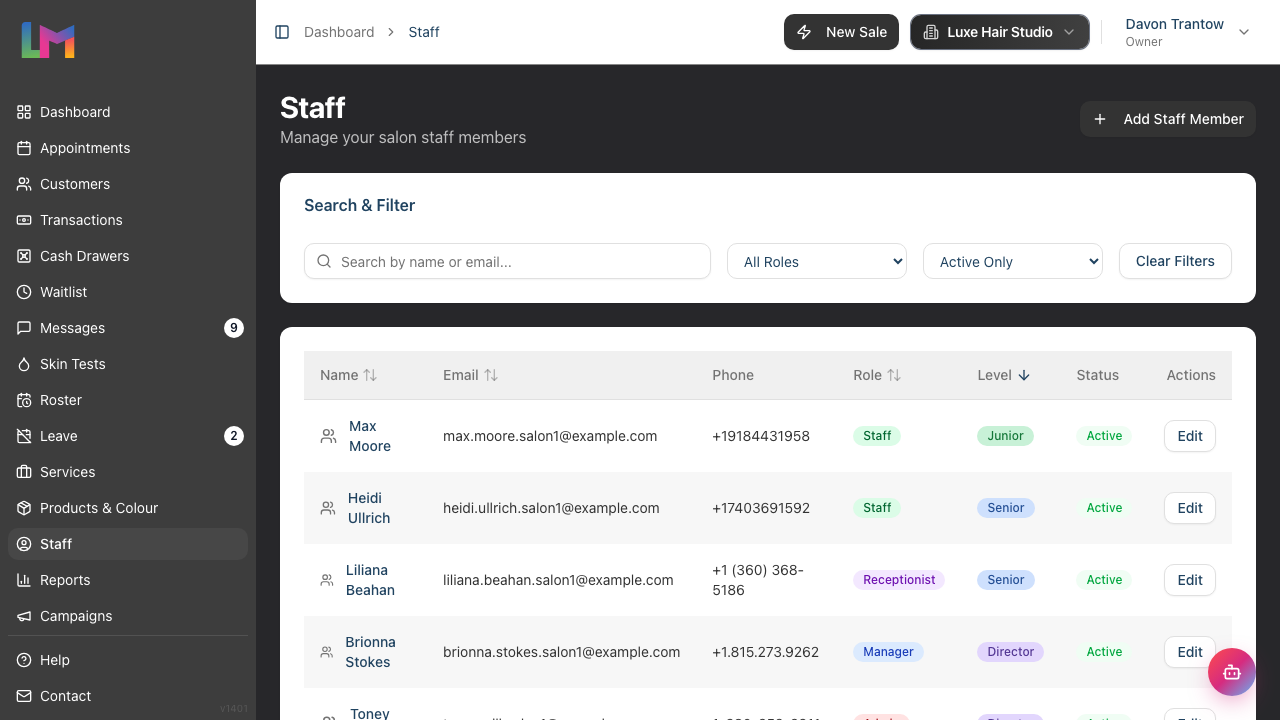
To view deactivated staff:
- Go to Staff
- Use the status filter dropdown next to the search box. It offers Active Only, All Staff, and Inactive Only - select "All Staff" to see everyone, or "Inactive Only" to see only deactivated staff members
Reactivating a Staff Member
From the staff profile (recommended):
- Navigate to the deactivated staff member's profile (via filter or direct link)
- Find the Staff Status card
- Toggle the Active switch to on
- The change saves automatically
From the staff edit form:
- Navigate to the deactivated staff member's profile
- Click Edit
- In the Status section, toggle the Active switch to on
- Click Update Staff Member
Reactivating restores the staff member to lists and lets them be assigned to appointments again. Their login account is not restored - deactivation deleted it. If they need to log in again, send them a fresh invitation (see Tutorial 4.2).
Anonymising a Staff Member (Permanent)
Warning: This action cannot be undone. Proceed only when certain.
- Click Staff in the sidebar
- Click on the staff member's name to view their profile
- Scroll to the bottom of the page to find the Danger Zone card
- Click Remove Data
- In the confirmation dialog, review the lists of what will be removed and what will be preserved
- Click Remove Personal Data to confirm

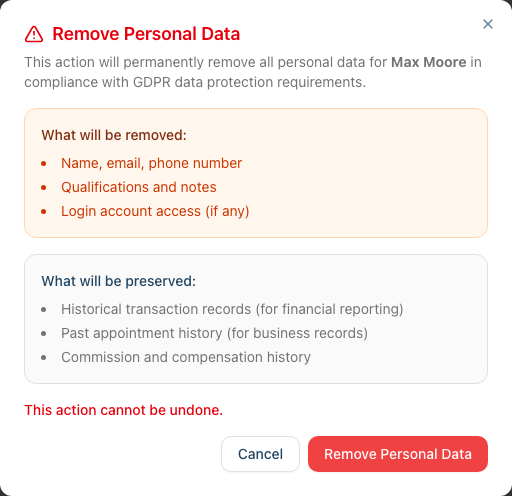
You do not need to deactivate a staff member before anonymising - the process deactivates them automatically as part of removing their data.
What happens:
| Data Field | Before | After |
|---|---|---|
| First Name | "Emma" | "Former" |
| Last Name | "Williams" | "Staff Member" |
| "emma@salon.com" | "anonymized.7@deleted.local" (the number is the internal record ID) | |
| Phone | "07700 987654" | Removed |
| Qualifications | "NVQ Level 3" | Removed |
| Notes | "Colour specialist" | Removed |
| Settings | Various | Removed |
| Login Account | Connected | Deleted (access permanently revoked) |
| Appointments | 523 completed | 523 completed (linked to "Former Staff Member") |
| Commission Records | £15,000 earned | £15,000 earned (linked to "Former Staff Member") |
| Skin Tests Administered | 45 tests | 45 tests (linked to "Former Staff Member") |
| Leave Records | 28 days taken | Preserved (linked to "Former Staff Member") |
| Status | Active/Inactive | Inactive (automatically deactivated) |
Key points:
- Employment and payroll records remain for legal/tax purposes
- The staff member cannot be identified from remaining records
- User account access is permanently revoked
- Their name appears as "Former Staff Member" in all historical data
- This cannot be reversed
Note: You cannot anonymise a staff record that represents the salon owner.
Deciding When to Act
Customer Retention Timeline
Consider this general approach (adjust based on your policies):
| Time Since Last Visit | Action |
|---|---|
| 0-12 months | Keep active |
| 12-24 months | Consider deactivating |
| 24-36 months | Deactivate if not done |
| 36+ months | Consider anonymising (if no legal holds) |
| Upon written request | Anonymise within one month (GDPR) |
Staff Retention Timeline
| Situation | Action |
|---|---|
| On extended leave | Deactivate temporarily |
| Resigned/terminated | Deactivate immediately |
| 6 months after leaving | Keep deactivated (payroll records may be needed) |
| 2+ years after leaving | Consider anonymising (if no legal holds) |
| Upon written request | Anonymise within one month (GDPR) |
Important: Always consult with an accountant or legal advisor about your specific retention obligations before anonymising records.
Common Pitfalls
"I deactivated a customer but they're still appearing in reports"
This is expected. Deactivation only hides them from active lists - their historical data remains in all reports. If you need to remove them from reports entirely, you would need to anonymise (which removes personal data but keeps the transaction as "Deleted Customer").
"I can't find the Remove Data option for a staff member"
Scroll to the bottom of the staff profile page and look for the Danger Zone section. The "Remove Data" button is located there. Note that you cannot anonymise staff records linked to the salon owner.
"A former staff member wants their data deleted but I need payroll records"
Anonymisation preserves financial records while removing personal identifiers. The payroll records will show "Former Staff Member" instead of their name, which may be acceptable for your accounting needs. Consult with your accountant.
"I anonymised a customer but they came back"
Create a brand new customer profile. The previous history is gone (anonymised), so they start fresh. You cannot link new records to anonymised historical data.
Tips and Best Practices
Create a retention policy - Document how long you keep customer and staff data, and review it annually.
Review inactive records quarterly - Set a reminder to review deactivated customers and staff to determine if they should be anonymised.
Get requests in writing - When someone requests data deletion, ask for it in writing (email is fine) for your records.
Don't rush anonymisation - Once done, it cannot be undone. Make sure you no longer need the data.
Check for outstanding balances - Never anonymise a customer with unpaid invoices until resolved.
Consider legal holds - If there's any ongoing dispute or legal matter, do not anonymise records that might be needed as evidence.
Train your team - Ensure staff understand they cannot discuss or share data about deactivated or former customers/colleagues.
Related Tutorials
- Tutorial 11.2: GDPR Compliance - Data Protection and Privacy
- Tutorial 3.1: Adding and Managing Customer Profiles - Customer status options
- Tutorial 4.1: Adding New Staff Members - Complete Onboarding Guide
- Tutorial 4.2: Managing Staff Login Accounts and Invitations - Revoking access
Frequently Asked Questions
Can I export data before anonymising?
There's no automated export feature, but you can view all data in the customer or staff profile before anonymising. Consider taking screenshots or notes of any information you need to retain externally.
What if I need to un-anonymise a record?
This is not possible. Anonymisation permanently removes personal data. If you think you might need the data, use deactivation instead.
Do deactivated customers/staff still count toward my subscription limits?
Typically, only active records count toward usage limits. Check your subscription terms or contact Luminate support.
How do I know if a record has been anonymised?
Anonymised records show "Deleted Customer" or "Former Staff Member" as the name, and the profile displays a banner explaining that the personal data has been removed for GDPR compliance while historical transaction and appointment data has been preserved.
Will anonymised records affect my reports?
The data remains in reports (for accurate financial records) but shows as "Deleted Customer" or "Former Staff Member" instead of the actual name. Revenue figures remain accurate.
Can I bulk-anonymise old records?
Currently, anonymisation must be done one record at a time to prevent accidental mass deletion. This is a safety feature.
Who can perform anonymisation?
Only Owners and Admins can anonymise records. Managers and other roles cannot perform this action.
What about backup data - is that anonymised too?
Luminate manages system backups. When you anonymise a record, future backups will reflect the anonymised state. Very old backups may still contain the original data temporarily, but these are cycled out over time.
Last Updated: June 2026