
GDPR Compliance - Data Protection and Privacy
Tutorial 11.2: GDPR Compliance - Data Protection and Privacy
Introduction
The General Data Protection Regulation (GDPR) gives individuals in the UK and EU significant rights over their personal data. As a salon owner, you're responsible for protecting customer and staff data, respecting their privacy rights, and maintaining proper records.
Luminate is designed with GDPR compliance in mind, providing tools to manage consent, handle data requests, and protect personal information. This tutorial explains your obligations and shows you how to use Luminate's features to meet them.
Who this is for: Salon owners and administrators responsible for data protection.
What you'll learn:
- Understanding your GDPR obligations as a salon
- Managing customer communication consent
- Handling data access requests
- Using the anonymisation feature (right to be forgotten)
- Protecting staff data
- Understanding what data is retained and why
Time to complete: 15-20 minutes
Prerequisites
Before you begin, make sure you have:
- Owner or Admin role (required for data management functions)
- Basic understanding of GDPR principles
- Access to customer and staff records
Step-by-Step Instructions
Step 1: Understand Your GDPR Obligations
As a salon processing personal data, you must:
- Have a lawful basis for processing data (e.g., contract, consent, legitimate interest)
- Be transparent about what data you collect and why
- Only collect necessary data (data minimisation)
- Keep data accurate and up to date
- Protect data from unauthorised access
- Respond to data subject requests within one month
- Report data breaches to the ICO within 72 hours
Luminate helps you meet these obligations through built-in features, but you remain responsible for compliance.
Step 2: Manage Customer Communication Consent
GDPR requires explicit consent for marketing communications. Luminate separates consent into two categories:
Transactional Communications:
- Appointment confirmations
- Appointment reminders
- Booking changes
- Receipt emails
These are considered necessary for the service you're providing and don't require marketing consent.
Marketing Communications:
- Promotional offers
- Birthday greetings
- Newsletter updates
- Special event invitations
These require explicit opt-in consent.
To view or update a customer's preferences:
- Click Customers in the sidebar
- Search for and click on the customer name
- Click the Details tab
- Scroll to Communication Preferences
You'll see two sections:
Appointment Information: Shows which channels (Email, SMS, WhatsApp) the customer receives transactional messages on. These default to enabled.
Promotions & Offers: Shows which channels the customer has opted in for marketing. These default to disabled (opt-in required).
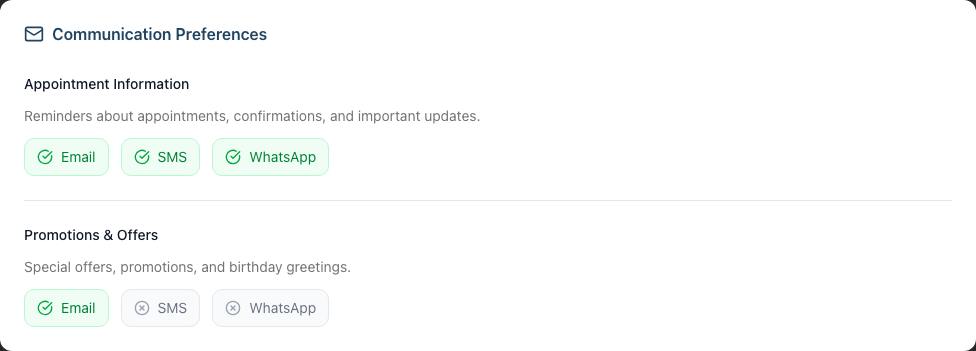
To edit preferences:
- Click Edit on the customer profile
- Scroll to Communication Preferences
- Tick or untick the boxes for each channel
- Click Save Changes
Important: Only enable marketing channels if you have documented consent from the customer.
Step 3: Allow Customers to Update Their Own Preferences
Luminate provides a customer self-service feature:
- Go to a customer's profile
- Click Request Update in the header
- A modal appears with a QR Code that the customer can scan
- Alternatively, you can send the link via Email or SMS (if the customer has those contact details on file)
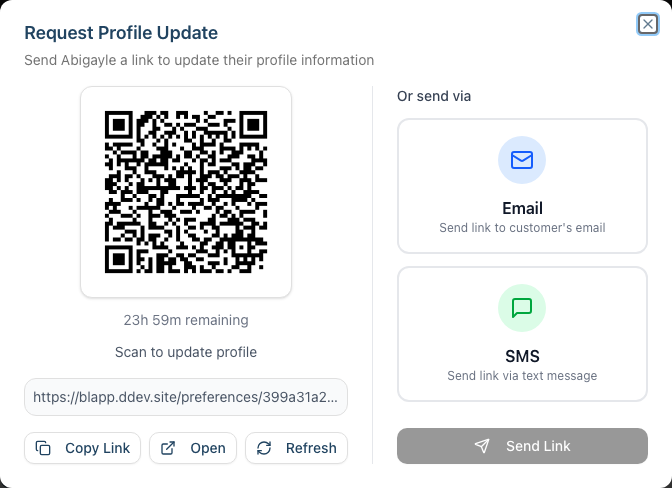
The customer receives a link to a secure portal where they can:
- Update their name
- Change their address
- Update allergy information
- Modify their communication preferences
- Change their email address or phone number
This provides an auditable record that the customer made the changes themselves.
Identity checks: Name and communication preferences can be updated straight away. More sensitive changes are gated for security — updating an address or allergy details asks the customer to confirm their identity with a one-time PIN, and changing their email or phone number uses a double opt-in (a PIN to verify their identity, then a second PIN sent to the new contact detail). The emailed or texted update link expires after 7 days.
Step 4: Handle Data Access Requests (Subject Access Requests)
Under GDPR Article 15, individuals can request access to all data you hold about them. You must respond within one month.
What data does Luminate store about customers?
| Data Category | Examples |
|---|---|
| Personal Details | Name, email, phone, date of birth |
| Contact Details | Address, postcode, country |
| Preferences | Styling preferences, allergies, notes |
| Communication Consent | Email/SMS/WhatsApp preferences for reminders and marketing |
| Badges | VIP, Frequent Visitor, etc. |
| Appointment History | All past and future appointments |
| Transaction History | All purchases, payments, and refunds |
| Skin Tests | Patch test records, questionnaire answers, signatures |
| Consultation Notes | Notes recorded against the customer profile and their appointments |
| Colour Formulas | Saved colour formulas (when colour formula tracking is enabled) |
| Messages | SMS and email communication history |
To compile data for a subject access request:
- Go to the customer's profile
- Review each tab: Appointments, Details, Transactions, Products, Skin Tests, Colour Formulas (shown when colour formula tracking is enabled), Notes, Messages
To export a customer's data:
- Click the Details tab on the customer's profile
- Scroll to the Data Privacy section
- Click Export Data
- You'll be taken to Settings > Data Exports with the customer pre-selected, where Luminate generates a downloadable ZIP file containing all data held about the customer (their profile record, appointments, transactions, colour tests, and gift vouchers), plus a manifest file describing the contents
- The export link is available for 24 hours after generation
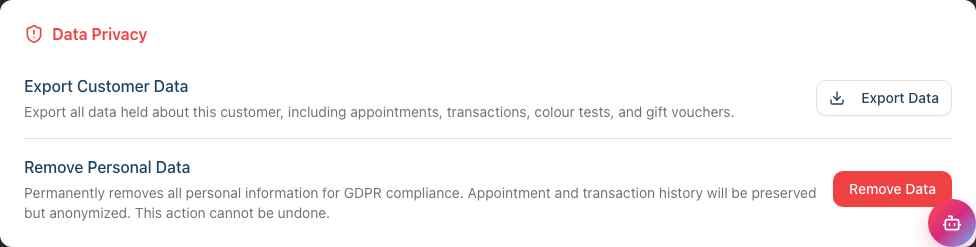
This export is ideal for responding to Subject Access Requests.
Step 5: Use Anonymisation (Right to Be Forgotten)
Under GDPR Article 17, individuals can request deletion of their personal data. However, you may need to retain some information for legal, tax, or legitimate business reasons.
Luminate uses anonymisation rather than deletion. This:
- Removes all personally identifiable information
- Preserves transaction and appointment records (required for accounting)
- Replaces names with "Deleted Customer"
- Removes email, phone, address, and other contact details
- Resets all communication preferences to "off"
- Deletes all skin test records (medical data)
- Deletes all consultation notes (personal data)
To anonymise a customer:
- Click Customers in the sidebar
- Search for and click on the customer's name
- Click the Details tab
- Scroll to the Data Privacy section at the bottom
- Click Remove Data
- Read the warning carefully — this action cannot be undone
- Confirm by clicking Remove Personal Data in the dialog
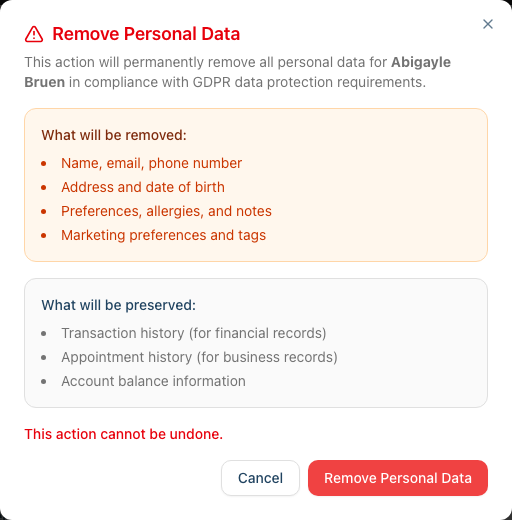
You can also anonymise from the Edit page: click Edit, scroll to the Data Privacy section, and click Remove Data.
After anonymisation:
- The customer will appear as "Deleted Customer" in appointment and transaction history
- You can no longer identify who this person was
- Financial records remain intact for tax purposes
- The customer cannot be "restored" - if they return, create a new profile
When to anonymise:
- When a customer explicitly requests data deletion
- When you have no legal reason to retain their identifiable information
- When sufficient time has passed after their last transaction (check your retention policy)
When NOT to anonymise:
- If they have outstanding balances owed
- If you need records for ongoing legal matters
- If tax regulations require you to retain identifiable records
- If the request is less than the standard retention period
Step 6: Protect Staff Data
Staff members also have GDPR rights. Luminate stores:
| Data Category | Examples |
|---|---|
| Personal Details | Name, email, phone |
| Employment Details | Hire date, role, qualifications |
| Compensation | Pay type, rates, commission |
| Leave Records | Leave requests, allowances |
| Performance Data | Appointments completed, revenue generated |
To anonymise a former staff member:
- Click Staff in the sidebar
- Click on the staff member's name to view their profile
- Scroll down to the Danger Zone section at the bottom of the profile page
- Click Remove Data
- In the confirmation dialog, review what will be removed and what will be preserved, then click Remove Personal Data

Anonymising automatically deactivates the staff member, so there's no need to deactivate them first.
After anonymisation:
- Staff appears as "Former Staff Member" in historical records
- Commission and payroll history is preserved
- Their login account access is revoked (any linked user account is removed)
- The person can no longer be identified
- The action cannot be reversed, and an anonymised staff member cannot be reactivated
Note: A staff member whose linked login account is a salon Owner can only be anonymised by another Owner. Admins and Managers are blocked from anonymising Owner accounts.
Step 7: Understand Data Retention
Luminate retains different types of data for different periods:
| Data Type | Retention | Reason |
|---|---|---|
| Transactions | Indefinite | Tax and accounting requirements (typically 6+ years) |
| Appointments | Indefinite | Business records, linked to transactions |
| Customer Profiles | Until anonymised | Required for ongoing service |
| Skin Tests | Until customer anonymised | Legal/insurance requirements |
| Staff Records | Until anonymised | Employment and payroll records |
| Messages | Indefinite | Communication history, dispute resolution |
Key points:
- You control when to anonymise (remove personal data)
- Financial records are never deleted for legal compliance
- Anonymisation removes the personal data while preserving business records
Step 8: Maintain Audit Trails
Luminate automatically records:
- When records were created
- When records were last updated
- Who performed skin tests
- When customers signed consent forms
- IP addresses for remote skin test completion (for fraud prevention)
These audit trails help demonstrate compliance if questioned.
Common Pitfalls
"A customer wants me to delete everything about them"
Explain that while you'll remove their personal data (anonymise), you're legally required to keep financial records for tax purposes. The anonymised records won't identify them - they'll appear as "Deleted Customer".
"I accidentally anonymised the wrong customer"
Unfortunately, anonymisation cannot be reversed. You would need to contact Luminate support, but recovery is typically not possible. Always double-check before confirming.
"A customer says they never consented to marketing"
Check their communication preferences in Luminate. If marketing channels are enabled but you can't prove they consented, disable them immediately. Consider implementing a consent logging process outside of Luminate.
"How do I prove we have consent?"
Luminate shows current consent status but doesn't log when consent was given or changed. For robust compliance, consider keeping separate records of when customers provided consent (e.g., signed forms, dated emails).
Tips and Best Practices
Train your team - Ensure all staff understand they shouldn't share customer data inappropriately, even verbally.
Use strong passwords - Require staff to use secure passwords and consider enabling two-factor authentication.
Review inactive customers regularly - Consider anonymising customers who haven't visited in several years (after the legal retention period).
Document your retention policy - Create a written policy stating how long you keep different types of data and why.
Respond promptly to requests - You have one month to respond to data requests. Don't delay.
Be transparent - If customers ask what data you hold, be open and helpful. Transparency builds trust.
Report breaches immediately - If you suspect a data breach (e.g., unauthorised access, lost device), report it to the ICO within 72 hours and notify affected individuals.
Related Tutorials
- Tutorial 11.3: Managing Customer and Staff Data Retention - Deactivation vs anonymisation
- Tutorial 3.3: Customer Preferences and Communication Consent - Managing opt-ins
- Tutorial 4.2: Managing Staff Login Accounts and Invitations - Revoking access
- Tutorial 15.3: Getting Help and Contacting Support - Report data concerns
Frequently Asked Questions
Am I responsible for GDPR compliance?
Yes. As the data controller (the salon owner), you're responsible for how personal data is collected, stored, and processed. Luminate is a data processor acting on your behalf.
Do I need to register with the ICO?
Most UK businesses that process personal data need to register with the Information Commissioner's Office (ICO) and pay an annual fee. Visit ico.org.uk to check if you need to register.
What if a customer asks for data and I can't access it?
Contact Luminate support for assistance. Under GDPR, you must provide the data within one month.
Can I export all customer data?
Yes. Go to the customer's profile, click the Details tab, scroll to Data Privacy, and click Export Data. Luminate generates a ZIP file containing the customer's profile record, appointments, transactions, colour tests, and gift vouchers. For a full salon export, go to Settings > Data Exports.
How long must I keep transaction records?
HMRC typically requires you to keep financial records for at least 6 years. Luminate retains transaction records indefinitely to support this.
What happens to data if I cancel my Luminate subscription?
Contact Luminate support to discuss data retention and deletion upon account closure. You may want to export important records before cancellation.
Is customer data encrypted?
Yes, Luminate uses encryption for data in transit (HTTPS) and appropriate security measures for stored data. Access is controlled through user authentication and role-based permissions.
Can staff see all customer data?
Access depends on their role. Owners and Admins can see everything. Other roles have restricted access based on their permissions. See Tutorial 1.3 for role details.
Last Updated: June 2026